
The Data and privacy tab in Claude’s admin console controls who can see a shared chat, what leaves your firm with each conversation, and whether you have any record of what people and agents did in Claude. Adelia Risk checks this tab in every Claude security review we run, on both Claude Team and Claude Enterprise. We wrote this page for owners, CCOs, operations leads and IT staff at regulated firms, mostly registered investment advisers (RIAs) and wealth management firms, though healthcare practices face the same choices.
In May 2026, CISA and its international partners released joint guidance on adopting agentic AI. It lists “obscure event records” among the added risks AI agents bring. That describes Claude Team well: chats, and the connectors used in them, produce no log your firm can review, and the server-side audit log comes only with Claude Enterprise.
This page covers the 15 data and privacy controls in Adelia Risk’s Claude Security Benchmark, which has 76 controls across the Claude admin console. Ten are settings any Team-plan firm can change today, and five exist only on Claude Enterprise, including the two Critical rows at the top. If you’d like help working through the full benchmark, that’s part of Adelia Risk’s virtual CISO services.
Quick Reference
| Policy ID | Setting | Risk | Heads Up? | Plan | Admin Path |
|---|---|---|---|---|---|
| DATA-052 | Reliable Activity Logging | 🔴 Critical | No | Enterprise only | Team: Data and privacy > Monitoring. Enterprise: Data and privacy > Export logs; API |
| DATA-060 | Audit Log Export | 🔴 Critical | No | Enterprise only | Data and privacy > Export logs |
| DATA-010 | Sharing Chats That Use Connectors | 🟠 High | Yes | Team and Enterprise | Data and privacy > Sharing > Share chats that use connectors |
| DATA-015 | External Chat Sharing | 🟠 High | Yes | Team and Enterprise | Data and privacy > Sharing > Share chats externally |
| DATA-045 | Cowork OpenTelemetry Monitoring | 🟠 High | No | Team and Enterprise | Data and privacy > Monitoring > Cowork, Cowork in the cloud, and unified chat and Cowork |
| DATA-065 | Inference Hooks for DLP | 🟠 High | No | Enterprise only | Data and privacy > Inference hooks |
| DATA-070 | Compliance API | 🟠 High | No | Enterprise only | API > Compliance API |
| DATA-020 | Cloud Session Sharing | 🟡 Medium | Yes | Team and Enterprise | Data and privacy > Sharing > Share cloud sessions |
| DATA-025 | Public Projects | 🟡 Medium | Yes | Team and Enterprise | Data and privacy > Sharing > Share projects > Public projects |
| DATA-030 | Member Self-Export | 🟡 Medium | No | Team and Enterprise | Data and privacy > Data controls > Allow members to export their own data |
| DATA-035 | Rate Chats Feedback | 🟡 Medium | No | Team and Enterprise | Data and privacy > Privacy controls > Rate chats |
| DATA-050 | Office Agents OpenTelemetry Monitoring | 🟡 Medium | No | Team and Enterprise | Data and privacy > Monitoring > Office Agents |
| DATA-055 | Data Retention Window | 🟡 Medium | No | Enterprise only | Data and privacy (data retention setting) |
| DATA-005 | Chat Sharing Decision | 🟢 Low | Yes | Team and Enterprise | Data and privacy > Sharing > Share chats |
| DATA-040 | Location Metadata | 🟢 Low | No | Team and Enterprise | Data and privacy > Privacy controls > Location metadata |
All admin paths start at Organization settings in Claude (claude.ai/admin-settings). You need the Owner or Primary Owner role to change most of them.
Heads Up? Does your team need advance notice before you make this change? “Yes” means users will see something different. We’ve included sample language you can send to your team for every “Yes” setting.
Plan tells you where the control exists in Claude Team vs. Enterprise. “Team and Enterprise” means you can set it on either plan. “Enterprise only” means the setting doesn’t exist on Claude Team; in our benchmark a Team-plan firm gets the result “Enterprise” for that row, which means the only way to close the gap is to upgrade (see BILL-007).
DATA-052: Reliable Activity Logging
What This Does
The logging this control asks for exists only on Claude Enterprise. The control checks whether your firm has a reliable record, kept on Anthropic’s servers, of what happened in Claude across chat, connectors and agents.
On Enterprise, that record comes from the audit log (DATA-060) and the Compliance API (DATA-070). Claude Team has neither. A Team-plan firm’s closest substitute is the feed under Monitoring. It streams events to your own log system using an open standard called OpenTelemetry.
Why It Matters
A Team-plan firm has no server-side log of what members did in Claude. Chats, including any connectors used in them, don’t produce a log at all. If a member pasted a client’s account statement into a chat, no log records it.
Team’s only activity logging is that OpenTelemetry feed, and it covers Cowork (including unified chat and Cowork), Office Agents and Claude Code only. The feed is sent from the user’s device, so a closed laptop, a dropped connection or a change on the user’s machine can lose events without anyone noticing.
That makes the feed useful for monitoring, but it isn’t a reliable record. The Enterprise audit log and Compliance API are kept on Anthropic’s servers, so they don’t depend on anyone’s laptop.
Team does keep one other record. Once single sign-on is set up (ORG-015), Team admins report a Sessions table on the Manage SSO page. It lists each SSO sign-in with the person’s email and name, whether it succeeded, and when. It shows who signed in, not what they did, so it doesn’t meet this control.
Upgrading is a big commitment, and BILL-007 covers the cost and terms. If your firm needs to answer “what did Claude do with client data last quarter?”, this row is the reason to have that conversation.
If your firm is an SEC-registered adviser, amended Regulation S-P sets a 30-day deadline for notifying affected clients of a breach. That notice is hard to scope without a record of what happened.
What We Recommend
- The benchmark position is reliable logging for chat, connectors and agents. On Claude Team this row’s result is “Enterprise,” because no Team setting can meet it.
- On Team today, set up the OpenTelemetry feeds for Cowork (DATA-045) and Office Agents (DATA-050). They’re partial, but Team has nothing better.
- If you use SSO, save a copy of the Sessions table on the Manage SSO page at each access review. It’s the only server-side record Team keeps, and it covers sign-ins only. It’s useful evidence of who has signed in through SSO.
- If you stay on Team, write down the gap, the reason and who approved it.
- Revisit the gap with your CCO as part of the BILL-007 decision.
Where to Find It
Admin console path: Team: Organization settings > Data and privacy > Monitoring (OpenTelemetry only). Enterprise: Organization settings > Data and privacy > Export logs, and Organization settings > API (Compliance API)
📄 Anthropic documentation: Access audit logs
📄 Anthropic documentation: Compliance API access
What Your Team Will Notice
Members won’t see a change on either plan, because logging runs in the background. After an Enterprise firm sets up audit log exports and the Compliance API, someone has to own reviewing the logs.
Common Mistakes
- Treating the OpenTelemetry feed as an audit trail. It covers only three products, so it can’t answer questions about chats or the connectors used in them.
- Assuming Claude has an audit log because your email platform does. Firms used to the audit logs in Microsoft 365 or Google Workspace often expect the same in Claude Team, and Team doesn’t have one.
- Asking staff to copy their chats into documents as the record. One client’s CCO tried it on a single conversation with Claude about some code, ended up with a 64-page document, and concluded, “that’s probably not the way we’re going to do it.”
Related Settings
- DATA-060: Audit Log Export. The Enterprise audit log this row depends on.
- DATA-070: Compliance API. The server-side way to bring Claude activity into your own systems.
- DATA-045: Cowork OpenTelemetry Monitoring. The partial substitute a Team-plan firm can set up today.
- BILL-007: Enterprise Upgrade Decision. Where you weigh the cost of closing this gap.
DATA-060: Audit Log Export
What This Does
This setting exists only on Claude Enterprise. The audit log records who shared what, who changed a setting, who connected which tool and who exported data.
The Export logs button produces a CSV file covering 180 days, delivered as an emailed link that works for 24 hours. The benchmark asks that those logs go to your firm’s own log system on a schedule.
Why It Matters
Claude Team has no audit log. After an incident, a Team-plan firm can’t reconstruct who shared a chat outside the firm, who connected a new tool or who exported data. Team’s only content export is Export data, which copies your organization’s content but doesn’t show who did what.
Without an audit log, there’s no way to prove a negative. If your firm is an SEC-registered adviser and an examiner comes in, you can’t prove that nobody did something in Claude they shouldn’t have. For a regulated firm, that’s the main reason to upgrade, and BILL-007 covers what the upgrade involves.
On Enterprise, the button alone isn’t enough. It’s manual, it reaches back only 180 days, and it doesn’t work with customer-managed encryption keys. The console has no scheduled export, so scheduled exports run through the Compliance API (DATA-070).
What We Recommend
- On Enterprise, use the Compliance API to send the audit log to your own log system on a schedule.
- Pick a destination someone reviews. That can be a system that collects and searches security logs (a SIEM) or the log platform your managed security provider runs.
- Until that’s automated, have one named person export the log by hand every month. Monthly exports leave plenty of margin inside the 180-day window.
- Store the exported files where access is restricted.
- If your organization uses customer-managed keys, start with the Compliance API, since the button won’t work.
- On Team, record this as an open gap in your BILL-007 decision.
Where to Find It
Admin console path: Organization settings > Data and privacy > Export logs (Enterprise only)
📄 Anthropic documentation: Access audit logs
What Your Team Will Notice
Members don’t see the audit log, so nothing changes for them. After an Enterprise firm sets up exports, the person who owns them spends a little time each month checking that the logs arrived.
Common Mistakes
- Mistaking Export data for an audit trail. It copies content. It doesn’t record who did what.
- Exporting once during setup and never again. Each export reaches back 180 days, so a lapsed schedule can leave gaps in your history.
- Saving audit exports to a personal Downloads folder. The files contain names and activity, so store them like any other sensitive record.
Related Settings
- DATA-052: Reliable Activity Logging. Why the audit log is the record you can rely on.
- DATA-070: Compliance API. How to put the export on a schedule.
- DATA-055: Data Retention Window. Log retention and chat retention are best decided together.
- BILL-007: Enterprise Upgrade Decision. The upgrade this row depends on.
DATA-010: Sharing Chats That Use Connectors
What This Does
Connectors link Claude to your firm’s other systems, like a shared drive, a mailbox or a database, so Claude can read from them.
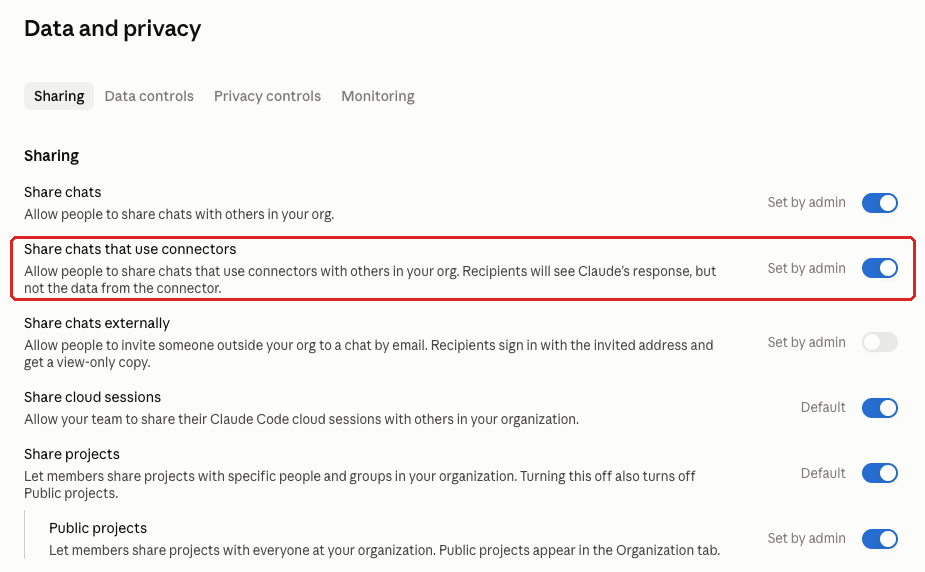
The Share chats that use connectors toggle sits under Sharing, next to Share chats. The console describes it this way: “Allow people to share chats that use connectors with others in your org. Recipients will see Claude’s response, but not the data from the connector.” Off means members can’t share those chats.
Why It Matters
The console is right that recipients don’t see the raw files or emails. They do see Claude’s answer, which is often built from those files and emails.
Say someone on your advisory team asks Claude to summarize a folder of client statements. The response might list balances, holdings and recent transfers, or quote a statement directly.
Share that chat with a colleague who has no access to the folder, and the colleague learns what’s in it anyway. The source system’s logs won’t show it, because the colleague never opened anything there.
This is an access control gap. According to IBM’s summary of its 2025 breach research, 97% of organizations that reported a breach of an AI model or application said they lacked AI access controls.
What We Recommend
- Turn Share chats that use connectors Off.
- Decide Share chats separately (DATA-005). Turning this toggle off doesn’t affect chats that didn’t use a connector.
- When a colleague needs what a connector found, share the original file or folder through its own system, where its permissions apply.
- Keep the connector list short, with a named owner for each connector (CONN-005). Fewer connectors means fewer chats carrying data from other systems.
Where to Find It
Admin console path: Organization settings > Data and privacy > Sharing > Share chats that use connectors
Anthropic hasn’t published a help article for this toggle (checked October 2026), so the closest related reading is its general article on sharing chats.
📄 Anthropic documentation: Share and unshare chats
What Your Team Will Notice
Members won’t be able to share a chat if a connector was used in it. Chats without connectors share the same way they do today, as long as Share chats is on.
Sample message to your team:
Hi team,
Starting [date], you won’t be able to share a Claude chat with colleagues if Claude used a connector in it. That includes any chat where Claude read files from our shared drive or messages from your mailbox. Chats that don’t use connectors can still be shared.
What to expect:
- Chats that used a connector won’t be shareable.
- If a colleague needs the information, share the original file or folder with them so the usual permissions apply.
- Everything else in Claude works the same.
This reduces the risk of client information reaching people who don’t have access to the original files. If you have questions, contact [IT contact/helpdesk].
Common Mistakes
- Reading “Recipients will see Claude’s response, but not the data from the connector” as a reason to leave this on. The response often repeats the data.
- Turning off external sharing and assuming connector chats are covered. Share chats externally is a different toggle (DATA-015). This one is about sharing inside the firm.
- Tightening connector permissions (CONN-015) and leaving this toggle on. A well-scoped connector still brings client data into the answer.
Related Settings
- DATA-005: Chat Sharing Decision. The basic sharing decision this toggle sits next to.
- DATA-015: External Chat Sharing. Sharing outside the firm, a separate toggle.
- CONN-005: Connector Inventory and Owners. Knowing which connectors exist tells you how much this toggle covers.
- CONN-015: Connector Tool Permissions. Limits what each connector can read in the first place.
DATA-015: External Chat Sharing
What This Does
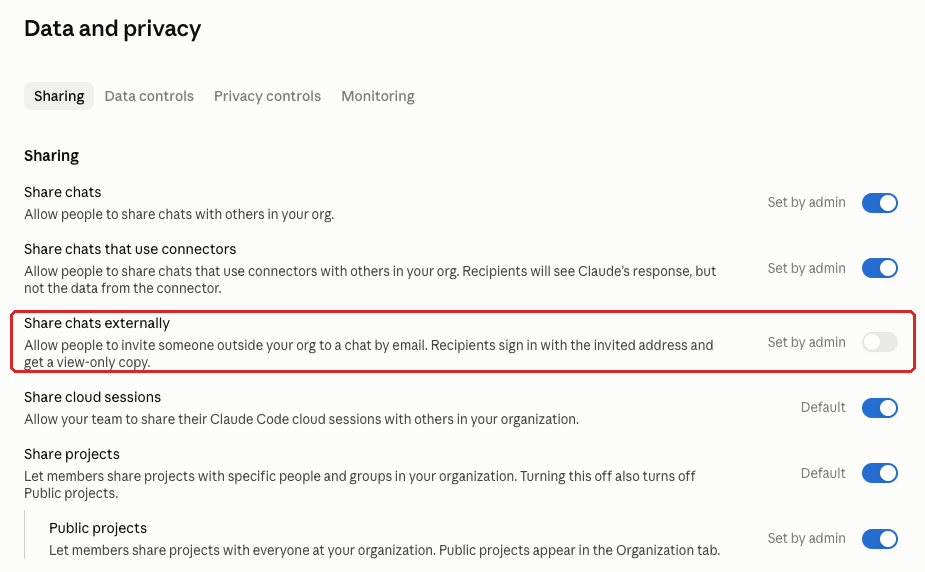
Share chats externally lets members invite someone outside the firm to a chat. The console describes it as: “Allow people to invite someone outside your org to a chat by email. Recipients sign in with the invited address and get a view-only copy.” Off means chats can only be shared inside the firm, and only if Share chats is on (DATA-005).
Why It Matters
A single email invitation moves client data out of the firm. A chat might contain a pasted account statement, a draft letter about a client’s estate or an answer built from a connector. Once someone outside the firm has a copy, you’re relying on them to handle it well.
View-only means the outside person can’t edit the chat. They can still read it, copy the text or take a screenshot.
A document sent by email passes through your email security and archiving. A shared chat doesn’t. If your firm is an SEC-registered adviser, a chat shared with a client may be a business record under the books-and-records rule (Rule 204-2). Your email archive won’t have a copy.
What We Recommend
- Turn Share chats externally Off. There’s no business reason for a regulated firm to send client work out through Claude.
- When a client, vendor or outside professional needs something Claude helped write, send the finished document through email or your client portal.
- Before you change the setting, ask members to unshare any chats they’ve already shared outside the firm. Members can unshare their own chats, and you shouldn’t assume the toggle cleans up old invitations.
Where to Find It
Admin console path: Organization settings > Data and privacy > Sharing > Share chats externally
Anthropic hasn’t published a help article for this admin toggle (checked October 2026), so the closest related reading is its general article on sharing chats.
📄 Anthropic documentation: Share and unshare chats
What Your Team Will Notice
Members lose the option to invite someone outside the firm to a chat. Sharing with colleagues works the way it did before. Members who used external sharing will need a different habit for sending work to clients, which is usually email.
Sample message to your team:
Hi team,
Starting [date], Claude will no longer let you invite people outside the firm to view a chat. You can still share chats with colleagues.
What you need to do before [date]:
- Check whether you’ve shared any Claude chats with clients, vendors or anyone else outside the firm.
- Unshare any you find.
- From now on, if someone outside the firm needs something Claude helped you write, copy the finished text into a document or email and send it the usual way.
This takes a few minutes. If you’re not sure whether a chat was shared outside the firm, contact [IT contact/helpdesk].
Common Mistakes
- Assuming email archiving covers external chat shares. The chat never passed through your email system.
- Turning the toggle off without asking about chats already shared.
Related Settings
- DATA-005: Chat Sharing Decision. Internal sharing, decided separately.
- DATA-010: Sharing Chats That Use Connectors. Connector chats, which tend to carry the most client data.
- ART-005: External Artifact Sharing. The same question for the artifacts Claude builds.
DATA-045: Cowork OpenTelemetry Monitoring
What This Does
Cowork is Claude’s desktop agent, which works with files, apps and websites on a member’s computer. Cowork in the cloud runs the same kind of tasks on Anthropic’s cloud. This setting streams activity from both to a log collector your firm controls, using OpenTelemetry (see DATA-052). The console’s heading also lists unified chat and Cowork, the beta that merges chat and Cowork.
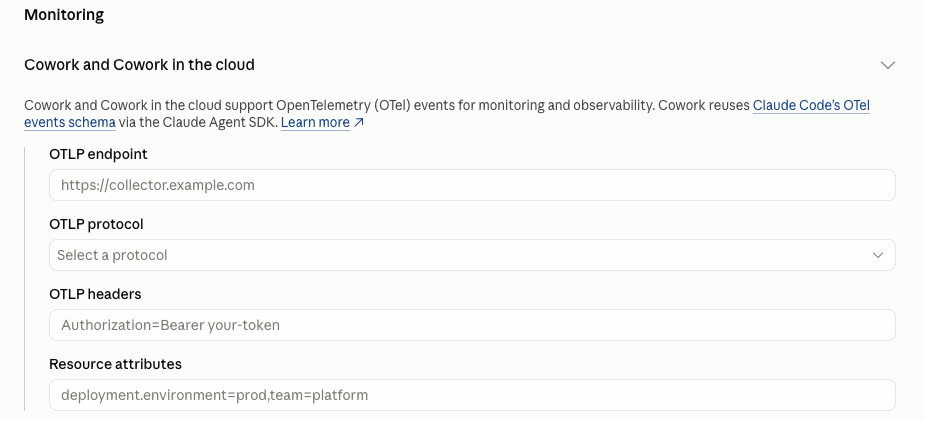
The console asks for an OTLP endpoint, which is your collector’s address (OTLP is the protocol OpenTelemetry uses to send events). It also has fields for OTLP protocol, OTLP headers and Resource attributes. The console notes that “Cowork reuses Claude Code’s OTel events schema via the Claude Agent SDK,” so Cowork events arrive in the same format as Claude Code events.
Why It Matters
Cowork activity isn’t in Anthropic’s audit logs on any plan. On Claude Team, this feed is the only record of what the desktop agent did. Without it, an incident on a Cowork machine has no trail, and you’re left asking the member what they remember.
Anthropic’s help article says “OpenTelemetry monitoring for Claude Cowork is available on Team and Enterprise plans,” so a Team-plan firm can set this up today. On Enterprise, the Compliance API can also return Cowork session transcripts (DATA-070).
The feed has the device-side limits described under DATA-052. For Cowork on a member’s computer, events are sent from that machine and can drop when it sleeps or goes offline. A record with gaps is still better than none when you’re piecing together what an agent did with client files.
What We Recommend
- Set an OTLP endpoint under Cowork, Cowork in the cloud, and unified chat and Cowork before Cowork goes beyond a pilot group.
- Point it at a system someone reviews, like a SIEM (a system that collects and searches security logs) or your managed security provider’s log platform.
- Treat the OTLP headers as secrets. They often carry the token your collector uses to accept events.
- Use resource attributes to tag events with your firm and environment, so they’re easy to find in a shared log system.
- After saving, start a new Cowork session and confirm the events arrive. Settings load when a session starts, so an open session won’t pick up the change.
Where to Find It
Admin console path: Organization settings > Data and privacy > Monitoring > Cowork, Cowork in the cloud, and unified chat and Cowork
📄 Anthropic documentation: Monitor Claude Cowork activity with OpenTelemetry
What Your Team Will Notice
Members won’t see anything on screen. Because settings load at session start, members with a Cowork session already open pick up the change the next time they start one.
Before the feed goes live, check that your acceptable use policy says Claude activity is monitored, so monitoring doesn’t surprise anyone.
Common Mistakes
- Turning Cowork on first and planning logging later. Nothing that happens in between is recorded.
- Sending events to a collector nobody watches. A feed with no reviewer only helps after something has already gone wrong.
- Following an outdated path. Anthropic’s help article still points to Organization settings > Cowork, but the console moved this setting to Data and privacy > Monitoring, and the Cowork page now links there.
Related Settings
- COWORK-005: Cowork. The decision this feed supports.
- DATA-050: Office Agents OpenTelemetry Monitoring. The same kind of feed for Office Agents.
- DATA-052: Reliable Activity Logging. Why OpenTelemetry is a partial record.
DATA-065: Inference Hooks for DLP
What This Does
This setting exists only on Claude Enterprise. Inference hooks send each prompt and tool result to your firm’s own data-protection tool for a check before Claude answers. Only Owners and Primary Owners can configure it.
The tool can be a data loss prevention (DLP) tool, which looks for sensitive data like Social Security or account numbers. It can also be a cloud access security broker (CASB), which sits between your staff and cloud apps and applies your firm’s rules.
Why It Matters
Most controls on this page limit or trace data after it’s in Claude. Inference hooks are the one preventive data-loss control in the product. An account number in a prompt can be blocked before Claude answers.
To use them, you need Enterprise, plus a DLP or CASB platform to point the hooks at. DLP also isn’t something you just turn on, because you first have to define the sensitive information you want it to choke on.
If your firm already pays for a DLP or CASB tool, connecting Claude to it is a strong use of Enterprise. Claude Team has no equivalent setting.
What We Recommend
- If you’re on Enterprise and already run a DLP or CASB tool, turn on Allow for your organization.
- Point the hooks at that tool.
- Start small. Under Rollout, set Requests inspected (%) to a low number, and raise it as your rules settle.
- At first, set Mode to Shadow mode before turning on Enforce verdicts, so your tool reviews prompts without blocking anything. New DLP rules often flag harmless text at first.
- Check Anthropic’s configuration guide again before a firm-wide rollout.
- If you don’t have a DLP or CASB tool, record this as a future item.
Where to Find It
Admin console path: Organization settings > Data and privacy > Inference hooks (Enterprise only)
📄 Anthropic documentation: Inference hooks configuration
What Your Team Will Notice
After an Enterprise firm moves out of Shadow mode, a prompt that breaks a DLP rule can be blocked. Expect some harmless prompts to be blocked by mistake in the first weeks, and tell members who to contact when that happens.
Common Mistakes
- Turning on blocking on day one, before the rules are tuned.
- Assigning setup to someone with the Admin role. Only Owners and Primary Owners can change it, so the project stalls.
Related Settings
- DATA-070: Compliance API. The after-the-fact record that pairs with this up-front check.
- CONN-015: Connector Tool Permissions. Limits what connectors can reach before DLP ever sees it.
- BILL-007: Enterprise Upgrade Decision. Where this feature fits in the upgrade case.
DATA-070: Compliance API
What This Does
This setting exists only on Claude Enterprise. The Compliance API is a connection point that lets approved software, like an archiving tool, copy Claude activity, user data and organization data out of Claude using keys you create. Anthropic’s documentation says “The primary owner enables the Compliance API at claude.ai > Organization settings > API,” and keys are created as a Compliance Access Key under Keys > Create key.
Each key gets permissions called scopes. There are four: read:compliance_activities, read:compliance_user_data, delete:compliance_user_data and read:compliance_org_data.
Why It Matters
We think of Claude’s logs a lot like email. Firms keep a separate email archive because they need an immutable record: if Microsoft or a user changes something, the archived copy doesn’t change. Turning on logging in Claude Enterprise isn’t enough by itself, for the same reason.
The Compliance API is how Claude conversations reach the archive your firm already uses for email. Anthropic’s list of archiving and DLP partners includes Smarsh, Theta Lake, RelativityOne and Proofpoint.
If your firm is an SEC-registered adviser, Claude chats about client accounts may be business records under the books-and-records rule (Rule 204-2). Your archive is where an examiner would likely look for them.
The API is also how an Enterprise firm puts audit log exports on a schedule (DATA-060).
What We Recommend
- Have the Primary Owner turn on the Compliance API.
- Connect your archiving or DLP vendor with a key of its own, so you can revoke it without breaking other integrations.
- Give each key only the scopes it needs. An archiving vendor usually needs only read scopes.
- Leave
delete:compliance_user_dataoff unless a documented process, like handling deletion requests, calls for it. - Record who holds each key.
- Test with a sample chat and confirm it appears in your archive before you tell compliance it’s working.
Where to Find It
Admin console path: Organization settings > API (Compliance API, Enterprise only)
📄 Anthropic documentation: Compliance API access
📄 Anthropic documentation: Get started with Claude Compliance API integrations
What Your Team Will Notice
Nothing changes in Claude itself. If you start archiving Claude chats, update your acceptable use policy and tell staff that Claude conversations are archived the same way email is.
Common Mistakes
- Giving a vendor a key with every scope, including delete.
- Deciding from an old answer about what Claude records. In May 2026 we told a client there was no way in any Claude product to log both sides of a conversation, the user’s prompt and the AI’s response. That answer is out of date: on Enterprise, the Compliance API now returns full chats, Claude’s responses included. Check Anthropic’s current documentation before you decide.
- Leaving keys active after a vendor contract ends, because vendor offboarding doesn’t include Compliance API keys.
Related Settings
- DATA-060: Audit Log Export. The audit log the API can export on a schedule.
- DATA-055: Data Retention Window. Retention in Claude should fit with what your archive keeps.
- DATA-005: Chat Sharing Decision. Shared chats are among the records this archive is for.
- BILL-007: Enterprise Upgrade Decision. The upgrade this row depends on.
DATA-020: Cloud Session Sharing
What This Does
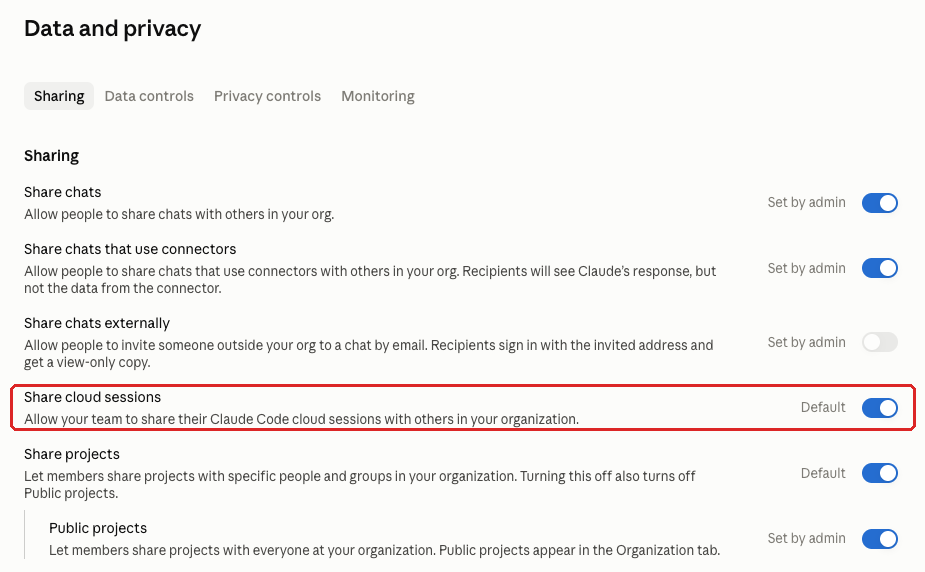
Claude Code is Anthropic’s coding tool, and it can run sessions in the cloud through Claude Code on the web. Share cloud sessions lets members share a full session transcript with other members of your organization.
On Team and Enterprise plans, a session can be private or shared with the team. In the Team organization we reviewed, this toggle was on by default.
Why It Matters
A session transcript includes everything the session saw: code, file contents, command output and any secrets that passed through, like an API key in a configuration file. Sharing the session makes all of that readable by other members.
Many of the firms we work with have no developers, so very few people need this. Firms that do write code can share it through a Git repository, the shared code store where reviews and permissions already apply.
Turning the toggle off before anyone starts using cloud sessions takes one click. Cleaning up after a shared secret takes much longer.
What We Recommend
- Turn Share cloud sessions Off.
- Have developers share code through your Git provider (GIT-005), where it gets reviewed.
- If anyone has already shared a session that showed a password, token or API key, change that secret.
- If your firm doesn’t use Claude Code cloud sessions at all, decide whether they should be on (CODE-015).
Where to Find It
Admin console path: Organization settings > Data and privacy > Sharing > Share cloud sessions
📄 Anthropic documentation: Claude Code on the web: share sessions
What Your Team Will Notice
Only members who use Claude Code on the web will notice. They’ll lose the option to share a session with colleagues, and their own sessions work the same as before.
Sample message to your team:
Hi team,
Starting [date], Claude Code cloud sessions (Claude Code on the web) can no longer be shared with other members. If you don’t use Claude Code, nothing changes for you.
What you need to do before [date]:
- If a colleague relies on a session you shared, move what they need (code, notes, decisions) into our Git repository or the relevant ticket.
- If a session you shared ever displayed a password, token or API key, tell [IT contact/helpdesk] so it can be changed.
Your own sessions aren’t affected. Questions? Contact [IT contact/helpdesk].
Common Mistakes
- Leaving the default on because nobody at the firm uses Claude Code yet. The toggle is already on the day someone starts.
- Looking for the setting on the Claude Code page. Anthropic moved Share cloud sessions to Data and privacy in September 2026 (Claude Code 2.1.273).
- Turning sharing off without changing secrets that were already exposed in shared sessions.
Related Settings
- CODE-015: Claude Code Cloud Sessions. Whether cloud sessions are on at all.
- CODE-005: Claude Code Managed Settings Baseline. The baseline for how Claude Code handles secrets and commands.
- GIT-005: Git Provider Connections and Code Review Scope. Where developers should share code.
DATA-025: Public Projects
What This Does
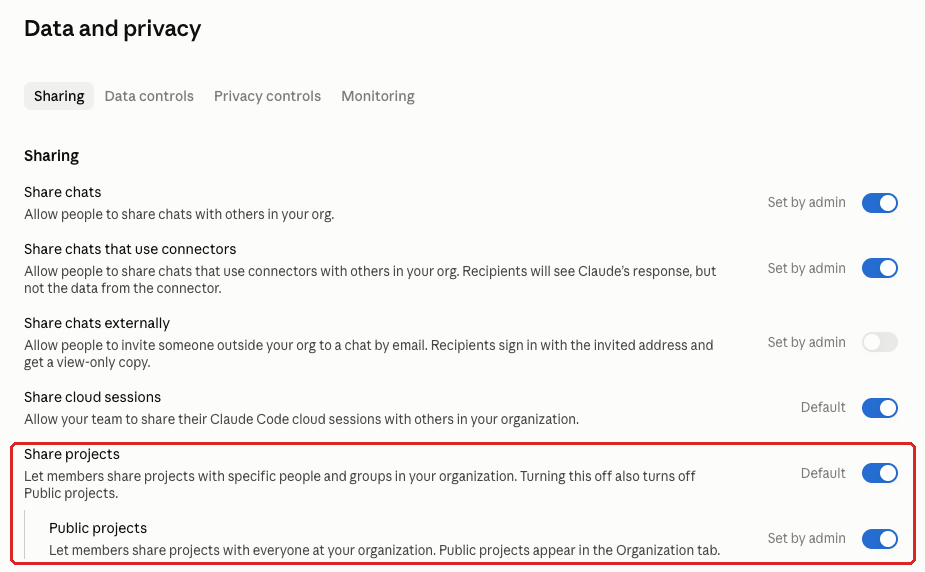
Projects group chats, files and instructions around a piece of work. Share projects lets members share a project with chosen colleagues, and Public projects, nested under it, opens a project to the whole firm. Anthropic’s documentation says both are on by default.
In Claude, “public” doesn’t mean the internet. A public project is visible to every member of your organization. The console describes the toggle as: “Let members share projects with everyone at your organization. Public projects appear in the Organization tab.”
Why It Matters
Any file or instruction in a public project is readable by all staff. An HR project with salary data, or a planning project with a client’s estate documents, leaks inside the firm the moment it’s made public.
The label makes this easy to get wrong. A member who’d never post a client file online may still pick “public” for a project without realizing it means everyone at the firm.
What We Recommend
- Turn Public projects Off. Share projects can stay On, so members can still share with specific colleagues.
- Before the change, ask members to find any public projects they own in the Organization tab.
- Have them share each of those projects with only the people who need it.
Where to Find It
Admin console path: Organization settings > Data and privacy > Sharing > Share projects > Public projects
📄 Anthropic documentation: Control project sharing for your organization
What Your Team Will Notice
Members can still share projects, but only with specific colleagues. Anyone who used a public project as a firm-wide reference library will need a different home for that material, like a shared drive folder.
Sample message to your team:
Hi team,
Starting [date], Claude projects can no longer be made public. In Claude, “public” means visible to everyone at the firm, and some projects contain information that only a few people should see. You can still share a project with specific colleagues.
What you need to do before [date]:
- Open the Organization tab in Claude and check whether any public projects there are yours.
- For each one, share it with the colleagues who need it.
- If a project has firm-wide reference material, ask [IT contact/helpdesk] where it should live instead.
This takes about five minutes. Questions? Contact [IT contact/helpdesk].
Common Mistakes
- Turning off Share projects to remove public projects. The console turns off Public projects along with it, but members also can’t share projects with anyone new.
- Changing the setting without checking which projects were already public.
Related Settings
- DATA-005: Chat Sharing Decision. The same records question applies to shared project content.
- DATA-015: External Chat Sharing. Sharing outside the firm, a separate and higher-risk toggle.
- DATA-010: Sharing Chats That Use Connectors. Another way sharing can reach past a colleague’s normal access.
DATA-030: Member Self-Export
What This Does
Allow members to export their own data lets each member download their Claude history. The console describes it as: “Members can download a copy of their own conversations. Admins can still export all organization data.”
The admin export is the separate Export data button in the same Data controls section. In the Team organization we reviewed, member self-export was off by default.
Why It Matters
Self-export lets a departing employee take every conversation they had in Claude in a single download. At an advisory firm, that can include client meeting notes, draft financial plans and anything pasted in for analysis. It’s the same kind of exposure as an employee forwarding work email to a personal account on the way out.
Members don’t need self-export for their work. When the firm needs a copy of someone’s conversations, the admin export covers it, and the firm controls where that copy goes.
What We Recommend
- Confirm it’s Off. It was off by default in the organization we reviewed, but someone may have turned it on for a one-off request.
- Use the admin Export data button for legitimate exports.
- Write down who’s allowed to run the admin export.
- Add Claude to your offboarding checklist so a departing member’s access ends on their last day (MEM-010).
Where to Find It
Admin console path: Organization settings > Data and privacy > Data controls > Allow members to export their own data
📄 Anthropic documentation: Export your organization’s data
The article covers this toggle under “Let users export their own data.”

What Your Team Will Notice
If it’s already off, nothing changes. If it was on, members lose the option to download a copy of their own conversations. Anyone who needs a copy for a business reason can ask an admin.
Common Mistakes
- Confusing the two exports. Turning off member self-export doesn’t touch the admin Export data button.
- Turning it on for one person’s request and leaving it on for everyone.
- Leaving Claude out of offboarding. Seats linger when the offboarding checklist doesn’t include Claude, and a lingering seat can still export if this toggle is on.
Related Settings
- MEM-010: Members List Review. Catches accounts that should have been removed.
- ORG-030: SCIM Provisioning. Automatic account setup and removal from your identity provider (SCIM) can end Claude access when someone leaves.
- DATA-055: Data Retention Window. How long conversations stay in Claude in the first place.
DATA-035: Rate Chats Feedback
What This Does
Rate chats controls the thumbs-up and thumbs-down feedback on Claude’s answers. The console describes it as: “Allow people to rate Claude’s responses and share that feedback with Anthropic.” In the Team organization we reviewed, it was on by default.
Why It Matters
Anthropic’s Privacy Center says that when someone gives feedback with the thumbs up or down button, Anthropic will store the entire related conversation, including its content, for up to 5 years. A thumbs-down on an answer about a client’s portfolio sends that conversation, including any names, holdings or account details pasted in for analysis.
A commercial plan keeps client conversations under business terms (BILL-005). By default, Anthropic doesn’t use commercial inputs and outputs to train its models. Feedback is the stated exception: the same Privacy Center article says that if you report feedback through the thumbs up or down button, Anthropic may use those chats to train its models.
To a member, a thumbs-down feels like a reaction to a bad answer. It’s easy to click without thinking about what’s in the conversation, and the toggle is on by default.
What We Recommend
- Turn Rate chats Off.
- While you’re in Privacy controls, turn off Location metadata too (DATA-040).
- If Claude gives a wrong or unhelpful answer that Anthropic should know about, have an admin report it to Anthropic support with an example that contains no client data.
Where to Find It
Admin console path: Organization settings > Data and privacy > Privacy controls > Rate chats
📄 Anthropic documentation: Manage user feedback settings on Team and Enterprise plans

What Your Team Will Notice
Members won’t be able to rate Claude’s answers. If someone asks why, the short answer is that a rating sends the conversation to Anthropic.
Common Mistakes
- Assuming your commercial plan’s no-training default covers feedback. Anthropic’s Privacy Center treats a rating as the exception.
- Telling staff “don’t rate chats with client data” and leaving the toggle on. A rule that depends on a split-second judgment fails some of the time.
Related Settings
- BILL-005: Commercial Plan for Firm Work. The commercial terms that feedback sits outside of.
- DATA-040: Location Metadata. Another setting in Privacy controls.
DATA-050: Office Agents OpenTelemetry Monitoring
What This Does
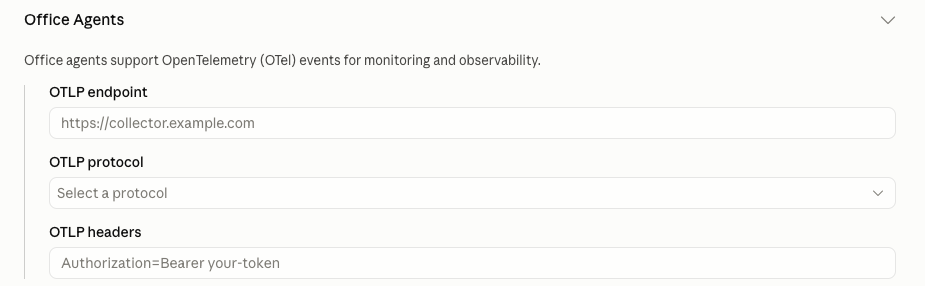
Office Agents let Claude work inside Excel, Word, PowerPoint and Outlook. This setting streams Office agent activity to your OpenTelemetry collector, the same way DATA-045 does for Cowork. The console asks for an OTLP endpoint, the protocol and any headers your collector needs.
Why It Matters
Office Agents have the same gap as Cowork. On Claude Team, without this feed, Office agent actions in Excel, Word, PowerPoint and Outlook leave no record your firm can review.
At an advisory firm, the spreadsheets and decks an agent works on often contain client account lists and performance numbers. If an agent edits a client spreadsheet or builds a deck from a confidential file, this feed is how you’d find out what it did.
The feed also has the same limits as the Cowork one. It’s sent from the member’s device, so events can drop, and it’s a partial record on any plan (see DATA-052).
What We Recommend
- If your firm uses Office Agents, configure this feed.
- Send it to the same collector as Cowork, so all agent activity is in one place.
- If nobody uses Office Agents yet, set the feed up anyway, so logging is already running the day someone starts.
- Test it with a short task in Excel and confirm the events arrive.
Where to Find It
Admin console path: Organization settings > Data and privacy > Monitoring > Office Agents
Anthropic’s help article on this feed still gives the older Organization settings > Office agents path and lists it for Claude Enterprise, though the Team console we reviewed shows it. The link below is Anthropic’s general Office agents article.
📄 Anthropic documentation: Office agents: work across apps
What Your Team Will Notice
Members won’t notice anything. The feed runs in the background and doesn’t change how Office Agents behave.
Common Mistakes
- Setting up the Cowork feed and assuming it covers Office Agents. They’re separate settings with separate fields.
- Never testing the feed. A typo in the endpoint means no events arrive, and nobody notices until they need them.
Related Settings
- OFFICE-005: Office Agents Across Apps. Whether Claude can share context between Office apps like Excel and PowerPoint.
- DATA-045: Cowork OpenTelemetry Monitoring. The same kind of feed for Cowork.
- DATA-052: Reliable Activity Logging. Why OpenTelemetry is a partial record.
DATA-055: Data Retention Window
What This Does
This setting exists only on Claude Enterprise. It lets the firm decide how long chats and projects are kept in Claude, with a minimum of 30 days. The benchmark asks that the window match your firm’s records policy.
Why It Matters
Claude Team has no retention setting. Retention is whatever Anthropic’s default is, and the firm can’t show an examiner that it chose it.
Retention is also a records question. If your firm is an SEC-registered adviser, Rule 204-2 requires keeping required records for at least five years from the end of the fiscal year of the last entry, the first two years in an appropriate office. A short Claude window could delete a chat that turns out to be one of those records.
The window and your archive work together. If Claude chats go to your archive through the Compliance API (DATA-070), the archive keeps the record and Claude’s window can be shorter. If they don’t, Claude may have the only copy.
What We Recommend
- Decide with your CCO which Claude content counts as records.
- Set the window to match that decision.
- If you archive through the Compliance API, base Claude’s window on how long members need their history, and let the archive keep the records.
- If you don’t archive Claude, avoid a short window, since deleting in Claude could delete the only copy.
- Write down the decision and the reason.
- On Team, record that the retention period isn’t yours to choose, as part of the BILL-007 decision.
Where to Find It
Admin console path: Organization settings > Data and privacy (data retention setting, Enterprise only)
📄 Anthropic documentation: Configure custom data retention controls for Enterprise plans
What Your Team Will Notice
After an Enterprise firm sets a window, chats and projects with no activity inside it are deleted. If the window is short, mention it in your next staff update so nobody is surprised when an old chat is gone.
Common Mistakes
- Choosing the shortest window for privacy without checking records obligations.
- Setting a window without telling compliance, so the records policy and Claude disagree.
Related Settings
- DATA-070: Compliance API. Moves Claude chats into the archive that keeps the long-term record.
- DATA-060: Audit Log Export. Audit logs need a retention decision too.
- DATA-005: Chat Sharing Decision. Shared chats are a common source of records.
- BILL-007: Enterprise Upgrade Decision. The upgrade that makes this setting available.
DATA-005: Chat Sharing Decision
What This Does
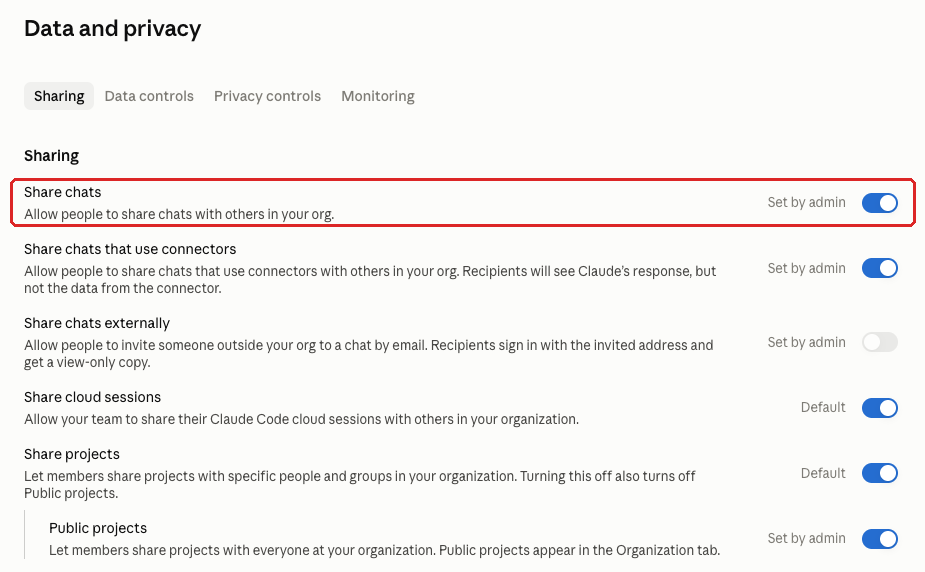
Share chats lets members share a chat with colleagues. The console describes it as: “Allow people to share chats with others in your org.” Members can unshare their own chats. Sharing outside the firm (DATA-015) and sharing chats that used connectors (DATA-010) are separate toggles.
Why It Matters
Internal chat sharing is low risk from a security point of view, and it’s useful. One person works out a good way to turn meeting notes into a client follow-up, and the rest of the team can see how they did it.
The issue is records. A shared chat about a client becomes part of how the firm handled that client’s account, and it needs a place in your retention plan. If your firm is an SEC-registered adviser, a shared chat about a client account may be a business record under the books-and-records rule (Rule 204-2).
What We Recommend
- Write down your decision. On is acceptable.
- Decide whether members can share a chat with the whole firm. The Share chats with everyone in your organization toggle under Sharing controls it. The console says that when it’s off, members “can share only with specific people and groups.” It isn’t in our benchmark yet. Whole-firm sharing reaches people with no need to see a client’s details, so we’d leave it off unless the team has a reason.
- If sharing stays on, tell staff that shared chats are firm records and are handled like other client communications.
- In the written decision, say what stays out of shared chats, such as account numbers and Social Security numbers.
- Say how shared chats are kept. On Enterprise, that’s the retention setting and the Compliance API. On Team, it’s the admin Export data button.
- Name who reviews the decision each year.
Where to Find It
Admin console path: Organization settings > Data and privacy > Sharing > Share chats
Anthropic hasn’t published a help article for the admin toggle itself (checked October 2026).
📄 Anthropic documentation: How chat sharing works for members
What Your Team Will Notice
If sharing is already on, nothing changes in Claude. Staff get a message saying that a shared chat is a firm record and should be written with that in mind.
Sample message to your team:
Hi team,
Starting [date], we’re treating shared Claude chats as firm records, the same way we treat email. You can keep sharing chats with colleagues.
What to expect:
- Shared chats about clients may be kept as part of our records.
- Leave client account numbers and Social Security numbers out of chats you plan to share.
- If you’re not sure whether something belongs in a shared chat, ask first.
If you have questions, contact [IT contact/helpdesk].
Common Mistakes
- Turning sharing off to avoid the records question. Work can then move to copy-and-paste and screenshots, which are harder to track.
- Making the decision but never telling staff.
- Assuming this decision covers external and connector sharing. Those are separate toggles with higher risk.
Related Settings
- DATA-010: Sharing Chats That Use Connectors. Turn off sharing for chats that used connectors.
- DATA-015: External Chat Sharing. Sharing outside the firm.
- DATA-055: Data Retention Window. How long shared chats are kept.
- DATA-070: Compliance API. How shared chats reach your archive on Enterprise.
DATA-040: Location Metadata
What This Does
Location metadata lets Claude work out a member’s coarse location from their IP address. The console describes it as: “Allow Claude to use coarse location metadata (city/region) to improve product experiences for your team members.” Anthropic’s privacy article says administrators can turn off the use of location data, which feeds features like web search. In the Team organization we reviewed, it was on by default.
Why It Matters
There’s no business need for it. Turning it off means Claude uses one less piece of information about your staff. For people who work from home, a city-level location says roughly where they live.
Location is personal data. NIST’s 2024 generative AI profile names location alongside health and biometric data in its definition of the data privacy risk from generative AI.
The cost is that web search results may be less local, so a member looking for something nearby may need to type the city.
What We Recommend
- Turn Location metadata Off.
- If members rely on local search results, tell them to name the city in the prompt.
- Add a line to your Claude configuration notes saying it’s off and why, so the next admin who reviews the tab doesn’t turn it back on to fix a search complaint.
Where to Find It
Admin console path: Organization settings > Data and privacy > Privacy controls > Location metadata
📄 Anthropic documentation: Does Claude use my team members’ location?

What Your Team Will Notice
Very little changes. Searches for nearby places may need the city spelled out in the prompt.
Common Mistakes
- Skipping the Low rows. This one takes a minute to change and narrows what Claude uses about your staff.
- Setting this once and never checking again. Anthropic has moved settings onto this tab, including Share cloud sessions in September 2026 and both monitoring feeds, so recheck the whole tab each quarter.
Related Settings
- CAP-005: Web Search. The feature location data feeds into.
- DATA-035: Rate Chats Feedback. Another setting that sends data to Anthropic.
What These Settings Don’t Cover
Data and privacy is one of six areas in Adelia Risk’s Claude Security Benchmark. The other five each have their own page:
- Organization and access (domains, single sign-on, provisioning, organization instructions, plan, members)
- Capabilities (web search, built-in browser, Cowork approvals, code execution, remote sessions, memory)
- Claude Code (managed settings, desktop, cloud sessions, Remote Control, Git providers, cloud environments)
- Agents and extensions (Cowork, Office Agents, Claude in Chrome, Claude Tag, Artifacts, beta products)
- Connectors, plugins and skills (connector inventory, tool permissions, desktop extensions, skills, plugins)
For safeguards outside the console, see the guide’s section on practices that aren’t console settings.
Need Help Configuring These Settings?
Some of these changes take minutes. Turning off rate chats and location metadata is a short session in the console. Others need a pilot, a message to staff or a decision about Enterprise, especially the Enterprise-only logging and retention rows.
If your firm is an SEC-registered adviser or a HIPAA-covered entity, the settings you choose here can have compliance implications, mostly around records and incident response. Deciding what Claude content to keep, where and for how long, usually needs your compliance lead involved.
Adelia Risk reviews all 76 benchmark controls as part of our virtual CISO services. We give specific recommendations for your firm and help roll out the changes and staff messages. For advisory firms, our RIA cybersecurity services cover how these settings fit into your broader compliance program.
Verified against the Claude admin console in October 2026.
Part of the Adelia Risk Claude Security Guide. 76 controls across the Claude Team and Enterprise admin console.