
The Capabilities tab decides how far Claude can act on its own at your firm: whether it can search the web, use a browser, take actions in Cowork without asking first, run code, take commands from a phone and remember past chats. Adelia Risk’s Claude security benchmark has more controls on this tab than on any other part of the admin console, and this page covers all 16 for Claude Team and Claude Enterprise. It’s written for the business owner, operations lead or IT person at a regulated firm, mostly RIAs and wealth management firms, plus healthcare practices and other regulated businesses.
We treat any one of three steps as the trigger for an ironclad approval process: connecting Claude to other systems, letting it control a browser, and letting it work directly on people’s computers through Cowork. Each of those carries a much higher level of risk to the firm than chat.
Most of these settings deal with the same risk: hidden instructions in a web page, document or tool result that steer Claude into doing something the user didn’t ask (security teams call this “prompt injection”). OWASP ranks prompt injection first among the risks for applications built on large language models. NIST’s generative AI profile (NIST AI 600-1) describes attackers “injecting prompts into data likely to be retrieved.”
On Claude Team, every capability toggle is on for the whole organization or off for everyone. Giving a feature to some people and not others takes Claude Enterprise’s custom roles and groups (ORG-055), so several recommendations below are trade-offs. This page is one of six covering all 76 controls in our benchmark, the same review we run for clients through Adelia Risk’s virtual CISO services.
Quick Reference
| Policy ID | Setting | Risk | Heads Up? | Plan | Admin Path |
|---|---|---|---|---|---|
| CAP-040 | Skip All Approvals Mode | 🔴 Critical | Yes | Team and Enterprise | Capabilities > Tool approvals > Allow “Skip all approvals” mode |
| CAP-020 | Built-In Browser Site Permissions | 🟠 High | Yes | Team and Enterprise | Capabilities > Data sources > Built-in browser > Manage site permissions |
| CAP-030 | Automatically Approve Mode for Cowork | 🟠 High | Yes | Team and Enterprise | Capabilities > Tool approvals > Allow “Automatically approve” mode |
| CAP-035 | Start New Tasks in Automatically Approve Mode | 🟠 High | Yes | Team and Enterprise | Capabilities > Tool approvals > Start new tasks in “Automatically approve” mode |
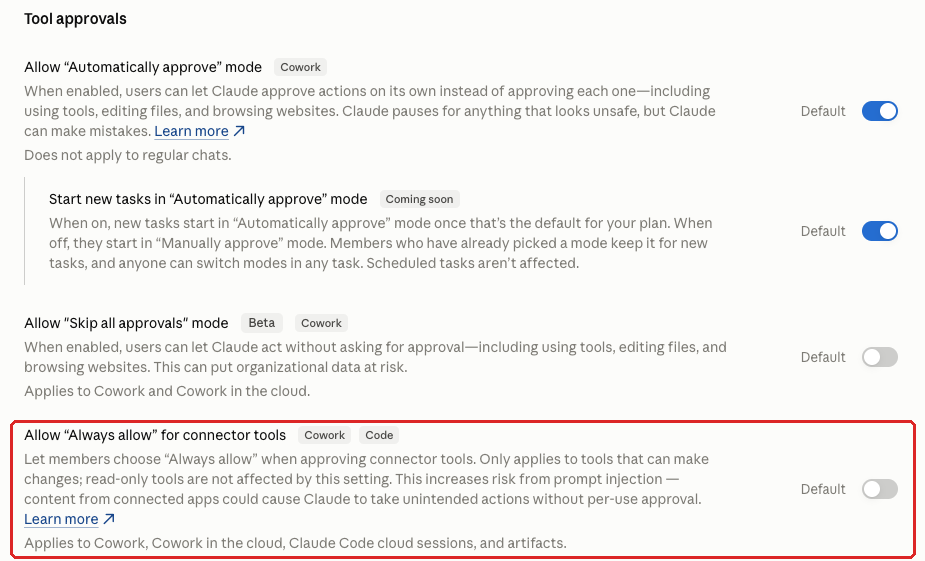
| CAP-045 | Always Allow for Connector Tools | 🟠 High | No | Team and Enterprise | Capabilities > Tool approvals > Allow “Always allow” for connector tools |
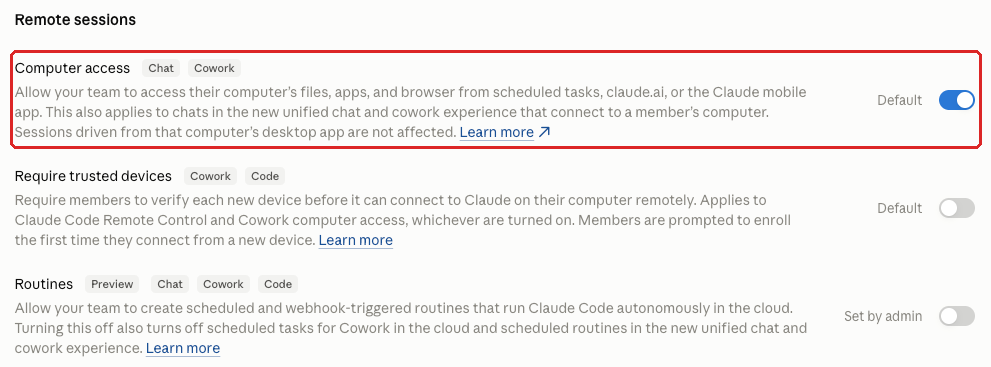
| CAP-060 | Computer Access for Cowork | 🟠 High | Yes | Team and Enterprise | Capabilities > Remote sessions > Computer access |
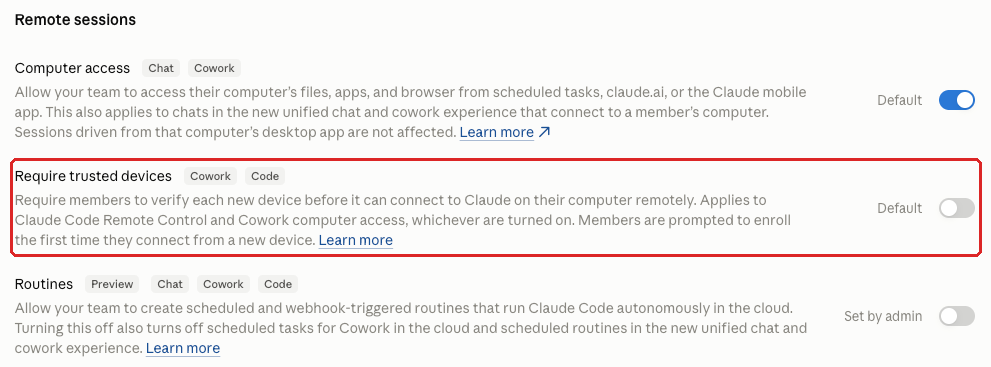
| CAP-065 | Require Trusted Devices | 🟠 High | Yes | Team and Enterprise | Capabilities > Remote sessions > Require trusted devices |
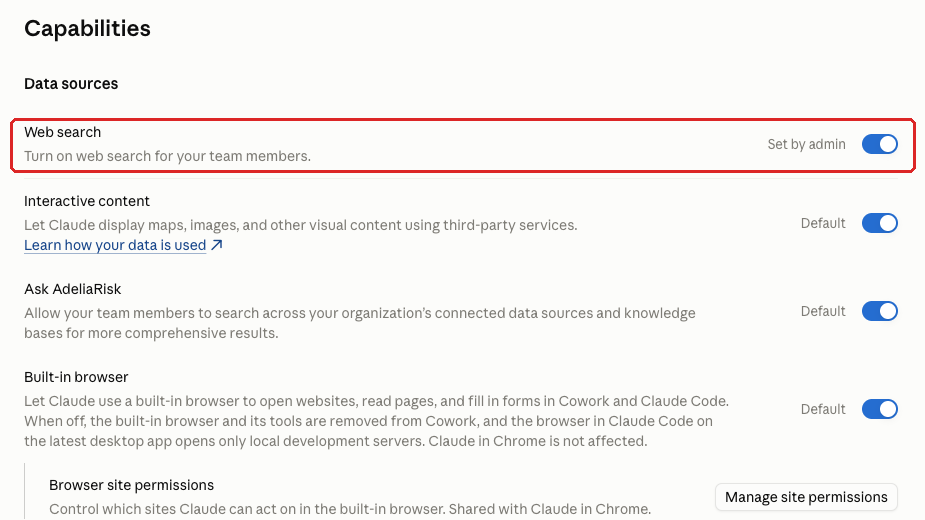
| CAP-005 | Web Search | 🟡 Medium | Yes | Team and Enterprise | Capabilities > Data sources > Web search |
| CAP-015 | Ask Your Organization (Connected Search) | 🟡 Medium | Yes | Team and Enterprise | Capabilities > Data sources > Ask [your organization name] |
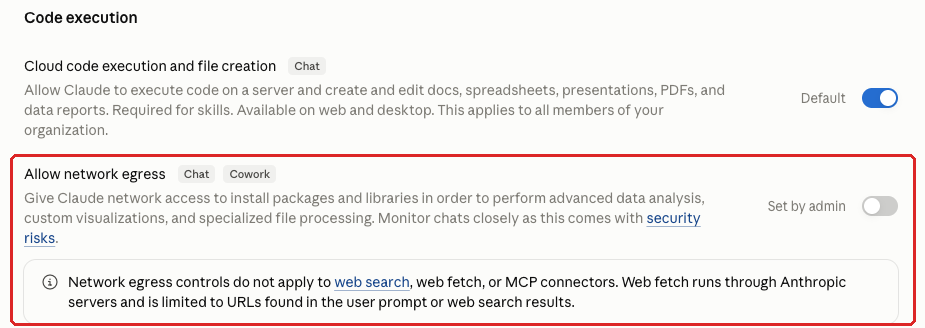
| CAP-055 | Network Egress for Code Execution | 🟡 Medium | Yes | Team and Enterprise | Capabilities > Code execution > Allow network egress |
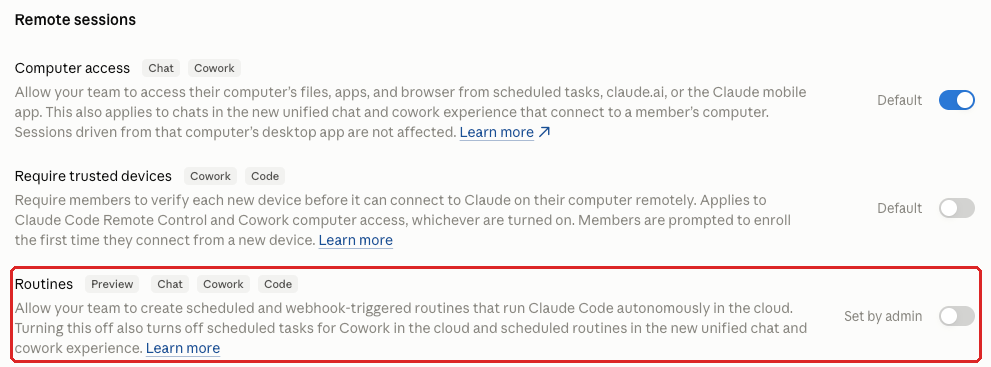
| CAP-070 | Routines | 🟡 Medium | No | Team and Enterprise | Capabilities > Remote sessions > Routines (Preview) |
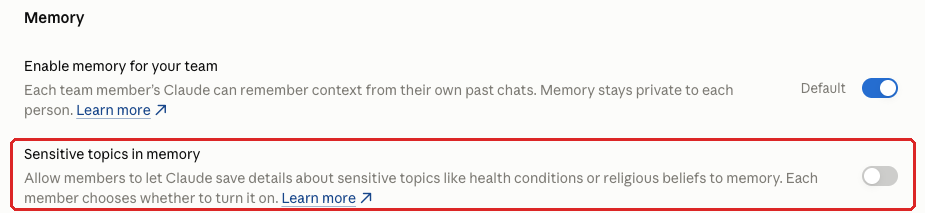
| CAP-080 | Sensitive Topics in Memory | 🟡 Medium | No | Team and Enterprise | Capabilities > Memory > Sensitive topics in memory |
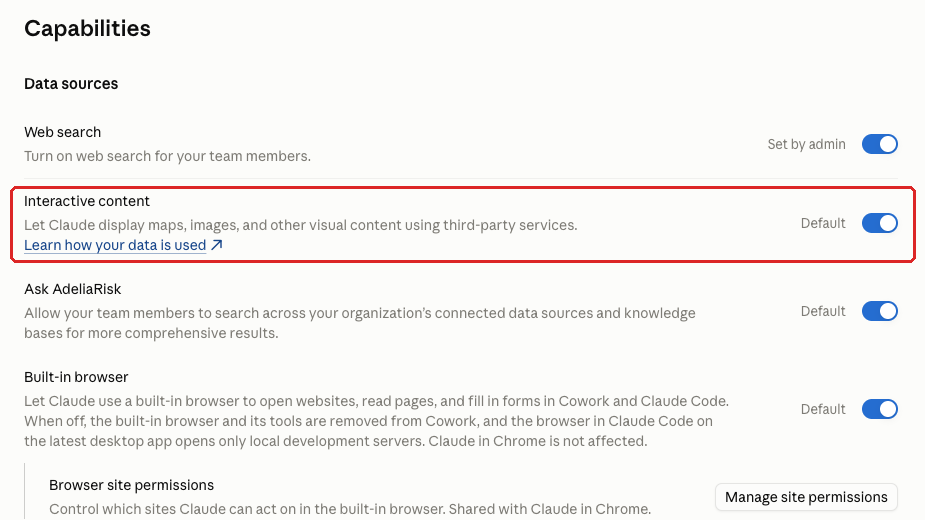
| CAP-010 | Interactive Content | 🟢 Low | Yes | Team and Enterprise | Capabilities > Data sources > Interactive content |
| CAP-025 | Artifact Connectors and Inline Visualizations | 🟢 Low | No | Team and Enterprise | Capabilities > Visuals > Enable artifact connectors / Inline visualizations |
| CAP-050 | Cloud Code Execution and File Creation | 🟢 Low | Yes | Team and Enterprise | Capabilities > Code execution > Cloud code execution and file creation (Chat) |
| CAP-075 | Memory | 🟢 Low | Yes | Team and Enterprise | Capabilities > Memory > Enable memory for your team |
All admin paths start at Organization settings in Claude (claude.ai/admin-settings). You need the Owner or Primary Owner role to change most of them.
Heads Up? Does your team need advance notice before you make this change? “Yes” means users will see something different. We’ve included sample language you can send to your team for every “Yes” setting.
Plan tells you where the control exists in Claude Team vs. Enterprise. “Team and Enterprise” means you can set it on either plan. “Enterprise only” means the setting doesn’t exist on Claude Team; in our benchmark a Team-plan firm gets the result “Enterprise” for that row, which means the only way to close the gap is to upgrade (see BILL-007).
CAP-040: Skip All Approvals Mode
What This Does
Cowork is Claude’s agent on a member’s computer. It works with that person’s files and apps, plus their connectors, the links that let Claude read from and act in other systems like email, Google Drive or a CRM.
In Cowork’s “Manually approve” mode, Claude pauses before each action, shows the member what it wants to do and waits for a click. That pause is the approval prompt.
Four toggles under Tool approvals each remove some of those prompts, and we recommend all four off: Allow “Automatically approve” mode (CAP-030), Start new tasks in “Automatically approve” mode (CAP-035), Allow “Always allow” for connector tools (CAP-045) and this one.
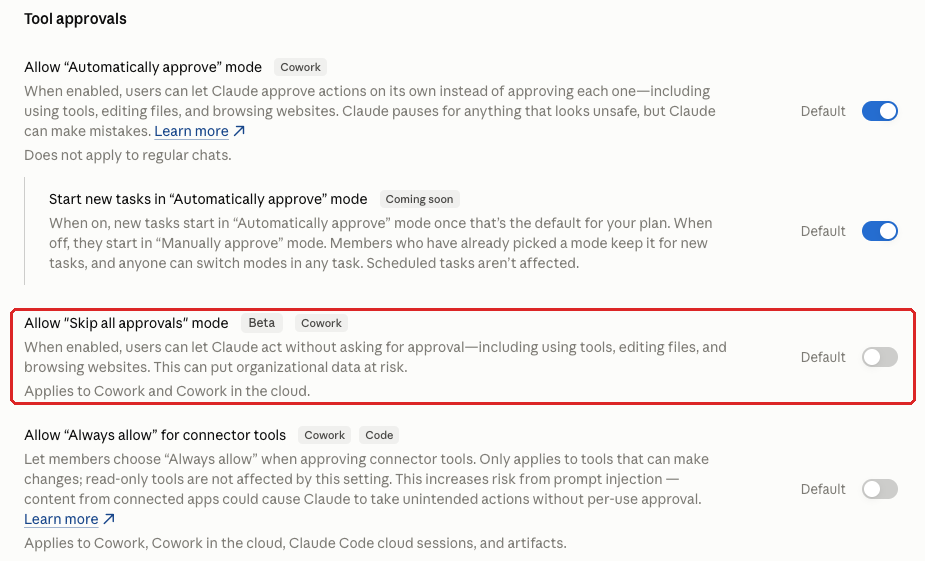
Allow “Skip all approvals” mode goes furthest. The console says it lets Claude act “without asking for approval, including using tools, editing files, and browsing websites,” and warns that it “can put organizational data at risk.” It’s labeled Beta and applies to Cowork and Cowork in the cloud.
Why It Matters
Claude normally asks before it acts. This mode lets a member tell it to stop asking and just do things, so Cowork goes off and acts with all of the member’s access and nobody looks first. That’s why it’s one of the most important settings to block.
Suppose a hidden instruction in a document or web page tells Cowork to email a file to an outside address. The prompt is the last point where a person might notice the request makes no sense. OWASP’s 2026 list of risks for AI agents ranks “agent goal hijack” first, where hidden instructions can steer an agent off its task.
What We Recommend
- Leave Allow “Skip all approvals” mode off. That’s our benchmark position, and there’s no business reason to turn it on at a regulated firm. It was off and marked as the default when we checked in October 2026.
- Review all four approval toggles together at least once a quarter.
- If someone asks for this mode, find out which prompts slow them down. Per-connector tool permissions (CONN-015) let you decide tool by tool what needs a click.
Where to Find It
Admin console path: Organization settings > Capabilities > Tool approvals > Allow “Skip all approvals” mode
📄 Anthropic documentation: Use Claude Cowork on Team and Enterprise plans
What Your Team Will Notice
Most members won’t notice anything, because the mode starts off. Anyone who had been using Skip all approvals loses that option, and long tasks will take more clicks.
Sample message to your team:
Hi team,
Starting [date], Cowork’s “Skip all approvals” mode will be turned off for the firm, including Cowork in the cloud. Cowork will no longer be able to edit files, send messages or use connected apps with no approval step at all.
What to expect:
- When Cowork asks for your OK, read the request before you approve it, especially anything that sends, deletes or shares
- If Cowork wants to do something you didn’t ask for, deny it and tell [IT contact/helpdesk]
This adds a few clicks to longer tasks. Questions? Contact [IT contact/helpdesk].
Common Mistakes
- Checking this toggle and skipping the other three. Allow “Automatically approve” mode (CAP-030) was on by default in the console we reviewed, and with it on, members can still let Cowork act without asking each time.
- Changing approval settings with no change log. Without one, it’s hard to say later who changed a toggle or why. Record the date, the approver and the reason.
Related Settings
- CAP-030: Automatically Approve Mode for Cowork. The approval toggle most likely to be on in your console today.
- COWORK-005: Cowork. Whether Cowork should be on at all.
- DATA-045: Cowork OpenTelemetry Monitoring. Sends a record of Cowork’s activity to your own logging tool (OpenTelemetry is a standard format for that kind of feed).
CAP-020: Built-In Browser Site Permissions
What This Does
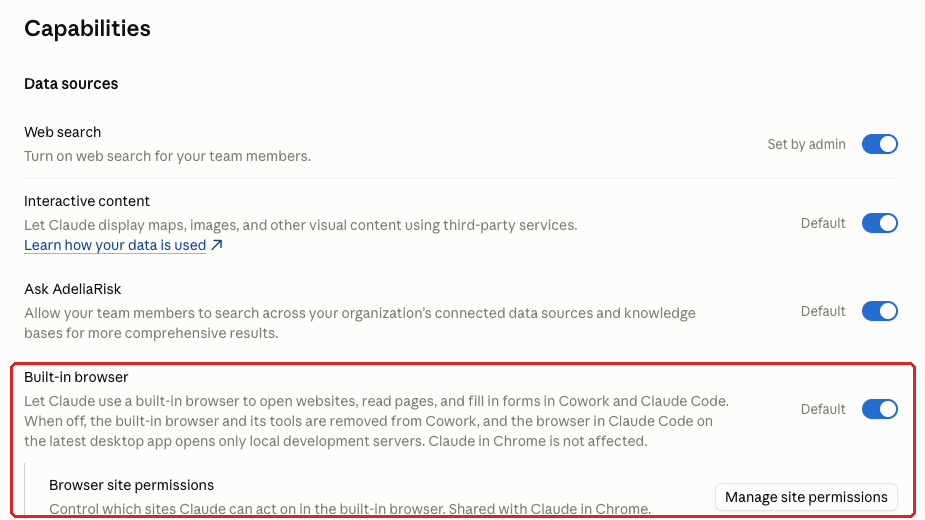
The Built-in browser toggle lets Claude “open websites, read pages, and fill in forms” in Chat, Cowork and Claude Code (Anthropic’s coding agent). Browser site permissions sets which sites Claude can act on: every site except the ones you block, or only the sites you list. Claude in Chrome, Anthropic’s browser extension, uses the same site list, although the built-in browser toggle itself doesn’t affect Claude in Chrome.
The console now also has Import cookies from other browsers under Data sources, next to the built-in browser settings. It lets members “import cookies and site data from another browser on their computer, so sites open already signed in.” It isn’t in our benchmark yet.
Why It Matters
A browser agent reads the whole page, including text a person may never see. A page with hidden instructions can steer it, and in a browser the next step might be a click, a form or a sign-in.
If every site is allowed, the browser can be pointed at the custodian portal, the bank, the password manager or your email admin console, where one wrong click can move money or change who has access. Anthropic’s guidance for Claude in Chrome, which shares this site list, recommends “a restrictive allowlist so Claude can only work on approved tools” for organizations handling sensitive data (Use Claude in Chrome safely).
If your firm is an SEC-registered investment adviser, include browser agents that can reach client accounts in your Regulation S-P safeguards review.
What We Recommend
- Keep the built-in browser on only with site permissions set and members trained. That’s our benchmark position. It was on and marked as the default in the console we reviewed.
- If nobody at the firm uses the browser in Chat, Cowork or Claude Code, turn it off. The console says that removes the browser and its tools from Chat and Cowork and limits Claude Code’s browser on the latest desktop app to local development servers.
- Turn Import cookies from other browsers off. If sites open already signed in, Claude can act inside those accounts with no sign-in step. That’s the risk the site list is there to limit.
- At minimum, block banks, custodian portals, your password manager and admin portals, such as the Claude admin console, your email platform’s admin center and your identity provider.
- If members only need a handful of sites, allow only those. It means more requests to handle and far fewer places the agent can go.
- If Claude in Chrome is on, follow the stricter rule in CHROME-010 for both, since they share the list: deny by default, with a documented allowlist.
Where to Find It
Admin console path: Organization settings > Capabilities > Data sources > Built-in browser > Manage site permissions
📄 Anthropic documentation: Claude in Chrome admin controls (site allow and block lists)
What Your Team Will Notice
Members who use the browser in Chat, Cowork or Claude Code will find that Claude can’t work on blocked sites, or on anything off the list if you switch to an allowlist. The training is the bigger change, because members need to know what not to hand the browser.
Sample message to your team:
Hi team,
Starting [date], the browser Claude uses in Chat, Cowork and Claude Code won’t be able to work on banking, custodian, password manager or admin sites.
What you need to do before [date]:
- Don’t ask Claude to sign in to or work on financial accounts, client portals or admin sites. Do that work yourself.
- Watch what Claude does while it browses for you, and stop the task if it goes somewhere you didn’t ask.
- If you need a site added to the approved list, send the address and the business reason to [IT contact/helpdesk].
Questions? Contact [IT contact/helpdesk].
Common Mistakes
- Leaving the browser at its default (on) without ever opening Manage site permissions.
- Building the block list from memory. The bank gets blocked, and the custodian, the payroll provider or the password manager gets missed. Start from your vendor inventory.
Related Settings
- CHROME-010: Chrome Site Permissions and Password Managers. Same site list, with a stricter rule when Claude in Chrome is on.
- CAP-030: Automatically Approve Mode for Cowork. Decides whether Cowork asks before it acts.
- ORG-055: Custom Roles and Groups. On Claude Team the browser is on for everyone or off for everyone. Anthropic’s custom roles article doesn’t list a built-in browser capability yet (checked October 2026), so Enterprise roles may not help here either.
CAP-030: Automatically Approve Mode for Cowork
What This Does
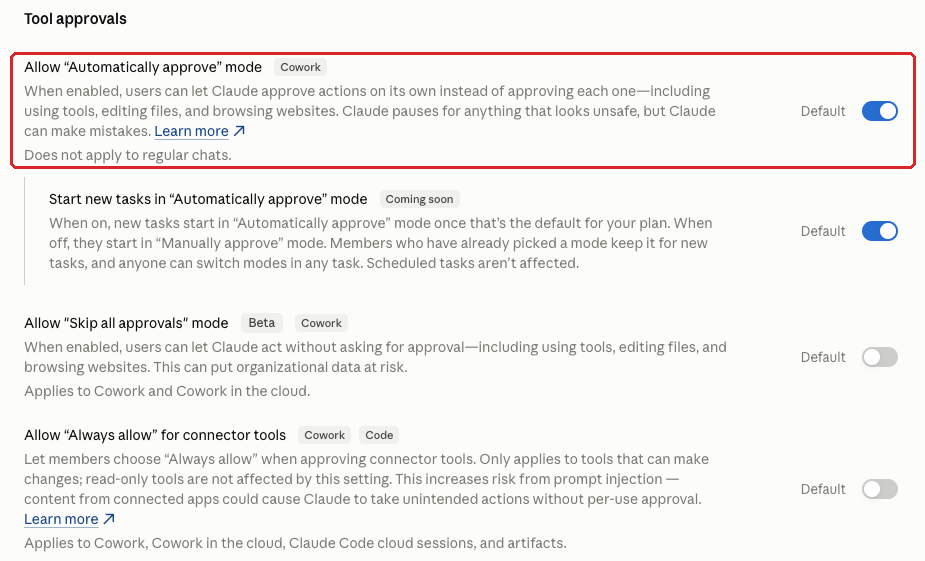
Allow “Automatically approve” mode decides whether members can let Claude “approve actions on its own instead of approving each one, including using tools, editing files, and browsing websites.” The console says it applies to Cowork and the new unified chat and Cowork experience, not regular chats.
In the console we reviewed in October 2026 it was on and marked as the default, so assume it’s on in yours until you check.
Why It Matters
Claude Team’s default setup turns on Cowork and the built-in browser for most firms. As we tell clients, that means Claude “can control your computer, it can control your browser. Like it becomes a person living on your computer.”
The approval prompt is where a person can catch a bad instruction (see CAP-040). In Automatically approve mode, Claude’s own judgment does that job instead. The console says Claude “pauses for anything that looks unsafe, but Claude can make mistakes.”
Prompt injection is written to look like a normal request. One hidden line in a document or web page can turn into an action, like emailing a file or editing a record, with no human click in between.
What We Recommend
- Turn Allow “Automatically approve” mode off. That’s our benchmark position.
- Turn off CAP-035 first, while this toggle is still on. On Claude Team, admins report that once this one is off, CAP-035 shows as “Unavailable” and can’t be changed until this one is back on.
- If a team makes a case for auto-approve on a specific workflow, write down the use case, the data the task touches, who approved it and when you’ll revisit it. On Claude Team the toggle applies to everyone, so set a high bar.
- Pair any exception with OpenTelemetry monitoring (DATA-045), so there’s a record of what Cowork did.
Where to Find It
Admin console path: Organization settings > Capabilities > Tool approvals > Allow “Automatically approve” mode
📄 Anthropic documentation: Use Claude Cowork on Team and Enterprise plans
What Your Team Will Notice
Members who have used auto-approve will see Cowork ask before each action again, and long tasks will take more clicks. Members who never switched modes won’t see a change.
Sample message to your team:
Hi team,
Starting [date], Cowork’s “Automatically approve” mode will be turned off for the firm. Cowork tasks will run in “Manually approve” mode, so Claude will ask before each action and wait for your OK.
What to expect:
- Longer tasks will need more clicks from you
- Each request shows what Cowork wants to do. Read it before you approve, especially if it sends, deletes or shares something
- If Cowork wants to do something you didn’t ask for, deny it and let [IT contact/helpdesk] know
We know this slows some tasks down, but it gives you a chance to catch a bad instruction before Claude acts on it. Questions? Contact [IT contact/helpdesk].
Common Mistakes
- Assuming it’s off because nobody turned it on. It was on by default in the console we reviewed.
- Looking in the old location. Anthropic’s help article still places Cowork permissions under Organization settings > Cowork > Permissions, but the live console moved them to Capabilities > Tool approvals. A firm that checks the old spot can conclude the setting is gone.
- Forgetting that prompts only help if someone reads them. Long tasks can produce a stream of requests, and people can start approving them on reflex. Put “read before you approve” in training and check in after the first few weeks.
Related Settings
- CAP-035: Start New Tasks in Automatically Approve Mode. Controls whether auto-approve is the starting point for new tasks.
- CAP-040: Skip All Approvals Mode. The bypass mode that removes every prompt.
- COWORK-005: Cowork. Our benchmark accepts Cowork on only with auto-approve off, monitoring and trusted devices.
- DATA-045: Cowork OpenTelemetry Monitoring. Anthropic says Claude’s audit logs don’t cover Cowork yet, so on Team this feed is your record of what it did. On Enterprise, the Compliance API also returns Cowork session transcripts.
CAP-035: Start New Tasks in Automatically Approve Mode
What This Does
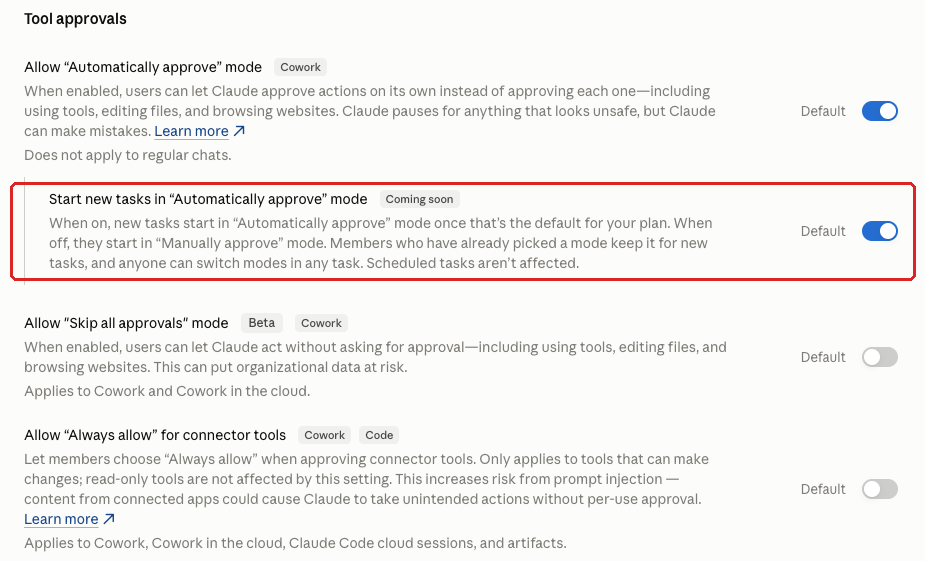
This toggle sits under Allow “Automatically approve” mode (CAP-030). Per the console, when it’s on, new Cowork tasks start in Automatically approve mode “once that’s the default for your plan.” When it’s off, they start in “Manually approve” mode. Members who have already picked a mode keep it, and scheduled tasks aren’t affected.
In the console we reviewed in October 2026, it was marked “Coming soon” and already set to on as the default.
Why It Matters
If auto-approve becomes the starting mode, many new Cowork tasks will run without per-action approval prompts, whether or not anyone at the firm chose that.
The “Coming soon” label makes this toggle easy to skip. But it’s already on, so setting it now means the default is the one you picked when Anthropic makes the change for your plan.
At firms that kept CAP-030 on as a documented exception, auto-approve is already allowed, and this toggle decides whether new tasks start in it.
What We Recommend
- If CAP-030 is on, turn Start new tasks in “Automatically approve” mode off now, even though it’s marked Coming soon. That’s our benchmark position.
- If CAP-030 is off, Team admins report this toggle shows as “Unavailable” and can’t be changed on its own. That meets the benchmark. If anyone turns CAP-030 back on later, check this toggle in the same sitting, because it may still be set to on.
- Don’t count on this toggle to move people out of auto-approve. Members who already picked a mode keep it. Turning CAP-030 off is what removes the option.
Where to Find It
Admin console path: Organization settings > Capabilities > Tool approvals > Start new tasks in “Automatically approve” mode
📄 Anthropic documentation: Use Claude Cowork on Team and Enterprise plans
What Your Team Will Notice
Nothing changes today while the feature is marked Coming soon. With it off, new Cowork tasks start in “Manually approve” mode, and members can switch a task to auto-approve only if your firm allows that mode.
If you’ve turned auto-approve off entirely (CAP-030), the message under that setting covers this one too. If you’ve kept auto-approve for approved workflows, use this:
Sample message to your team:
Hi team,
Starting [date], new Cowork tasks will start in “Manually approve” mode, which asks before each action. You can still switch a task to “Automatically approve” for the workflows we’ve approved for it.
What to expect:
- Cowork will ask before it acts, unless you switch the task to “Automatically approve”
- Only switch for the workflows on our approved list
- If you’re not sure whether a task qualifies, leave the prompts on and ask [IT contact/helpdesk]
No setup is needed on your end. Questions? Contact [IT contact/helpdesk].
Common Mistakes
- Skipping it because it says Coming soon. The default is already set to on.
- Reviewing CAP-030 and missing this toggle because it’s nested underneath.
- Turning CAP-030 back on for a pilot without rechecking this toggle. It may come back set to on.
Related Settings
- CAP-030: Automatically Approve Mode for Cowork. The parent toggle that decides whether auto-approve exists at all.
- CAP-040: Skip All Approvals Mode. Explains the approval prompt and the other three approval toggles.
CAP-045: Always Allow for Connector Tools
What This Does
Connectors give Claude tools inside other systems, like reading a mailbox, sending an email or updating a record. When Claude wants to use a connector tool that can make changes, the member approves it first. Allow “Always allow” for connector tools decides whether members can choose “Always allow” on that request instead.
The setting only covers tools that can make changes, and read-only tools aren’t affected. It applies to Cowork, Cowork in the cloud, Claude Code cloud sessions and artifacts.
With it off, members approve each write tool in each task, even when your connector policy permits the tool. It’s off by default in both the console and Anthropic’s help article.
Why It Matters
Write actions are where prompt injection does the most direct damage. Reading a file exposes it to Claude. Sending an email or editing a record changes something outside Claude, sometimes in a way you can’t undo.
Once a member picks “Always allow” for a tool, later uses of it go ahead without a prompt, including one a hidden instruction asked for. The console warns that turning this on “increases risk from prompt injection: content from connected apps could cause Claude to take unintended actions without per-use approval.”
What We Recommend
- Leave Allow “Always allow” for connector tools off. That’s our benchmark position.
- Set per-connector tool permissions as well (CONN-015), with write and delete tools at Needs approval or Blocked. CONN-015 caps what each connector may do. This toggle keeps members from waiving the prompt.
- Check it in your quarterly console review. Off is the default, so if it’s on, someone changed it.
Where to Find It
Admin console path: Organization settings > Capabilities > Tool approvals > Allow “Always allow” for connector tools
📄 Anthropic documentation: Use Claude Cowork on Team and Enterprise plans
What Your Team Will Notice
Nothing changes if you keep the default. Members who use connectors in Cowork, Claude Code cloud sessions or artifacts keep approving write tools task by task. If the toggle was on and you turn it off, members who had chosen “Always allow” will see those prompts again.
Common Mistakes
- Turning it on to cut down prompts for one heavy user. On Claude Team the change applies to everyone.
- Leaving connector tool permissions (CONN-015) unset and counting on members to read every prompt. Set the cap at the connector too.
Related Settings
- CONN-015: Connector Tool Permissions. Caps each connector at read only or approval for every write.
- CONN-005: Connector Inventory and Owners. Every connector with write tools needs a named owner and a reason.
- CAP-030: Automatically Approve Mode for Cowork. The broader way approvals get switched off.
- CODE-005: Claude Code Managed Settings Baseline. Where Claude Code’s own permission rules live.
CAP-060: Computer Access for Cowork
What This Does
Computer access lets members reach their own computer’s “files, apps, and browser from scheduled tasks, claude.ai, or the Claude mobile app,” in the console’s words. It also covers chats in the new unified chat and Cowork experience that connect to a member’s computer. Sessions run from the computer’s own desktop app aren’t affected. The console notes the setting was formerly called Remote Control, and it was labeled Remote Control (Cowork) when we first reviewed it in early October 2026. Claude Code’s Remote Control is a separate setting (CODE-020) that this one doesn’t affect.
It was on and marked as the default in the console we reviewed.
Why It Matters
Computer access lets a phone, a browser tab or a scheduled task running in the cloud drive an agent on a firm laptop. If an attacker gets that session through a stolen phone or a stolen login, they can tell Cowork to open files, send messages or use connectors on that laptop from wherever they are.
It also moves the person approving actions away from the screen where the work happens. Judging an approval prompt on a phone, without the files in front of you, is harder than judging it at a desk.
What We Recommend
- Turn Computer access off. That’s our benchmark position.
- Turn on Require trusted devices (CAP-065) as well. If anyone turns Computer access back on, each new phone or browser then has to be verified before it can connect.
- Check Claude Code’s Remote Control (CODE-020) separately. Turning this one off doesn’t touch it.
- If a member says they need it, write down the task and the reason.
- Look for a way to do that task at the desk before you turn Computer access back on. On Claude Team, turning it back on turns it on for everyone.
Where to Find It
Admin console path: Organization settings > Capabilities > Remote sessions > Computer access
📄 Anthropic documentation: Claude Code Remote Control: Trusted Devices
Anthropic hasn’t published a help article specifically for this toggle (checked October 2026). The console’s Learn more link goes to its general Cowork safety article. Its Claude Code Remote Control page mentions it, saying the trusted-devices setting “applies to Remote Control in Claude Code and to Computer access in Cowork.” Claude Code’s own Remote Control is a separate setting (CODE-020).
What Your Team Will Notice
Members who have been controlling Cowork from claude.ai or the Claude mobile app won’t be able to. Cowork still works normally at the computer where it runs.
Sample message to your team:
Hi team,
Starting [date], you won’t be able to reach your work computer’s files, apps and browser from claude.ai, the Claude mobile app or a scheduled task. Cowork still works as usual when you’re at your computer.
What to expect:
- Start and manage Cowork tasks from the computer they run on
- Scheduled tasks that run in the cloud won’t be able to use your computer’s files or apps
- If you relied on remote access for a specific task, tell [IT contact/helpdesk] what it was so we can look at other options
There’s nothing to set up on your end. Questions? Contact [IT contact/helpdesk].
Common Mistakes
- Turning off Claude Code’s Remote Control and assuming Cowork’s Computer access went with it. They’re separate toggles, and Claude Code’s lives on the Claude Code tab.
- Leaving it on because few people use it. If nobody uses it, turning it off costs nothing.
Related Settings
- CODE-020: Remote Control for Claude Code. The separate Remote Control toggle for Claude Code.
- CAP-065: Require Trusted Devices. Makes each new phone or browser verify itself before it can connect remotely.
- COWORK-015: Dispatch. Another way a phone can send work to a desktop.
- ORG-035: Shortened Session Length. Shorter sessions limit how long a stolen login stays useful (Claude Enterprise).
CAP-065: Require Trusted Devices
What This Does
Require trusted devices makes members “verify each new device before it can connect to Claude on their computer remotely,” in the console’s words. It applies to Claude Code Remote Control and Cowork’s Computer access, whichever are turned on. Members are prompted to enroll the first time they connect from a new device.
Anthropic’s Remote Control documentation for Claude Code names this setting as the related control. It was off and marked as the default in the console we reviewed.
Why It Matters
Remote Control and Computer access let a phone or a browser tab drive an agent that has a member’s files, tools and apps (see CAP-060). With this setting off, any device that can sign in to that member’s Claude account can connect, including an attacker’s device after a stolen password or session.
With it on, only devices the member has verified can connect. That adds a step a stolen password alone may not get past.
What We Recommend
- Turn Require trusted devices on. That’s our benchmark position.
- Turn it on even if Computer access (CAP-060) and Claude Code Remote Control (CODE-020) are both off. It only acts on whichever one is on, so it does nothing today and is already in place if a remote feature gets turned back on.
- Before you turn it on, tell anyone who uses Remote Control or Computer access to expect an enrollment prompt the next time they connect from a new device.
- Add “only enroll devices you control” to your acceptable use rules for Claude.
Where to Find It
Admin console path: Organization settings > Capabilities > Remote sessions > Require trusted devices
📄 Anthropic documentation: Claude Code Remote Control: Trusted Devices
What Your Team Will Notice
If Computer access and Claude Code Remote Control are both off, nobody notices anything. If one is on, members who use it are prompted to enroll a new phone or browser the first time they connect from it.
Sample message to your team:
Hi team,
Starting [date], you’ll need to verify each new phone or browser before it can connect to your work computer. This applies if you use Computer access (Cowork) or Remote Control (Claude Code) from claude.ai or the Claude mobile app.
What to expect:
- The first time you connect from a new phone or browser, follow the prompt to enroll it
- Only enroll phones and computers you control, never a shared or borrowed device
- If you lose an enrolled phone, tell [IT contact/helpdesk] right away
Questions? Contact [IT contact/helpdesk].
Common Mistakes
- Skipping it because Remote Control and Computer access are already off. This is the backstop for when a remote feature comes back.
- Turning it on without telling the people who use these remote features. An unexpected enrollment prompt can look like a phishing attempt, and some people may refuse it or call the helpdesk.
- Assuming “trusted” means “managed by IT.” In the console, a trusted device is one the member has verified and enrolled, so your acceptable use rules decide which devices that should be.
Related Settings
- CAP-060: Computer Access for Cowork. The remote feature this setting backs up.
- CODE-020: Remote Control for Claude Code. Claude Code’s remote feature, also covered by this rule.
- COWORK-005: Cowork. Our benchmark makes trusted devices a condition of running Cowork.
CAP-005: Web Search
What This Does
Web search lets Claude look things up on the internet and use the results in its answers. An Owner or Primary Owner turns it on for the organization first, and then members can use it in their chats.
Why It Matters
“I personally could not live with web search turned off,” Josh Ablett, Adelia Risk’s founder, told one client. Leaving it on does raise the risk of prompt injection. Search results are unvetted, and a typical injection is a line on the page telling Claude to forget the instructions it was given and do something else, like slant an answer or push a link the attacker controls.
People use Claude for current information: a new SEC rule, a vendor’s security page, a custodian’s updated process. Turn search off and some of those questions move to personal AI tools the firm can’t see.
Microsoft and LinkedIn’s 2024 Work Trend Index found that 78% of AI users were already bringing their own AI tools to work, and 80% at small and medium-sized companies.
What We Recommend
- Leaving web search on is acceptable with user training and a documented decision. That’s our benchmark position.
- The written decision should cover who needs current information, what training members got and when you’ll revisit it.
- Train members to check the sources Claude cites before they use an answer in client work.
- Train them to treat links or instructions that came from search results with suspicion.
- If your firm can’t accept the risk, turn it off for everyone and expect pushback. On Claude Team there’s no middle setting. Per-group control needs Enterprise custom roles and groups (ORG-055).
Where to Find It
Admin console path: Organization settings > Capabilities > Data sources > Web search
📄 Anthropic documentation: Enable and use web search
What Your Team Will Notice
If you keep web search on, Claude works the same and the change is the training. If you turn it off, Claude answers from what it already knows and what members give it, and it can’t look up anything current.
Sample message to your team:
Hi team,
Claude’s web search is staying on. Starting [date], we’re asking everyone to follow a few ground rules when Claude uses the web.
What to expect:
- Check the sources Claude cites before you use an answer in client work
- Don’t follow links or instructions that came from search results unless you’d trust that site on its own
- If Claude starts doing something you didn’t ask for after a search, stop the chat and tell [IT contact/helpdesk]
These habits make it harder for a bad web page to steer Claude’s answers. Questions? Contact [IT contact/helpdesk].
Common Mistakes
- Leaving it on with no decision on file. When an examiner or auditor asks why it’s on, nobody can say.
- Turning it off without asking who uses it. Their questions move to tools the firm doesn’t manage.
- Assuming the network egress setting covers web search. The console notes that egress controls (CAP-055) don’t apply to web search.
Related Settings
- ORG-055: Custom Roles and Groups. The Enterprise way to give web search only to the roles that need it.
- CAP-010: Interactive Content. Controls whether maps and images from outside services show up inside the chat.
- CAP-055: Network Egress for Code Execution. A separate internet control that doesn’t cover search.
- ORG-040: Organization Instructions. House rules for Claude, including how to treat web content. They help, but a prompt-injected page can still override them.
CAP-015: Ask Your Organization (Connected Search)
What This Does
This toggle is labeled “Ask” followed by your organization’s name (in our console it reads “Ask AdeliaRisk”). The console says it lets members “search across your organization’s connected data sources and knowledge bases,” so one question can reach Google Drive, SharePoint and other connected sources at once. It was on and marked as the default in the console we reviewed.
Why It Matters
Anthropic says members only see results from data they already have permission to open in the original systems. The exception is a custom connector set up with a shared credential, where results reflect what that credential can reach.
Otherwise the toggle doesn’t widen anyone’s access, and the risk sits in your file permissions. Over-shared folders tend to stay hidden because finding them takes effort, and connected search removes the effort.
A member who asks about compensation or a client’s name may get back a file they were never meant to see, with the search working exactly as designed. An attacker who gets into one member’s account gets the same shortcut: one question across every system that member can reach.
If your firm is an SEC-registered investment adviser, client files open to the whole firm are a Regulation S-P question with or without Claude. This feature makes them easier to find.
What We Recommend
- Make a documented decision. That’s our benchmark position. Cover which sources are connected, when their sharing permissions were last reviewed, and who owns fixing what turns up.
- Review sharing in your connected sources before you rely on this feature. Look for files shared by link, folders open to the whole firm and old project folders nobody cleaned up.
- If you can’t review permissions soon, turn it off until you have. Turning it back on takes one click.
- If you keep it on, tell members what to do when they find something they shouldn’t see.
Where to Find It
Admin console path: Organization settings > Capabilities > Data sources > Ask [your organization name]
Anthropic documents this feature, which it calls enterprise search, in its help article “Use enterprise search” (checked October 2026).
📄 Anthropic documentation: Use enterprise search
![Claude admin console screenshot: Ask Your Organization (Connected Search) at Organization settings > Capabilities > Data sources > Ask [your organization name]](https://adeliarisk.com/wp-content/uploads/2026/10/cap-015-ask-your-organization.png)
What Your Team Will Notice
If it stays on, members can ask one question across their connected tools. If you turn it off, Claude can still use individual connectors.
Sample message to your team:
Hi team,
Claude can search across all the tools you’ve connected to it, like Drive and SharePoint, with one question. It only shows you files you already have access to. We’re keeping this feature on, and starting [date] we’re asking for your help with one thing.
What to expect:
- One question can pull results from several of your connected tools at once
- If Claude shows you a file you don’t think you should be able to see, don’t open or share it. Send the file name to [IT contact/helpdesk] so we can fix the permissions
- No setup is needed on your end
We use these reports to find and fix over-shared files. Questions? Contact [IT contact/helpdesk].
Common Mistakes
- Turning it off and calling the permissions issue solved. The over-shared files are still there for anyone who browses Drive or SharePoint.
- Keeping it on with no reporting path, so members who stumble on the wrong file don’t know what to do with it.
Related Settings
- CONN-005: Connector Inventory and Owners. The list of sources this search can reach.
- DATA-010: Sharing Chats That Use Connectors. A shared chat carries whatever the connectors pulled in.
- CONN-015: Connector Tool Permissions. Caps what each connected source lets Claude do.
CAP-055: Network Egress for Code Execution
What This Does
When Claude runs code or builds files, it works in a walled-off computer (a “sandbox”). Allow network egress decides whether that sandbox can send traffic out to the internet (“egress”) in Chat and Cowork. The console says it exists so Claude can “install packages and libraries,” and adds: “Monitor chats closely as this comes with security risks.”
Anthropic’s help article lists four levels: off, package managers only, package managers plus specific domains, and all domains. Package managers are the public download sites for programming libraries, the add-ons code uses for common jobs.
Why It Matters
If a hidden instruction in a document gets Claude to write code that uploads the file it’s working on to an outside server, network egress is what lets that upload go through.
Egress also decides what comes in. Ask Claude to turn a PDF into text and its first move may be to download a library that converts PDFs, then a second one for OCR (software that reads text from images) if the PDF is a scan. Each download expands your threat surface, because there could be vulnerabilities in that code and you won’t know if they exist.
“Package managers only” limits the sandbox to those library sites, which is an acceptable risk for most firms. Each extra domain is another place data could go, so each one needs a reason.
The console also notes that egress controls don’t apply to web search, web fetch or connectors. Web fetch runs through Anthropic’s servers and only reaches web addresses that appear in the member’s prompt or in search results.
What We Recommend
- Set Allow network egress to off, or to “Package managers only” with no additional domains. That’s our benchmark position.
- Start with off. If file or analysis tasks fail because Claude can’t install a library it needs, move to package managers only.
- For any extra domain, write down who asked, why and when you’ll review it.
- Check the current level in your own console. Anthropic’s article is inconsistent about the Team-plan default.
Where to Find It
Admin console path: Organization settings > Capabilities > Code execution > Allow network egress
📄 Anthropic documentation: Create and edit files with Claude
What Your Team Will Notice
We expect most chat and file work to stay the same. Tasks where Claude tries to download data from a website while running code, or to install a library that isn’t allowed, won’t work. Advanced data analysis and specialized file processing are the most likely to hit that limit.
Sample message to your team:
Hi team,
Starting [date], the workspace Claude uses to run code and create files will have limited internet access.
What to expect:
- Most work, like building spreadsheets and documents, should work the same
- Heavier data analysis may occasionally fail if Claude needs a code library it can’t download
- If Claude says it can’t reach a website while running code, that’s the new setting
- If you need a specific site added for a business task, send the address and the reason to [IT contact/helpdesk]
Questions? Contact [IT contact/helpdesk].
Common Mistakes
- Adding domains one request at a time with no record. A year later, nobody knows why the list is so long or who still needs each entry.
- Switching to “all domains” to make an error go away. Fix the specific domain and document it.
- Assuming egress off means Claude can’t reach the internet at all. Web search and connectors are separate decisions.
Related Settings
- CAP-050: Cloud Code Execution and File Creation. The sandbox this setting controls; the two are one decision.
- CAP-005: Web Search. Claude’s other route to the internet, which egress doesn’t cover.
- CLOUD-010: Shared Environment Network Access. The equivalent network setting for Claude Code’s cloud environments.
CAP-070: Routines
What This Does
Routines are agent runs with nobody watching. They start on a schedule or when another app sends an automatic signal (a “webhook”), and the console says they “run Claude Code autonomously in the cloud.”
The toggle is labeled Preview and covers Chat, Cowork and Claude Code. Turning it off also turns off scheduled tasks for Cowork in the cloud and scheduled routines in the unified chat and Cowork beta, and Claude Tag (Claude in Slack) needs Routines turned on.
Why It Matters
Routines take the person out of the loop on purpose, and an agent doesn’t do a job the same way every time. We compare it to asking a doctor the same question three times over three years: you’ll probably get slightly different answers, and sometimes materially different ones, because the doctor might forget to look at something in your chart.
If a routine reads a document or inbox that carries a hidden instruction, or a data source changes underneath it, the routine runs anyway, on schedule, until someone notices. Webhooks also let an outside system start a run.
CISA’s May 2026 guidance on agentic AI advises organizations to “Begin with agentic AI use cases that are low-risk and non-sensitive.”
What We Recommend
- Turn Routines off until a use case exists. That’s our benchmark position.
- When a use case shows up, document what the routine does, what triggers it, what data and connectors it touches, who owns it and how you’ll spot a problem.
- Start with a routine that doesn’t touch client data.
- If you plan to use Claude Tag, decide on Routines and Claude Tag together (TAG-005), since one needs the other.
Where to Find It
Admin console path: Organization settings > Capabilities > Remote sessions > Routines (Preview)
Anthropic’s Claude Code documentation now calls routines “scheduled tasks” and names this toggle “Scheduled tasks (Was Routines)” (checked October 2026). Our console still showed Routines (Preview) on October 21, so look for either name.
📄 Anthropic documentation: Automate work with scheduled tasks (Claude Code docs)
What Your Team Will Notice
Members who haven’t set up routines or scheduled tasks won’t notice. Anyone relying on Cowork’s scheduled tasks in the cloud, or on Claude Tag, will lose those features while Routines is off.
Common Mistakes
- Turning Routines on for Claude Tag without noticing it also allows scheduled and webhook-triggered Claude Code runs.
- Letting a routine run without a named owner, so nobody is responsible for checking its results.
Related Settings
- TAG-005: Claude Tag for Slack. Needs Routines on to work.
- COWORK-010: Cowork in the Cloud. Runs Cowork tasks on Anthropic’s servers while the laptop is closed; its scheduled tasks depend on this toggle.
- CODE-015: Claude Code Cloud Sessions. Routines run Claude Code in Anthropic’s cloud, so the same cloud questions apply.
CAP-080: Sensitive Topics in Memory
What This Does
This toggle sits under Enable memory for your team (CAP-075). When it’s on, the console says members can let Claude “save details about sensitive topics like health conditions or religious beliefs to memory,” and each member chooses whether to turn that on. When it’s off at the organization level, members don’t get that choice.
It was off in the console we reviewed.
Why It Matters
Memory carries context from one chat into the next. For a member’s writing preferences, that’s convenient. For a health condition, it means the detail can stay in memory long after the chat that mentioned it and come back into later chats where it doesn’t belong.
With this off, the firm makes the call once. Leave it on and each member decides for themselves, which is hard to document or explain later.
What We Recommend
- Leave Sensitive topics in memory off. That’s our benchmark position.
- Check it whenever you review memory settings. It’s nested, so it’s easy to miss.
- Keep teaching members to leave sensitive client details out of chats unless the task needs them.
Where to Find It
Admin console path: Organization settings > Capabilities > Memory > Sensitive topics in memory
📄 Anthropic documentation: Use Claude’s chat search and memory to build on previous context
What Your Team Will Notice
Nothing changes if it’s already off. Memory keeps working for everyday context like preferences and ongoing projects, and members can’t turn on sensitive-topic memory for themselves.
Common Mistakes
- Assuming it’s a personal setting the firm doesn’t control. Members only get the choice if the organization allows it.
- Treating it as a filter on what Claude sees. Claude still reads sensitive details during a chat. This setting only affects what memory keeps afterward.
- Counting on it to keep client account details out of memory. The console’s examples are health conditions and religious beliefs, and it doesn’t mention account details.
Related Settings
- CAP-075: Memory. The parent toggle and the offboarding decision.
- DATA-055: Data Retention Window. How long chats and files persist overall.
CAP-010: Interactive Content
What This Does
Interactive content lets Claude “display maps, images, and other visual content using third-party services,” in the console’s words, right in the chat. It was on and marked as the default in the console we reviewed.
Why It Matters
Fetched content can carry hidden instructions, the same prompt injection risk as web search.
Maps and images add a second issue. To show them, Claude sends search requests to outside services (Google Maps and Bing, per Anthropic). Anthropic says it turns members’ prompts into generic search requests instead of passing them along, but a hidden instruction could still try to get Claude to put conversation text into one.
We rate it Low because the risk is modest and the convenience is high.
What We Recommend
- Make a documented decision. That’s our benchmark position. For most firms, leaving it on is reasonable.
- If your firm keeps web search off, or handles especially sensitive data in chats, turn this off too.
- Decide it alongside web search (CAP-005). Both bring outside content into the chat.
Where to Find It
Admin console path: Organization settings > Capabilities > Data sources > Interactive content
Anthropic’s help article “Use visual and interactive content on Team and Enterprise plans” covers the maps and image results this toggle controls, though it doesn’t use the toggle’s name (checked October 2026).
📄 Anthropic documentation: Use visual and interactive content on Team and Enterprise plans
What Your Team Will Notice
If it stays on, nothing changes. If you turn it off, Claude no longer shows maps, images and similar fetched content inside the chat.
Sample message to your team:
Hi team,
Starting [date], Claude will no longer show maps, images and other visual content from outside services inside chats.
What to expect:
- You’ll see fewer maps and images in Claude’s answers
- Files and charts Claude creates for you are separate settings and won’t change
- There’s nothing to set up on your end
Questions? Contact [IT contact/helpdesk].
Common Mistakes
- Spending review time here before the Critical and High rows are done.
- Making the call and never writing it down. A one-line note with the reason is enough.
Related Settings
- CAP-005: Web Search. Claude’s other way of bringing outside content into a chat.
- CAP-025: Artifact Connectors and Inline Visualizations. The other display settings on this tab.
CAP-025: Artifact Connectors and Inline Visualizations
What This Does
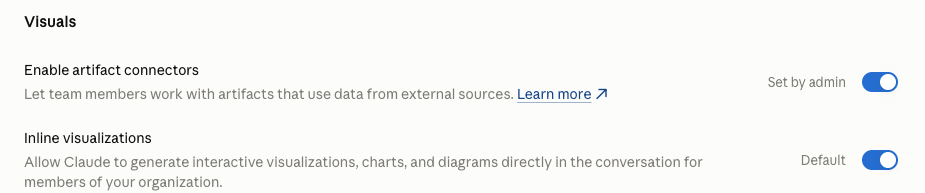
There are two toggles under Visuals. Enable artifact connectors lets members “work with artifacts that use data from external sources.” That means the documents, charts and small apps Claude builds beside the chat can read from and write to members’ connected apps.
Inline visualizations lets Claude generate interactive visualizations, charts and diagrams in the conversation itself. It was on and marked as the default in the console we reviewed.
Why It Matters
An artifact that calls a connector can carry live data, like a client list or a pipeline report, and artifacts can be shared. The risk stays low as long as sharing is locked down: chats that use connectors shouldn’t be shareable (DATA-010), and artifacts shouldn’t be shareable outside the firm (ART-005).
Inline visualizations add little risk on their own.
What We Recommend
- Make a documented decision. That’s our benchmark position.
- Leave inline visualizations on.
- Allow artifact connectors only if someone needs live-data artifacts, and only with external artifact sharing (ART-005) and connector chat sharing (DATA-010) off.
- Review your published artifacts (ART-010) as part of the same decision.
Where to Find It
Admin console path: Organization settings > Capabilities > Visuals > Enable artifact connectors / Inline visualizations
📄 Anthropic documentation: Artifacts admin guide for Team and Enterprise plans
What Your Team Will Notice
Nothing changes for most members. If you turn artifact connectors off, artifacts that relied on connector data won’t be able to pull it.
Common Mistakes
- Turning on artifact connectors without checking the sharing settings first.
- Forgetting that published artifacts are live pages. Check the published list (ART-010) before and after you turn artifact connectors on.
Related Settings
- ART-005: External Artifact Sharing. Keeps artifacts with connector data inside the firm.
- ART-010: Published Artifacts Review. The inventory of what’s already been published.
- DATA-010: Sharing Chats That Use Connectors. The chat-side version of the same sharing risk.
CAP-050: Cloud Code Execution and File Creation
What This Does
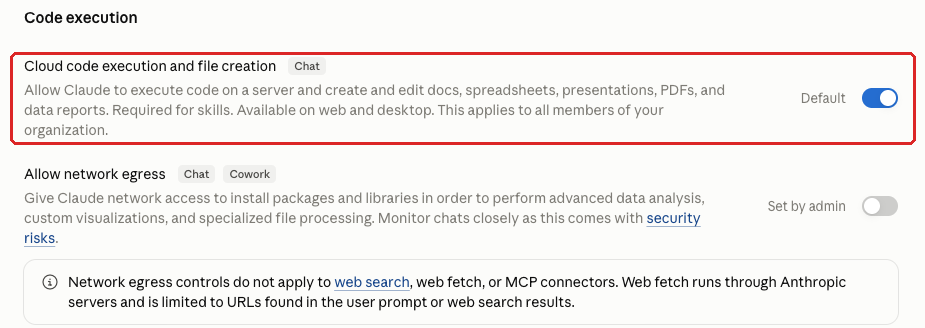
Cloud code execution and file creation lets Claude run code on a server and create and edit docs, spreadsheets, presentations, PDFs and data reports in chat, on web and desktop. The code runs in Anthropic’s sandbox, not on the member’s computer.
The console notes the setting applies to all members and is “Required for skills.” Skills are packaged instructions, sometimes with scripts, that teach Claude a task. The same toggle also appears under Plugins & skills > Policy.
Why It Matters
The sandbox is separate from your computers and network, so the main risk left is data leaving the sandbox. Network egress (CAP-055) controls that. With egress restricted, we rate this Low.
Turning it off costs you file outputs and skills, so our benchmark treats on as acceptable.
What We Recommend
- Leaving it on is acceptable, with the decision documented. That’s our benchmark position.
- Restrict network egress (CAP-055) before you call this done.
- If you turn it off, tell the people who use skills first. Their skills will stop working.
Where to Find It
Admin console path: Organization settings > Capabilities > Code execution > Cloud code execution and file creation (Chat)
📄 Anthropic documentation: Create and edit files with Claude
What Your Team Will Notice
If it stays on, nothing changes. If you turn it off, Claude can’t create files or run code in chat, and skills that need it stop working.
We recommend leaving it on. If your firm decides to turn it off, here’s a message you can use:
Sample message to your team:
Hi team,
Starting [date], Claude won’t be able to create or edit files (like spreadsheets, documents, presentations and PDFs) or run code in chats. Skills that depend on this will stop working too.
What to expect:
- Claude can still answer questions, draft text and review what you paste in
- If you rely on Claude for a file-based task, tell [IT contact/helpdesk] before [date] so we can look at options
Questions? Contact [IT contact/helpdesk].
Common Mistakes
- Turning it off because “code execution” sounds risky, then breaking skills the team relies on.
- Leaving egress at “all domains” and still calling this Low.
Related Settings
- CAP-055: Network Egress for Code Execution. Controls whether the sandbox can reach the internet.
- PLUG-005: User-Created Skills and Publishing. Skills depend on this toggle, and publishing controls decide who can push them to everyone.
CAP-075: Memory
What This Does
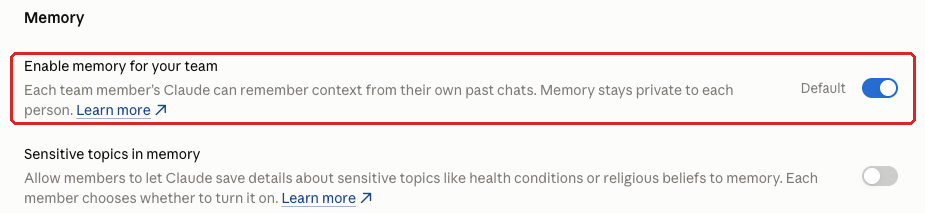
Enable memory for your team lets each member’s Claude remember context from their own past chats, including preferences, ongoing work and anything they pasted into earlier conversations. The console notes that “Memory stays private to each person,” and members can see and manage their own memory under Settings > Memory. It was on and marked as the default in the console we reviewed.
Why It Matters
Because memory stays with each person, our benchmark treats its risk as retention. Details a member pasted for a project can stay in memory after the project ends, and after a client relationship ends, so memory belongs on the leaver checklist.
Anthropic’s help article says turning off memory for the organization deletes all members’ memories.
Relevant if you’re subject to HIPAA: Anthropic’s help article says memory isn’t available with HIPAA, public-sector or custom data retention agreements.
What We Recommend
- Make a documented decision. That’s our benchmark position. Most firms can leave memory on.
- Add memory to your offboarding checklist.
- Remove departing members’ seats promptly (MEM-010).
- When someone moves off a client or project, have them review Settings > Memory and delete what no longer applies.
- Keep Sensitive topics in memory (CAP-080) off.
- If you decide to turn memory off, give members notice first.
Where to Find It
Admin console path: Organization settings > Capabilities > Memory > Enable memory for your team
📄 Anthropic documentation: Use Claude’s chat search and memory to build on previous context
What Your Team Will Notice
If memory stays on, nothing changes. If you turn it off, Claude no longer carries context between chats, and members’ existing memories are deleted.
Sample message to your team:
Hi team,
On [date], we’re turning off Claude’s memory for the firm. When we do, Claude will delete what it has remembered from your past chats, and it won’t carry context from one chat to the next.
What you need to do before [date]:
- Open Settings > Memory in Claude to see what it has saved
- If there’s a preference you rely on, like how you want drafts formatted, write it down so you can tell Claude again in a new chat
Questions? Contact [IT contact/helpdesk].
Common Mistakes
- Turning memory off to tidy up without warning anyone. Everyone’s memories are deleted at once.
- Leaving memory out of offboarding, so context from a finished client engagement stays in place long after the work ends.
Related Settings
- CAP-080: Sensitive Topics in Memory. Decides whether members can let memory keep health conditions and similar details.
- MEM-010: Members List Review. The console side of offboarding.
- DATA-055: Data Retention Window. How long chats and files persist.
What These Settings Don’t Cover
The other five pages of the guide cover the rest of the Claude admin console:
- Organization and access (domains, single sign-on, provisioning, organization instructions, plan, members)
- Data and privacy (sharing, export, feedback, monitoring, audit logs, retention, Compliance API)
- Claude Code (managed settings, desktop, cloud sessions, Remote Control, Git providers, cloud environments)
- Agents and extensions (Cowork, Office Agents, Claude in Chrome, Claude Tag, Artifacts, beta products)
- Connectors, plugins and skills (connector inventory, tool permissions, desktop extensions, skills, plugins)
For policies and habits that live outside the console, see the hub’s section on practices that aren’t console settings.
Need Help Configuring These Settings?
Some of these changes take minutes. Confirming Skip all approvals is off and turning off Automatically approve takes a few clicks. Others need a pilot, a message to staff, and a decision about Claude Enterprise, like who should have Cowork or Claude Code, or whether per-group control is worth the upgrade.
If your firm is an SEC-registered investment adviser or a HIPAA-covered entity, the settings you choose here may have compliance implications, and an examiner may ask why you chose them.
We review Claude admin consoles against this benchmark as part of Adelia Risk’s virtual CISO services, and we work with advisory firms through our RIA cybersecurity services. If you want a second set of eyes on your console, that’s what we do.
Verified against the Claude admin console in October 2026.
Part of the Adelia Risk Claude Security Guide. 76 controls across the Claude Team and Enterprise admin console.