
Claude Code is an AI agent that can read files and run commands on your firm’s computers or in Anthropic’s cloud, and the settings on this page decide how far it can go. Adelia Risk checks every one of them in the Claude security reviews we run for firms on Claude Team and Claude Enterprise. This page is for the business owner, operations lead or IT person who makes those calls at a regulated firm, such as a registered investment adviser (RIA), a wealth management firm or a healthcare practice.
In November 2025, Anthropic reported that attackers it linked to a Chinese state-sponsored group had tricked Claude Code into helping attack about 30 organizations, with AI doing most of the hands-on work. The controls on this page limit how much access Claude Code has at your firm.
The admin console has a handful of on/off switches for Claude Code, but the rules each session follows come from the managed settings policy (CODE-005). That policy gets the most space here, with an interview prompt and our reference baseline to build it from. These 13 controls are part of our 76-control Claude Security Benchmark for the Claude Team and Enterprise admin console, and Adelia Risk’s virtual CISO services can work through them with you.
Quick Reference
| Policy ID | Setting | Risk | Heads Up? | Plan | Admin Path |
|---|---|---|---|---|---|
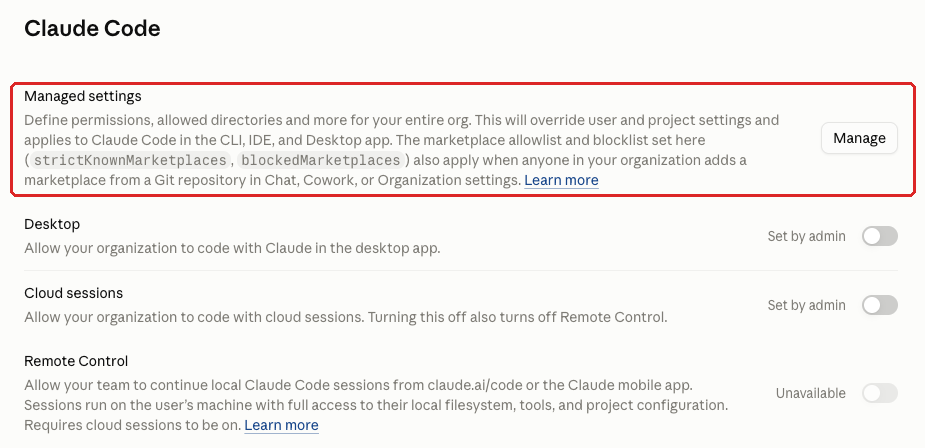
| CODE-005 | Claude Code Managed Settings Baseline | 🔴 Critical | Yes | Team and Enterprise (managed settings) | Claude Code > Managed settings > Manage |
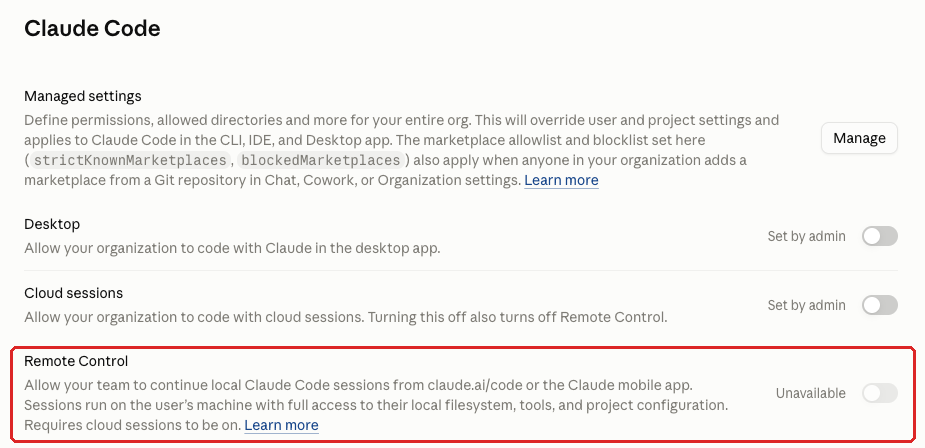
| CODE-020 | Remote Control for Claude Code | 🟠 High | Yes | Team and Enterprise | Claude Code > Remote Control |
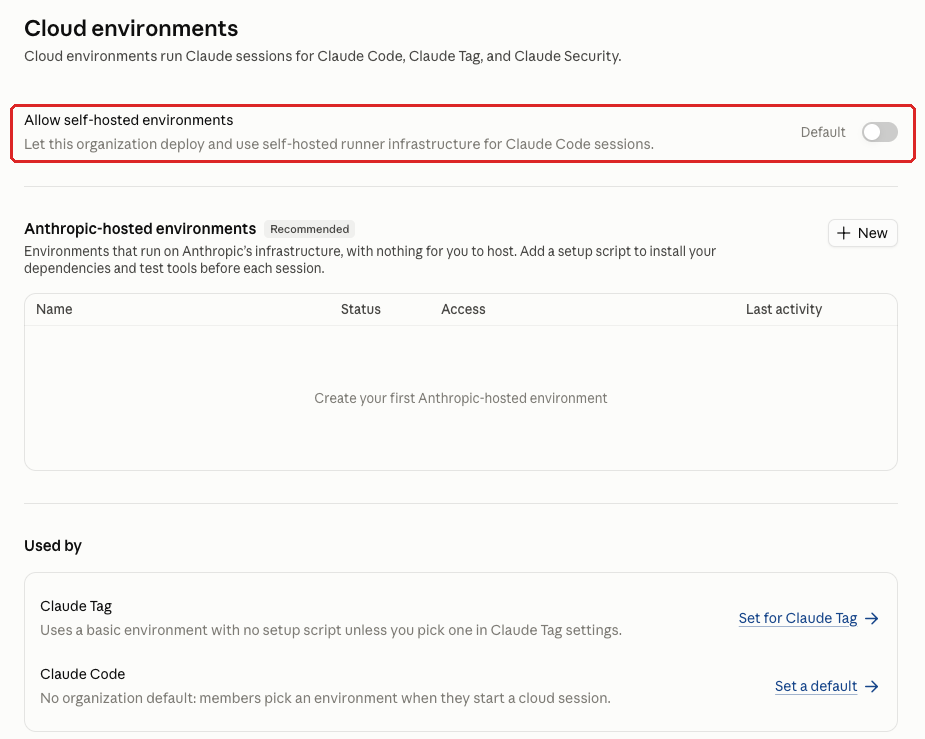
| CLOUD-005 | Self-Hosted Environments | 🟠 High | No | Team and Enterprise | Cloud environments > Allow self-hosted environments |
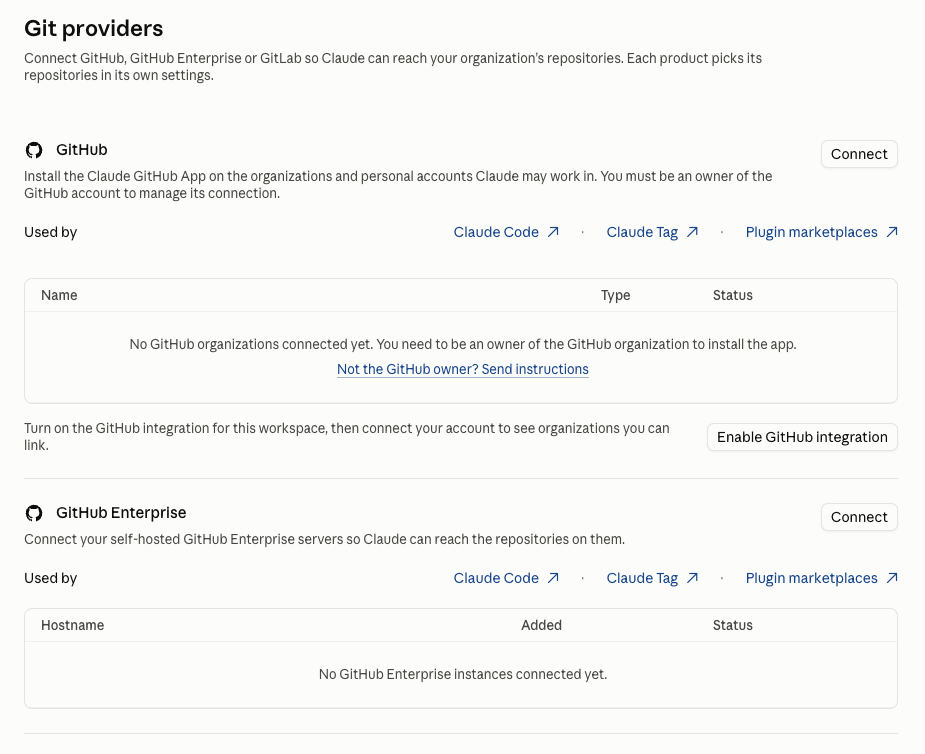
| GIT-005 | Git Provider Connections and Code Review Scope | 🟡 Medium | No | Team and Enterprise | Git providers; Claude Code > Code review |
| CODE-010 | Claude Code in the Desktop App | 🟡 Medium | Yes | Team and Enterprise | Claude Code > Desktop |
| CODE-015 | Claude Code Cloud Sessions | 🟡 Medium | Yes | Team and Enterprise | Claude Code > Cloud sessions |
| CODE-025 | Default Cloud Environment | 🟡 Medium | No | Team and Enterprise | Claude Code > Cloud session settings > Default environment |
| CODE-040 | Dynamic Workflows | 🟡 Medium | Yes | Team and Enterprise | Claude Code > Capabilities > Dynamic workflows |
| CLOUD-010 | Shared Environment Network Access | 🟡 Medium | No | Team and Enterprise | Cloud environments > Anthropic-hosted environments |
| CODE-030 | Quick Setup | 🟢 Low | No | Team and Enterprise | Claude Code > Cloud session settings > Quick setup (Preview) |
| CODE-035 | Fast Mode | 🟢 Low | Yes | Team and Enterprise | Claude Code > Capabilities > Fast mode (Preview) |
| CODE-045 | Channels | 🟢 Low | No | Team and Enterprise | Claude Code > Capabilities > Channels (Preview) |
| CODE-050 | Claude Code Analytics | 🟢 Low | No | Team and Enterprise | Claude Code > Analytics > Claude Code analytics |
All admin paths start at Organization settings in Claude (claude.ai/admin-settings). You need the Owner or Primary Owner role to change most of them.
Heads Up? Does your team need advance notice before you make this change? “Yes” means users will see something different. We’ve included sample language you can send to your team for every “Yes” setting.
Plan tells you where the control exists in Claude Team vs. Enterprise. “Team and Enterprise” means you can set it on either plan. “Enterprise only” means the setting doesn’t exist on Claude Team; in our benchmark a Team-plan firm gets the result “Enterprise” for that row, which means the only way to close the gap is to upgrade (see BILL-007).
CODE-005: Claude Code Managed Settings Baseline
What This Does
Managed settings are a policy, written in JSON (a plain-text settings format), that an Owner or Primary Owner pastes into the admin console. Anthropic’s documentation calls them server-managed settings. Admin and other non-Owner roles can’t view or edit them. Claude Code downloads the policy when each session starts and every hour after that, and its rules override whatever a developer or a project has set.
One policy can lock the riskier permission modes, deny access to credential files and dangerous commands, and force sign-in to your organization. It can turn on a sandbox, which limits the files and websites Claude’s commands can reach. It can also limit which plugins load and which tool servers Claude connects to through MCP (Model Context Protocol), the open standard for plugging outside tools into Claude.
The policy applies to Claude Code in the terminal (the CLI), in code editors (the IDE) and in the Code tab of the Claude desktop app, for both local and cloud sessions. The console says its plugin marketplace allowlist and blocklist also apply when anyone in your organization adds a marketplace from a Git repository in Chat, Cowork or Organization settings.
Why It Matters
An empty Managed settings panel means every Claude Code session runs on the developer’s own rules. The main check is then the developer’s approval prompt, and bypass permissions mode switches that off.
Claude Code reads whatever is in the code project it’s working on. A hidden instruction planted in a file or web page (“prompt injection”) can ask it to read SSH keys, the files that let a computer log in to servers. It can also ask Claude Code to send data to an attacker’s server with a web command such as curl.
Organization instructions (ORG-040) don’t fill this gap. They’re guidance Claude reads, and they don’t enforce anything.
On one of our own machines, Claude Code had been told to pull credentials only from 1Password or Google Secrets Manager. When it couldn’t connect to either, it found an API key left elsewhere on the computer by mistake and used that instead of going through our approval process for new keys. It didn’t do anything harmful, but as Josh Ablett, our founder, puts it, Claude Code is “so mission focused.”
Claude Code enforces the managed settings policy. Locked modes, deny rules and a sandbox make it much harder for a prompt-injected project to reach your credentials or the open internet. Josh’s own Claude Code settings run 30 or 40 lines and don’t let it delete things, change permissions or go off and do things on his computer on its own.
If your firm is an SEC-registered investment adviser subject to Regulation S-P, an enforced policy gives you a concrete control to document and show an examiner.
What We Recommend
Deploy a managed settings policy. You don’t have to do it all at once.
Our benchmark marks this control as met when the policy locks bypass permissions mode and auto mode, denies credential reads and dangerous commands, and allowlists MCP servers and plugins. It also needs to lock hooks (scripts that run automatically during a session), force sign-in to your organization, turn on the sandbox and set a version floor. Finally, it has to handle telemetry, including sending usage logs to your own log collector over OpenTelemetry (OTLP), an open standard for that data.
- Build the policy with the interview prompt below.
- Check what the prompt produces against our reference baseline.
- Roll out Tier 1 first.
- Pilot Tier 2 on one machine for a week before you add it everywhere.
- Lean on the sandbox’s network allowlist more than on command deny rules. Anthropic’s documentation says a deny rule matches a command as written: a rule on
curlmatchescurlas Claude types it, but not/usr/bin/curlor the same command wrapped insh -c. - Also deliver the sign-in settings (
forceLoginMethodandforceLoginOrgUUID) through a managed settings file or your device management tool (MDM, such as Intune or Jamf), which IT uses to push settings to company computers. Console policy only arrives after someone signs in, so it can’t catch a first sign-in to the wrong account. A device that isn’t signed in to your organization only sees MDM- or file-delivered policy. - Govern Cowork separately, with the Capabilities > Tool approvals settings (see CAP-030). Anthropic’s documentation says Cowork sessions in the desktop app don’t fetch console-delivered managed settings. The plugin marketplace lists are an exception.
- Check one machine after every change. Run
/statusinside Claude Code and look for “Enterprise managed settings” on the Setting sources line.
Where to Find It
Admin console path: Organization settings > Claude Code > Managed settings > Manage (Owner or Primary Owner)
📄 Anthropic documentation: Server-managed settings
📄 Anthropic documentation: Claude Code settings reference
What Your Team Will Notice
Developers will see Claude Code ask for approval more often and refuse some requests outright. Two modes are switched off: bypass permissions mode, which skips approval prompts, and auto mode, where an automated check approves actions in place of the developer.
Reads of credential files are denied, and Claude Code refuses commands on the deny list as it usually writes them. MCP servers that aren’t on the allowlist won’t load. Once the sign-in settings also arrive through MDM or a file, anyone signed in with a personal account has to switch to the company account.
Policy changes reach each machine within the hour, though some changes to the env block only apply when Claude Code next starts. Don’t add the telemetry opt-outs we leave out of the baseline. With them on, Claude Code no longer checks which features Anthropic has switched on for it (“feature flags”), which can make Remote Control unavailable. Our advice on CODE-020 is to turn Remote Control off.
Send this to developers and anyone else at the firm who uses Claude Code.
Sample message to your team:
Hi team,
Starting [date], Claude Code will follow a company settings policy that we manage from the Claude admin console. It applies in the terminal, in your code editor and in the Code tab of the Claude desktop app.
What you need to do before [date]:
- Sign in to Claude Code with your company Claude account, not a personal one.
- Update Claude Code to the latest version.
- After [date], type
/statusin Claude Code and check that “Enterprise managed settings” appears on the Setting sources line.
Some requests will work differently. Claude Code won’t read files that hold passwords and keys, such as .env files and SSH keys. It will also refuse some commands, such as ssh, sudo, curl and wget, and bypass permissions mode and auto mode will be off.
If a rule gets in the way of your work, contact [IT contact/helpdesk] and we’ll look at an exception.
Common Mistakes
- Pasting the policy and never checking a machine. A developer signed in with a personal account never fetches the console policy. Neither does one who connects through a cloud provider such as Bedrock, Vertex or Foundry, or through a custom API setup (an
apiKeyHelper-only credential or a customANTHROPIC_BASE_URL). Run/statuson a sample of machines after rollout and again after each change. - Running MDM and the console with different policies. If the console delivers any policy key, the MDM or file policy on that machine is ignored unless
managedSourcesBehavioris"merge". Set it to merge or keep the two identical, or a rule deployed through MDM no longer applies and nobody notices. - Counting on deny rules alone. Read rules cover Claude’s own file tools and common file commands such as
cat, but a script or a command likegrep -rcan still print the same file. The sandbox and its network allowlist narrow those gaps on macOS and Linux.
Related Settings
- ORG-040: Organization Instructions. Guidance Claude reads; it doesn’t enforce anything.
- CAP-030: Automatically Approve Mode for Cowork. Cowork doesn’t fetch console-delivered managed settings, so tool approvals govern it.
- PLUG-010: Plugin Inventory and Marketplaces. The policy’s marketplace allowlist only helps once you know which plugins you approve.
- DATA-045: Cowork OpenTelemetry Monitoring. The console’s Cowork OpenTelemetry form doesn’t cover Claude Code; Claude Code’s export goes in this policy.
Build your own policy with the interview prompt
Every firm’s developers, tools and credentials are different, so we give clients a prompt instead of a fixed file. Claude interviews your IT lead about your environment first, then writes a policy they understand and can defend line by line. Have your IT lead run the prompt in Claude. Check the output against our reference baseline below.
You are going to help me write a managed settings policy (settings.json) for Claude Code at my company. Work only from Anthropic's current documentation at https://code.claude.com/docs/en/settings-reference and https://code.claude.com/docs/en/admin-setup, and tell me when something I ask for is not a documented setting.

**Step 1. Interview me first.** Ask these questions one or two at a time and wait for my answers before moving on. Do not write any policy until the interview is done.
1. What does the company do, how many people, and which regulations apply (SEC, FINRA, HIPAA, CMMC, state privacy, none)?
2. Who uses Claude Code: developers only, IT staff, business users, or a mix? Roughly how many of each?
3. Where does it run: individual laptops, a central shared machine or server, cloud sessions, CI pipelines? Which operating systems (macOS, Windows, Linux, WSL)?
4. How do people sign in: claude.ai Team or Enterprise, Console API key, or a cloud provider (Bedrock, Vertex, Foundry)? What is the organization ID (Organization settings > Organization and access)?
5. Do you use an MDM (Intune, Jamf, Kandji, other)? Can it deploy a file or registry key to every machine?
6. Which MCP servers, plugins and connectors are approved today (database tools like Snowflake, Looker, GitHub, Okta, internal tools)? Which of those can write or delete data?
7. What credentials live on the machines that run Claude Code: SSH keys, cloud CLI credentials (AWS, Azure, GCP), database connection strings, .env files, password-manager CLIs?
8. Do developers legitimately need curl or wget, Docker, kubectl, Terraform, or remote access (SSH, PowerShell remoting, RDP) from inside a Claude Code session? Which ones?
9. Is there a SIEM or log collector that can receive OpenTelemetry? Do you want Claude Code usage streamed to it?
10. Anything already decided: a minimum Claude Code version, how long local transcripts may stay on disk, whether sessions may use auto mode?

**Step 2. Before writing, consider every item on this list** and tell me, for each, whether you are including it and why, or why not for our environment:
- Lock bypass permissions (`permissions.disableBypassPermissionsMode`) and auto mode (`disableAutoMode`); set the starting permission mode.
- Deny reading and editing credential files for our operating systems (.env files, SSH keys, cloud CLI credential folders, keychains, git credentials, shell profiles). Use `Read(...)` and `Edit(...)` rules; Claude Code ignores `Write(...)` path rules, and a `Read` deny also blocks writes to the same path.
- Deny remote-access commands (ssh, scp, PowerShell remoting, RDP, winrs, psexec), download commands (curl, wget, Invoke-WebRequest, certutil, bitsadmin), privilege escalation (sudo, su), and destructive commands (rm -rf, dd, mkfs, forced git pushes and resets). For Windows machines, repeat the remote-access, download, privilege and destructive rules as `PowerShell(...)` rules, because `Bash(...)` rules don't cover the PowerShell tool.
- Make managed settings the only source of permission rules (`allowManagedPermissionRulesOnly`).
- Allowlist only our approved MCP servers and lock the list to managed settings (`allowManagedMcpServersOnly`); deny the rest. Say what happens to servers a project or plugin tries to add.
- Restrict plugin marketplaces and block sideloading.
- Lock hooks to managed sources and restrict HTTP hook URLs.
- Force login to our organization (`forceLoginMethod`, `forceLoginOrgUUID`) so nobody runs Claude Code under a personal account.
- OS sandbox (`sandbox.*`) with a network domain allowlist, and whether it is available on our operating systems.
- Version floor (`minimumVersion` / `requiredMinimumVersion`) and local transcript cleanup (`cleanupPeriodDays`).
- Turn off error reporting and the feedback command, but leave telemetry and non-essential traffic on so our Claude Code analytics dashboard and automatic updates keep working.
- Turn on OpenTelemetry export to our collector if we have one.
- Channels and dynamic workflows: leave off unless we said we use them.
- MDM delivery: the file path or registry key per operating system, and the merge setting if we also use the console.

**Step 3. Produce, in this order:**
1. The risks this policy protects against, in plain English, one line each.
2. The settings.json policy. Above each key, one line saying what it does and why we chose it. Valid JSON, nothing invented.
3. The rules most likely to break a real workflow at a company like ours, with the exception you'd carve for each, and a suggested one-week pilot on one machine.
4. Exactly where to paste the policy in the Claude admin console and how to confirm it took effect on a developer's machine.
5. If we use an MDM, the deployment path for each operating system and what the merge setting should be.

Keep every explanation short enough for a non-technical compliance officer to read.
Adelia Risk’s reference baseline
Use this three-tier baseline to check the policy the prompt produces. Tier 1 belongs in every policy. Tier 2 should go in after a one-week pilot on one machine, or have a written reason it’s left out. Tier 3 comes later, once the first two are stable.
Tier 1, always:
- Lock bypass permissions mode and auto mode (
permissions.disableBypassPermissionsMode: "disable",disableAutoMode: "disable"). - Start sessions in the default mode (
permissions.defaultMode: "default"). - Add deny rules on credential paths and on remote-access and privilege-escalation commands.
- Make managed settings the only source of permission rules and hooks (
allowManagedPermissionRulesOnly: true,allowManagedHooksOnly: true). - Force login to your organization (
forceLoginMethod: "claudeai",forceLoginOrgUUID). - Set a minimum version (
minimumVersion). - Set local transcript cleanup (
cleanupPeriodDays). - Turn off error reporting and the feedback command with the
envopt-outs (DISABLE_ERROR_REPORTING,DISABLE_FEEDBACK_COMMAND). - Leave
DISABLE_TELEMETRYandCLAUDE_CODE_DISABLE_NONESSENTIAL_TRAFFICout. Anthropic says that with telemetry off, Claude Code “stops sending the usage data that feeds your organization’s analytics dashboard” (CODE-050). The second one also turns off automatic updates, so machines stay on whatever version they have until someone updates them by hand.
Tier 2, recommended with a pilot:
- Deny
curl,wgetandInvoke-WebRequest. - Allowlist MCP servers (
allowedMcpServers) and lock the list withallowManagedMcpServersOnly: true, so servers added in user or project settings won’t load unless they’re on your list. AdddeniedMcpServersfor servers you want blocked outright. - Limit plugin marketplaces (
strictKnownMarketplaces). - Block the command-line flags that load plugins, sub-agents and MCP servers from outside your approved list (
disableSideloadFlags), and plugins that install by running a marketplace command (disableCommandPluginSources). - Turn off channels and dynamic workflows (
channelsEnabled: false,disableWorkflows: true). - Send OpenTelemetry (OTLP) data to your own collector.
Tier 3, later:
- Turn on the operating system sandbox (
sandbox.enabled,sandbox.allowUnsandboxedCommands: false,sandbox.network.allowedDomains). - Add
strictPluginOnlyCustomization: true, which blocks skills, agents, hooks and MCP servers that come from user or project settings. - Move to MDM delivery with
managedSourcesBehavior: "merge".
The JSON below covers Tier 1 and most of Tier 2. It leaves out OpenTelemetry export (which needs your collector’s address), deniedMcpServers, disableCommandPluginSources and all of Tier 3. Replace the three REPLACE-WITH values before you paste it.
The empty strictKnownMarketplaces list blocks every plugin marketplace, Anthropic’s official one included, until you add the ones you approve. That list also governs marketplaces added from a Git repository in Chat and Cowork.
minimumVersion only keeps automatic updates from rolling a machine back to an older release. To make Claude Code refuse to start below a version, add requiredMinimumVersion as well.
{
  "permissions": {
    "disableBypassPermissionsMode": "disable",
    "disableAutoMode": "disable",
    "defaultMode": "default",
    "deny": [
      "Read(**/.env)", "Read(**/.env.*)", "Edit(**/.env)", "Edit(**/.env.*)",
      "Read(~/.ssh/**)", "Edit(~/.ssh/**)",
      "Read(~/.aws/**)", "Edit(~/.aws/**)",
      "Read(~/.azure/**)", "Edit(~/.azure/**)",
      "Read(~/.config/gcloud/**)", "Read(~/.kube/**)", "Read(~/.gnupg/**)",
      "Read(~/.docker/config.json)", "Read(~/.git-credentials)", "Read(~/Library/Keychains/**)",
      "Edit(~/.bashrc)", "Edit(~/.zshrc)",
      "Bash(ssh:*)", "Bash(scp:*)", "Bash(sftp:*)",
      "Bash(Enter-PSSession:*)", "Bash(Invoke-Command:*)", "Bash(New-PSSession:*)", "Bash(winrs:*)", "Bash(mstsc:*)", "Bash(psexec:*)",
      "Bash(curl:*)", "Bash(wget:*)", "Bash(Invoke-WebRequest:*)", "Bash(iwr:*)",
      "Bash(sudo:*)", "Bash(su:*)",
      "Bash(rm -rf:*)", "Bash(dd:*)", "Bash(mkfs:*)",
      "Bash(git push --force*)", "Bash(git push *--force*)", "Bash(git reset --hard*)",
      "Bash(env:*)", "Bash(source:*)",
      "PowerShell(ssh *)", "PowerShell(scp *)", "PowerShell(sftp *)",
      "PowerShell(Enter-PSSession *)", "PowerShell(Invoke-Command *)", "PowerShell(New-PSSession *)", "PowerShell(winrs *)", "PowerShell(mstsc *)", "PowerShell(psexec *)",
      "PowerShell(curl *)", "PowerShell(wget *)", "PowerShell(Invoke-WebRequest *)", "PowerShell(iwr *)", "PowerShell(Invoke-RestMethod *)",
      "PowerShell(sudo *)", "PowerShell(Remove-Item *-Recurse*)",
      "PowerShell(git push --force*)", "PowerShell(git push *--force*)", "PowerShell(git reset --hard*)"
    ]
  },
  "allowManagedPermissionRulesOnly": true,
  "allowManagedHooksOnly": true,
  "forceLoginMethod": "claudeai",
  "forceLoginOrgUUID": "REPLACE-WITH-ORG-UUID",
  "allowedMcpServers": [ { "serverName": "REPLACE-WITH-APPROVED-SERVER-NAME" } ],
  "allowManagedMcpServersOnly": true,
  "strictKnownMarketplaces": [],
  "disableSideloadFlags": true,
  "channelsEnabled": false,
  "disableWorkflows": true,
  "minimumVersion": "REPLACE-WITH-CURRENT-RELEASE",
  "cleanupPeriodDays": 14,
  "env": {
    "DISABLE_ERROR_REPORTING": "1",
    "DISABLE_FEEDBACK_COMMAND": "1"
  }
}
Platform notes:
- Windows keeps credentials in different places, mainly
%USERPROFILE%\.sshand%USERPROFILE%\.aws. Windows Credential Manager isn’t a file, so a path rule can’t cover it. - Windows has its own download commands. Add deny rules for
certutil -urlcacheandbitsadminon Windows machines. - On Windows with Git Bash installed, a
Bash(...)deny rule turns off Claude Code’s PowerShell tool for the session, and adding aPowerShell(...)rule turns it back on. That’s why the JSON repeats the remote-access, download, privilege and destructive rules asPowerShell(...)rules. Keep the two lists in step, and pilot on a Windows machine before rolling out. - The sandbox runs on macOS (Seatbelt) and Linux (bubblewrap) only. Windows machines get it through WSL2 (Windows Subsystem for Linux, version 2); WSL1 isn’t supported.
- MDM delivery on macOS uses the
com.anthropic.claudecodeplist or/Library/Application Support/ClaudeCode/managed-settings.json. On Windows, use theHKLM\SOFTWARE\Policies\ClaudeCoderegistry key orC:\Program Files\ClaudeCode\managed-settings.json. Avoid HKCU, which users can write to. On Linux, use/etc/claude-code/managed-settings.json.
Test on one machine before rolling out. The deny rules on curl and wget are the likeliest to get in a developer’s way, because many setup scripts call them.
CODE-020: Remote Control for Claude Code
What This Does
Remote Control lets a developer continue a Claude Code session from the Claude mobile app or a web browser while the session keeps running on their laptop. The console’s own description says those sessions run on the user’s machine “with full access to their local filesystem, tools, and project configuration.” Anthropic’s documentation says Remote Control is off by default on Team and Enterprise plans, so if it’s on in your console, someone turned it on.
Why It Matters
A remote session has the same access as the laptop it runs on. If the phone or browser side is compromised, whoever controls it effectively has a command line on that laptop, with the same code, keys and internal systems the developer can reach. Phones are often personal devices that your IT team manages less closely than company laptops.
Remote Control also needs Cloud sessions (CODE-015) to be on. It’s a separate switch from Cowork’s Computer access (CAP-060), so turning one off leaves the other where it was.
What We Recommend
- Turn Remote Control off. We rarely see a business reason for a regulated firm to drive a laptop’s command line from a phone.
- Check Cowork’s Computer access under Capabilities at the same time.
- If a team needs Remote Control, write down who uses it and why.
- If you allow it, also turn on Require trusted devices (CAP-065). Members then have to verify each new device before it can connect to their computer remotely.
- On machines that hold client data, deliver the
disableRemoteControlmanaged setting through MDM so Remote Control stays off there. - Set
requiredMinimumVersionin your managed settings policy (CODE-005) to 2.1.286 or later. Turning Remote Control off only disconnects live sessions on those versions, and this setting makes Claude Code refuse to start below the version you name.
Where to Find It
Admin console path: Organization settings > Claude Code > Remote Control
📄 Anthropic documentation: Claude Code Remote Control requirements
What Your Team Will Notice
Developers who use Remote Control lose the ability to pick up a session from a phone or another browser. Anthropic’s documentation says that on Claude Code 2.1.286 or later, live sessions disconnect at the next hourly policy refresh after you turn it off. No one else will notice a change.
Sample message to your team:
Hi team,
Starting [date], Remote Control for Claude Code will be turned off. You won’t be able to continue a Claude Code session from your phone or another browser. You’ll work in each session only on the computer where you started it.
What to expect:
- Any session you’re driving through Remote Control may disconnect within an hour of the change, so wrap up that work before [date].
- Claude Code on your own computer works the same as before.
If you have questions, contact [IT contact/helpdesk].
Common Mistakes
- Turning off Computer access under Capabilities and assuming Claude Code is covered. The Cowork and Claude Code switches are separate, and our reviews often find one off and the other on.
- Leaving it on after a trial. A feature turned on for a test tends to stay on unless the change has an owner and an end date.
- Expecting every session to end the moment you flip the switch. Live sessions disconnect at the next hourly policy refresh, and only on Claude Code 2.1.286 or later.
Related Settings
- CODE-015: Claude Code Cloud Sessions. Remote Control needs cloud sessions; turning those off turns this off too.
- CAP-060: Computer Access for Cowork. The separate remote-access switch for Cowork.
- CAP-065: Require Trusted Devices. Makes members verify each new device before it connects remotely, for Claude Code Remote Control and Cowork’s Computer access.
- CODE-005: Claude Code Managed Settings Baseline. The policy where
requiredMinimumVersiongoes.
CLOUD-005: Self-Hosted Environments
What This Does
Self-hosted environments run Claude Code sessions on machines you provide, such as your own server or virtual machine, instead of on Anthropic’s hosted environments. The console calls this “self-hosted runner infrastructure,” and the Allow self-hosted environments toggle decides whether your organization can deploy and use it. In the console we reviewed in October 2026, it was off and marked Default.
Why It Matters
A self-hosted environment runs outside Anthropic’s sandbox and security proxy. The session gets whatever network access the runner has, and the network limits you set for Anthropic-hosted environments (CLOUD-010) don’t follow it there.
If your firm doesn’t run its own runners, there’s no business reason to leave this on. It only adds a path around the cloud controls you set elsewhere on this page.
A runner one developer set up on a cloud account the firm doesn’t manage can also end up holding firm code and credentials without anyone in IT knowing it exists.
What We Recommend
- Turn Allow self-hosted environments off unless your firm runs its own runners.
- If you do run them, keep a list of each runner: who owns it, which networks it can reach and which credentials live on it. Treat each one like any other server that holds firm code.
- Review that list when someone who set up a runner leaves the firm.
Where to Find It
Admin console path: Organization settings > Cloud environments > Allow self-hosted environments
📄 Anthropic documentation: Cloud environments
What Your Team Will Notice
Nothing, for most firms. If a developer was running sessions on a self-hosted environment, they’ll need to switch to an Anthropic-hosted one.
Common Mistakes
- Turning it on to try a feature and never turning it back off. Write the end date into the change when you make it.
- Assuming Anthropic’s network controls reach self-hosted runners. They don’t. The runner’s own network rules decide what a session can reach.
- Allowing a runner on a personal or unmanaged cloud account. If the firm can’t see the account, it can’t offboard it.
Related Settings
- CLOUD-010: Shared Environment Network Access. The network limits that apply to Anthropic-hosted environments.
- CODE-025: Default Cloud Environment. Points members at a shared, restricted environment by default.
- CODE-015: Claude Code Cloud Sessions. The organization-wide switch for Claude Code sessions in the cloud.
GIT-005: Git Provider Connections and Code Review Scope
What This Does
The Git providers page connects GitHub, GitHub Enterprise or GitLab (in beta) so Claude can reach your firm’s code repositories. It also lists the GitHub organizations and personal GitHub accounts linked to your Claude organization.
Claude Code, Claude Tag and plugin marketplaces use these connections, and each product picks its repositories in its own settings. GitLab is used for plugin marketplace sync, and cloud sessions can’t use GitLab repositories yet.
Code review, on the Claude Code page, lets Claude review pull requests (proposed code changes) on the GitHub repositories you choose.
Why It Matters
A GitHub connection gives Claude read and write access to your source code, and Code review adds the ability to comment on it. That code may contain credentials, internal logic or sample client data.
In a review, look first for personal accounts you didn’t expect. A developer’s personal GitHub account isn’t covered by your offboarding, so access that runs through it can outlast that person’s time at the firm.
Code review needs limits too. Installed on every repository, the app can read code that has nothing to do with the work you wanted reviewed.
What We Recommend
- Review the GitHub, GitHub Enterprise and GitLab sections of Git providers each quarter.
- Remove any personal account or organization you don’t recognize with Unlink from this workspace. Anthropic’s documentation says an unlinked account links again the next time one of its owners connects GitHub to Claude, so also uninstall the Claude GitHub App from that account on GitHub.
- Set up Code review for named repositories only. An Owner or Primary Owner turns on the Allow code review switch, installs the Claude GitHub App and adds only the repositories Claude should review. Don’t set Review runs on an organization’s row. Anthropic says that covers repositories “added later.”
- Install the Claude GitHub App only on the GitHub organizations Claude should work in.
- Leave personal accounts off unless you have a documented reason.
- Keep a short record of which repositories are connected and why, so the next review has something to compare against.
Where to Find It
Admin console path: Organization settings > Git providers, and Organization settings > Claude Code > Code review
📄 Anthropic documentation: Connected GitHub accounts
📄 Anthropic documentation: Set up Code Review
What Your Team Will Notice
Nothing, if the connections were already clean. A developer whose personal account you unlink loses that link until they next connect GitHub to Claude, which links it again unless the Claude GitHub App was uninstalled from that account. Repositories you take out of Code review stop getting Claude’s review comments.
Common Mistakes
- Installing the Claude GitHub App on every repository because it’s the quickest setup choice. Pick repositories one by one.
- Checking only the GitHub section. GitHub Enterprise and GitLab have their own sections on the same page.
- Treating the review as a one-time cleanup. New links appear as more people start using Claude Code, Claude Tag and plugin marketplaces, so the list goes stale.
Related Settings
- CODE-015: Claude Code Cloud Sessions. Cloud sessions work on your firm’s GitHub repositories.
- CODE-030: Quick Setup. Depends on GitHub access to start cloud sessions.
- PLUG-010: Plugin Inventory and Marketplaces. Plugin marketplaces use these Git connections.
- TAG-005: Claude Tag for Slack. Claude Tag uses these Git connections too.
CODE-010: Claude Code in the Desktop App
What This Does
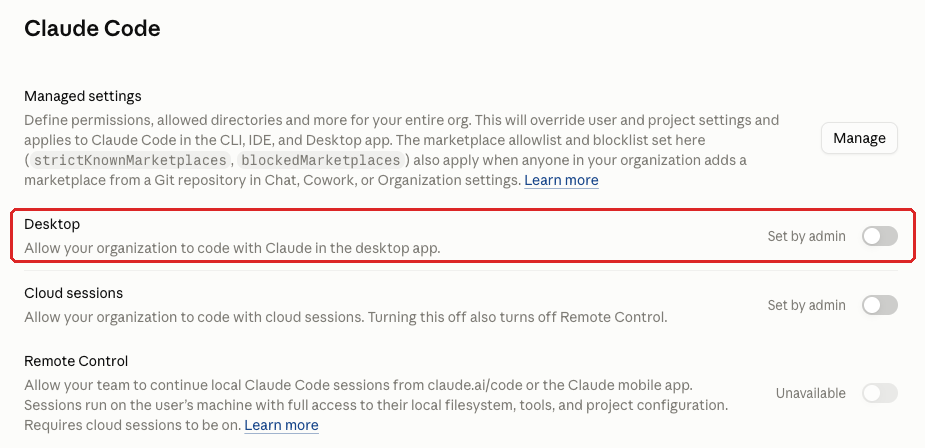
The Desktop toggle controls whether people in your organization can use Claude Code in the Claude desktop app, through its Code tab. With it on, anyone who can sign in to the desktop app gets an agent that can read files and run commands on that computer.
Why It Matters
The desktop app reaches people who never open a terminal, such as operations staff and advisors, on machines that often hold client files. The safest way for a non-developer to try Claude Code is on a separate computer from their regular one, because on the regular one it can drive the whole computer, including deleting files. We can lock some of that down with settings, but not all of it.
Running it on regular computers is acceptable once the managed settings baseline (CODE-005) governs those sessions. Console-delivered managed settings do reach the desktop app’s local Code sessions, so one policy covers the terminal and the desktop app.
Until that policy is in place, each desktop session runs on that person’s own rules, and a non-developer may not know there are rules to set.
What We Recommend
- If CODE-005 isn’t in place yet, turn Desktop off.
- Turn Desktop on only after the managed settings policy is deployed and confirmed on one machine.
- For computers that shouldn’t run Code sessions at all, such as shared front-office machines, deliver the
disableDesktopLocalSessionsmanaged setting through MDM. It turns off on-device Code sessions on those machines.
Where to Find It
Admin console path: Organization settings > Claude Code > Desktop
📄 Anthropic documentation: Claude Code desktop: admin console controls
What Your Team Will Notice
If you turn it off, people lose access to Claude Code in the desktop app. If you turn it on with the baseline in place, the Code tab follows the same rules as Claude Code in the terminal, so expect more approval prompts and some refused requests.
Sample message to your team:
Hi team,
Starting [date], Claude Code in the Claude desktop app (the Code tab) will be turned off while we set up company-wide rules for it. Chats in the desktop app work as before.
What to expect:
- The Code tab won’t be available in the desktop app.
- We’ll let you know when it’s back, with the new rules in place.
If you use the Code tab for your work, tell [IT contact/helpdesk] before [date] so we can plan around it.
Common Mistakes
- Turning on Desktop before the managed settings policy exists. Every Code tab session opened in that gap runs on the user’s own rules.
- Assuming one policy covers everything in the desktop app. It reaches the Code tab, but Cowork sessions in the same app don’t fetch it (see CAP-030).
Related Settings
- CODE-005: Claude Code Managed Settings Baseline. The policy that makes leaving Desktop on acceptable.
- COWORK-005: Cowork. The other agent in the desktop app, governed separately.
- CAP-030: Automatically Approve Mode for Cowork. Tool approvals for Cowork, since managed settings don’t reach it.
CODE-015: Claude Code Cloud Sessions
What This Does
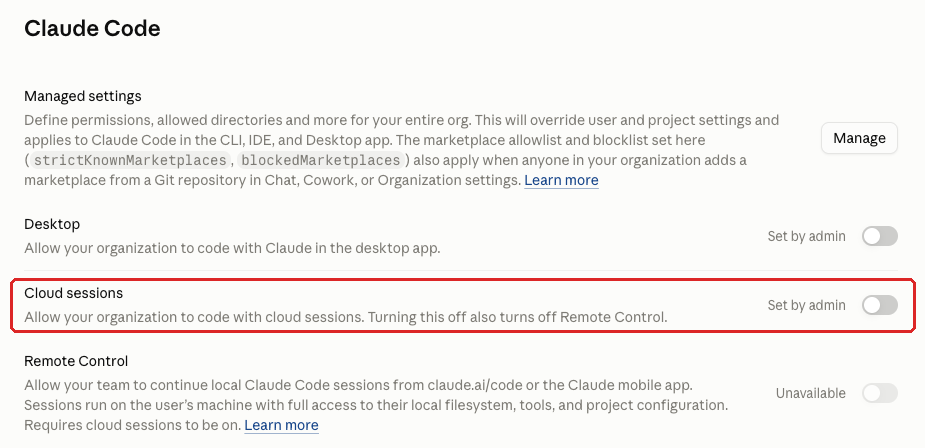
Cloud sessions lets members run Claude Code in Anthropic’s cloud instead of on their own computer. The session works on your firm’s GitHub repositories and can reach whatever network its cloud environment allows. Anthropic renamed this toggle from “Web” to “Cloud sessions” in Claude Code 2.1.277 (September 18, 2026), so older notes may still call it Web.
Why It Matters
When a cloud session works on your code, that code leaves your managed devices. So do any secrets inside it: API keys in config files, passwords in test scripts, database connection strings.
The session’s reach depends on the environment it runs in. Without an organization default (CODE-025) and a restricted network level (CLOUD-010), members can pick environments with wide internet access.
Turning cloud sessions off also turns off Remote Control (CODE-020), and Quick setup (CODE-030) shows as Unavailable. We recommend keeping both of those off anyway.
What We Recommend
- Keep Cloud sessions off until you have a specific use case.
- Before you turn cloud sessions on, set an organization default environment with Trusted network access (CODE-025 and CLOUD-010).
- Deploy the managed settings policy (CODE-005) before you turn this on. It applies to cloud sessions as well as local ones.
- Move secrets out of the repositories cloud sessions will use.
Where to Find It
Admin console path: Organization settings > Claude Code > Cloud sessions
📄 Anthropic documentation: Claude Code desktop: admin console controls
What Your Team Will Notice
With cloud sessions off, members can’t start Claude Code sessions in Anthropic’s cloud, and Remote Control and Quick setup go away with them. Claude Code on their own computers keeps working.
Sample message to your team:
Hi team,
Starting [date], Claude Code cloud sessions will be turned off. Claude Code will run only on your own computer, not in Anthropic’s cloud.
What to expect:
- You won’t be able to start new cloud sessions.
- Remote Control and Quick setup will also be unavailable.
- Claude Code in your terminal, code editor and the desktop app’s Code tab keeps working on your own machine.
If you have a project that depends on cloud sessions, contact [IT contact/helpdesk] before [date] so we can review it.
Common Mistakes
- Turning on cloud sessions with no default environment. Each member then picks their own network access.
- Leaving secrets in repositories that cloud sessions use. Once the session starts, those secrets sit in Anthropic’s cloud as well as on your devices.
- Searching the console for “Web.” The toggle was renamed in September 2026, and internal runbooks written before then may still use the old name.
Related Settings
- CODE-020: Remote Control for Claude Code. Depends on cloud sessions.
- CODE-025: Default Cloud Environment. Sets the environment cloud sessions start in.
- CLOUD-010: Shared Environment Network Access. Decides what a cloud session can reach.
- DATA-020: Cloud Session Sharing. Controls who can see a cloud session once it exists.
CODE-025: Default Cloud Environment
What This Does
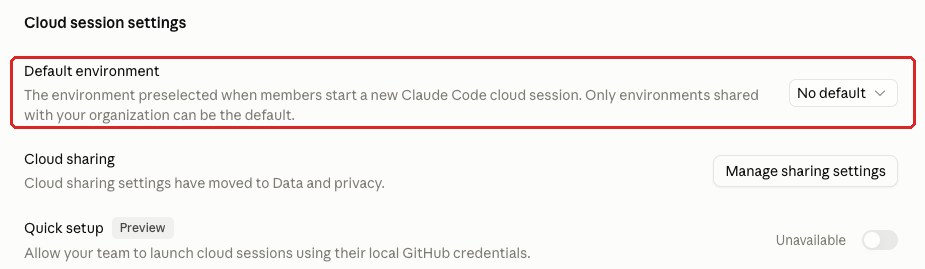
Default environment, under Cloud session settings, is the environment preselected when a member starts a new Claude Code cloud session. Only environments shared with your organization can be the default. In the console we reviewed, the dropdown read “No default.”
Why It Matters
Without an organization default, each member picks or creates an environment with whatever network access they like. The environment’s network level decides what a session can reach, so the default sets the starting point for everyone.
Anthropic’s documentation says new environments start at Trusted network access (allowlisted domains), and the Custom level takes your own list of domains. It also warns that every member’s sessions in a shared environment can read that environment’s variables, so they’re the wrong place for secrets.
This control works as a pair with CLOUD-010. CLOUD-010 makes sure a restricted shared environment exists; this one makes it the default.
What We Recommend
- Create an organization-shared environment with Trusted network access, or a Custom allowlist you’ve reviewed.
- Set it as the Default environment.
- Keep secrets out of its environment variables, which every member’s sessions can read. If sessions need an API key, an Owner can add it as a network secret on the Cloud environments page instead.
- Set the default even if cloud sessions are off, so it’s in place before anyone turns them on.
Where to Find It
Admin console path: Organization settings > Claude Code > Cloud session settings > Default environment
📄 Anthropic documentation: Cloud environments: organization-shared environments
What Your Team Will Notice
Nothing, in most cases. New cloud sessions start in the default environment when a member hasn’t picked one. Members can still pick their own environments, so the default doesn’t narrow network access for someone who chooses a wider one.
Common Mistakes
- Leaving “No default” because cloud sessions are off today. When someone turns them on later, members start from whatever environment they pick.
- Putting API keys in the shared environment’s variables to save setup time. Every member’s sessions can read them.
- Setting a default with unrestricted network access, which defeats the point of having one.
Related Settings
- CLOUD-010: Shared Environment Network Access. Sets the network level for the environment you choose here.
- CODE-015: Claude Code Cloud Sessions. The sessions that use this default.
- CLOUD-005: Self-Hosted Environments. Environments outside Anthropic’s sandbox, which this default doesn’t govern.
CODE-040: Dynamic Workflows
What This Does
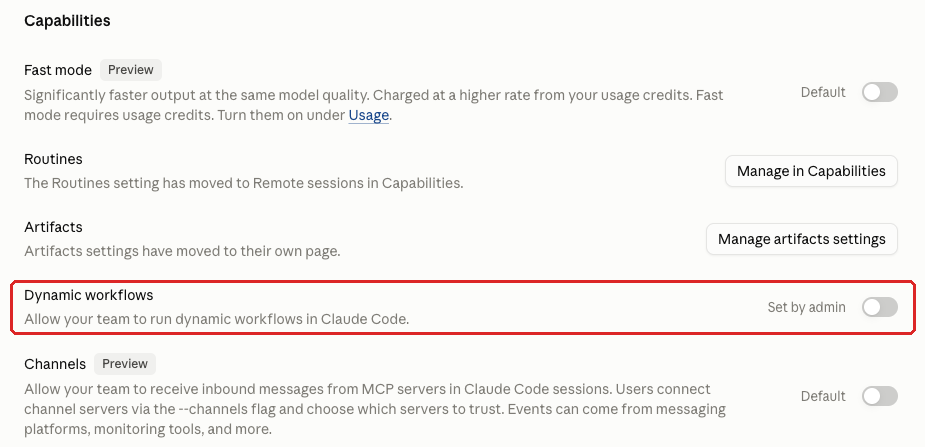
The console describes Dynamic workflows only as letting your team “run dynamic workflows in Claude Code.” As our benchmark describes it, the feature lets one Claude Code session start many helper agents (“sub-agents”), each working on part of a task, from a script and keep running for hours. It’s on by default. The managed settings equivalent, which our baseline uses, is disableWorkflows: true.
Why It Matters
If one session picks up a hidden instruction from a file or web page, a workflow could pass it to many sub-agents running for hours, with no one watching each step.
A long-running workflow can also use a lot of usage credits before anyone notices. We’d set credit limits (BILL-010) before allowing it.
What We Recommend
- Turn Dynamic workflows off until you’ve evaluated it.
- Set
disableWorkflows: truein your managed settings policy (CODE-005) as well, so the policy and the console agree. - Evaluate it with one named developer on a non-sensitive project. Look at what it costs, how long sessions run, and whether your managed settings rules still apply to every sub-agent.
- If you turn it on, set usage credit limits first.
- Watch Claude Code analytics (CODE-050) for the first month after it’s on.
Where to Find It
Admin console path: Organization settings > Claude Code > Capabilities > Dynamic workflows
Anthropic’s Claude Code documentation on dynamic workflows says you can turn them off for your whole organization with this toggle or with disableWorkflows in managed settings (checked October 2026).
📄 Anthropic documentation: Dynamic workflows: turn workflows off
What Your Team Will Notice
Normal Claude Code sessions work the same. Anyone running scripts that start dynamic workflows will find those scripts no longer run.
Sample message to your team:
Hi team,
Starting [date], dynamic workflows in Claude Code will be turned off while we evaluate them. This is the feature that lets one session start many helper agents from a script and run for hours.
What to expect:
- Normal Claude Code sessions work as before.
- Scripts or tasks that start dynamic workflows won’t run.
If you’re using dynamic workflows for your work, tell [IT contact/helpdesk] before [date] so we can include your use case in the evaluation.
Common Mistakes
- Leaving the default on because nobody has asked about it. On-by-default features still need a decision from someone.
- Turning it off in only one place. Set both the console toggle and the managed setting, so a later change to one doesn’t reopen it.
- Evaluating it without a credit limit in place.
Related Settings
- CODE-005: Claude Code Managed Settings Baseline. The policy where
disableWorkflowsgoes. - BILL-010: Usage Credit Limits. Caps what a long-running workflow can spend.
- CODE-050: Claude Code Analytics. Shows usage if you decide to turn workflows on.
CLOUD-010: Shared Environment Network Access
What This Does
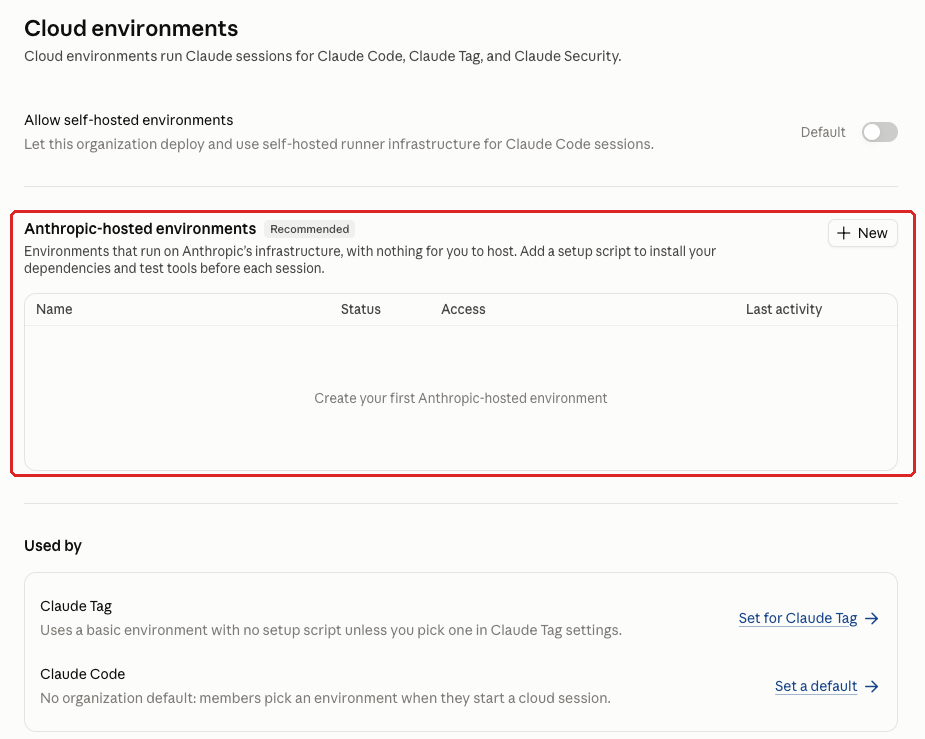
The Anthropic-hosted environments section (marked Recommended in the console) holds the cloud environments your organization shares, and the console shows that Claude Tag and Claude Code use them. Each environment has its own network access level, which decides what sessions in it can reach. Only an Owner can open this page; the Admin role can’t.
Why It Matters
Trusted, the default level, lets sessions reach package registries (the public sites developers download code libraries from) and allowlisted domains, and Custom takes your own list. Anything wider gives a session that picks up a hidden instruction more places to send your data.
There’s no organization-wide allowlist an admin can push. Each environment carries its own setting, so every new environment is one more place to check.
Shared environment variables are readable by every member’s sessions. Network secrets keep a key out of the session. But Anthropic says sessions can reach a secret’s hosts “even when the environment’s network access level wouldn’t otherwise allow them,” so review those hosts too.
What We Recommend
- Keep at least one organization-shared environment with network access set to Trusted, or a Custom allowlist you’ve reviewed.
- Avoid full network access on any environment.
- Make that environment the organization default (CODE-025).
- Review every environment’s network level each quarter, including environments Claude Tag uses.
- Keep secrets out of environment variables.
Where to Find It
Admin console path: Organization settings > Cloud environments > Anthropic-hosted environments
📄 Anthropic documentation: Cloud environments: network access
What Your Team Will Notice
Nothing, for most members. A session that needs a site outside the allowlist can’t reach it until someone adds that domain to a Custom list.
Common Mistakes
- Widening network access to fix one failing install and leaving it wide. Add the one domain the install needs to a Custom list.
- Reviewing only the default environment. Environments created for Claude Tag or a single project go unchecked.
- Assigning the review to someone with the Admin role. The page needs an Owner.
Related Settings
- CODE-025: Default Cloud Environment. Makes your restricted environment the one sessions start in.
- CLOUD-005: Self-Hosted Environments. Runners outside these network controls.
- TAG-005: Claude Tag for Slack. Also runs in these environments.
- CAP-055: Network Egress for Code Execution. The matching network control for code execution in chat.
CODE-030: Quick Setup
What This Does
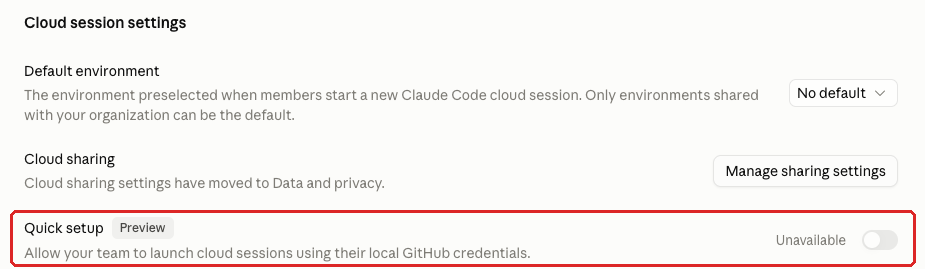
Quick setup is a preview feature that lets members launch Claude Code cloud sessions using their local GitHub credentials. Anthropic’s documentation says it’s off by default on Team and Enterprise and an Owner turns it on from the Claude Code settings page.
Cloud sessions also need the GitHub connector turned on under Organization settings > Connectors before members can sign in with GitHub. While Cloud sessions (CODE-015) are off, the toggle shows as Unavailable.
Why It Matters
The risk is low. Because the session’s GitHub access comes from each member’s own credentials, it may reach more repositories than the ones you’ve approved for Claude (see GIT-005).
What We Recommend
- Leave Quick setup off until you’ve evaluated it.
- Evaluate it only after cloud sessions have a default environment and network limits (CODE-025, CLOUD-010).
Where to Find It
Admin console path: Organization settings > Claude Code > Cloud session settings > Quick setup (Preview)
📄 Anthropic documentation: Quick setup for Team and Enterprise
What Your Team Will Notice
Nothing, if it’s still off by default. If an Owner turned it on, members lose the option to start cloud sessions with their local GitHub credentials.
Common Mistakes
- Turning on the GitHub connector for cloud sessions without reviewing what else that connector can reach.
- Turning it on before cloud sessions have network limits.
Related Settings
- CODE-015: Claude Code Cloud Sessions. Quick setup only works when cloud sessions are on.
- GIT-005: Git Provider Connections and Code Review Scope. Review GitHub connections before adding more.
- CONN-005: Connector Inventory and Owners. The GitHub connector belongs in your connector inventory.
CODE-035: Fast Mode
What This Does
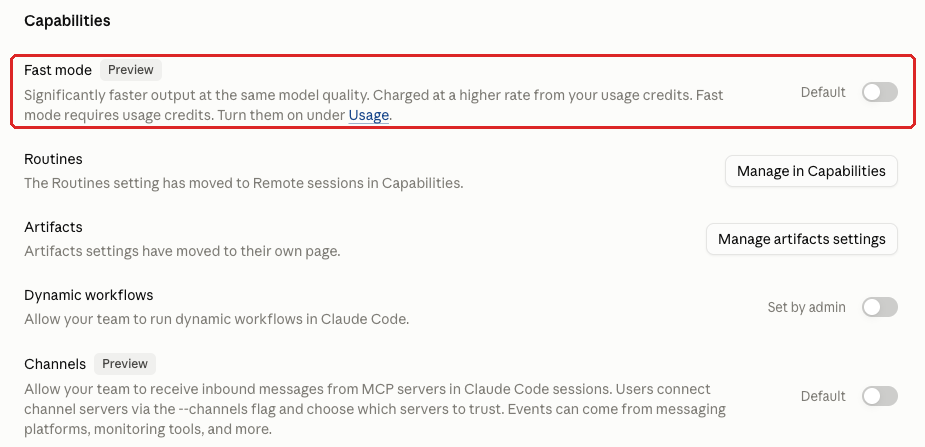
Fast mode makes Claude Code respond faster. The console describes it as “significantly faster output at the same model quality,” charged at a higher rate from your usage credits, and it only works with usage credits turned on. Anthropic’s documentation says it’s off by default for Team and Enterprise organizations and an Owner has to turn it on.
Why It Matters
We don’t treat fast mode as a data-handling issue. It’s an unevaluated change that costs more per request, and spending changes need an owner and a budget before they go live.
What We Recommend
- Keep fast mode off until someone has looked at the cost.
- If you turn it on, set usage credit limits first (BILL-010).
- To keep it off on specific machines regardless of the console setting, set
fastMode: falsein managed settings delivered to those machines.
Where to Find It
Admin console path: Organization settings > Claude Code > Capabilities > Fast mode (Preview)
📄 Anthropic documentation: Enable fast mode for your organization
What Your Team Will Notice
If fast mode was never turned on, nothing changes. If an Owner turned it on and you’re turning it back off, developers lose the option.
Sample message to your team:
Hi team,
Starting [date], fast mode in Claude Code will be off while we evaluate it. Fast mode is charged at a higher rate from our usage credits, and we want to understand the cost before we offer it.
What to expect:
- Claude Code works as before in its normal mode.
- The fast mode option won’t be available.
If fast mode would make a difference to your work, tell [IT contact/helpdesk] and we’ll include it in the evaluation.
Common Mistakes
- Turning it on for one developer’s request without a credit limit.
- Turning it on and not checking spend for the first month.
Related Settings
- BILL-010: Usage Credit Limits. Caps what fast mode can spend.
- CODE-050: Claude Code Analytics. Shows who uses Claude Code and how much.
CODE-045: Channels
What This Does
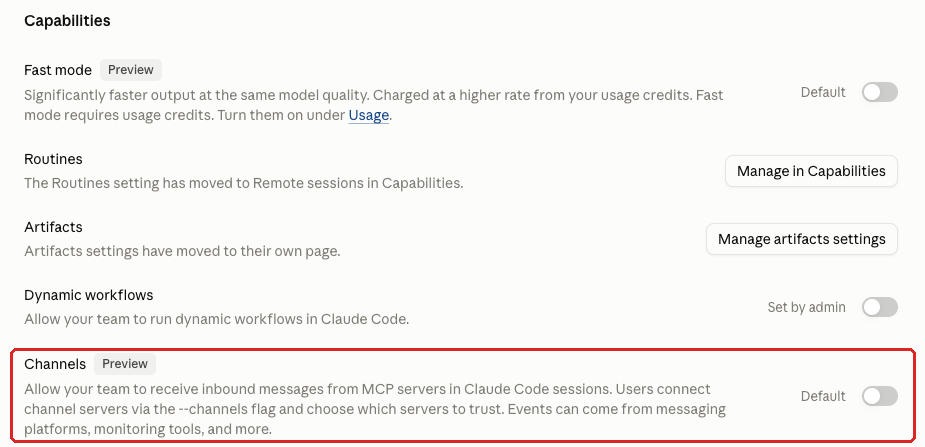
Channels lets a running Claude Code session receive inbound messages from MCP servers. Developers connect these channel servers with the --channels flag and choose which ones to trust. Messages can come from chat tools such as Telegram or Discord, monitoring tools, or webhooks (automated messages one system sends to another).
Anthropic’s documentation says channels are blocked on Claude Team and Enterprise until an Owner turns them on. The managed setting channelsEnabled controls the same switch, and allowedChannelPlugins limits which plugins can register a channel.
Why It Matters
Every channel is another way for untrusted text to reach an agent that can run commands. Anyone who can post in the connected chat, or trigger the alert or webhook, can put an instruction in front of the session.
With channels on, each developer decides which servers to trust. The organization switch is where the firm makes that call once for everyone.
What We Recommend
- Leave Channels off. Our baseline also sets
channelsEnabled: false. - If a team needs it, limit which plugins can register a channel with
allowedChannelPlugins. - Connect only sources where everyone who can send a message is someone you’d trust with the developer’s laptop.
Where to Find It
Admin console path: Organization settings > Claude Code > Capabilities > Channels (Preview)
📄 Anthropic documentation: Channels: enterprise controls
What Your Team Will Notice
Nothing, if channels are still blocked, which is the default. If an Owner turned them on, developers stop receiving channel messages in their sessions.
Common Mistakes
- Turning it on to try a chat integration such as Telegram or Discord and leaving it on.
- Confusing it with Claude Tag (TAG-005), which is Claude in Slack and has its own controls.
Related Settings
- CODE-005: Claude Code Managed Settings Baseline. The policy where
channelsEnabledandallowedChannelPluginsgo. - TAG-005: Claude Tag for Slack. The separate way Claude works inside Slack.
- CODE-020: Remote Control for Claude Code. Another way outside input reaches a running session.
CODE-050: Claude Code Analytics
What This Does
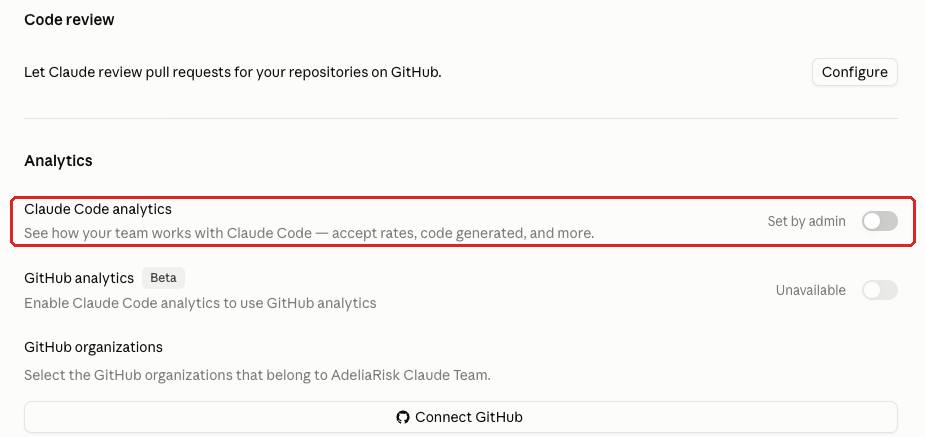
Claude Code analytics turns on the usage view for Claude Code. The console says it shows how your team works with Claude Code: “accept rates, code generated, and more.”
Once it’s on, Owners and Primary Owners on Claude Team can see it under Analytics > Claude Code, with a spend report under Settings > Analytics (“How much is Claude costing?”). GitHub analytics (Beta), on the same console page, only works with Claude Code analytics on.
Why It Matters
On Claude Team, this is the main view you get of Claude Code usage. With it off, you lose that view of who’s using Claude Code and how.
Usage data shows whether the people using Claude Code match the people you approved, and whether spend matches what you expected.
What We Recommend
- Turn Claude Code analytics on.
- Review it monthly against your list of approved Claude Code users.
- Check Claude Code spend in the same review.
Where to Find It
Admin console path: Organization settings > Claude Code > Analytics > Claude Code analytics
📄 Anthropic documentation: View usage analytics for Team and Enterprise plans
What Your Team Will Notice
Nothing. On Claude Team, only Owners and Primary Owners see analytics.
Common Mistakes
- Turning it on and never looking. Put the monthly review on someone’s calendar.
- Treating analytics as an activity log. It shows usage and spend, and it doesn’t record what each session did.
Related Settings
- MEM-010: Members List Review. Compare Claude Code users against your members list.
- BILL-010: Usage Credit Limits. Spend you see here should match the limits you set.
- DATA-052: Reliable Activity Logging. Where activity records come from.
What These Settings Don’t Cover
This page covers Claude Code. The other five pages of the guide cover the rest of the admin console:
- Organization and access (domains, single sign-on, provisioning, organization instructions, plan, members)
- Data and privacy (sharing, export, feedback, monitoring, audit logs, retention, Compliance API)
- Capabilities (web search, built-in browser, Cowork approvals, code execution, remote sessions, memory)
- Agents and extensions (Cowork, Office Agents, Claude in Chrome, Claude Tag, Artifacts, beta products)
- Connectors, plugins and skills (connector inventory, tool permissions, desktop extensions, skills, plugins)
These settings sit on top of the computer itself, so we start at the bottom and work up. Harden and protect the computers first with endpoint protection (EDR) and device management (MDM), then set up the logging you need for compliance, then watch for risky operations and prompt injection. In our own use, Claude Code does risky things, and there have been times our endpoint protection stopped it from doing something it shouldn’t have.
The hub also covers practices that aren’t console settings.
Need Help Configuring These Settings?
Some of these changes take minutes. Turning off Remote Control or self-hosted environments is one toggle each. The managed settings policy takes longer: an interview with your IT lead, a one-week pilot, a message to developers and a few exceptions before it fits how your team works.
If your firm is an SEC-registered investment adviser or a HIPAA-covered entity, the settings you choose here may have compliance implications, so write down the decision behind each one.
Adelia Risk’s virtual CISO services include reviewing all 76 controls in our Claude Security Benchmark, building your managed settings policy with your IT lead, and rolling the changes out to your developers. For RIAs, our RIA cybersecurity services cover the same work for SEC-registered advisers.
Verified against the Claude admin console in October 2026.
Part of the Adelia Risk Claude Security Guide. 76 controls across the Claude Team and Enterprise admin console.