
Several of Claude’s agent features start on by default, so a firm on Claude Team or Claude Enterprise may already let Claude open files, fill in web forms and edit spreadsheets on its staff’s behalf. Adelia Risk reviews these agent and extension settings in every Claude security review we run. We wrote this page for the business owner, operations lead or IT person at a registered investment adviser (RIA), wealth management firm or other regulated business who decides which of them stay on.
In May 2026, CISA and its international partners released guidance on adopting AI agents. It warns that agents can bring “an expanded attack surface, privilege creep, behavioral misalignment, and obscure event records,” and it tells organizations to “avoid granting broad or unrestricted access, especially to sensitive data or critical systems.” Our recommendations on this page follow the same two ideas: least access, and a usable record of what the agent did.
This page covers 10 of the 76 controls in Adelia Risk’s Claude Security Benchmark, spread across the admin console pages for Cowork, Office Agents, Claude in Chrome, Claude Tag, Artifacts and three beta products. The sections run from highest risk to lowest. It’s the same benchmark we use when we review Claude for clients through Adelia Risk’s virtual CISO services.
Quick Reference
| Policy ID | Setting | Risk | Heads Up? | Plan | Admin Path |
|---|---|---|---|---|---|
| CHROME-005 | Claude in Chrome | 🔴 Critical | Yes | Team and Enterprise | Claude in Chrome > Enable for your team |
| COWORK-005 | Cowork | 🔴 Critical | Yes | Team and Enterprise | Cowork > Enable for your organization |
| CHROME-010 | Chrome Site Permissions and Password Managers | 🟠 High | Yes | Team and Enterprise | Claude in Chrome > Browser site permissions / Password managers |
| OFFICE-005 | Office Agents Across Apps | 🟠 High | Yes | Team and Enterprise | Office Agents > Let Claude work across apps |
| TAG-005 | Claude Tag for Slack | 🟡 Medium | Yes | Team and Enterprise | Claude Tag |
| COWORK-010 | Cowork in the Cloud | 🟡 Medium | Yes | Team and Enterprise | Cowork > Cowork in the cloud (Beta) |
| ART-005 | External Artifact Sharing | 🟡 Medium | Yes | Team and Enterprise | Artifacts > External sharing / Email invitations outside your organization |
| ART-010 | Published Artifacts Review | 🟡 Medium | No | Team and Enterprise | Artifacts > Published artifacts |
| COWORK-015 | Dispatch | 🟢 Low | No | Team and Enterprise | Cowork > Enable Dispatch |
| BETA-005 | Beta Products (Design, Science, Academy) | 🟢 Low | Yes | Team and Enterprise | Claude Design / Claude Science > Enable for your organization; Claude Academy > Claude in Academy (Beta) |
All admin paths start at Organization settings in Claude (claude.ai/admin-settings). You need the Owner or Primary Owner role to change most of them.
Heads Up? Does your team need advance notice before you make this change? “Yes” means users will see something different. We’ve included sample language you can send to your team for every “Yes” setting.
Plan tells you where the control exists in Claude Team vs. Enterprise. “Team and Enterprise” means you can set it on either plan. “Enterprise only” means the setting doesn’t exist on Claude Team; in our benchmark a Team-plan firm gets the result “Enterprise” for that row, which means the only way to close the gap is to upgrade (see BILL-007).
CHROME-005: Claude in Chrome
What This Does
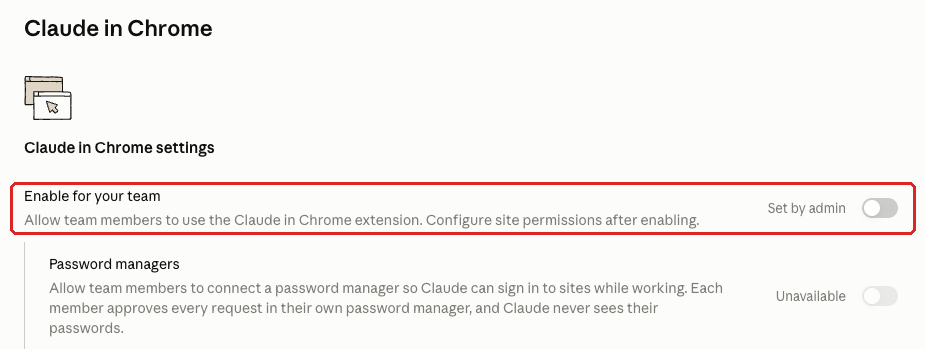
Claude in Chrome is a browser extension that lets Claude read web pages, click links and fill in forms inside the user’s own Chrome browser. The Enable for your team toggle turns it on or off for the whole organization, and the console tells you to “Configure site permissions after enabling.”
Why It Matters
The extension works inside the browser your staff use all day, which is usually signed in to email, the CRM, the custodian portal, the bank and the admin consoles for your other systems. If someone is signed in to the CRM and a web page slips Claude a secret instruction to download all the client names, Claude may go off and do it.
The main danger is a hidden instruction planted in a web page, email or document that Claude reads and then follows (“prompt injection”). In Anthropic’s August 2025 pilot testing, planted instructions succeeded in 23.6% of attack attempts before Anthropic added safety mitigations and 11.2% after, measured in the extension’s autonomous mode. Those are pilot-era numbers, and Anthropic has changed its defenses since. They still show that the risk can be reduced but not removed.
If you’re subject to HIPAA, Anthropic’s help page says Claude in Chrome is “not covered under your Business Associate Agreement (BAA), including after an Owner turns it on.”
What We Recommend
- Set Enable for your team to Off. There are times when the only way to get the information you need is from a browser, but leave it off and see how far you can get without it.
- If someone has a strong business case, start with connectors and APIs. You have more control over those than over Claude in Chrome, and it’s the route we recommended when one client wanted Claude to handle tasks on a few websites. If the extension is still the only way, treat it as a privileged-access request with a written reason, an owner and an end date. On Claude Team the toggle is organization-wide, so turning it on for one person makes it available to everyone.
- If you manage computers with a device management tool (MDM) or Google’s Chrome management, block the extension there too. Anthropic’s admin guide says to “Use your IT controls to limit which employees can install the extension.” It’s a second layer that makes the extension much harder to install on managed computers, even if someone turns the console toggle back on. It doesn’t reach personal or unmanaged computers.
- Set the CHROME-010 site restrictions as soon as you turn it on, before anyone uses it.
- Anyone who uses it should work in a separate Chrome profile. Anthropic’s Claude in Chrome safety page recommends “a separate browser profile without access to sensitive accounts (such as banking, healthcare, government).”
- Keep it off sensitive sites. The same page says “We strongly advise against using Claude in Chrome to manage or take actions on sensitive information,” and lists managing financial accounts or investments among the examples.
- Don’t lean on the built-in guardrails. Financial sites aren’t blocked by default, and the page says “Claude asks for permission before accessing financial sites.” A permission prompt helps only if someone reads it carefully every time, and Anthropic adds that “the chances of an attack are still non-zero.”
Where to Find It
Admin console path: Organization settings > Claude in Chrome > Enable for your team
📄 Anthropic documentation: Claude in Chrome admin controls
What Your Team Will Notice
Once the toggle is off, members who use the extension today lose access to it through the firm’s Claude account. Any web tasks they handed to Claude go back to being done by hand. People who never installed it won’t see a change.
Sample message to your team:
Hi team,
Starting [date], we’re turning off Claude in Chrome, the browser extension that lets Claude click and type on websites for you. Claude chats, projects and our approved connectors aren’t changing.
What you need to do before [date]:
- If you use Claude in Chrome, finish or save any task you have running in it.
- Remove the extension from Chrome, or ask [IT contact/helpdesk] to remove it for you.
- If you rely on it for a regular task, tell us what the task is so we can find a safer way to handle it.
We’re making this change because the extension can act on the websites you’re signed in to, including email and financial sites. Removing it takes about a minute. Questions go to [IT contact/helpdesk].
Common Mistakes
- Turning it off in Claude and stopping there. The admin console controls your Claude organization, not what’s installed in Chrome. Block it in your device management tool as well, if you have one.
- Running a pilot with no end date. A trial can turn into a permanent exception when nobody owns the follow-up.
Related Settings
- CHROME-010: Chrome Site Permissions and Password Managers. Limits where the extension can work.
- CAP-020: Built-In Browser Site Permissions. Shares the same site list.
- DATA-052: Reliable Activity Logging. Which Claude activity gets logged on each plan.
COWORK-005: Cowork
What This Does
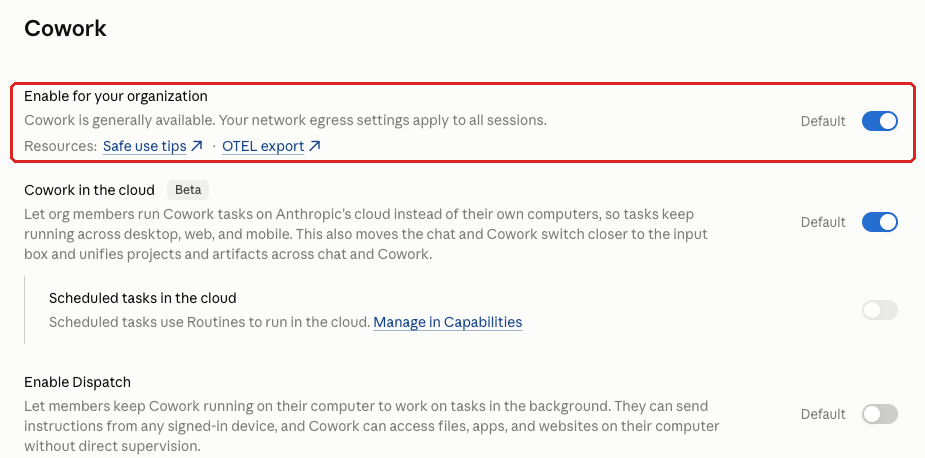
Cowork is the agent built into the Claude desktop app. It works on the user’s own computer with their files, apps and connectors, and it can open, create and change files to finish a multi-step task.
The Enable for your organization toggle decides whether members can use it at all. It’s on by default for most organizations, though organizations that have enabled HIPAA start with it off.
The console now also has a beta setting, Chat and Cowork unified (Beta), under Capabilities > Chat. It lets members use “the new unified chat and cowork experience, where Claude can run code, work with files, and keep longer tasks going in the cloud,” in the console’s words. When it’s off, “everyone keeps classic chat and Cowork.” It isn’t in our benchmark yet. Before turning it on, Anthropic’s setup guide says to “Review your network egress, connector, sharing, and Computer access settings,” which this guide covers.
Why It Matters
Cowork can do what the user can do on that computer and in every tool they’ve connected. A hidden instruction in a document or web page can steer it into changing files or sending messages that nobody asked for.
One client paused its Cowork rollout because Claude Team kept no audit record of what Cowork did. Cowork activity still doesn’t appear in Anthropic’s audit logs on any plan, including Enterprise. On Claude Team, if something goes wrong on a Cowork machine, there’s no audit trail unless you’ve built one. Claude Enterprise firms can also retrieve Cowork session transcripts through the Compliance API.
The Claude Code managed settings you deliver from the admin console don’t reach Cowork sessions either, so the permissions and allowed directories you set for Claude Code don’t apply there. You’d think Claude Code would be the riskier of the two, but because the console lets you change all those settings for it, we prefer Claude Code to Cowork.
If your firm is an SEC-registered investment adviser, the amended Regulation S-P gives you no more than 30 days to notify affected clients after you learn of a breach. Working out what an agent touched is harder when it left no record.
What We Recommend
The benchmark accepts two positions.
- Turn it off. This is the simpler choice, and the right one for most firms until monitoring is in place.
- Keep it on only after all three of these are set:
- DATA-045, OpenTelemetry monitoring for Cowork. OpenTelemetry (OTel) is an open standard for sending activity data to a logging tool you control, and on Claude Team this feed is the only Cowork activity record the console offers.
- CAP-065, Require trusted devices, so members have to verify each new phone or browser before it can control Cowork on their computer remotely.
- CAP-030, “Automatically approve” mode off, so members approve Cowork’s actions one at a time.
- Run Cowork only on firm-managed computers with disk encryption and security software that watches for attacks (endpoint detection and response, or EDR).
- Check network egress too. The Cowork page says “Your network egress settings apply to all sessions,” so the egress setting in CAP-055 also governs Cowork.
- Record the decision either way: who approved it, which controls are in place and when you’ll review it.
Where to Find It
Admin console path: Organization settings > Cowork > Enable for your organization
📄 Anthropic documentation: Use Claude Cowork on Team and Enterprise plans
What Your Team Will Notice
If you turn Cowork off, members can no longer start Cowork tasks in the desktop app. Regular chats, projects and connectors keep working.
If you keep it on with the three controls, members will approve Cowork’s actions as it works. They’ll also have to verify each new phone or browser before using it to control Cowork remotely.
Sample message to your team:
Hi team,
Starting [date], we’re turning off Cowork, the part of the Claude desktop app that works directly with files and apps on your computer, while we set up monitoring for it. Regular Claude chats, projects and connectors aren’t changing.
What you need to do before [date]:
- Finish or save any Cowork task you have running.
- If Cowork handles a task you rely on, tell [IT contact/helpdesk] so we can include it when we decide whether to turn Cowork back on.
This should take a few minutes at most. If you have questions, contact [IT contact/helpdesk].
Common Mistakes
- Leaving the default in place without a decision. Cowork starts on for most organizations, so a firm that never opened this page has probably already allowed it.
- Adding monitoring after Cowork is already in use. Anything Cowork did before monitoring was set up has no OpenTelemetry record. Monitoring settings also load when a session starts, so sessions already open won’t pick up the change.
- Assuming the Claude Code baseline in the admin console covers Cowork. It doesn’t, so a strong Claude Code setup can sit next to an unmanaged agent in the same desktop app.
Related Settings
- DATA-045: Cowork OpenTelemetry Monitoring. Your record of what Cowork did.
- CAP-065: Require Trusted Devices. Makes members verify each new device before it can control Cowork remotely.
- CAP-030: Automatically Approve Mode for Cowork. Keeps a human click in front of each action.
- CODE-005: Claude Code Managed Settings Baseline. The rules that don’t reach Cowork.
CHROME-010: Chrome Site Permissions and Password Managers
What This Does
Two settings on the Claude in Chrome page decide where the extension can work and whether it can sign in to sites. Browser site permissions either allows all sites except the ones you block, or allows only the sites you list.
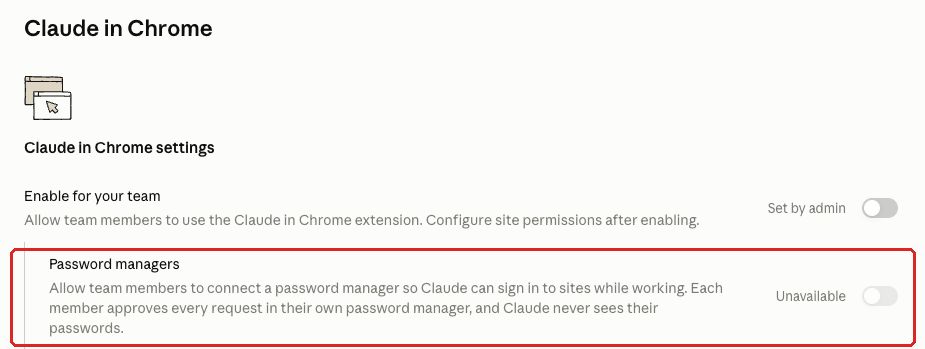
Password managers is off by default. Turned on, it lets members connect a password manager such as 1Password “so Claude can sign in to sites while working.” Each member approves every request in their own password manager, “and Claude never sees their passwords.” You configure both settings after Claude in Chrome is turned on.
Why It Matters
If the site permissions allow every site, the extension works on the bank, the custodian and the admin portals for your other systems. An allowlist reverses that, so Claude can act only on sites you’ve approved. Anthropic’s Claude in Chrome safety page makes the same recommendation: “For organizations handling sensitive data, we recommend a restrictive allowlist so Claude can only work on approved tools.”
With the password manager integration, Claude can sign in as the user. It never sees the passwords, but it’s no longer limited to the sites the browser is already signed in to. The member approving each request is the main check, and it works only if they read every prompt.
What We Recommend
If Claude in Chrome stays off, as we recommend in CHROME-005, the password manager setting stays unavailable, and the site list matters only for the built-in browser covered in CAP-020. If you turn Claude in Chrome on:
- Set Browser site permissions to allow only the sites you list.
- Start with the smallest list that covers the approved use case.
- Document each site on the list: why it’s there, who approved it and when you’ll review it.
- Keep these off the list: bank and custodian portals, your password manager’s web vault, your identity provider (Okta, Microsoft Entra ID, Google), email, and the admin console of any system.
- Set Password managers to Off. We haven’t seen a business case that justifies letting an AI agent sign in to sites from a staff member’s password vault.
Where to Find It
Admin console path: Organization settings > Claude in Chrome > Browser site permissions / Password managers
📄 Anthropic documentation: Claude in Chrome admin controls
📄 Anthropic documentation: Get started with 1Password for Claude
What Your Team Will Notice
Claude in Chrome will only work on approved sites. On anything else, people will have to do the task themselves or ask for the site to be added. Anyone who connected a password manager to Claude loses that connection, though the password manager itself works as before.
Sample message to your team:
Hi team,
Starting [date], Claude in Chrome will only work on a short list of approved websites, and Claude will no longer be able to sign in to websites through your password manager.
What to expect:
- On approved sites, Claude in Chrome works the way it does today.
- On other sites, it won’t run. If you need a site added, ask [IT contact/helpdesk] and tell us what the task is.
- You’ll sign in to websites yourself. Your own password manager works exactly as before; only the connection to Claude is going away.
This reduces the risk of Claude being tricked into acting on a site that holds client or firm data. If you have questions, contact [IT contact/helpdesk].
Common Mistakes
- Building a blocklist and calling it done. A blocklist only covers the sites someone thought of, and every new site is allowed until someone adds it.
- Treating the Chrome list and the built-in browser list as two decisions. The same list also sits under the built-in browser on the Capabilities page, so a change made for Chrome also changes what Claude can browse in Chat, Cowork and Claude Code.
- Never testing the result. After you set the allowlist, try an unapproved site on a test machine and confirm the extension refuses to act there.
Related Settings
- CHROME-005: Claude in Chrome. The master toggle these settings depend on.
- CAP-020: Built-In Browser Site Permissions. The same site list, seen from the Capabilities page.
- CONN-015: Connector Tool Permissions. The same least-access idea, for connectors.
OFFICE-005: Office Agents Across Apps
What This Does
Office Agents are Claude’s add-ins for Microsoft Excel, Word, PowerPoint and Outlook. Inside each app, the add-in reads, edits and creates content as the user. You manage access to the add-ins themselves through the Microsoft 365 admin center.
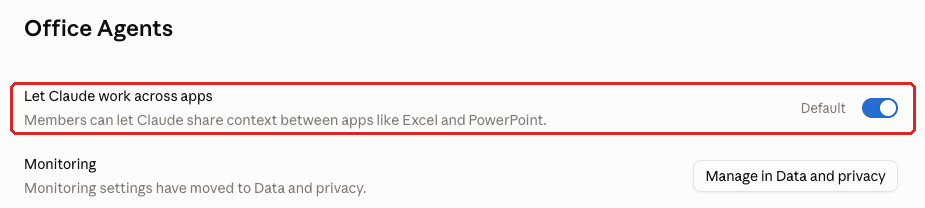
The Let Claude work across apps toggle in Claude’s console decides whether members can let those add-ins share context with each other. The console describes it as “Members can let Claude share context between apps like Excel and PowerPoint,” and it’s on by default.
Why It Matters
Spreadsheets hold a lot of firm data: billing, client lists, performance figures. When the add-ins share context, what Claude reads in one app travels with it into the next. An instruction planted in one spreadsheet, for example in text pasted in from an outside source, can steer what Claude does in another app. That could change the figures in a client presentation built from the spreadsheet.
Office Agents activity doesn’t show up in Anthropic’s audit logs, so on Claude Team, without OpenTelemetry monitoring for Office Agents, there’s no central record of what Claude changed.
If your firm is an SEC-registered investment adviser, an unexplained change to a spreadsheet that feeds fee billing or client reports can end up on a client’s bill or report.
What We Recommend
- Set Let Claude work across apps to Off unless you have a documented use case.
- If a team needs it, write down who uses it and for which workflows.
- Set up DATA-050 (OpenTelemetry monitoring for Office Agents) before you turn it on.
- Review who gets the Claude add-ins in the Microsoft 365 admin center whenever you review this toggle.
Where to Find It
Admin console path: Organization settings > Office Agents > Let Claude work across apps
📄 Anthropic documentation: Office agents: work across apps
What Your Team Will Notice
People who use Claude in Excel, Word or PowerPoint will find it works only with what’s in the app they have open. Tasks that relied on Claude bringing context from one app into another become two steps.
Sample message to your team:
Hi team,
Starting [date], Claude’s add-ins for Excel, Word and PowerPoint will stop sharing context with each other. Claude in PowerPoint won’t see what you were working on with Claude in Excel, and the other way around.
What to expect:
- Claude still works inside each app the way it does today.
- Tasks that span apps (for example, building slides from a spreadsheet) become two steps: you bring the content over, then ask Claude.
- If cross-app work is part of a regular process for you, tell [IT contact/helpdesk] so we can review it.
Questions? Contact [IT contact/helpdesk].
Common Mistakes
- Splitting the decision across two consoles with no single owner. The add-ins are deployed in Microsoft 365, and the cross-app toggle starts on in Claude, so each side can assume the other made the call.
- Turning it on without monitoring. On Claude Team, without DATA-050 there’s no central record of what Claude did in each app.
- Approving a vague use case. “Help with spreadsheets” covers every workbook in the firm, so name the workflows and files the use case needs.
Related Settings
- DATA-050: Office Agents OpenTelemetry Monitoring. Your record of what Office Agents did.
- DATA-052: Reliable Activity Logging. Explains what Claude Team does and doesn’t log.
- COWORK-005: Cowork. The desktop agent with the same audit-log gap.
TAG-005: Claude Tag for Slack
What This Does
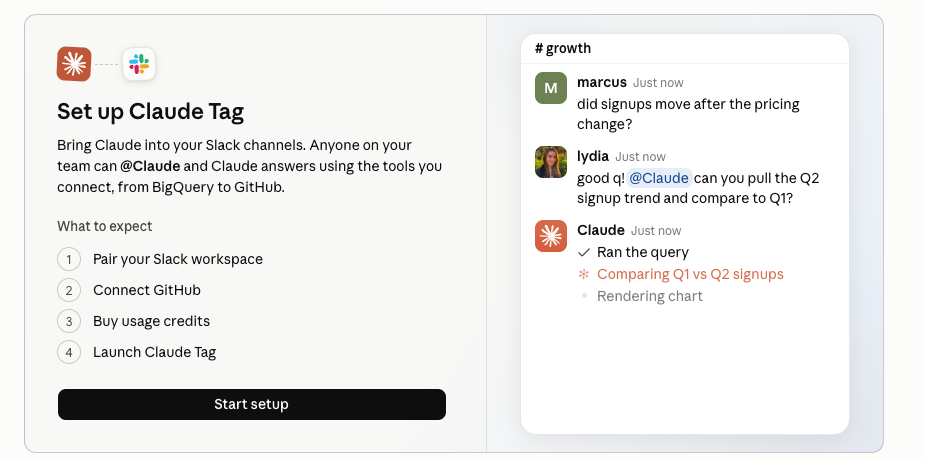
Claude Tag puts Claude into your Slack workspace. In the console’s words, “Anyone on your team can @Claude and Claude answers using the tools you connect, from BigQuery to GitHub.” It’s the successor to Claude in Slack and is labeled Beta.
Setup runs through four steps on the Claude Tag page: pair your Slack workspace, connect GitHub, buy usage credits and launch Claude Tag. The organization-wide settings then sit at the top of the page: Enable Claude Tag in Slack, Direct messages and Model. Claude Tag also needs Routines turned on under Capabilities.
Why It Matters
People paste all kinds of firm information into Slack to get a quick answer. The console’s FAQ says “Claude reads messages in the channels it’s in, including any it’s not tagged in.” Any client data pasted into those channels reaches Claude, even if nobody asks it anything. When someone asks it to search or do research, it can also look across the workspace’s public channels.
Whose access Claude uses depends on setup. When a person tags Claude, it can use the connectors in their own Claude account, and the FAQ says it “reaches only what you can reach, and everything it does is recorded under your name.” You can also give Claude its own access for tools the whole channel shares. Then anyone in that channel can use that access through Claude, including people who don’t have their own access to the tool.
If your firm is an SEC-registered investment adviser, Claude conversations about client accounts may be business records under the Advisers Act books-and-records rule (Rule 204-2), and Slack threads add one more place those records can live.
What We Recommend
- Don’t set up Claude Tag unless you have a documented use case. If it isn’t set up today, leave it that way.
- If a team has a case, write down which channels Claude joins, what data can go into them and who owns the setup.
- Add those data rules to your AI acceptable use policy so staff find them in one place. Our AI acceptable use policy template is a starting point.
- Keep Claude out of channels that carry client information.
- Claude can work through each asker’s own connectors. If it also needs its own access to a shared tool, limit that access to what everyone in the channel can already see.
- Review Claude’s own access on the same schedule as your other shared service accounts.
- Decide on Routines (CAP-070) before setup.
- Set a usage credit limit (BILL-010) before you buy credits for Claude Tag.
- Check the Activity sub-page as part of your regular review.
Where to Find It
Admin console path: Organization settings > Claude Tag
📄 Anthropic documentation: Claude Tag admin setup overview
What Your Team Will Notice
If Claude Tag was never set up, nothing changes. If it’s running and you turn off Enable Claude Tag in Slack, people who mention Claude in Slack will stop getting answers there.
Sample message to your team:
Hi team,
Starting [date], Claude will no longer be available inside Slack. You can keep using Claude in the Claude app and on the web as usual.
What to expect:
- Mentioning Claude in a Slack channel or direct message won’t get a response after [date].
- Please keep client information out of Slack threads.
- If Claude in Slack was part of a regular process for your team, tell [IT contact/helpdesk] so we can review it.
Questions go to [IT contact/helpdesk].
Common Mistakes
- Assuming Claude only sees messages where it’s tagged. It reads everything in the channels it has joined.
- Giving Claude its own access to a tool without scoping it. Anyone in the channel can then use that access through Claude, including people added to the channel later.
- Turning on Routines just to get Claude Tag working. That one switch also allows scheduled agent runs in Chat, Cowork and Claude Code.
Related Settings
- CAP-070: Routines. Claude Tag can’t run without it.
- BILL-010: Usage Credit Limits. Setup includes buying usage credits.
- GIT-005: Git Provider Connections and Code Review Scope. Setup connects GitHub, so review that connection’s scope too.
COWORK-010: Cowork in the Cloud
What This Does
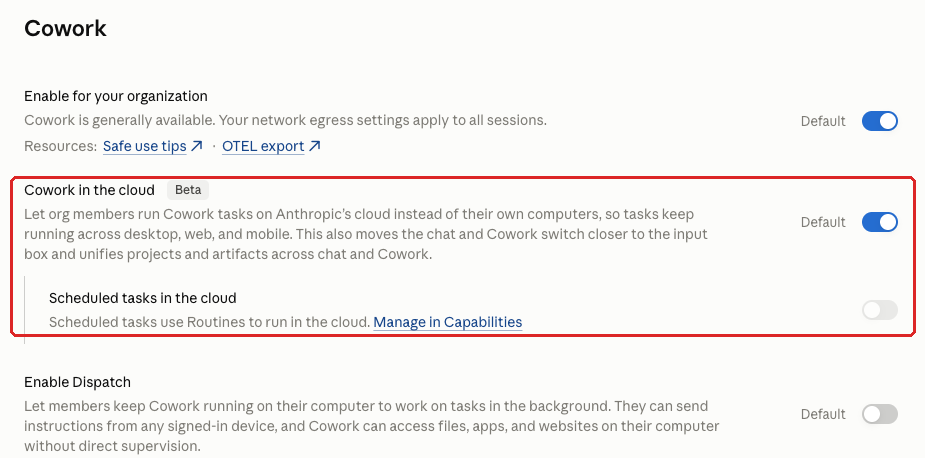
Cowork in the cloud (Beta) lets members “run Cowork tasks on Anthropic’s cloud instead of their own computers, so tasks keep running across desktop, web, and mobile,” in the console’s words. Tasks use the user’s connectors and keep going after the laptop is closed.
On Claude Team the toggle is on by default (Claude Enterprise starts with it off), and it also changes the app: it “moves the chat and Cowork switch closer to the input box and unifies projects and artifacts across chat and Cowork.” A nested setting, Scheduled tasks in the cloud, is controlled by Routines on the Capabilities page.
Why It Matters
A cloud task runs with nobody watching and uses the same connectors to email, files and other systems. If it picks up a bad instruction partway through, it can keep acting on it until the task ends or someone checks in.
The audit-log gap from COWORK-005 applies here too. On Claude Team, without the OpenTelemetry feed, there’s no central record of what a cloud task did.
What We Recommend
- Set Cowork in the cloud (Beta) to Off until you’ve evaluated it.
- Turn it off even if desktop Cowork is off, so the page records a clear decision for every toggle.
- Before you turn it on:
- Look at it again when it leaves beta.
Where to Find It
Admin console path: Organization settings > Cowork > Cowork in the cloud (Beta)
📄 Anthropic documentation: Use Claude Cowork on Team and Enterprise plans
What Your Team Will Notice
People who have started cloud tasks will need to run them on their own computer, which means leaving it on until the task finishes. Everyone may also notice small changes to the chat and Cowork switch and to how projects and artifacts are grouped.
Sample message to your team:
Hi team,
Starting [date], Cowork tasks will run only on your own computer, not in the cloud. Cowork on your desktop isn’t changing.
What to expect:
- Any Cowork task runs on your computer, so leave it on until the task finishes.
- If you have cloud tasks running, let them finish or cancel them before [date].
- The Claude app may look a little different. The switch between chat and Cowork can move, and projects and artifacts may no longer be combined across the two.
- If a cloud task is part of a regular process, tell [IT contact/helpdesk] so we can review it.
If you have questions, contact [IT contact/helpdesk].
Common Mistakes
- Checking only the main Cowork toggle. Cowork in the cloud sits on the same page, starts on in Claude Team, and is easy to miss in a quick review.
- Deciding on Routines without thinking about Cowork. Routines controls the nested Scheduled tasks in the cloud setting, so a Routines decision made for Claude Code or Claude Tag also affects Cowork.
Related Settings
- COWORK-005: Cowork. The desktop version and its compensating controls.
- DATA-045: Cowork OpenTelemetry Monitoring. Covers desktop Cowork, Cowork in the cloud and the unified chat and Cowork beta.
- CAP-070: Routines. Controls scheduled cloud tasks.
ART-005: External Artifact Sharing
What This Does
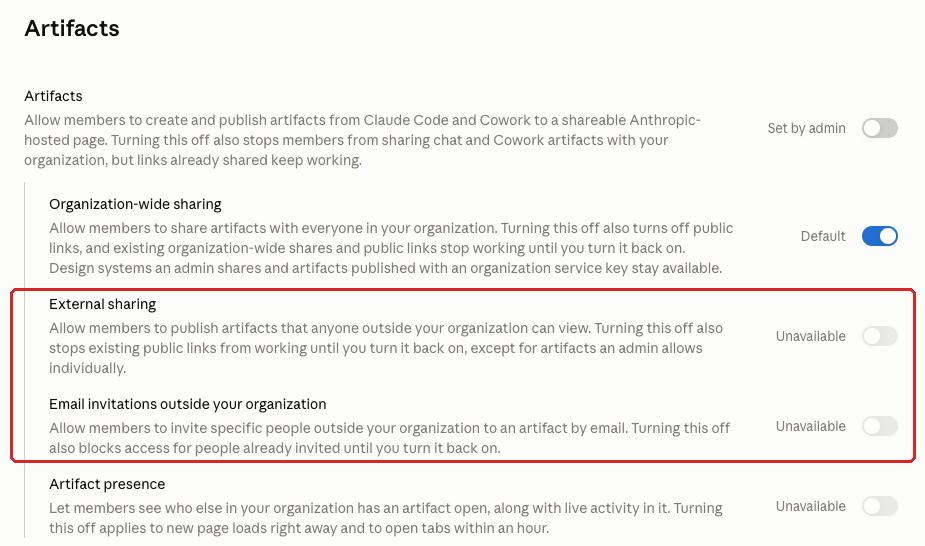
Artifacts are the standalone documents, slide decks, charts and small apps Claude builds in chat, Cowork or Claude Code. The Artifacts master toggle lets members “create and publish artifacts from Claude Code and Cowork to a shareable Anthropic-hosted page,” and the sharing settings sit below it.
External sharing lets members “publish artifacts that anyone outside your organization can view,” and Email invitations outside your organization lets them “invite specific people outside your organization to an artifact by email.” Both show as Unavailable while Artifacts is off.
Why It Matters
Artifacts can embed connector data and files, so an artifact built from a client folder or the CRM may hold that data. External sharing puts it on a page anyone outside the firm can view, and links can be forwarded.
Organization-wide sharing, on by default, is a separate setting that shares artifacts with everyone in the firm. This control covers only the two settings that share outside the firm.
What We Recommend
- Set External sharing to Off.
- Set Email invitations outside your organization to Off.
- Before you switch them off, check the published artifacts list (ART-010) so you know who will lose access.
- Expect existing outside shares to break. The console says turning off external sharing “stops existing public links from working until you turn it back on, except for artifacts an admin allows individually,” and turning off email invitations “blocks access for people already invited until you turn it back on.”
- If one artifact has to stay public, use that per-artifact admin exception and record the reason.
- When a client needs something Claude built, copy the content into your normal client-document process, such as your document system or client portal, and send it from there.
Where to Find It
Admin console path: Organization settings > Artifacts > External sharing / Email invitations outside your organization
📄 Anthropic documentation: Artifacts admin guide for Team and Enterprise plans
What Your Team Will Notice
Members won’t be able to publish artifacts for outside viewers or invite outside email addresses. Links they already shared outside the firm will stop working, and people they invited by email will lose access. Sharing with coworkers still works.
Sample message to your team:
Hi team,
Starting [date], Claude artifacts (the documents, slides and apps Claude builds for you) can only be shared inside our firm. Sharing them with anyone outside the firm, by public link or by email invitation, will be turned off. Links you’ve already shared outside the firm will stop working on that date.
What you need to do before [date]:
- Check whether you’ve shared any artifacts with people outside the firm.
- Tell [IT contact/helpdesk] which ones, and whether anyone still needs them.
- If you need to send something Claude made to a client or vendor, move the content into our normal document process and send it from there.
Sharing with coworkers works the same as today. If you have questions, contact [IT contact/helpdesk].
Common Mistakes
- Locking down chat sharing and missing artifacts. Artifacts have their own sharing toggles, separate from the chat-sharing settings on the Data and privacy page.
- Switching sharing off with no warning. Existing public links and email invitations stop working, so a client who was sent a link may find it dead. Tell the artifact owners before you switch it off.
- Relying on each author to judge whether an artifact holds client data. An artifact that pulled from a connector can contain more than the person who built it realizes.
Related Settings
- ART-010: Published Artifacts Review. The inventory of what’s already outside a chat.
- DATA-015: External Chat Sharing. The same decision, for chats.
- CAP-025: Artifact Connectors and Inline Visualizations. Decides whether artifacts can pull live connector data.
ART-010: Published Artifacts Review
What This Does
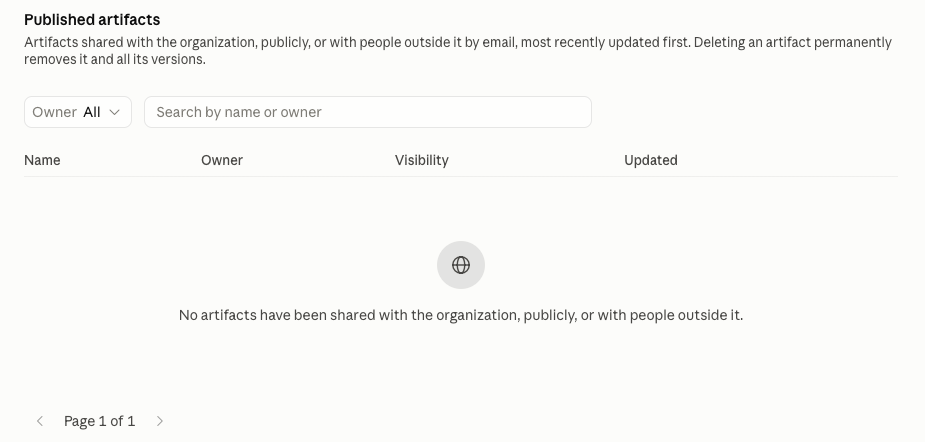
The Published artifacts list sits at the bottom of the Artifacts page. The console describes it as “Artifacts shared with the organization, publicly, or with people outside it by email, most recently updated first.” This control is a recurring review of that list: someone checks it on a schedule and confirms that nothing published carries client data.
Why It Matters
A published artifact is a live, Anthropic-hosted page that exists outside any one chat. The list is your inventory of everything the firm has put out that way. Without a review, an artifact built from client data can stay live long after the project that needed it has ended.
If your firm is an SEC-registered investment adviser, check whether an artifact counts as a business record under the Advisers Act books-and-records rule (Rule 204-2) before deleting it, because deletion from this list is permanent.
What We Recommend
- Review the Published artifacts list at least quarterly, and monthly if your team publishes often.
- For each artifact, check who published it, what it contains, whether it includes client data and whether it’s still needed.
- Take down anything that carries client data.
- Follow up on anything nobody claims.
- Before you delete an artifact, confirm with its owner.
- Save anything your records policy says to keep before you delete it. The console warns that “Deleting an artifact permanently removes it and all its versions.”
- Keep a short record of each review, with the date, the reviewer and what was removed, as evidence that the control runs.
Where to Find It
Admin console path: Organization settings > Artifacts > Published artifacts
📄 Anthropic documentation: Artifacts admin guide for Team and Enterprise plans
What Your Team Will Notice
Most members won’t notice anything. If one of their artifacts gets flagged, they may be asked what it’s for or to take it down.
Common Mistakes
- Reviewing once at setup and never again. Put it on the calendar next to your other recurring reviews, like the members list and connector inventory.
- Checking titles only. A title like “Q3 summary” says nothing about what’s inside, so open each one.
- Cleaning up before checking retention. A fast cleanup can permanently delete something your records policy says to keep.
Related Settings
- ART-005: External Artifact Sharing. Controls whether artifacts can leave the firm.
- MEM-010: Members List Review. A review you can run on the same schedule.
- CONN-005: Connector Inventory and Owners. Another inventory worth checking in the same sitting.
COWORK-015: Dispatch
What This Does
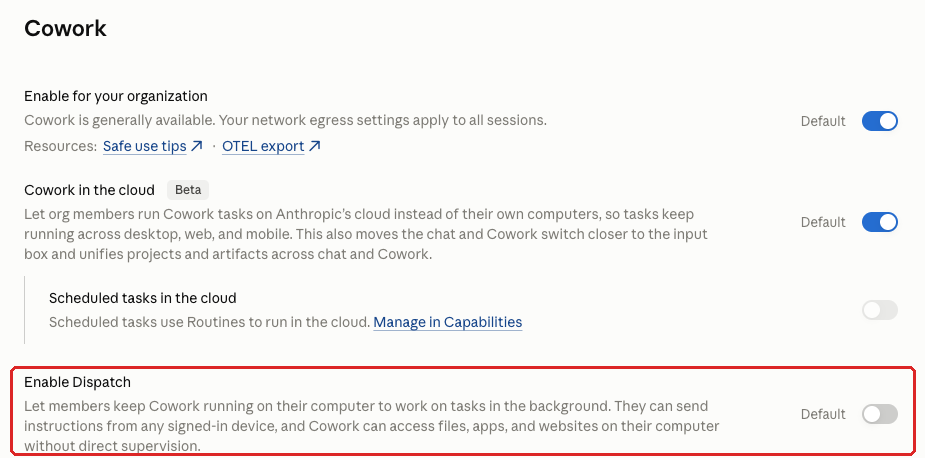
The Enable Dispatch toggle on the Cowork page lets members keep Cowork running on their own computer to work through tasks in the background. The console also says, “They can send instructions from any signed-in device, and Cowork can access files, apps, and websites on their computer without direct supervision.” It’s off by default.
Why It Matters
With Dispatch on, Cowork works on the user’s computer with nobody at the keyboard. Instructions can come from any device signed in to the user’s account, so a lost phone or a forgotten browser session could be used to put a firm laptop to work.
Anthropic’s help article describes Dispatch as a limited beta for Pro and Max plans that “isn’t available to new users.” The toggle is in the Team console all the same, so give it a recorded decision like any other setting.
What We Recommend
- Leave Enable Dispatch Off.
- Check it again at each quarterly console review, since Dispatch is still in a limited beta and its availability may change.
Where to Find It
Admin console path: Organization settings > Cowork > Enable Dispatch
📄 Anthropic documentation: Assign tasks from anywhere in Claude Cowork
What Your Team Will Notice
Members won’t notice a change. Dispatch starts off, so leaving it off doesn’t affect anything they use today.
Common Mistakes
- Treating the toggle as moot because the help article describes a Pro and Max beta. It’s in the Team console, and a product update could make it usable without any change on your side.
- Leaving Dispatch off and assuming phone access to Cowork is covered. Computer access (CAP-060) is a separate setting that lets a phone or browser drive a Cowork session.
Related Settings
- CAP-060: Computer Access for Cowork. The other way to drive Cowork from a phone.
- CAP-065: Require Trusted Devices. Makes members verify each new device before it can control Cowork remotely.
- COWORK-005: Cowork. If Cowork is off, Dispatch has nothing to run.
BETA-005: Beta Products (Design, Science, Academy)
What This Does
Claude Design, Claude Science and Claude Academy are beta products, and each has its own page in the console with a toggle that turns it on or off for the whole organization. Claude Science and Claude Academy start off.
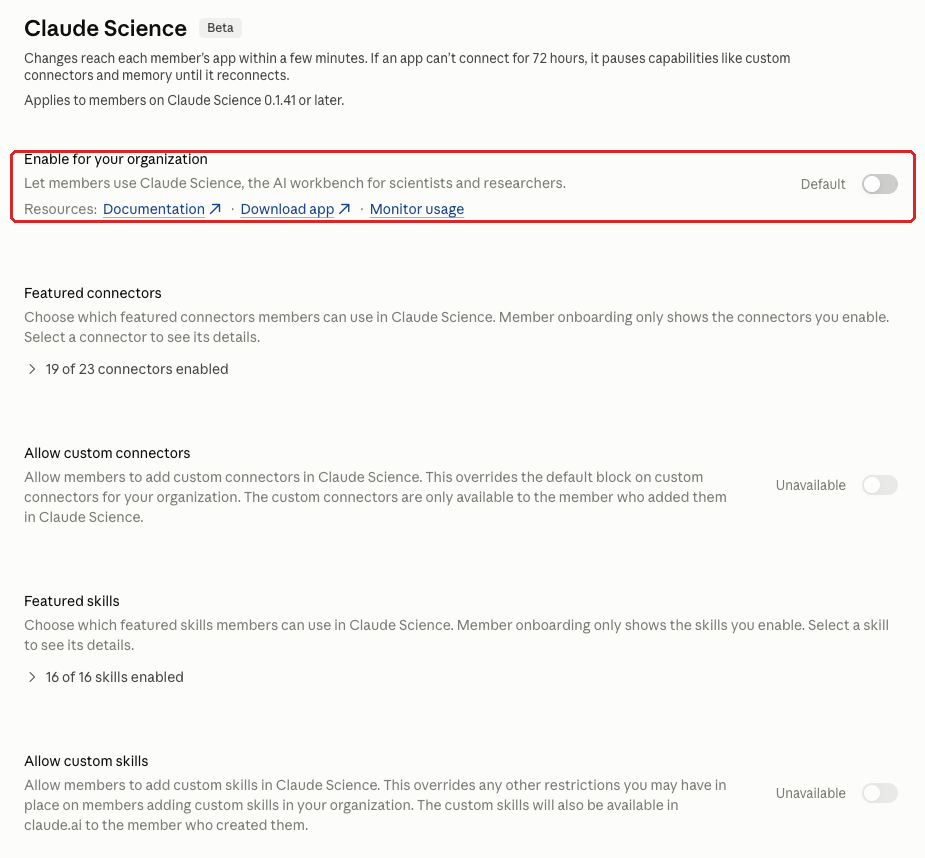
Claude Design lets members “access standalone Claude Design at claude.ai/design,” a tool for designs, prototypes and interactive microsites. Anthropic says standalone Claude Design closes on December 14, 2026. Claude Design also works in conversations and the Artifacts tab through the Design template, which has its own setting under Organization settings > Artifacts. Before the shutdown, Anthropic says to “check that Artifacts and Design systems are on” there, so members can move their design systems over. The console calls Claude Science “the AI workbench for scientists and researchers,” and labels the Academy toggle “Claude in Academy (Beta).” That toggle controls the Claude features inside Anthropic’s Claude Academy courses, such as asking Claude questions about a lesson.
Why It Matters
New Claude products show up in the console as they launch. Each one is a new place for firm data to go, with its own settings to review.
We rate Claude Design as low data risk, since it generates designs, prototypes and microsites. Claude Science is a different case. Its settings include SSH hosts and a package mirror for downloading software. SSH is a standard way to log in to another computer and run commands on it. The settings also cover custom connectors, custom skills, a network allowlist and scientific model providers.
Two of those settings override controls you set elsewhere. Allow custom connectors “overrides the default block on custom connectors for your organization,” and Allow custom skills “overrides any other restrictions you may have in place on members adding custom skills in your organization,” with those skills also available to their creator in claude.ai. For a firm that doesn’t do scientific research, that’s a way around your connector and skills limits (PLUG-005) with no business reason behind it.
What We Recommend
- Claude Design: leaving it on is acceptable given its low data risk. Turn it off if nobody uses it.
- Claude Science: Off.
- If a research team needs Claude Science, review each sub-setting before you turn it on.
- Even then, keep Allow custom connectors and Allow custom skills off.
- Claude Academy: Off until you’ve evaluated it.
- At each quarterly console review, look for new beta product pages and record a decision for each one.
Where to Find It
Admin console path: Organization settings > Claude Design or Claude Science > Enable for your organization; Organization settings > Claude Academy > Claude in Academy (Beta)
Anthropic documents each product’s settings separately (checked October 2026).
📄 Anthropic documentation: Claude Design admin guide for Team and Enterprise plans
📄 Anthropic documentation: Claude Science admin controls
📄 Anthropic documentation: Claude Academy FAQ
What Your Team Will Notice
Members keep Claude Design if you leave it on. Anyone who had started using Claude Science loses access, and Claude Academy users lose the Claude features inside their courses. Since both start off, most teams won’t notice a change.
Sample message to your team:
Hi team,
Starting [date], Claude Design stays available, and Claude Science and the Claude features in Claude Academy will be off while we evaluate them.
What to expect:
- Claude Design works the way it does today, until Anthropic closes the standalone version on December 14, 2026.
- If you’ve been using Claude Science or asking Claude questions in Claude Academy, you won’t have access to those after [date]. Academy courses stay available.
- If you’d like us to evaluate one of them for your work, tell [IT contact/helpdesk] what you’d use it for.
Questions? Contact [IT contact/helpdesk].
Common Mistakes
- Treating the console as a one-time setup. Anthropic adds product pages, and a review process that doesn’t look for new ones will miss them.
- Turning on Claude Science for one curious person. The toggle is organization-wide, and its custom connectors and custom skills settings override restrictions you’ve set elsewhere.
Related Settings
- CONN-005: Connector Inventory and Owners. Claude Science can turn on custom connectors that are otherwise blocked.
- PLUG-005: User-Created Skills and Publishing. Claude Science’s custom skills setting can override these limits.
- CAP-055: Network Egress for Code Execution. The same network-allowlist decision, for code execution.
What These Settings Don’t Cover
Agents are one part of Claude security. The rest of Adelia Risk’s benchmark covers five more areas of the admin console:
- Organization and access (domains, single sign-on, provisioning, organization instructions, plan, members)
- Data and privacy (sharing, export, feedback, monitoring, audit logs, retention, Compliance API)
- Capabilities (web search, built-in browser, Cowork approvals, code execution, remote sessions, memory)
- Claude Code (managed settings, desktop, cloud sessions, Remote Control, Git providers, cloud environments)
- Connectors, plugins and skills (connector inventory, tool permissions, desktop extensions, skills, plugins)
Some protections live outside the console. See practices that aren’t console settings on the guide’s main page.
Need Help Configuring These Settings?
Some of these changes are quick. Turning off Claude in Chrome or confirming Dispatch is still off takes a couple of minutes. Others need a pilot and a message to staff, and Cowork takes the most planning because its monitoring has to be running before members use it.
If your firm is an SEC-registered investment adviser or a HIPAA-covered entity, the settings you choose also have compliance implications. An examiner or auditor may ask why you chose them, so write the reasons down.
If you’d like help, this is part of what we do through Adelia Risk’s virtual CISO services. We review your Claude console against all 76 controls in this benchmark and recommend settings that fit your firm. We also plan the rollout with you, including what to tell staff. Wealth management firms can also see our RIA cybersecurity services.
Verified against the Claude admin console in October 2026.
Part of the Adelia Risk Claude Security Guide. 76 controls across the Claude Team and Enterprise admin console.