
Connector, plugin and skill settings decide what Claude can reach beyond the chat window: your email, your files, your client records, and software written outside your firm. Adelia Risk checks them in every Claude security review we do for firms on Claude Team and Claude Enterprise. This page is for the business owner, operations lead or IT person running Claude at a registered investment adviser (RIA), a wealth management firm, a healthcare practice or another regulated business.
A connector links Claude to another system, such as Gmail, Google Drive, Microsoft 365 or the system that holds your client records (your CRM). It gives Claude whatever the connecting member can see there. A desktop extension is a connector that runs on the member’s own computer, using an open standard for connecting AI tools to other software (MCP, the Model Context Protocol).
A skill is a packaged set of instructions, sometimes with scripts, that Claude follows for a particular kind of task. A plugin bundles skills, connectors and other pieces into one install, often from a third party.
The Center for Internet Security (CIS) hasn’t published a public configuration benchmark for Claude as of October 2026. In April 2026 it released three AI companion guides to the CIS Controls, one each for large language models, AI agents and MCP. The MCP companion guide applies the CIS Controls to MCP connections like the ones on this page.
This page covers six of the 76 controls in Adelia Risk’s Claude Security Benchmark: four on the Connectors tab of the admin console and two on the Plugins & skills tab, all available on both plans. Four of the six are lists that grow each time someone adds a connector, extension or plugin, so they need a review on a regular schedule. If you want help running that review, it’s part of Adelia Risk’s virtual CISO services.
Quick Reference
| Policy ID | Setting | Risk | Heads Up? | Plan | Admin Path |
|---|---|---|---|---|---|
| CONN-005 | Connector Inventory and Owners | 🟠 High | No | Team and Enterprise | Connectors |
| CONN-015 | Connector Tool Permissions | 🟠 High | Yes | Team and Enterprise | Connectors > (connector) > See details > Tools |
| CONN-020 | Desktop Extension Allowlist | 🟠 High | Yes | Team and Enterprise | Connectors > Desktop extension allowlist |
| PLUG-005 | User-Created Skills and Publishing | 🟡 Medium | Yes | Team and Enterprise | Plugins & skills > Policy > User-created skills / Skill sharing / Publishing |
| PLUG-010 | Plugin Inventory and Marketplaces | 🟡 Medium | No | Team and Enterprise | Plugins & skills > Inventory / Marketplaces / Requests |
| CONN-010 | Connector Requests | 🟢 Low | No | Team and Enterprise | Connectors > Connector requests > Let members request connectors |
All admin paths start at Organization settings in Claude (claude.ai/admin-settings). You need the Owner or Primary Owner role to change most of them.
Heads Up? Does your team need advance notice before you make this change? “Yes” means users will see something different. We’ve included sample language you can send to your team for every “Yes” setting.
Plan tells you where the control exists in Claude Team vs. Enterprise. “Team and Enterprise” means you can set it on either plan. “Enterprise only” means the setting doesn’t exist on Claude Team; in our benchmark a Team-plan firm gets the result “Enterprise” for that row, which means the only way to close the gap is to upgrade (see BILL-007).
CONN-005: Connector Inventory and Owners
What This Does
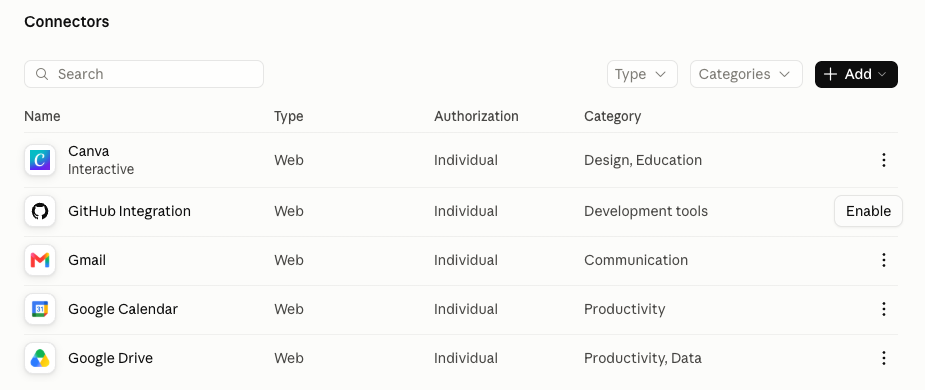
The Connectors page in Organization settings lists connectors by Name, Type, Authorization and Category. Owners turn a connector on here before any member can sign in to it. Each row has a menu (⋮) with “See details” and “Delete”.
This control treats the connectors your firm has turned on as an inventory. It asks for what the console doesn’t hold: a named owner and a written business reason for every connector on that list.
Why It Matters
A connector gives Claude everything the connecting member can see in that system. Connect a partner’s Gmail and Claude can read the client email in that inbox. Connect the CRM and Claude can read every client record that member can open. That makes the Connectors list the starting point for your firm’s inventory of third-party access.
Connectors get turned on for a pilot or a single project, and turning them off often isn’t part of closing the project. A year later the list holds connections nobody can explain.
In IBM’s 2025 Cost of a Data Breach study, 13% of organizations reported a breach of an AI model or application, and 97% of those said they had no AI access controls in place. A connector list with a named owner for each entry is a basic AI access control.
If your firm is an SEC-registered investment adviser, an examiner may ask for this list when reviewing how the firm oversees vendors and access to client data.
What We Recommend
- Give every enabled connector a named owner and a business reason. That’s the benchmark position.
- Use the console’s Connectors list as the starting inventory, and keep each connector’s owner and reason in a simple spreadsheet beside it.
- For each connector, record the owner (one named person), the business reason in one sentence, what data it can reach, who approved it and when, and the next review date.
- When Claude does things on its own as a recurring task, give that task its own login (a service account) scoped to that one job. Under a person’s login, it might have access to lots of other things.
- Start with the connectors that reach the most: email, file storage and the CRM.
- Ask whether the firm actually needs each connector. If nobody can give a definitive reason, or nobody owns it, turn it off. If someone needs it back, they can ask through the request route (CONN-010).
- Add local MCP servers that come inside plugins. These are small programs that connect Claude to another system from the member’s own computer. They may not show up on the Connectors list, so check each installed plugin (PLUG-010) and add any local MCP server it runs to your spreadsheet. Its owner is the plugin’s owner.
- Review the list every quarter, and any time a connector’s owner leaves the firm or changes roles.
Where to Find It
Admin console path: Organization settings > Connectors (connector list)
📄 Anthropic documentation: Use connectors to extend Claude’s capabilities
What Your Team Will Notice
Members won’t see a change. The inventory lives in the admin console and a spreadsheet, and members don’t see either one.
The exception is a connector you turn off during a review. Members who used it lose that connection inside Claude, so tell them before you switch it off and point them to the request route.
Common Mistakes
- Treating the console list as the whole record. It shows what’s turned on, but not why, and it leaves out local MCP servers that arrive inside plugins. Without the notes, the first quarterly review turns into a round of emails asking who wanted each connector.
- Naming a team as the owner. “Operations” can’t answer an examiner’s follow-up question, and nobody on that team feels responsible for turning the connector off. Name one person.
- Leaving Claude out of offboarding. When the offboarding checklist covers email and the identity provider but not Claude, connectors end up owned by someone who no longer works at the firm. Add “reassign or remove their Claude connectors” to the checklist.
Related Settings
- CONN-015: Connector Tool Permissions. Sets what each connector on the list is allowed to do.
- CONN-010: Connector Requests. Gives members a route to ask for new connectors, so the list grows through a reviewer.
- ORG-050: Connector Domain Restriction. On Claude Enterprise, limits your firm’s Gmail, Google Drive and Microsoft 365 accounts to connecting with your own Claude organization.
- DATA-010: Sharing Chats That Use Connectors. A shared chat shows Claude’s response, which can repeat what the connector pulled into it.
CONN-015: Connector Tool Permissions
What This Does
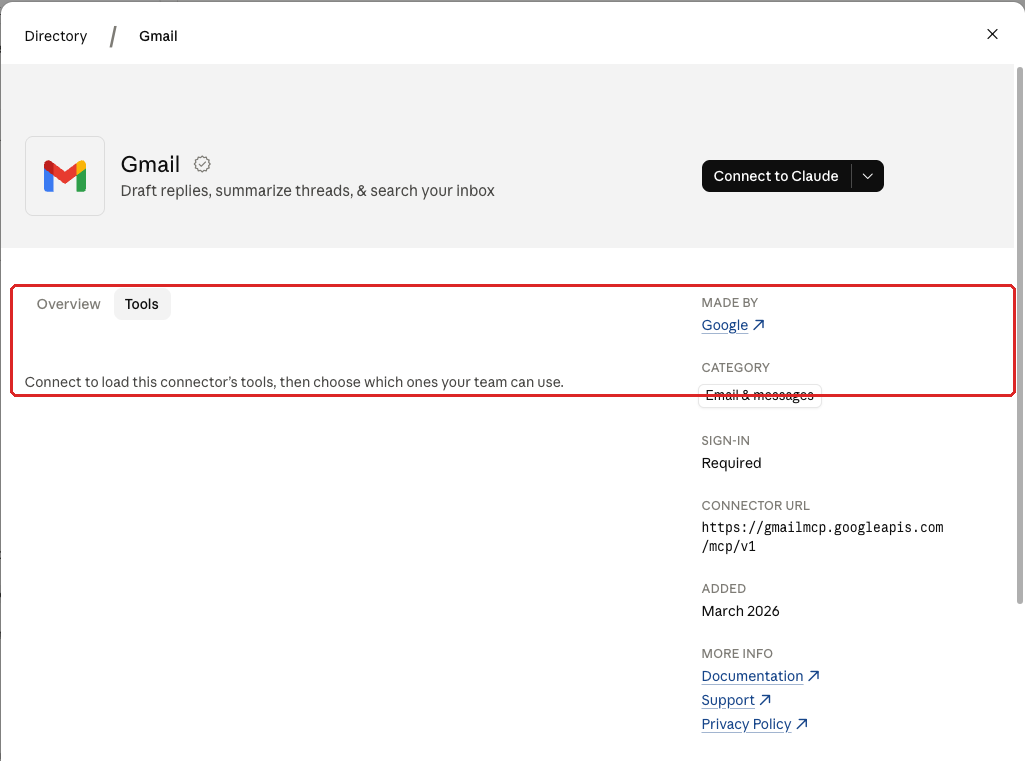
Each connector offers a set of tools, which are the individual actions Claude can take through it: search a mailbox, read a file, send an email, update a record. Owners can set a permission level for each tool on the connector’s Tools tab, and that level applies across the organization. Anthropic’s documentation lists three levels:
- “Always allow” means members can let Claude use the tool without asking each time.
- “Needs approval” means Claude asks the member before each use, and the member approves or declines.
- “Blocked” means Claude can’t use the tool.
On Claude Enterprise, custom roles can narrow these levels for the people in each role, with the organization-wide setting as the ceiling.
Why It Matters
Many connectors can do more than read. A mail connector may be able to send. A CRM connector may be able to edit or delete records. Without tool permissions, a connector that can send email or change records can do so on Claude’s say-so for any member who picks “Always allow”.
Claude decides what to do based on what it reads, and what it reads can include a hidden instruction planted in an email or document (“prompt injection”). With send and edit tools at “Always allow”, one planted instruction can become a sent email or a changed record with no human click in between. “Needs approval” means a person confirms each one first, and “Blocked” means Claude can’t take the action at all.
CISA’s May 2026 guidance on adopting AI agents advises: “Avoid granting broad or unrestricted access, especially to sensitive data or critical systems.”
If your firm is an SEC-registered investment adviser, an email Claude sends to a client may be a business record under the Advisers Act books-and-records rule (Rule 204-2), the same as one a person typed.
What We Recommend
- Set write and delete tools to “Needs approval” or “Blocked” on every connector. That’s the benchmark position.
- Start with email, then file storage, then the CRM and anything else that holds client data.
- Sort each connector’s tools into two groups. Tools that search and read can usually stay at “Always allow”. Tools that send, create, change or delete go to “Needs approval”.
- Block tools nobody has a business reason to use. Delete tools are the usual candidates, and so is anything that sends data outside the firm.
- Note each connector’s tool settings in the inventory (CONN-005).
- Keep Allow “Always allow” for connector tools off on the Capabilities page (CAP-045). It’s off by default. Off means that in Cowork, Claude Code cloud sessions and artifacts, members can’t pick “Always allow” when Claude asks to use a tool that makes changes.
Where to Find It
Admin console path: Organization settings > Connectors > (connector) row menu > See details > Tools tab
📄 Anthropic documentation: Use connectors to extend Claude’s capabilities
The Tools tab lists a connector’s tools only after the connector is connected. The console says “Connect to load this connector’s tools, then choose which ones your team can use.” An admin may need to connect each connector once to set its tool permissions.
What Your Team Will Notice
Members will see Claude stop and ask before it sends, changes or deletes anything through a connector. Actions you’ve set to “Blocked” won’t be available at all.
People who used Claude to draft and send email in one step now have one more click. It’s there in case Claude hallucinates and decides to do something you don’t want it to do. One client, shown the approval prompt, said: “Well, that doesn’t seem unreasonable. It’s clicking the button.”
Sample message to your team:
Hi team,
Starting [date], Claude will ask for your approval before it sends, changes or deletes anything in a connected app, such as email, Google Drive, Microsoft 365 or our CRM. A few actions, like deleting records, will be turned off.
What to expect:
- Searching and reading through connected apps should work the way it does today.
- When Claude wants to send an email or change a record, it will ask you first. Read what it plans to do before you approve it.
- If Claude can’t do something it used to do, that action may have been turned off on purpose.
This adds a click to some tasks, and it reduces the risk of Claude acting on a bad instruction hidden in an email or document. If an action you need is blocked, contact [IT contact/helpdesk].
Common Mistakes
- Approving the connector and never opening its tools. The Tools tab is where you decide what Claude can do once it reaches a system, and that decision needs an owner just like the connector does.
- Putting every tool at “Needs approval”. Members who have to approve every search stop reading the prompts, and they click through a send or delete prompt the same way. Save approvals for actions that change something.
- Setting it once and never looking again. A connector’s tool list can change when its maker updates it, so put tool permissions on the quarterly review with the inventory.
Related Settings
- CAP-045: Always Allow for Connector Tools. Off means members in Cowork, Claude Code cloud sessions and artifacts can’t choose “Always allow” for connector tools that make changes.
- CAP-030: Automatically Approve Mode for Cowork. Lets members have Claude approve its own actions in Cowork, including using tools and editing files.
- ORG-055: Custom Roles and Groups. On Claude Enterprise, per-role overrides can limit write tools to the roles that need them.
- CONN-005: Connector Inventory and Owners. The place to record each connector’s tool settings.
CONN-020: Desktop Extension Allowlist
What This Does
A desktop extension is a connector that runs on the member’s own computer and is installed through the Claude desktop app. Technically, it’s a local MCP server.
The Desktop extension allowlist setting, labeled “Limit the desktop extensions that your team can install on their desktop” in the console, decides whether members can install any extension or only approved ones. With it on, the console says “users can only install desktop extensions that have been added to the list above.” That’s the list an Owner builds with the Add desktop extensions button.
Why It Matters
Anthropic’s documentation says the allowlist is off by default. Off means any member can install any extension that appears in the desktop app. Each one is a program running on a firm computer with whatever access its author gave it.
Because an extension runs locally, it can work with files and other programs on the laptop, depending on how it was built. An extension from a known publisher, reviewed by the firm, is a useful tool. One copied from a forum, or a look-alike of a popular tool, can read files or send data out, and the firm never decided to trust it.
The allowlist moves the install decision from each member to the firm. Members still get the extensions they need, but only after someone has looked at each one.
Relevant if you’re subject to HIPAA’s Security Rule: an extension on a laptop that stores patient data may be able to reach that data.
What We Recommend
- Turn the allowlist On. That’s the benchmark position.
- Before you turn it on, find out which extensions members use today. Anthropic’s documentation says turning on the allowlist removes existing extensions, and members have to reinstall the approved ones.
- Build the allowlist from what you find. Add an extension only if it has an owner and a reason, the same test as the connector inventory (CONN-005).
- Before you add an extension, check who publishes it and what it can reach on the computer.
- Pick a cutover date and announce it at least a week ahead.
- Load the approved list into the console before the morning of the cutover.
- Set up a route for members to request new extensions after cutover, with a named reviewer.
- Only Owners and Primary Owners can manage the allowlist, so schedule the cutover with one of them.
- If your firm uses Claude Code, cover it too. Claude Code has its own MCP allowlist in managed settings (CODE-005).
Where to Find It
Admin console path: Organization settings > Connectors > Desktop extension allowlist
📄 Anthropic documentation: Enabling and using the desktop extension allowlist

What Your Team Will Notice
On cutover day, installed desktop extensions are removed. Members reinstall the approved extensions they use, and anything off the list can’t be installed.
Expect most of the friction to come from people who missed the announcement. A clear date and a published approved list cut down the helpdesk tickets.
Sample message to your team:
Hi team,
On [date], we’re limiting which desktop extensions can be installed in the Claude desktop app. Installed extensions will be removed that day, and you’ll reinstall the approved ones you use.
What you need to do before [date]:
- Write down any desktop extensions you use in the Claude desktop app.
- Check them against the approved list we’ll send you.
- If something you rely on isn’t on the list, tell [IT contact/helpdesk] before [date] so we can review it.
After [date], reinstall the approved extensions you need. This reduces the risk of unreviewed software running on firm computers. If you have questions, contact [IT contact/helpdesk].
Common Mistakes
- Turning it on without warning. Extensions disappear without notice and the helpdesk hears about it first. That leads to pressure to approve everything at once.
- Approving everything that was already installed. The list of what people use turns into the allowlist, and no review happens.
- No route for new requests. Requests end up in chat threads and get lost. Name a reviewer before cutover.
Related Settings
- CODE-005: Claude Code Managed Settings Baseline. Holds the MCP allowlist and the plugin marketplace allowlist for Claude Code.
- CONN-005: Connector Inventory and Owners. Approved extensions belong in the same inventory as cloud connectors.
- PLUG-010: Plugin Inventory and Marketplaces. Plugins can bring MCP servers with them too.
PLUG-005: User-Created Skills and Publishing
What This Does
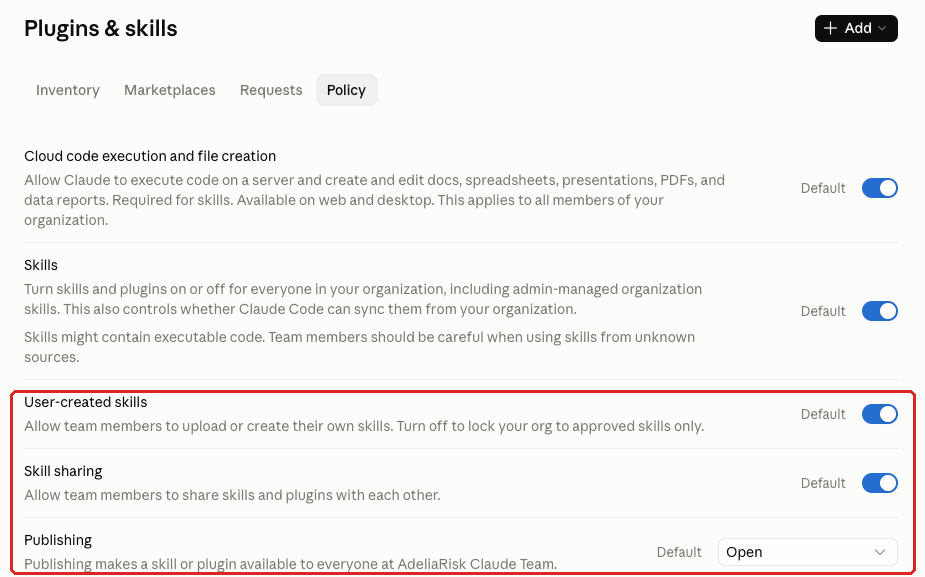
A skill is a packaged set of instructions, sometimes with scripts, that Claude follows for a particular kind of task. Three settings under Policy on the Plugins & skills tab govern the skills members build themselves:
- “User-created skills” lets members “upload or create their own skills”. The console adds: “Turn off to lock your org to approved skills only.”
- “Skill sharing” lets members “share skills and plugins with each other.”
- “Publishing” decides how a skill or plugin becomes available to everyone in the organization. Anthropic’s documentation lists three modes: “Requires review”, “Open” and “Off”.
The “Skills” toggle above them turns skills and plugins on or off for the whole organization. Skills also need “Cloud code execution and file creation” turned on.
Why It Matters
Skills can carry scripts as well as instructions, and Anthropic’s own console warns about it under the Skills toggle: “Skills might contain executable code. Team members should be careful when using skills from unknown sources.”
Once a skill is published to the organization, everyone’s Claude can use it and follow what it says. With Publishing set to “Open”, any member can push a skill to the whole firm, and nobody reviews it first. In the Claude Team organization we checked while writing this guide, “User-created skills” and “Skill sharing” were on, and Publishing was set to “Open”, all at their default values.
A bad skill doesn’t have to be malicious. A skill copied from a website, or one that tells Claude to include full account numbers in every meeting summary, is available to every member the day it’s published. An attacker can also plant a hidden instruction in a skill people download (“prompt injection”), and it runs for everyone who uses it.
What We Recommend
The benchmark passes with any one of these three changes:
- Turn off “User-created skills”. Members use only the skills the firm approves. This fits firms where nobody builds their own.
- Leave “User-created skills” on and turn off “Skill sharing”. Members can build skills for their own use but can’t share them with specific colleagues. Publishing is a separate setting, so it still decides whether they can publish a skill to the whole firm.
- Leave both on and set “Publishing” to “Requires review”. Members can propose skills for the whole firm, and a reviewer approves each one first. This is our usual pick for firms with active skill builders.
Also:
- Move Publishing off “Open” even if you pick option 1 or 2. This goes a step past the benchmark. Publishing covers plugins as well as skills, and we see no reason to let one member reach the whole firm without a review.
- Name the person who reviews skills.
- Decide what the reviewer checks: the full instructions, any scripts, and what data the skill touches.
- If you’ve turned on Claude Science (BETA-005), check its “Allow custom skills” setting. Its console text says it “overrides any other restrictions you may have in place on members adding custom skills in your organization.”
- Keep the source of every firm-wide skill in a shared folder or repository with version history, so you can see what changed when a skill starts behaving differently.
Where to Find It
Admin console path: Organization settings > Plugins & skills > Policy > User-created skills / Skill sharing / Publishing
📄 Anthropic documentation: Provision and manage skills for your organization
What Your Team Will Notice
It depends on the option you pick. With “Requires review”, a skill a member publishes to the firm waits for a reviewer before others can use it. With sharing off, members can still build skills for themselves but can’t share them with specific colleagues. With user-created skills off, members can’t upload or create their own.
Before you turn off user-created skills, list the skills people already rely on and decide which ones to republish as firm skills. The sample below fits option 3.
Sample message to your team:
Hi team,
Starting [date], skills you publish to the whole firm in Claude will go to a reviewer before anyone else can use them. Skills you build for your own use work the same as today.
What to expect:
- When you publish a skill to the firm, it waits for review first.
- The reviewer reads the instructions and any scripts, then approves the skill or follows up with you.
- If you’re building a skill for the whole team, allow a little extra time before you need it.
Expect a short wait. The review reduces the risk of one skill changing how everyone’s Claude behaves before anyone has checked it. If you have questions, contact [IT contact/helpdesk].
Common Mistakes
- Leaving the defaults. Publishing sat at its default of “Open” in the organization we checked. Check yours, even if nobody at the firm builds skills today.
- Reviewing the description and skipping the skill. The name and summary say what the author intended, but Claude follows the instructions and scripts.
- A review queue with no owner. “Requires review” with no named reviewer leads to skills waiting for weeks, and then to pressure to switch back to “Open”.
Related Settings
- PLUG-010: Plugin Inventory and Marketplaces. Plugins can bring skills in from outside the firm.
- CAP-050: Cloud Code Execution and File Creation. Skills need this capability turned on.
- ORG-055: Custom Roles and Groups. Sharing skills with specific groups is available on Claude Enterprise only.
- BETA-005: Beta Products (Design, Science, Academy). Claude Science’s “Allow custom skills” setting overrides restrictions on members adding their own skills.
PLUG-010: Plugin Inventory and Marketplaces
What This Does
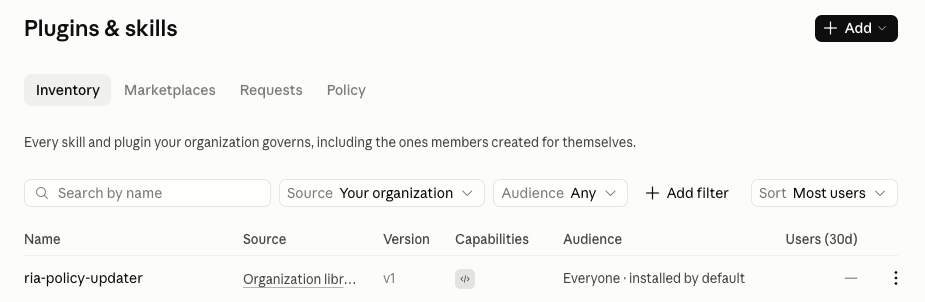
A plugin bundles skills, connectors and other pieces into one install, often from a third party. It can also carry commands that run automatically at set points (hooks). The Plugins & skills tab has Inventory, Marketplaces and Requests views.
The console describes the Inventory as “Every skill and plugin your organization governs, including the ones members created for themselves.” The Marketplaces view lists the catalogs plugins come from: your Organization library plus Anthropic-managed catalogs such as Knowledge Work and the Anthropic Directory.
For each plugin, Anthropic’s documentation lists four options: “Installed by default”, “Available to install”, “Not available” and “Required”. Plugins need Cowork and Skills turned on. They’re available on both plans, and Claude Enterprise adds group-level overrides.
Why It Matters
Plugins bundle skills, hooks and MCP servers from third parties. Each one is a software dependency and needs the same vendor review and periodic recheck as any other software your firm installs. A plugin set to “Installed by default” or “Required” can reach every member at once.
Plugins can also open a path around your connector controls. Anthropic’s plugin admin guide says “Availability doesn’t add a plugin’s bundled connectors.” An Owner still adds each one under Connectors, so those stay on your list. Local MCP servers are different. These are small programs inside a plugin that connect Claude to another system from the member’s own computer. Anthropic says they “run on your computer with the same permissions as any other program you run.” Its documentation doesn’t put them on the Connectors list or through connector requests (CONN-010), so treat them as outside both.
On Claude Team, plugin availability applies to the whole organization, because Team has no groups. For Anthropic’s directory, the only choices are “Not available” and “Available to install,” so a directory left at “Available to install” lets any member install any plugin in it.
OWASP’s Top 10 for Agentic Applications, its 2026 list of the top risks for AI agents, includes “Agentic Supply Chain Vulnerabilities” (ASI04). We treat plugins as part of that supply chain.
The console shows what’s installed and where it came from. Whether each plugin belongs there is your firm’s call, so the benchmark asks for a documented decision.
If your firm is an SEC-registered investment adviser, we’d keep a plugin that reaches client data in your vendor due diligence file alongside your other service providers.
What We Recommend
- The benchmark position has two parts: review the plugin inventory and the marketplaces, and give each installed plugin an owner and a reason.
- Write down what you approved and why.
- Review each plugin the way you’d review any vendor software. Who publishes it? What connectors or MCP servers does it add, and what data can they reach? What hooks or scripts does it run? How does it get updated?
- Set plugins nobody needs to “Not available”. You shouldn’t have to know what each one does to turn it off. If someone needs one later, review it then and turn it on.
- Check each marketplace’s Default access. It sets availability for every plugin in that marketplace without its own setting, “including plugins added to it later.” Set it to “Not available” and turn on only the plugins you’ve reviewed.
- Add any local MCP server a plugin runs to your connector inventory (CONN-005). On computers you manage, the Claude desktop app’s
isLocalDevMcpEnabledsetting, set to false through your device management tool, turns off plugin-bundled and locally configured MCP servers. Anthropic covers it in its Cowork architecture overview. - Save “Installed by default” and “Required” for plugins every member needs and you’ve reviewed.
- Know which marketplaces members can pull from. You control what goes into your Organization library, but you don’t control what Anthropic adds to its catalogs.
- Set the marketplace allowlist and blocklist in Claude Code managed settings (CODE-005). The console says they “also apply when anyone in your organization adds a marketplace from a Git repository in Chat, Cowork, or Organization settings.”
- Check the Requests view at each review.
- Review quarterly, alongside the connector inventory (CONN-005).
Where to Find It
Admin console path: Organization settings > Plugins & skills > Inventory / Marketplaces / Requests
📄 Anthropic documentation: Manage plugins for your organization
What Your Team Will Notice
Members won’t notice anything unless you change a plugin’s availability. If you set a plugin members use to “Not available”, tell them first and explain how to ask for it back.
If you set a plugin to “Installed by default” or “Required”, send a one-line note about what it does and who owns it.
Common Mistakes
- Approving the marketplace instead of the plugin. Trusting a catalog’s publisher doesn’t tell you what each plugin in it does or what it connects to.
- No owner per plugin. Without one, nobody notices when a plugin falls out of use or when its publisher changes what it does.
- Reviewing this tab and calling plugins done. Claude Code has its own plugin marketplace allowlist and blocklist in managed settings (CODE-005), so a review of this tab alone may miss plugins developers use in Claude Code.
Related Settings
- PLUG-005: User-Created Skills and Publishing. Governs the skills your own members build and share.
- CONN-005: Connector Inventory and Owners. The connectors and local MCP servers a plugin adds belong in the same inventory.
- CODE-005: Claude Code Managed Settings Baseline. Holds Claude Code’s plugin marketplace allowlist and blocklist, which also apply to Git marketplaces added in Chat or Cowork.
- COWORK-005: Cowork. Plugins need Cowork turned on.
CONN-010: Connector Requests
What This Does
The Let members request connectors toggle sits at the top of the Connectors page. The console describes it this way: “Members can request connectors that aren’t enabled for your organization. Requests appear on this page for review.” Owners still decide what gets turned on.
Why It Matters
This toggle keeps an admin between a member and a new data connection. Without a request route, people ask in the hallway or in a chat thread. Some don’t ask at all.
One client’s financial advisor described using AI without connectors: finding a source document such as a tax return and feeding it in, copying notes over from the CRM, then copying the AI’s answer into an email. “Did I really improve the process for myself?” the advisor asked.
Microsoft and LinkedIn’s 2024 Work Trend Index found that 78% of AI users bring their own AI tools to work, rising to 80% at small and medium-sized companies. A member with no way to ask for a connector inside the firm’s Claude may connect the same mailbox to a personal AI account the firm can’t see.
The rating is Low because Owners keep control of what gets turned on either way. The toggle adds a visible process that keeps new connections inside the inventory.
What We Recommend
- Turn “Let members request connectors” On. That’s the benchmark position.
- Name the person who checks the Connectors page for new requests.
- Set an expected turnaround so members know when they’ll hear back.
- Run each request through the same questions as the inventory (CONN-005): who owns it, why the firm needs it, and what data it reaches.
- Set the new connector’s tool permissions (CONN-015) before members start using it.
- When the answer is no, say why, and offer an alternative if there is one.
- Mention the request route in onboarding and in your AI acceptable use policy.
Where to Find It
Admin console path: Organization settings > Connectors > Connector requests > Let members request connectors
Anthropic’s general article on connectors covers this toggle in its “Let users request connectors” section (checked October 2026). It says requests are on by default on Team plans and off by default on Enterprise plans.
📄 Anthropic documentation: Use connectors to extend Claude’s capabilities

What Your Team Will Notice
Members gain a way to ask for connectors the firm hasn’t turned on. Nothing else changes.
A request route only works if people know it exists, so add a line about it to your next staff update.
Common Mistakes
- A request route with no reviewer. Requests pile up until members give up and go back to the workarounds this toggle is meant to head off.
- Approving on request. A request starts the inventory step. The connector still needs an owner, a reason and tool permissions before members start using it.
- Turning it off to cut down on requests. Fewer requests in the queue can mean the demand for connectors went somewhere you can’t see.
Related Settings
- CONN-005: Connector Inventory and Owners. Every approved request becomes a row in the inventory.
- CONN-015: Connector Tool Permissions. Set what a new connector can do before members start using it.
- ORG-050: Connector Domain Restriction. On Claude Enterprise, limits where members can connect firm Gmail, Google Drive and Microsoft 365 accounts.
What These Settings Don’t Cover
Connectors, plugins and skills are one part of Claude security. Adelia Risk’s full benchmark covers 76 controls, and the other five areas each have their own page:
- Organization and access (domains, single sign-on, provisioning, organization instructions, plan, members)
- Data and privacy (sharing, export, feedback, monitoring, audit logs, retention, Compliance API)
- Capabilities (web search, built-in browser, Cowork approvals, code execution, remote sessions, memory)
- Claude Code (managed settings, desktop, cloud sessions, Remote Control, Git providers, cloud environments)
- Agents and extensions (Cowork, Office Agents, Claude in Chrome, Claude Tag, Artifacts, beta products)
For safeguards that live outside the console, see the hub’s section on practices that aren’t console settings.
Need Help Configuring These Settings?
Some of these changes take minutes, such as turning on connector requests or switching skill publishing to “Requires review”. Others need a pilot and a message to staff, such as the desktop extension cutover, tool permissions on every connector and the first pass at the inventory. Some firms also have to decide whether per-role connector permissions are worth a move to Claude Enterprise.
If your firm is an SEC-registered investment adviser or a HIPAA-covered entity, the settings you choose here may also have compliance implications, including what your regulators expect to see documented.
If you want help, Adelia Risk reviews all 76 controls in our Claude Security Benchmark as part of our virtual CISO services. You get specific recommendations for your firm and a rollout plan that keeps disruption to your team low. For wealth management firms, see our RIA cybersecurity services.
Verified against the Claude admin console in October 2026.
Part of the Adelia Risk Claude Security Guide. 76 controls across the Claude Team and Enterprise admin console.