
Adelia Risk reviews monitoring and compliance settings in every Google Workspace security audit we perform. You can lock down authentication, restrict sharing, and configure every security setting perfectly, but if nobody is watching the logs, you won’t know when something goes wrong. Monitoring is how you find out that an employee’s account got compromised, that someone changed a critical admin setting, or that data was left in your organization. Google Workspace security compliance depends on it.
Here’s the thing most businesses get wrong: Google Workspace does generate audit logs. It does have alerting. It even has a built-in investigation tool and a security center in the Google Workspace dashboard. But almost none of it is configured out of the box. In most audits we run, the logs exist, but nobody has looked at them in months. The 2025 IBM Cost of a Data Breach Report found that the average data breach takes 241 days to identify and contain. That gap between “something happened” and “someone noticed” is where real damage occurs.
This page covers the 13 monitoring and compliance settings Adelia Risk reviews as part of our Google Workspace security audit services. That includes Google Workspace audit logs, alerting rules, log exports, group permissions, Google Workspace data retention policy through Vault, Gemini retention, and the Advanced Protection Program. Each setting includes what it does, why it matters, and what we recommend, sorted from highest risk to lowest.
Quick Reference
| System-defined alert rules were individually verified | Setting | Risk | Heads Up? | Admin Path |
|---|---|---|---|---|
| MON-005 | Google audit logs reviewed | 🟠 High | No | Reporting > Audit and investigation |
| MON-010 | Email notification rules for audit and login events | 🟠 High | No | Rules > Create Rule > Activity |
| MON-015 | System-defined alert rules individually verified | 🟠 High | No | Rules > Google protects you by default > View List |
| MON-025 | Audit logs exported to SIEM or BigQuery | 🟠 High | No | Reporting > Data Integrations > BigQuery Export |
| MON-040 | Group access from outside organization restricted | 🟠 High | No | Apps > Google Workspace > Groups for Business > Sharing settings |
| MON-050 | Group default permissions set to members only | 🟠 High | No | Apps > Google Workspace > Groups for Business > Sharing settings |
| MON-055 | Data retention configured (Vault) | 🟠 High | No | vault.google.com > Retention |
| MON-020 | Activity rules and automated response configured [Enterprise SKU Only] | 🟡 Medium | No | Rules > Automate actions for events > Create Rule |
| MON-030 | Access Transparency logs reviewed (Enterprise Plus) | 🟡 Medium | No | Reporting > Audit and investigation > Access Transparency |
| MON-035 | Security Investigation Tool access reviewed (Enterprise SKU Only) | 🟡 Medium | No | Security > Security Center > investigation tool |
| MON-045 | Group creation restricted to admins | 🟡 Medium | No | Apps > Google Workspace > Groups for Business > Sharing settings |
| MON-060 | Gemini conversation history retention reviewed | 🟡 Medium | No | Generative AI > Gemini app > Gemini conversation history |
| MON-065 | Advanced Protection Program reviewed | 🟡 Medium | Yes | Security > Authentication> Advanced Protection Program |
Heads Up? Does your team need advance notice before you make this change? “Yes” means users will see something different. We’ve included sample language you can send to your team for every “Yes” setting.
MON-005: Google Audit Logs Reviewed
What This Does
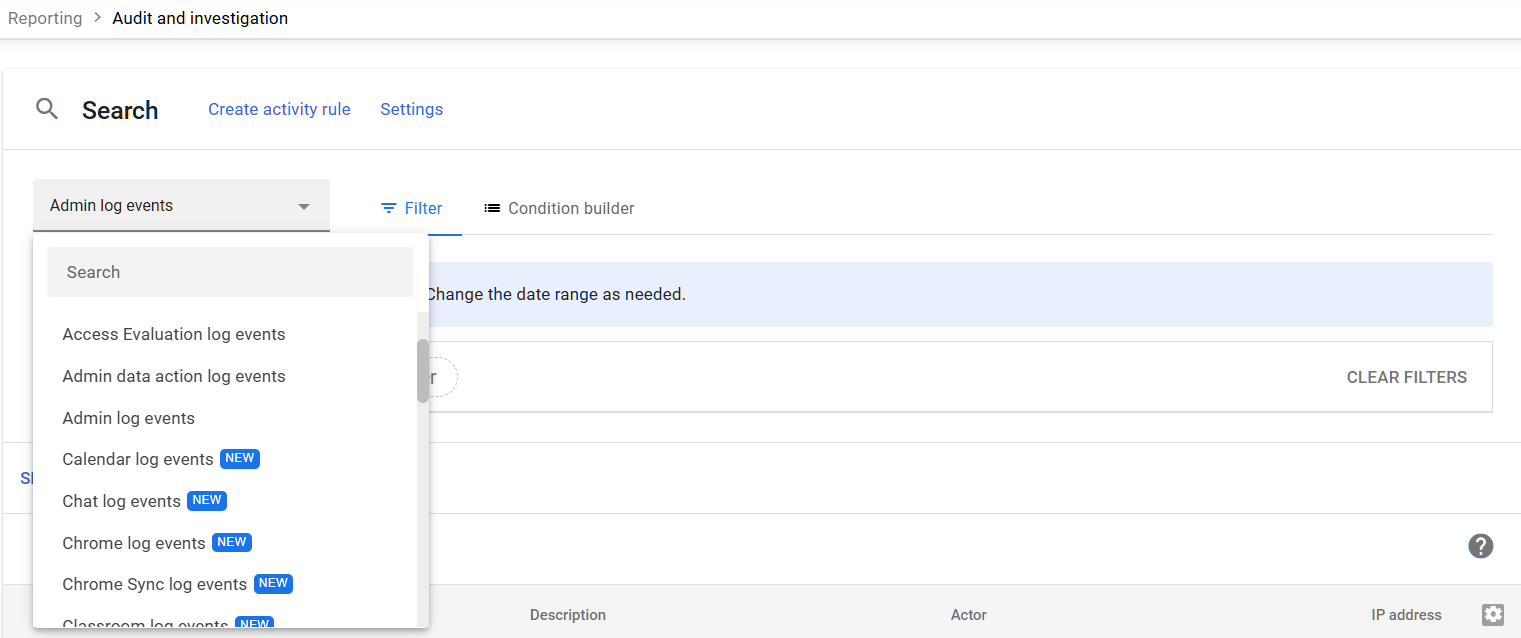
Google Workspace keeps detailed audit logs of admin actions, user logins, file sharing, email activity, and more. This setting isn’t a toggle you flip. It’s an operational practice: someone in your organization needs to actually review these Google Workspace audit logs on a regular schedule.
Why It Matters
We regularly find organizations where audit logs have never been opened. The logs are there, quietly recording every admin change, every login, every file share. But nobody is looking at them. That means a compromised account, a rogue admin change, or unusual data movement could go undetected for weeks or months.
Regular log review is what connects your security settings to actual protection. Without it, you’re relying entirely on prevention and hoping nothing slips through. Every compliance standard we work with (SEC, HIPAA, CMMC) requires log review as a baseline control.
Relevant to: SEC, HIPAA, and CMMC compliance all require periodic audit log review.
What We Recommend
- Review frequency: Monthly at minimum, weekly for regulated firms
- Focus areas: Admin role changes, login anomalies (failed logins, logins from new locations), external file sharing spikes, mail forwarding rule changes
- Assign ownership: A specific person should own this. “Everyone” is the same as “nobody”
- Document your reviews: Keep a brief record of what you checked and what you found (even if it was nothing unusual)
Where to Find It
Admin Console path: Reporting > Audit and investigation > Admin log events
📄 Google documentation: Audit log events
What Your Team Will Notice
Nothing. Log review is entirely an admin activity. End users won’t see any change.
Common Mistakes
- Assuming Google alerts you automatically. Google generates logs but doesn’t proactively notify you about most events. You need to set up your own alerting (see MON-010 and MON-015).
- Checking logs only after an incident. By then, the damage is done. Routine review catches problems early.
- Not knowing what “normal” looks like. If you’ve never reviewed your logs, you can’t spot abnormalities. Start reviewing now so you can build a baseline.
Related Settings
- MON-010: Email Notification Rules. Set up alerts so you don’t rely entirely on manual reviews.
- MON-025: Audit Logs Exported to SIEM or BigQuery. Google only retains logs for 6 months. Export them for longer storage.
- AUTH-030: Security Rules ON. The rules engine can trigger alerts based on log events.
MON-010: Email Notification Rules for Audit and Login Events
What This Does
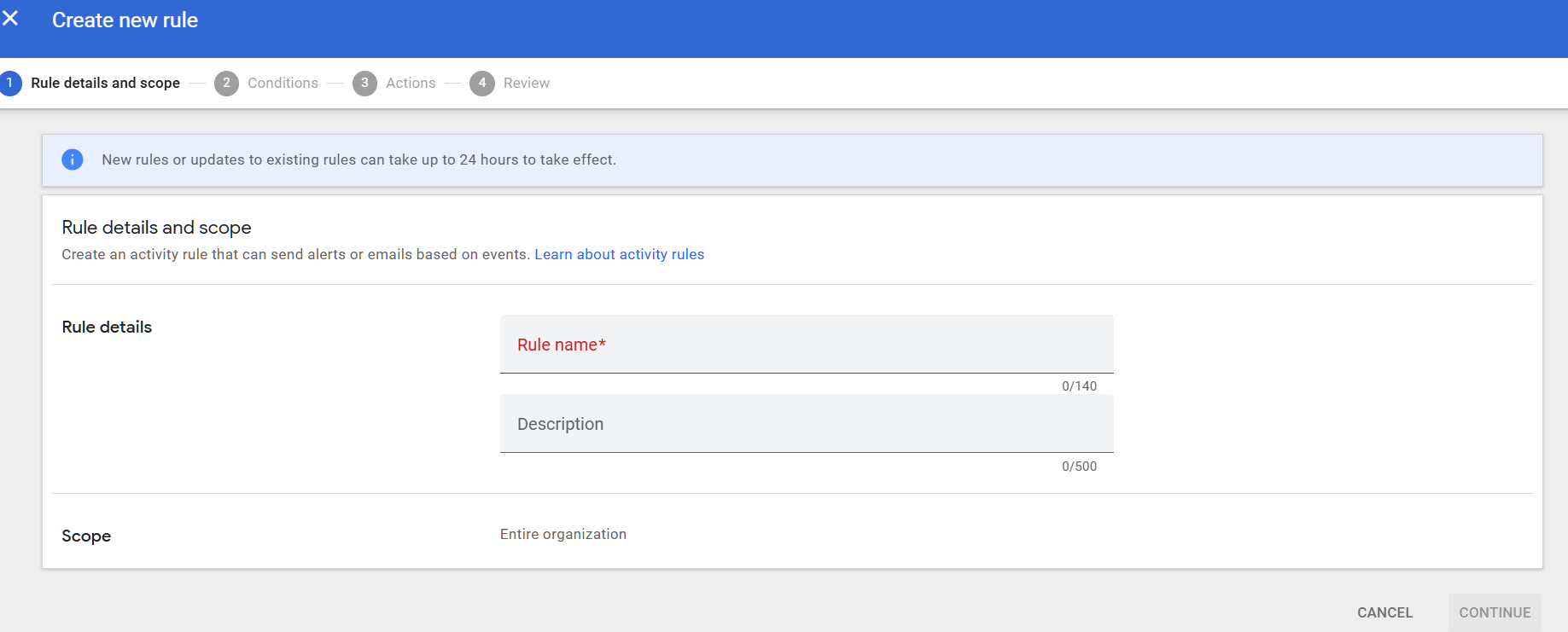
Google Workspace lets you create custom reporting rules that send email notifications when specific events happen. For example, you can get an email when someone shares a file outside your organization, when a login challenge is triggered, or when an admin role is changed. These rules run in the background and notify you in near real-time.
Why It Matters
Manual log review (see MON-005) catches things on a schedule. Email notification rules catch things as they happen. If an attacker gains access to an account at 2 PM on a Tuesday, you don’t want to wait until your next scheduled review to find out.
This is your real-time alerting layer. In every audit we run, we check whether these rules exist, and in most cases, they don’t. The reporting rule feature is buried in the Admin Console, and most admins don’t know it’s there.
Relevant to: SEC and HIPAA both require timely detection and response to security events.
What We Recommend
At a minimum, create notification rules for:
- Login challenges (someone’s account triggered a suspicious login check)
- Files shared externally (data leaving the organization)
- Admin role changes (privilege escalation)
- Advanced Protection unenrollment (a high-risk user’s extra protection was removed)
- Mail forwarding rule created (common attacker technique after account compromise)
- Password changes by admin (could indicate an admin account is compromised)
Start with these and add more as you learn what matters for your organization.
Where to Find It
Admin Console path: Rules > Create Rule > Activity
📄 Google documentation: Create and manage reporting rules
What Your Team Will Notice
Nothing. These rules only send notifications to the admins you specify. Users won’t notice anything.
Common Mistakes
- Not creating any rules. This is the most common mistake we find. The feature exists but isn’t set up. It takes 15-20 minutes to create your initial set of rules.
- Sending all alerts to one person. If that person is on vacation, alerts go unread. Send to a shared inbox or distribution group.
- Creating too many rules at once. Start with 5-6 high-priority rules. Add more once you’ve built a routine for responding to them.
Related Settings
- MON-005: Google Audit Logs Reviewed. Notification rules supplement, but don’t replace, manual log review.
- MON-015: System-Defined Alert Rules. Google also has pre-built alerts. Verify those alongside your custom rules.
- AUTH-030: Security Rules ON. The broader rules engine includes activity-based actions, not just notifications.
MON-015: System-Defined Alert Rules Individually Verified
What This Does
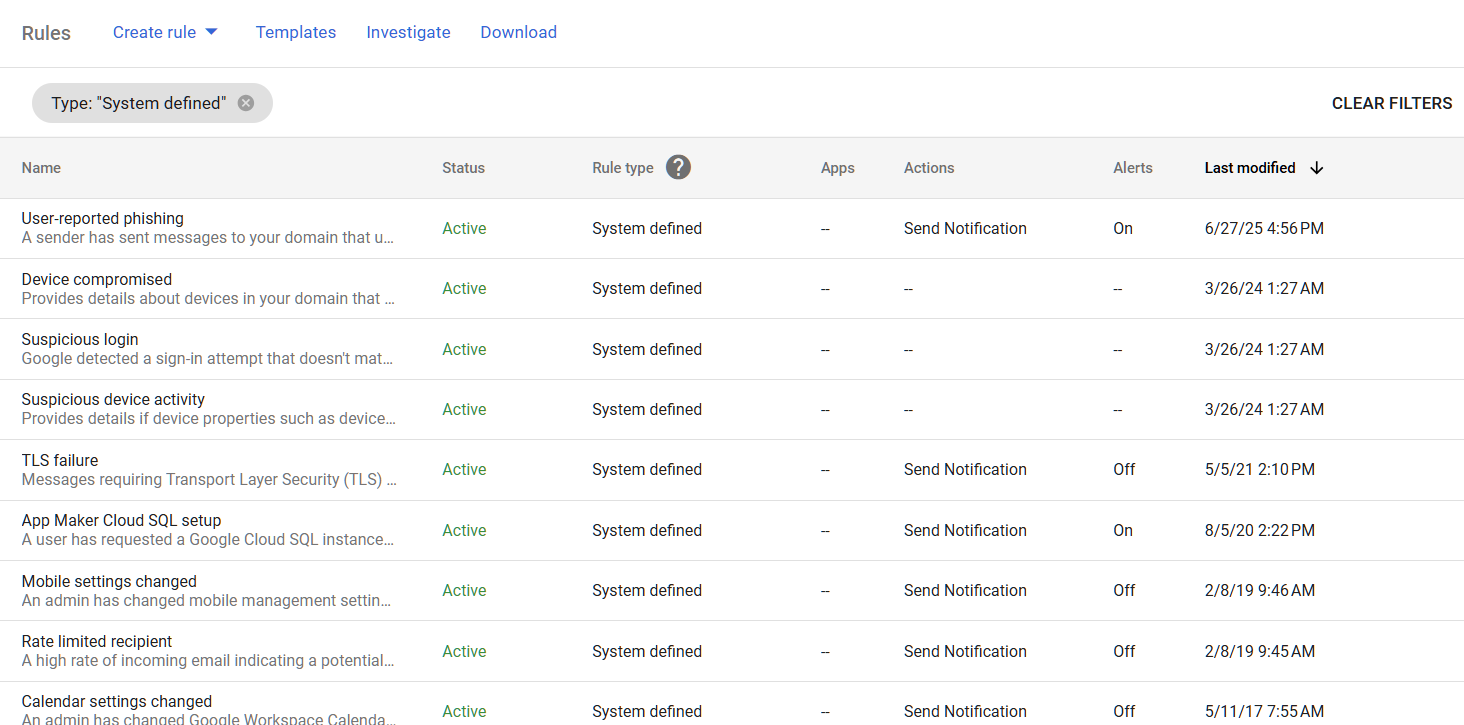
Google Workspace comes with a set of pre-built alert rules in the Alert Center. These cover events like potential account compromise, government-backed attack warnings, phishing spikes, and admin setting changes. Each system-defined alert has its own notification settings: who gets alerted, whether the alert is active, and what action to take.
Why It Matters
Most admins assume these system-defined alerts are turned on and working. We see a different story in audits. Some alerts are active, others aren’t. The default notification recipients may be outdated (former IT admins, unused email addresses). And some alerts trigger but nobody has configured where the notifications go.
The Alert Center is one of the best free tools in Google Workspace for security monitoring. But it only works if every alert rule is individually reviewed and pointed at someone who will actually act on it. The Google Workspace security dashboard shows alert activity, but if the alerts aren’t configured correctly, there won’t be anything useful to see there.
Relevant to: CISA SCuBA baselines require verification of all system-defined alerts.
What We Recommend
- Review each system-defined alert individually. Don’t assume they’re all on.
- Verify notification recipients. Make sure alerts go to current, active admin accounts or a shared security inbox.
- Pay extra attention to these alerts:
- Account suspension warning
- Government-backed attack warning
- Suspicious login activity
- User reported phishing
- App outage (for business continuity)
- Set up email or mobile notifications for the most critical alerts
Where to Find It
Admin Console path: Security > Google protects you by default > View List
📄 Google documentation: View alert details
What Your Team Will Notice
Nothing. Alert configuration is admin-only. Nothing changes for end users.
Common Mistakes
- Assuming defaults are good enough. The default recipient list may include only the original super admin who set up the domain. If that person has moved on, alerts go to a dead inbox.
- Ignoring alerts because there are “too many.” If you’re getting excessive alerts, triage them rather than ignoring all of them. Some (like government-backed attack warnings) need immediate action.
- Not testing alert delivery. Trigger a test event and confirm the notification actually arrives where you expect it.
Related Settings
- MON-010: Email Notification Rules. Custom rules you create supplement Google’s system-defined alerts.
- MON-020: Activity Rules and Automated Response. Automated actions can be layered on top of alerts.
MON-025: Audit Logs Exported to SIEM or BigQuery
What This Does
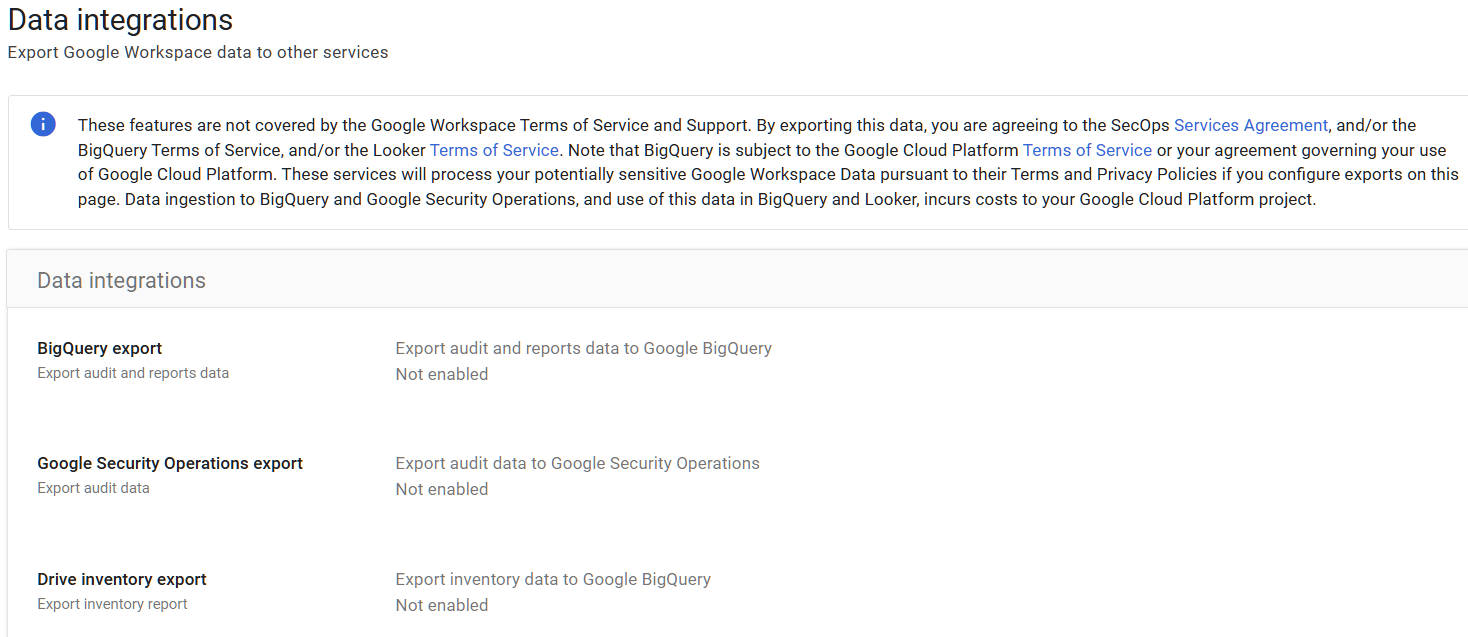
Google Workspace retains audit logs for a limited time (typically 6 months for most log types, though some vary). This setting controls whether you’re exporting those logs to an external system for longer retention and deeper analysis. Your two main options are BigQuery (Google’s data warehouse) or a third-party SIEM (Security Information and Event Management) tool.
Why It Matters
Six months sounds like a lot until you need to investigate something that happened seven months ago. Adelia Risk runs into this regularly. A firm needs to investigate an incident from eight months ago, and the logs are gone. BigQuery export prevents that. Compliance requirements for regulated firms typically call for 1-7 years of log retention. SEC rules, HIPAA, and CMMC all have retention requirements that exceed what Google keeps by default.
Beyond retention, exporting logs to BigQuery or a SIEM gives you better search, correlation, and reporting capabilities. The Admin Console’s built-in log viewer works for quick lookups, but it’s not designed for trend analysis or cross-referencing events across services.
For firms asking “is Google Vault worth it” for log retention, keep in mind that Vault handles email and file retention, not audit log retention. Log export is a separate configuration.
Relevant to: SEC record retention, HIPAA audit controls, and CMMC log management requirements.
What We Recommend
- At minimum: Enable BigQuery export. It’s built into Google Workspace (Business Plus and above) and doesn’t require third-party tools.
- For regulated firms: Export to a SIEM (like Google Security Operations, Splunk, or Microsoft Sentinel) for active monitoring and correlation.
- Set a retention period that matches your compliance requirements. When in doubt, consult your attorney or compliance advisor.
- Test your exports. Verify data is flowing and that you can actually query it when needed.
Where to Find It
Admin Console path: Reporting > Audit and Investigation > BigQuery Export
📄 Google documentation: Set up BigQuery Export
What Your Team Will Notice
Nothing. Log export is a background admin process. End users won’t see any difference.
Common Mistakes
- Assuming Google keeps logs forever. They don’t. Most log types are retained for 6 months, and some for as little as 30 days.
- Enabling BigQuery export but never querying the data. The data is only useful if you actually look at it or have automated queries running.
- Not budgeting for storage costs. BigQuery charges for storage and queries. For most small organizations, costs are minimal (a few dollars per month), but plan for it.
Related Settings
- MON-005: Google Audit Logs Reviewed. Export doesn’t replace review. It extends how long you have to review.
- MON-055: Data Retention Configured (Vault). Vault handles email and file retention. Log export handles audit log retention. They’re separate.
MON-040: Group Access from Outside Organization Restricted
What This Does
Google Groups can be used for email distribution, shared inboxes, and access management. This setting controls whether people outside your organization can view, post to, or join your groups. When unrestricted, external users can discover your group names, see group members, and potentially send messages to internal distribution lists.
Why It Matters
Groups are one of the most overlooked exposure points in Google Workspace. We see this in almost every audit. A company sets up a group like “all-staff@company.com” or “finance@company.com” and doesn’t realize it’s visible to anyone on the internet by default. External visibility means attackers can map your org chart and send targeted phishing emails to high-value groups like finance or executive teams.
Beyond phishing, groups are often used to control access to shared drives and files. If an external person can join or interact with a group, they may gain access to resources tied to that group’s membership.
Relevant to: SEC and HIPAA both require access controls that limit external exposure of internal resources.
What We Recommend
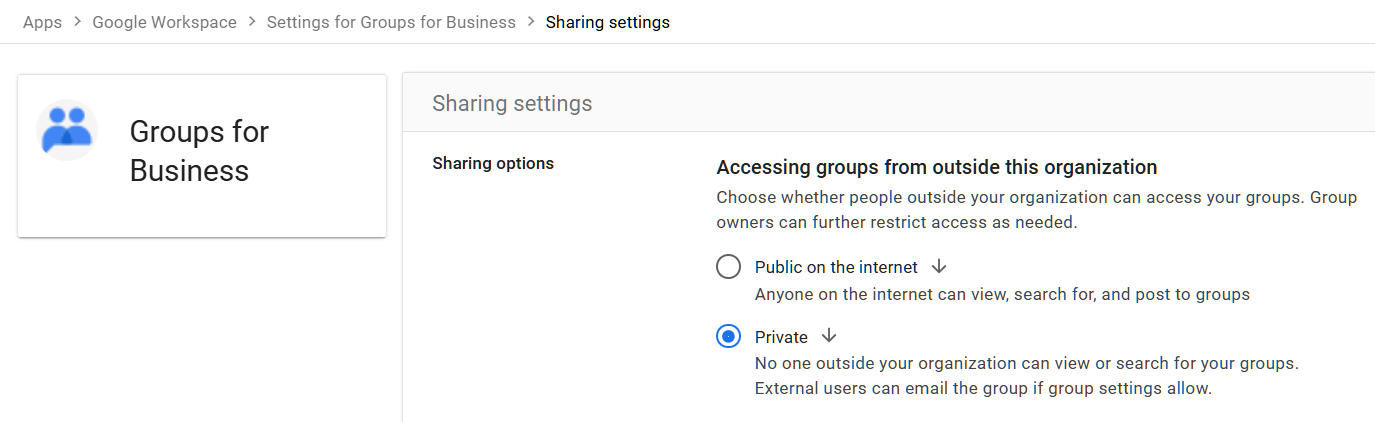
- Restrict external access. Set “Accessing groups from outside this organization” to ‘Private’.
- If you need external group communication (like a support inbox), create a separate group for that purpose and lock down all other groups.
- Audit existing groups for external visibility. Check which groups currently allow outside access and tighten them.
Where to Find It
Admin Console path: Apps > Google Workspace > Groups for Business > Sharing settings > Accessing groups from outside this organization
📄 Google documentation: Set Groups for Business sharing options
What Your Team Will Notice
If you restrict external group access, people outside your organization won’t be able to email certain groups or view group membership. If your team uses groups to receive emails from clients or vendors, you’ll need to handle those groups separately.
Sample message to your team:
Hi team,
Starting \[date\], we’re tightening who can access our Google Groups from outside the company. Most of you won’t notice any difference. If you manage a group that receives emails from external contacts (like a shared support inbox), let \[IT contact/helpdesk\] know so we can make sure those groups keep working.
This change helps prevent outsiders from seeing our group names and member lists. It takes effect automatically and you don’t need to do anything unless you manage an externally-facing group.
Common Mistakes
- Leaving the default “public” setting. Google’s default can expose your group directory to anyone. This comes up constantly in our audits.
- Restricting groups globally without checking for exceptions. Some groups (like “support@” or “info@”) legitimately need external access. Audit first, then restrict.
- Forgetting that groups control file access. Restricting group membership affects who can see shared drives and documents linked to that group. That’s usually a good thing, but make sure you don’t accidentally lock out a legitimate collaborator.
Related Settings
- MON-045: Group Creation Restricted to Admins. Controls who can create new groups.
- MON-050: Group Default Permissions Set to Members Only. Controls default view/post permissions within groups.
- DRIVE-005: External Drive Sharing. Groups and Drive sharing interact, since groups often control document access.
MON-050: Group Default Permissions Set to Members Only
What This Does
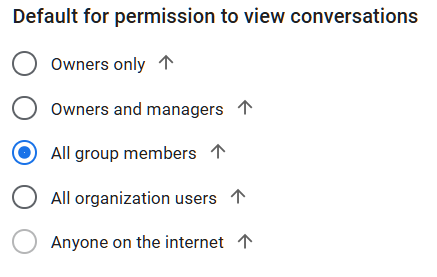
This setting controls the default permission for who can view conversations within Google Groups. The options range from “Owners only” to “anyone on the internet.” This is the default applied when new groups are created. Existing groups can still be changed individually by group owners.
Why It Matters
Google Groups default permissions can allow anyone on the internet to read your group conversations. That includes internal discussions, shared documents linked in threads, and email addresses of every group member. We’ve seen organizations where group conversations containing financial data, HR discussions, and internal project details were publicly readable.
This is a Google Workspace governance issue that most admins don’t realize exists until an auditor points it out. The setting is buried deep in the Admin Console, and groups created before the default was changed keep their old permissions.
Relevant to: SEC and HIPAA require controls over access to internal communications. CMMC includes similar requirements.
What We Recommend
- Set the default permission to “Group members” for viewing conversations. There’s no reason for internal group discussions to be visible to anyone on the internet.
- Audit existing groups. Changing the default only affects new groups. Go through your existing groups and verify their individual permissions.
- Remove “Anyone on the internet” from all internal groups. If a group needs public access (rare), create a separate group for that purpose with appropriate content controls.
Where to Find It
Admin Console path: Apps > Google Workspace > Groups for Business > Sharing settings > Sharing options > Default for permission to view conversations
📄 Google documentation: Set Groups for Business sharing options
What Your Team Will Notice
If existing groups had public permissions and you tighten them, external users who previously could view conversations will lose access. Internally, group members won’t notice any difference.
Sample message to your team:
Hi team,
We’re updating the default permissions on our Google Groups so that group conversations are only visible to group members. This is a security improvement that prevents internal discussions from being accidentally visible to outsiders.
You shouldn’t notice any changes to how you use Groups day-to-day. If you own a group that intentionally shares content with people outside the company, contact \[IT contact/helpdesk\] so we can set it up correctly.
Common Mistakes
- Only changing the default without auditing existing groups. The new default applies to future groups. Old groups keep whatever permissions they had when they were created.
- Not realizing that group conversations can contain sensitive data. Even “low-risk” groups like project teams often share documents, discuss financials, or include contact information in threads.
- Assuming groups are private because they don’t appear in search. A group can be unlisted but still readable if someone has the direct URL and the permission is set to “anyone.”
Related Settings
- MON-040: Group Access from Outside Organization Restricted. Controls external access to the groups themselves.
- MON-045: Group Creation Restricted to Admins. Prevents uncontrolled group creation with potentially loose defaults.
MON-055: Data Retention Configured (Vault)
What This Does
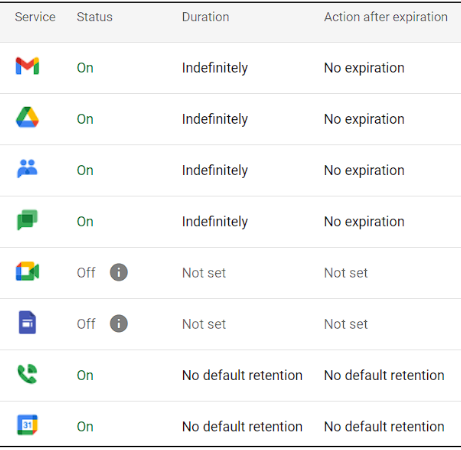
Google Vault is a retention and eDiscovery tool built into Google Workspace (included with Business Plus and higher plans). When you set up Google Vault, you define how long your organization keeps emails, Drive files, Chat messages, and other data. Vault can also place legal holds on specific users’ data to prevent deletion during litigation. If you’re wondering how to set up Google Vault, it starts at vault.google.com.
Why It Matters
Without a Google Workspace data retention policy, data lives and dies by your users’ decisions. An employee can permanently delete emails, empty their trash, and those messages are gone after 25 days. If a regulator, attorney, or auditor asks for records from two years ago and you don’t have them, that’s a serious problem.
For firms subject to SEC regulations, HIPAA, or other record-keeping requirements, data retention isn’t optional. The question “Is Google Vault worth it?” has a simple answer for regulated firms: you can’t meet your compliance obligations without it (or a comparable third-party solution).
eDiscovery Google Workspace capabilities through Vault also let you search across your organization’s data when you need to respond to legal requests or internal investigations. Without it, you’re scrambling through individual accounts.
Relevant to: SEC record retention (typically 3-7 years for communications), HIPAA (6-10 years), CMMC.
What We Recommend
- Set a default retention rule for all supported services (Gmail, Drive, Chat, Meet recordings). Consult your attorney for the specific retention period. Adelia Risk typically sees 6-10 years for financial services firms.
- Don’t rely on custom retention rules alone. Set an organization-wide default rule as a safety net, then add custom rules for specific needs.
- Test your retention by running a search in Vault. Make sure data is actually being retained and searchable.
- Understand the difference between Vault retention and user-facing trash. Vault keeps data even after a user deletes it. But only if a retention rule was in place before the deletion happened.
Where to Find It
Admin Console path: vault.google.com > Retention
📄 Google documentation: Set up retention rules
What Your Team Will Notice
Vault retention rules run in the background. Users can still delete emails and files from their view. The difference is that the data is preserved in Vault and accessible to admins, even after users delete it. If users are used to permanently deleting things and expecting them to be gone, this is a change in how data is handled (though most users won’t think about it).
Sample message to your team:
Hi team,
Starting \[date\], we’re turning on a data retention policy for our Google Workspace account. This means emails, Drive files, and Chat messages will be preserved for our records for a set period, even if you delete them from your inbox or Drive.
What this means for you:
- You can keep organizing and deleting messages and files the way you always do
- Deleted items will no longer be permanently gone; they’ll be retained in our compliance system for the required period
- This is a standard practice for our industry and helps us meet our record-keeping requirements
You don’t need to change anything about how you work. If you have questions, reach out to \[IT contact/helpdesk\].
Common Mistakes
- Setting up Vault, but not creating any retention rules. Having a Vault license isn’t the same as having retention configured. You need to create actual rules.
- Setting retention too short. If your industry requires 7 years and you set 1 year, you’re out of compliance. When in doubt, retain longer and consult your attorney.
- Not understanding that retroactive retention doesn’t recover already-purged data. If an email was permanently deleted before a retention rule was in place, Vault can’t bring it back. Set retention rules early.
- Confusing Vault with backup. Vault retains data for compliance and legal purposes. It’s not a backup solution for disaster recovery.
Related Settings
- MON-060: Gemini Conversation History Retention. Gemini interactions may need separate retention consideration.
- DRIVE-050: DLP Rules for Drive. DLP and retention work together to protect and preserve sensitive data.
- GMAIL-115: Comprehensive Mail Storage. Stores copies of mail sent from non-Gmail services in the mailbox so Vault can retain them.
MON-020: Activity Rules and Automated Response Configured [Enterprise SKU Only]
What This Does
Activity rules go a step beyond notification rules. Instead of just alerting you when something happens, they can take automated actions: suspending a user account, requiring a password change, blocking a device, or moving a message to quarantine. These rules use the same event triggers as notification rules but add an enforcement layer.
Why It Matters
Alerts are only useful if someone acts on them. If an account gets compromised at midnight and nobody reads the alert email until 9 AM, the attacker has nine hours to work. Automated response rules can suspend a compromised account immediately, cutting off access before a human gets involved.
Most of the organizations we audit have notification rules (if they have any rules at all), but no automated responses. That’s a reasonable starting point, but it leaves a gap when nobody is watching the inbox.
This doesn’t replace human judgment. Automated rules should handle the obvious cases (like suspending an account after clear compromise indicators) so your team can focus on the nuanced ones. Think of it as your first layer of response while the person on call gets up to speed.
Relevant to: CIS Google Workspace Benchmark recommends automated response for security events.
What We Recommend
- Start conservatively. Automated actions that are too aggressive (like auto-suspending accounts based on a single failed login) will cause more disruption than they prevent.
- Good candidates for automation:
- Suspend user after confirmed compromise indicators
- Require password change after suspicious login from a new country
- Quarantine messages that trigger DLP rules
- Test rules in “notify only” mode first before enabling automated actions. Watch for false positives.
- Document your automated rules so your team knows what’s running and why.
Where to Find It
Admin Console path: Rules > Automate actions for events > Create Rule
📄 Google documentation: Create activity rules
![Google Admin Console screenshot: Activity Rules and Automated Response Configured [Enterprise SKU Only] at Rules > Automate actions for events > Create Rule](https://adeliarisk.com/wp-content/uploads/2026/03/MON-020-1.png)
What Your Team Will Notice
Nothing unless an automated action triggers against their account. If their account gets suspended or they’re forced to change their password, they’ll know immediately. This is by design.
Common Mistakes
- Automating too aggressively. An overly sensitive rule that suspends accounts based on normal travel patterns will lock out legitimate users. Start with narrow, high-confidence triggers.
- Setting rules and forgetting them. Automated rules need periodic review. Business travel patterns change. New office locations appear. Rules that made sense a year ago may cause false positives today.
- Not having an escalation path. If an automated rule suspends a user, someone needs to be available to investigate and restore access quickly. Define who that is.
Related Settings
- MON-010: Email Notification Rules. Start with notifications, then graduate to automated response where appropriate.
- MON-015: System-Defined Alert Rules. System alerts can trigger similar automated responses.
- CHAT-050: DLP Rules for Chat. DLP rules can feed into automated quarantine actions.
MON-030: Access Transparency Logs Reviewed (Enterprise Plus)
What This Does
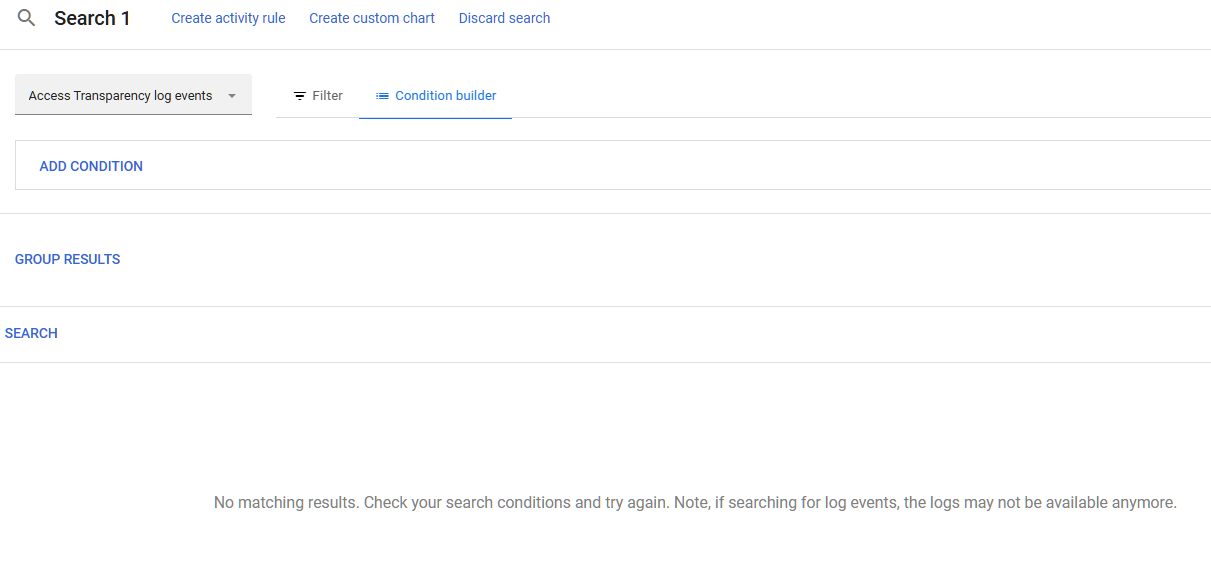
Access Transparency logs show you when Google staff access your organization’s data and why. This is different from your own audit logs. These logs record Google’s access to your content (like when Google support staff view your data while working on a support ticket).
This feature is only available on Enterprise Plus plans.
Why It Matters
If your organization handles regulated data (financial records, patient health information, government contracts), you may need to prove that only authorized parties accessed it. That includes your cloud provider’s employees. Access Transparency gives you that proof.
In practice, most of our clients are on Business Plus or lower, so this rarely comes up. But for Enterprise Plus customers, we always check it.
For most small businesses, this isn’t the highest priority. But for firms under strict regulatory oversight, being able to show exactly when and why Google accessed your data satisfies audit and compliance requirements that would otherwise be hard to meet.
Relevant to: CISA SCuBA baselines recommend reviewing Access Transparency logs. Relevant to HIPAA business associate requirements and SEC data protection rules.
What We Recommend
- If you have Enterprise Plus: Review logs quarterly.
- If you don’t have Enterprise Plus: This feature isn’t available to you. Focus on the other monitoring controls on this page.
- For regulated firms: Include Access Transparency log review in your regular compliance audit process.
Where to Find It
Admin Console path: Reporting > Audit and investigation > Access Transparency
📄 Google documentation: Access Transparency
What Your Team Will Notice
Nothing. This is admin-only. Users won’t notice.
Common Mistakes
- Assuming this feature exists on lower-tier plans. It’s Enterprise Plus only. Don’t spend time looking for it if you’re on Business Standard or Business Plus.
- Confusing Access Transparency with Access Approvals. Access Transparency shows you logs after the fact. Access Approvals (see ADMIN-070) lets you approve or deny Google staff access before it happens.
Related Settings
- ADMIN-070: Access Approvals. Proactive control over Google support access (also Enterprise Plus).
- MON-005: Google Audit Logs Reviewed. Your own audit logs, which you should review regardless of tier.
MON-035: Security Investigation Tool Access Reviewed (Enterprise SKU Only)
What This Does
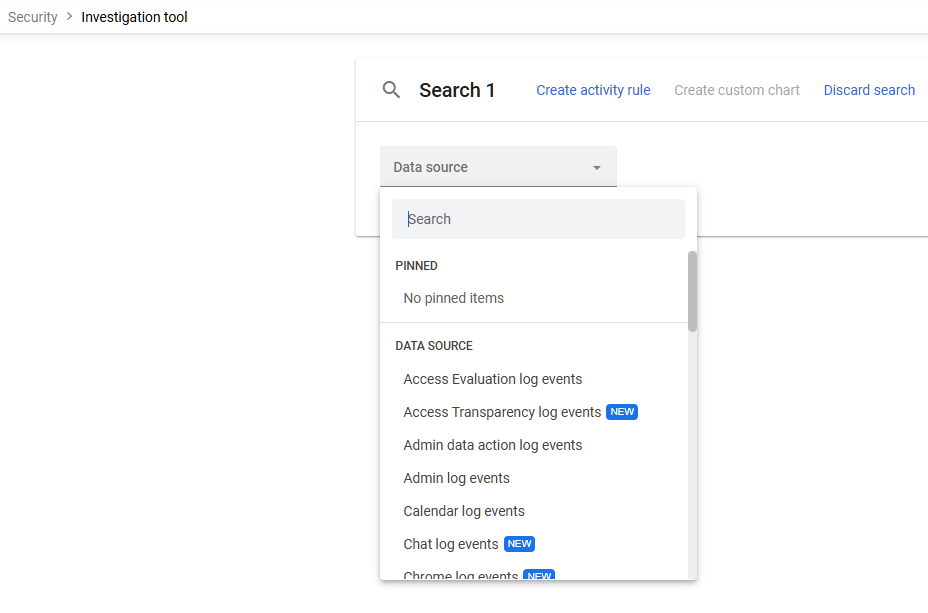
The Google Workspace investigation tool (also called the Security Investigation Tool) lives inside the security center Google Workspace provides for Enterprise-tier admins. It lets admins search across audit logs, examine user activity, and take bulk remediation actions like deleting malicious emails or wiping compromised devices. It’s a powerful tool, and this setting controls which admins have access to it.
Why It Matters
The investigation tool can read any user’s email metadata, view file-sharing activity, and take disruptive actions (like wiping devices or deleting messages). Not every admin needs that level of access. Limiting who can use the investigation tool follows the principle of least privilege: give people only the access they need for their role.
We see organizations where every admin has full investigation tool access by default. That means any compromised admin account can be used to search through the entire organization’s activity. Tightening access to this tool reduces that risk.
Relevant to: CIS Google Workspace Benchmark recommends reviewing investigation tool access.
What We Recommend
- Limit access to 2-3 designated admins who are responsible for security investigations
- Don’t give investigation tool access to every super admin by default. Create a dedicated admin role for security investigations if needed.
- Review access quarterly. When admins change roles or leave the organization, remove their investigation tool access.
Where to Find It
Admin Console path: Security > Security Center > investigation tool
📄 Google documentation: About the investigation tool
What Your Team Will Notice
Nothing. This affects admin access only. Nothing visible to end users.
Common Mistakes
- Giving all super admins access. The investigation tool is for security work, not routine admin tasks. Separate the roles.
- Not training designated admins on how to use it. The tool is powerful but not intuitive. Make sure the people with access know how to use it effectively.
- Forgetting to audit who used the investigation tool. The tool itself generates audit logs. Review who searched what, and when.
Related Settings
- ADMIN-010: No Daily-Driver Super Admin Accounts. Reducing admin account exposure also reduces investigation tool risk.
- MON-005: Google Audit Logs Reviewed. The investigation tool is one way to review audit data. Manual log review is another.
MON-045: Group Creation Restricted to Admins
What This Does
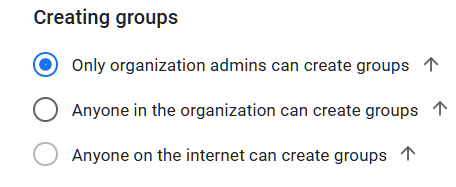
This setting controls who can create new Google Groups in your organization. By default, any user can create a group. When restricted, only admins (or users with specific delegated permissions) can create new groups.
Why It Matters
Unrestricted group creation leads to group sprawl. Users create groups for one-off projects, forget about them, and those groups accumulate over time. We regularly find 50+ groups in small organizations, most of them created for a one-time project and never cleaned up. Each unused group is a potential access point, especially if it was created with loose permissions (see MON-050).
Groups also control access to shared drives and documents. A user who creates a group and adds external collaborators might unintentionally grant those collaborators access to internal shared drives. This is a form of shadow IT that’s hard to catch without restricting creation in the first place.
Relevant to: Google Workspace governance best practices require controlled group creation.
What We Recommend
- Restrict group creation to admins. For most organizations, there’s no reason every employee needs to create their own groups.
- Create a request process. If someone needs a new group, they submit a quick request and an admin creates it with appropriate permissions.
- Audit existing groups. Before restricting creation, clean up groups that are unused or have inappropriate permissions.
Where to Find It
Admin Console path: Apps > Google Workspace > Groups for Business > Sharing settings > Sharing options
📄 Google documentation: Set Groups for Business sharing options
What Your Team Will Notice
Users who currently create their own groups won’t be able to anymore. They’ll need to request new groups through your admin team. This is a noticeable workflow change.
Sample message to your team:
Hi team,
Starting \[date\], only admins will be able to create new Google Groups. This helps us keep our groups organized and make sure new groups have the right security settings.
If you need a new group:
- Send a request to \[IT contact/helpdesk\] with the group name, who should be in it, and what it’s for
- We’ll set it up within one business day
Your existing groups aren’t affected and will keep working as they do today. This change just affects new group creation.
Common Mistakes
- Restricting creation without providing an easy request process. If getting a new group requires a formal IT ticket and takes a week, people will find workarounds (like using personal Gmail groups). Make it easy.
- Not cleaning up existing groups first. Restricting future creation is great, but you still have all the uncontrolled groups that were created before the restriction.
- Forgetting that Google Classroom and other apps can create groups automatically. Some Google services create groups as part of their normal operation. Make sure your restrictions don’t break other tools.
Related Settings
- MON-040: Group Access from Outside Organization Restricted. Controls external access to existing groups.
- MON-050: Group Default Permissions Set to Members Only. Controls default permissions for conversations within groups.
MON-060: Gemini Conversation History Retention Reviewed
What This Does
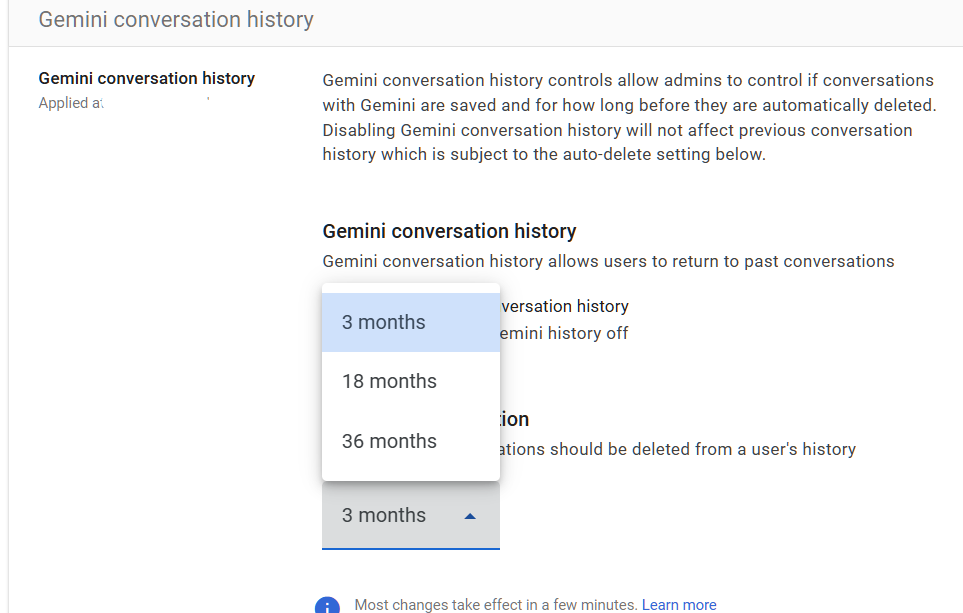
Google Workspace offers Gemini conversation history controls that let admins manage whether users’ interactions within Gemini’s Web App (gemini.google.com) are saved and for how long. This includes conversations where users ask Gemini to summarize emails, draft documents, or analyze data. These conversations can contain sensitive business information.
Why It Matters
This is newer territory for most organizations. In recent audits, we’ve started asking about Gemini retention and most firms haven’t thought about it yet. When a user asks Gemini to “summarize the Q4 revenue report” or “draft an email about our pending acquisition,” that conversation may contain highly sensitive information. If retention isn’t configured, those conversations might be kept indefinitely, deleted too soon, or fall outside your existing data retention policies. Please note that, as of now, this setting only applies to the gemini.google.com app. Gemini conversations in the side panel or “help me write” are not retained.
This is an emerging eDiscovery Google Workspace concern that organizations need to get ahead of. If your organization faces litigation and Gemini conversations contain relevant information, your retention policy needs to account for them. “We didn’t think about Gemini” isn’t a great response to a discovery request.
For organizations already managing Gemini through APPS-035, retention is the compliance side of the same coin. Access controls determine who can use Gemini. Retention controls determine what happens to those conversations afterward.
Relevant to: SEC record retention, HIPAA, and any regulation that covers electronic communications.
What We Recommend
- Review your current Gemini conversation history settings. Understand what the current retention period is.
- If Gemini isn’t enabled for your organization (see APPS-035), this setting is less urgent, but still worth reviewing in case you turn it on later.
Where to Find It
Admin Console path: Generative AI > Gemini app > Gemini conversation history
📄 Google documentation: Manage Gemini Apps activity
What Your Team Will Notice
If you change retention settings, users who have been using Gemini may notice that their conversation history behaves differently (older conversations may no longer be visible to them). Users should know that Gemini conversations are retained and reviewable.
Sample message to your team:
Hi team,
We’re updating how Gemini conversation history is handled. Starting \[date\], your conversations with Gemini will be subject to the same retention policies as email and chat.
What this means:
- Gemini conversations will be retained for our compliance records
- Treat Gemini conversations the same way you’d treat email, don’t share anything with Gemini that you wouldn’t put in a work email
- Older conversation history may look different as the new policy takes effect
No action is needed on your part. Just be mindful that Gemini conversations are work records. Questions? Contact \[IT contact/helpdesk\].
Common Mistakes
- Ignoring Gemini retention because “we just turned it on.” Retention should be configured before (or at the same time as) enabling Gemini access. Don’t create a gap.
- Assuming Gemini conversations fall under your existing Vault retention rules. They don’t.
- Not telling users that Gemini conversations are retained. Users may treat Gemini as a casual tool and share information they wouldn’t put in an email. Set expectations.
Related Settings
- APPS-035: Gemini Access Controls. Controls who can use Gemini and which features are available.
- MON-055: Data Retention Configured (Vault). Your broader retention strategy should include Gemini.
MON-065: Advanced Protection Program Reviewed
What This Does
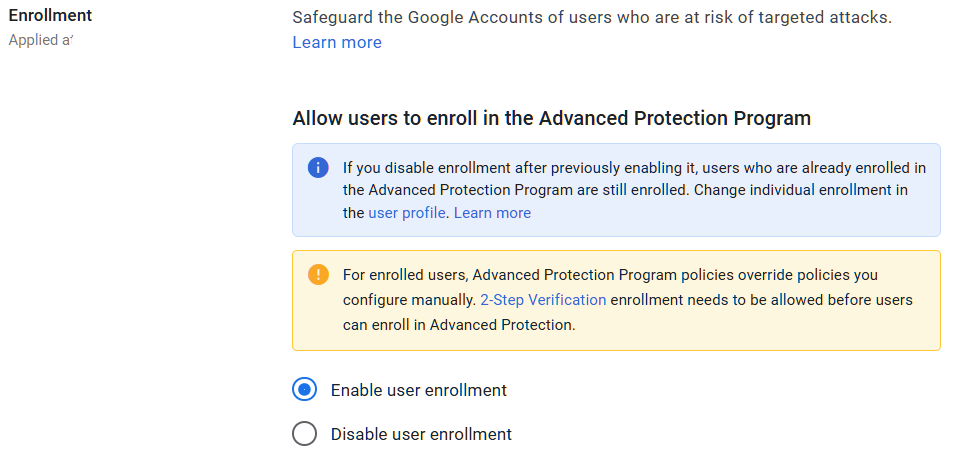
Google’s Advanced Protection Program (APP) is the strongest account security Google offers. It requires strong authentication for sign-in (either physical security keys or passkeys, with passkey support added in mid-2024), blocks most third-party app access to Google account data, and adds extra protections against phishing and malicious downloads. It’s designed for users who face a higher-than-normal risk of targeted attacks: executives, finance staff, admins, and anyone handling highly sensitive data.
Why It Matters
Standard MFA protects against the most common attacks. Advanced Protection goes further. It blocks app-specific passwords, restricts which apps can access account data, and requires phishing-resistant credentials (physical security keys or passkeys, not just authenticator apps). For a determined attacker targeting your CEO’s or CFO’s account directly, these extra layers make the difference.
Adelia Risk recommends that every organization at least evaluate whether Advanced Protection makes sense for their high-risk users. For most of our clients, 2-5 people should be enrolled. The program itself is free. If using physical security keys, the only cost is the keys themselves (about $25-50 each). Passkeys on supported devices have no additional cost.
Relevant to: SEC and CISA guidance recommend enhanced protection for privileged and high-risk accounts.
What We Recommend
- Identify your high-risk users: CEO, CFO, super admins, anyone with access to sensitive financial or health data
- Have the users enroll in the Advanced Protection Program. Users can enroll with physical security keys (each user needs two, a primary and a backup) or with passkeys on supported devices.
- Don’t force Advanced Protection on everyone. It adds friction that isn’t justified for typical users. Target it at the 3-5 people who would cause the most damage if their accounts were compromised.
- Create a monitoring rule to alert if any enrolled user unenrolls from Advanced Protection (see MON-010)
Where to Find It
Admin Console path: Security > Authentication > Advanced Protection Program
📄 Google documentation: Advanced Protection Program for enterprise
What Your Team Will Notice
Users enrolled in Advanced Protection will need to sign in with physical security keys or passkeys. They won’t be able to use authenticator apps or Google Prompts as their second factor. Some third-party apps that access their Google data may stop working (because Advanced Protection blocks most OAuth access). This is a significant change for enrolled users.
Sample message to your team (for enrolled users only):
Hi team,
As part of our security upgrade, your account has been chosen to enroll in Google’s advanced protection program. This adds the strongest available protections to your account because of the sensitive data you access.
What you need to do:
- You’ll receive two physical security keys from \[IT contact/helpdesk\], or we’ll help you set up passkeys on your devices
- Register your keys or passkeys with your Google account (instructions will be provided, it takes about 10 minutes)
- If using physical keys, keep one with you and store the backup in a secure location
What changes:
- You’ll use your security key or passkey instead of your phone to verify your identity at sign-in
- Some third-party apps may lose access to your Google data (we’ll help you with approved alternatives)
This is the same program used by journalists, political campaigns, and government officials to protect against targeted attacks. If you run into any issues, contact \[IT contact/helpdesk\].
Common Mistakes
- Not providing backup credentials. If a user loses their only security key and has no other enrolled credentials, they’re locked out of their account. Always provide at least two enrollment options (two physical keys, or a key plus a passkey on a second device).
- Enrolling everyone. Advanced Protection is too restrictive for most users. It blocks apps, limits account recovery options, and requires phishing-resistant credentials. Target it at high-risk accounts only.
- Not monitoring for unenrollment. An attacker who gains admin access could quietly unenroll a target from Advanced Protection. Set up an alert for this event (see MON-010).
Related Settings
- AUTH-005: Two-Step Verification Enforcement. Advanced Protection builds on top of MFA enforcement.
- AUTH-010: Phishing-Resistant Auth Methods. Advanced Protection requires the most phishing-resistant methods available.
- ADMIN-022: Context-Aware Access. Context-aware policies complement Advanced Protection for high-risk users.
What These Settings Don’t Cover
Monitoring and compliance are how you detect problems and meet record-keeping requirements. But it’s only one piece of a full Google Workspace security setup. Adelia Risk’s complete benchmark covers 97 settings across eight areas:
- Authentication Security (MFA enforcement, phishing-resistant methods, passwords, passkeys, session controls)
- Gmail Security (email authentication, phishing protections, forwarding controls, encryption, DLP)
- Google Drive & Data Sharing (external sharing, shared drive policies, DLP, labels, Takeout)
- Calendar, Chat & Meet (meeting security, chat retention, external sharing, DLP for Chat)
- Administrative Controls (admin accounts, account recovery, branding, multi-party approval)
- Third-Party Apps & API (OAuth controls, Marketplace restrictions, Gemini, Google Sites)
- Device & Mobile Management (MDM, device approval, context-aware access, Chrome policies)
Each area has its own guide page with the same level of detail.
Need Help Configuring These Settings?
Some of these changes are quick. Setting up email notification rules or tightening group permissions takes 15-30 minutes. Others, like configuring Vault retention, exporting logs to BigQuery, or rolling out Advanced Protection, need planning and a clear understanding of your compliance requirements.
If you’re in a regulated industry (financial services, healthcare, defense contracting), your monitoring and retention settings have direct compliance implications. Google Workspace security compliance requires more than knowing what to configure. It means knowing what satisfies your specific regulatory requirements.
Adelia Risk provides Google Workspace security audits that review all 97 settings, give specific recommendations for your situation, and help you roll out changes without disrupting operations.
Last verified: March 2026
Part of the Adelia Risk Google Workspace Security Benchmark, 97 controls across 8 security areas.