
Adelia Risk audits device and mobile settings in every Google Workspace security review we run. Your team’s phones, laptops, and tablets connect to company email, files, and shared drives every day. Without Google Workspace mobile device management controls in place, you have zero visibility into what’s accessing your data, whether those devices are encrypted, and what happens when someone loses a phone.
The problem is bigger than most businesses realize. Verizon’s 2025 Mobile Security Index found that 85% of organizations say mobile and IoT threats have increased over the past year, and 63% dealt with significant repercussions from mobile-related downtime. A lost phone with an active Workspace session is an open door to your company’s email and files. A rooted Android device running unverified apps is a malware risk that could compromise credentials across the organization.
This page covers the 10 device and mobile settings Adelia Risk reviews as part of our Google Workspace security audit services. These range from basic Google endpoint management enrollment to context-aware access policies and Chrome browser cloud management. Each setting includes what it does, why it matters, and what we recommend, sorted from highest risk to lowest.
Quick Reference
| Policy ID | Setting | Risk | Heads Up? | Admin Path |
|---|---|---|---|---|
| DEVICE-005 | Mobile device management enabled | 🔴 Critical | Yes | Devices > Mobile & endpoints > Settings > Universal Settings > General > Mobile Management |
| DEVICE-010 | Admin approval required for mobile devices | 🟠 High | Yes | Devices > Mobile & endpoints > Settings > Universal Settings > Security |
| DEVICE-015 | Mobile device encryption required | 🟠 High | No | Devices > Mobile & endpoints > Settings > Universal Settings > Security |
| DEVICE-025 | Compromised (jailbroken/rooted) devices blocked | 🟠 High | No | Devices > Mobile & endpoints > Settings > Universal Settings > Security |
| DEVICE-045 | Endpoint Verification deployed | 🟠 High | Yes | Devices > Mobile & endpoints > Settings > Universal Settings > Endpoint Verification |
| DEVICE-020 | Mobile password and lock requirements configured | 🟡 Medium | Yes | Devices > Mobile & endpoints > Settings > Universal Settings > Security |
| DEVICE-030 | Unknown sources and app sideloading blocked on managed devices | 🟡 Medium | No | Devices > Mobile & endpoints > Settings > Android > Apps and data sharing |
| DEVICE-035 | External media storage blocked on managed devices | 🟡 Medium | No | Devices > Mobile & endpoints > Settings > Android > Apps and data sharing |
| DEVICE-040 | Auto account wipe on inactive devices configured | 🟡 Medium | No | Devices > Mobile & endpoints > Settings > Universal Settings > General |
| DEVICE-055 | Basic Chrome browser policies enabled | 🟡 Medium | Yes | External media storage is blocked on managed devices |
Heads Up? Does your team need advance notice before you make this change? “Yes” means users will see something different. We’ve included sample language you can send to your team for every “Yes” setting.
DEVICE-005: Mobile Device Management Enabled
What This Does
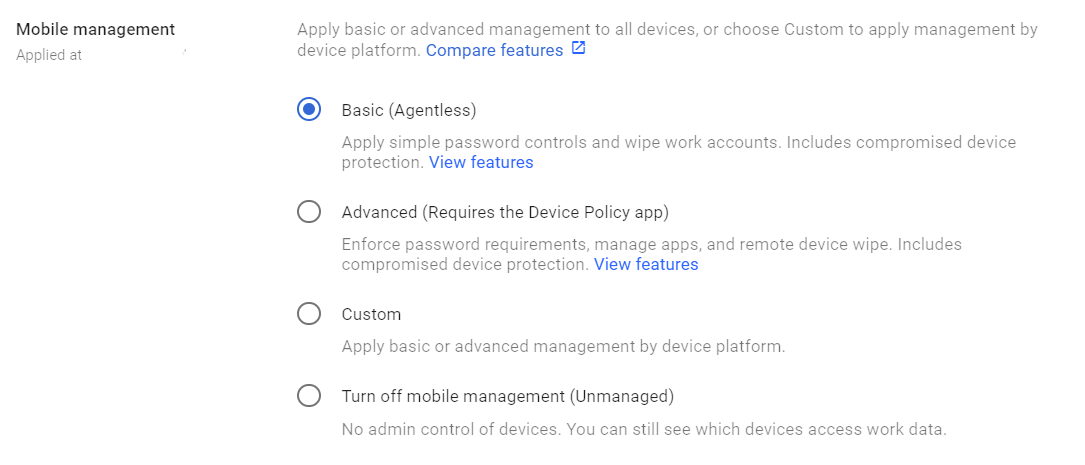
This setting controls whether Google’s built-in mobile device management is turned on for your organization. Google endpoint management comes in two tiers: Basic and Advanced. Basic gives you a device inventory and the ability to remotely wipe accounts. Advanced adds password enforcement, app management, device approval, and compliance policies. If your organization also runs Microsoft 365 alongside Workspace, you may already have Intune in the picture. Google endpoint management is the simpler path for teams fully committed to Workspace. For hybrid Microsoft environments, Intune handles more of the heavy lifting, but that’s a separate conversation.
Why It Matters
If mobile management is turned off (or left on the default “Basic” without any policies), you have no idea which devices are connecting to your Workspace data. No inventory. No encryption requirements. No ability to wipe a lost device. You’re trusting every phone and tablet your employees own to be secure, with no way to verify it.
We see this constantly in audits. A business has strong password policies and MFA enforced, but anyone can sync their work email to a personal phone with no screen lock, no encryption, and no remote wipe capability. One lost phone and your email, contacts, and calendar data are sitting on a device you can’t touch.
Relevant to: HIPAA and CMMC require controls over devices that access organizational data, and SEC cybersecurity rules reference endpoint security practices.
What We Recommend
- Set mobile management to Advanced for all organizational units that access sensitive data
- If Advanced isn’t available on your license (it requires Business Plus, Enterprise, or Endpoint standalone), at minimum turn on Basic management and pair it with ADMIN-022: Context-Aware Access
- Create a device inventory review process (quarterly at a minimum)
- Advanced Management for iOS: To enable advanced management for iOS devices, you need to upload an Apple Push Certificate.
Where to Find It
Admin Console path: Devices > Mobile & endpoints > Settings > Universal Settings > General > Mobile Management
📄 Google documentation: Set up mobile management, Set up an Apple push certificate
What Your Team Will Notice
When you turn on Advanced mobile management, users with existing mobile devices may be prompted to install the Android Device Policy app (Android) or a management profile (iOS). On Android, this takes about 2 minutes. On iOS, users follow a prompt to install a configuration profile.
New users adding a work account to their phone will see the setup during initial account enrollment. If you also enable admin approval (DEVICE-010), users won’t have access until you approve their device.
Sample message to your team:
Hi team,
Starting \[date\], we’re turning on mobile device management for our Google Workspace accounts. This gives us the ability to protect company data on phones and tablets, including remotely wiping your work account if a device is lost or stolen.
What you need to do:
- On Android: current users don’t have to do anything other than follow the on-screen prompts. If you’re on an older version of Android, you’ll be prompted to install the Google Device Policy app from the Play Store
- On iPhone/iPad: you’ll be prompted to install a management profile (follow the on-screen instructions)
- Setup takes about 2 minutes
This only manages your work account and data. We can’t see personal apps, photos, browsing history, or anything outside of Google Workspace. If you have questions, contact \[IT contact/helpdesk\].
Common Mistakes
- Leaving management on “Basic” and assuming you’re covered. Basic gives you a device list and account wipe. It doesn’t enforce encryption, passwords, or block compromised devices. For real protection, you need Advanced.
- Turning on Advanced without telling anyone. Users will get prompted to install management apps. If they don’t know why, they’ll ignore it, decline it, or call you in a panic. Communicate first.
- Not testing on one device first. Different phone models and OS versions react differently. Test the enrollment process on at least one Android and one iOS device before rolling out to everyone.
Related Settings
- DEVICE-010: Admin Approval Required. Controls whether new devices need admin approval before syncing.
- DEVICE-015: Encryption Required. Requires device encryption for managed devices.
- ADMIN-022: Context-Aware Access. Restricts access based on device state, even for unmanaged devices.
DEVICE-010: Admin Approval Required for Mobile Devices
What This Does
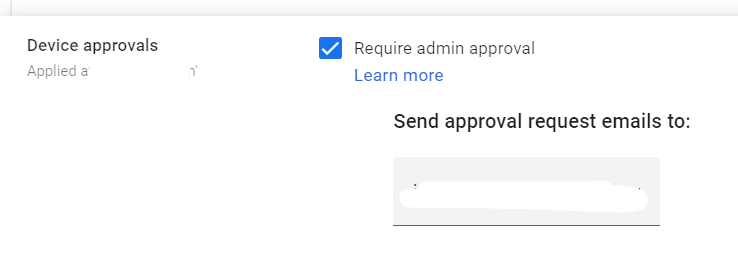
When this is turned on, any new mobile device that tries to sync with a Google Workspace account that is under ‘Advanced Management has to be approved by an admin first. The user adds their work account on the device, gets a message saying “waiting for admin approval,” and can’t access work data until an admin clicks “Approve” in the Admin Console.
Why It Matters
Without device approval, any phone or tablet in the world can sync your company’s email and files the moment someone enters a valid username and password. A stolen credential means instant data access from any device. An employee who leaves can add their old credentials to a new personal phone and continue receiving company emails.
Device approval is a gate. It forces someone to confirm that, yes, this specific device should have access. It adds a human checkpoint that catches unauthorized device registrations.
In most environments Adelia Risk reviews, this setting is turned off. The admin didn’t know it existed, or they turned on MDM but skipped this step.
What We Recommend
- Turn on admin approval
- Set up email notifications so approvals don’t pile up
- Create a simple approval process: who approves, what they check, and how quickly they respond
- Approve devices within 24 hours, so new hires and device replacements aren’t stuck waiting
Where to Find It
Admin Console path: Devices > Mobile & endpoints > Settings > Universal Settings > Security
📄 Google documentation: Require admin approval for device access
What Your Team Will Notice
This is a visible change. When someone adds their work account to a new phone or tablet, they’ll see a message saying the device is pending admin approval. They won’t be able to access work email, calendar, or files on that device until an admin approves it.
If approval takes too long, it creates real frustration (especially for new hires or someone who just got a new phone).
Sample message to your team:
Hi team,
Starting \[date\], new phones and tablets will need admin approval before they can access your work Google account. This is to prevent unauthorized devices from syncing company data.
What this means for you:
- If you set up a new phone or replace your current one, you’ll see a “pending approval” message when you add your work account
- Send a quick note to \[IT contact/helpdesk\], and we’ll approve it within 24 hours (usually much faster)
- Your existing devices are already approved and won’t be affected
This is a one-time step per device. Once approved, you won’t see it again unless you switch phones.
Common Mistakes
- Turning on approval but not monitoring the queue. If no one checks the approval queue, users sit for days without access. Set up admin email alerts for new device requests.
- Approving everything without checking. The point is to verify the device is legitimate. At a minimum, confirm the user is current, and the device type makes sense.
- Forgetting to pre-approve devices for new hires. Onboarding goes smoother when the IT person has the new hire’s device info and can approve it before their first day.
Related Settings
- DEVICE-005: Mobile Device Management. Must be set to Advanced for device approval to work.
- DEVICE-015: Encryption Required. Approved devices should also meet encryption requirements.
DEVICE-015: Mobile Device Encryption Required
What This Does
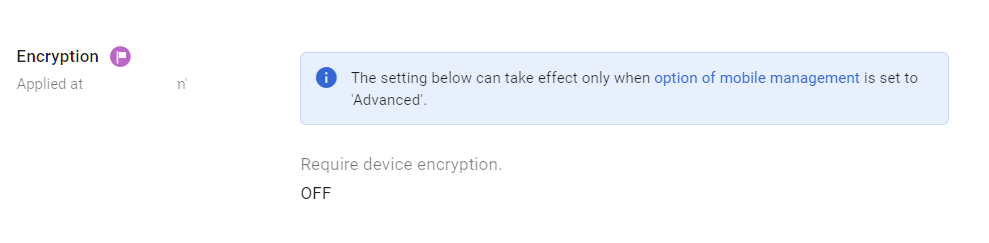
This setting requires that any managed mobile device accessing your Google Workspace data has storage encryption turned on. If a device isn’t encrypted, it can’t sync. Encryption scrambles the data on the device so that if someone physically picks it up, they can’t read the contents without the device’s passcode or biometric unlock.
Why It Matters
A lost or stolen phone without encryption gives anyone who picks it up direct access to everything on it. Anyone who connects it to a computer can pull off cached email and credentials. With encryption, the data on the device is unreadable without the passcode.
The good news: most modern phones come with encryption enabled by default. iPhones have had it on by default since iOS 8 (2014). Android devices since version 10 (2019) ship with encryption on. But “most” isn’t “all.” Older devices, budget Android phones, and devices where a user has manually disabled encryption still exist in the wild.
Requiring encryption in your Google endpoint management policy means you catch those edge cases automatically, instead of hoping everyone’s phone is configured correctly.
Relevant to: HIPAA’s Security Rule includes encryption as an addressable safeguard. In practice, it’s expected for any device storing PHI. SEC and CMMC both reference device encryption as a baseline control.
What We Recommend
- Require encryption for all managed devices under Advanced Management
- This is a setting you can turn on the same day as MDM enrollment, with almost no risk of disruption
Where to Find It
Admin Console path: Devices > Mobile & endpoints > Settings > Universal Settings > Security
📄 Google documentation: Set mobile device policies, Apply settings for iOS devices
What Your Team Will Notice
Nothing, for the vast majority of users. Modern phones are already encrypted. A user with an older or misconfigured device will be told they need to enable encryption before their work account can sync. On Android, this is under Settings > Security > Encryption. On iOS, encryption turns on automatically when you set a passcode.
Common Mistakes
- Skipping this because “all phones are encrypted now.” Most are. Not all. It costs nothing to require it, and it catches the exceptions.
- Confusing device encryption with app-level encryption. Device encryption protects data at rest on the device. It’s separate from encryption in transit (TLS) or app-level encryption settings.
Related Settings
- DEVICE-005: Mobile Device Management. Encryption enforcement requires Advanced mobile management.
- DEVICE-020: Password and Lock Requirements. Encryption is useless without a strong device passcode (encryption keys are derived from it).
DEVICE-025: Compromised (Jailbroken/Rooted) Devices Blocked
What This Does
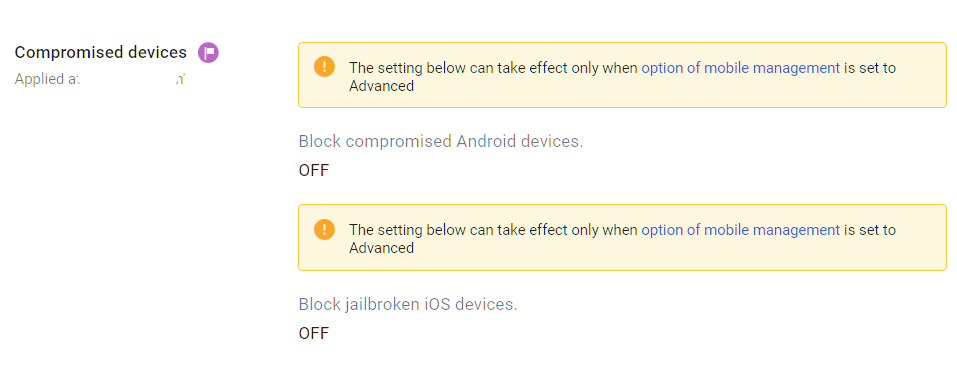
This setting blocks devices that have been jailbroken (iOS) or rooted (Android) from accessing Google Workspace data. Jailbreaking and rooting remove the built-in security protections that the phone’s operating system provides, giving apps (and malware) unrestricted access to everything on the device.
Why It Matters
A jailbroken or rooted phone is a phone with its security guardrails removed. The operating system can no longer enforce app sandboxing (keeping apps from reading each other’s data), prevent unauthorized code execution, or verify that apps haven’t been tampered with.
From a business perspective, a compromised device accessing your Workspace data means:
- Malware on the device could read cached email, files, and credentials
- Apps installed from unofficial sources could capture keystrokes and session tokens
- Security features like encrypted storage may not function correctly
This isn’t theoretical. Malware specifically targeting rooted Android devices is well documented by security researchers at Google’s Threat Analysis Group. Blocking these devices is a straightforward control with no downside for a business environment.
What We Recommend
- Block compromised devices under Advanced Management from syncing Workspace data
- This is a one-click setting. Turn it on.
Where to Find It
Admin Console path: Devices > Mobile & endpoints > Settings > Universal Settings > Security
📄 Google documentation: Set mobile device policies, Apply settings for iOS devices
What Your Team Will Notice
Almost nobody on your team is running a jailbroken or rooted device. If someone is, they’ll be blocked from accessing their work account on that device and told why. They can still access Workspace from a standard device or a web browser.
Common Mistakes
- Leaving this off because “nobody does that.” It’s a free security control. Even if the probability is low, the cost of turning it on is zero, and the protection is real.
- Not having a process for the one person who is blocked. It will happen. Have a ready response: “Your device has been modified in a way that removes built-in security protections. You’ll need to restore it to factory settings or use a different device for work.”
Related Settings
- DEVICE-005: Mobile Device Management. Compromised device detection requires Advanced mobile management.
- DEVICE-030: Unknown Sources Blocked. Blocking sideloaded apps is a complementary control.
DEVICE-045: Endpoint Verification Deployed
What This Does
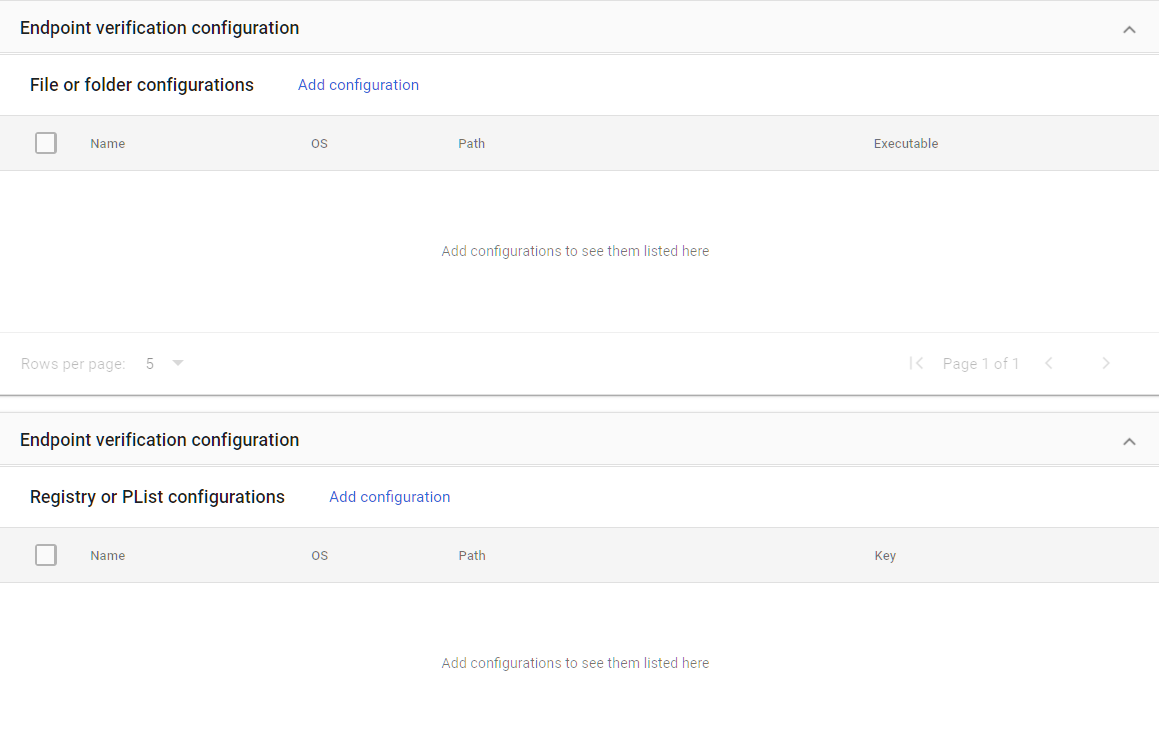
Endpoint Verification is a Chrome extension (plus a lightweight agent on some platforms) that reports device health information from desktops and laptops back to Google. It tells you whether a computer is encrypted, what OS it’s running, whether the screen lock is on, and whether the device is managed by your organization. This is the desktop equivalent of what mobile device management does for phones.
Why It Matters
Google endpoint management gives you visibility into mobile devices, but without Endpoint Verification, you’re blind to desktops and laptops. And most of your sensitive work probably happens on a computer, not a phone.
Endpoint Verification is also the data source that ADMIN-022: Context-Aware Access uses to make decisions about desktop access. If you want to block unencrypted laptops or require a managed device for accessing Drive, you need Endpoint Verification installed to provide that information.
Endpoint Verification is the sensor that feeds your access policies. Without it, you can’t enforce device-based rules on computers.
If you’re evaluating Google credential provider for Windows, Endpoint Verification is a related but separate capability. Google Credential Provider for Windows lets users sign in to Windows devices with their Google credentials. Endpoint Verification reports device health. Both feed into your overall device trust picture.
What We Recommend
- Deploy Endpoint Verification to all company-owned desktops and laptops
- For BYOD (personal computers used for work), require Endpoint Verification as a condition of access
- Use Chrome browser cloud management to push the extension automatically to managed Chrome profiles
- Verify data is flowing by checking the Devices section of the Admin Console after deployment
Where to Find It
Admin Console path: Devices > Mobile & endpoints > Settings > Universal Settings > Endpoint Verification
📄 Google documentation: Set up Endpoint Verification
What Your Team Will Notice
Users will see the Endpoint Verification Chrome extension added to their browser. On some platforms, a small helper application installs as well. The extension runs quietly in the background. Users might notice the extension icon in their Chrome toolbar, but it doesn’t interrupt their work or show pop-ups.
On macOS, users may need to approve a system extension in System Settings > Privacy & Security. On Windows, the helper may need admin rights to install.
Sample message to your team:
Hi team,
Starting \[date\], we’re adding a small Chrome extension called Endpoint Verification to your work computers. This lets us confirm that devices accessing our Google Workspace meet our security standards (like having encryption on and an up-to-date operating system).
What you need to do:
- If the extension installs automatically, you don’t need to do anything
- On Mac, you may need to approve it in System Settings > Privacy & Security if prompted
- On Windows, you may see a quick installation prompt
The extension runs in the background and doesn’t affect your browsing or computer performance. If you have questions, contact \[IT contact/helpdesk\].
Common Mistakes
- Deploying Endpoint Verification but never setting up context-aware access policies. The extension collects data, but that data only matters if you create policies that act on it. Otherwise, it’s just inventory.
- Only deploying to company-owned machines. If employees access Workspace from personal laptops (even occasionally), those machines are invisible without Endpoint Verification.
- Not testing the installation on macOS. Apple’s security permissions can block the helper app. Test the deployment before announcing it.
Related Settings
- ADMIN-022: Context-Aware Access. Endpoint Verification feeds device health data into context-aware access policies.
- DEVICE-055: Chrome Browser Policies. Chrome browser cloud management can push Endpoint Verification automatically.
DEVICE-020: Mobile Password and Lock Requirements Configured
What This Does
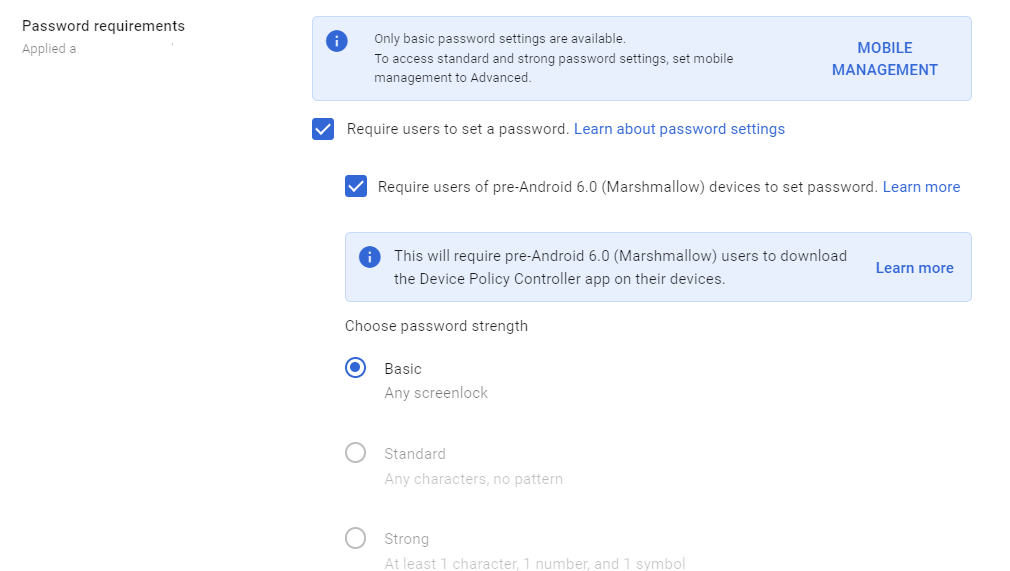
This setting lets you require a minimum passcode strength and auto-lock timeout on managed mobile devices. You can set requirements for password type (numeric PIN, alphanumeric, pattern), minimum length, and how quickly the device locks after being idle. Note that this is only for devices under Advanced Mobile Management
Why It Matters
Encryption only works if the device has a decent passcode. A phone encrypted with a 4-digit PIN of “1234” is barely more secure than one with no passcode at all. Password requirements set a floor for device security that protects your data if a phone is lost or stolen.
Auto-lock timeout matters too. A phone left unlocked on a table, in a cab, or at a coffee shop gives anyone who picks it up full access until the screen locks. A 5-minute timeout is much better than the 30-minute (or never) default some users set.
In Adelia Risk audits, we regularly find MDM turned on with password requirements left at the default. That means a 4-digit PIN with no auto-lock requirement passes the check.
What We Recommend
- Require at minimum a 6-digit PIN (4-digit PINs can be brute-forced quickly)
- Auto-lock timeout: 5 minutes or less
- Allow biometric unlock (fingerprint, face) for convenience, but require the passcode as the fallback
- Don’t require alphanumeric passwords on mobile. They’re frustrating to type and people resort to short, weak passwords instead. A 6+ digit PIN with biometric unlock is the practical sweet spot.
Where to Find It
Admin Console path: Devices > Mobile & endpoints > Settings > Universal Settings > Security
📄 Google documentation: Set password requirements for managed mobile devices
What Your Team Will Notice
Users whose devices don’t meet the new requirements will be prompted to update their passcode or lock settings. This usually means changing a 4-digit PIN to a 6-digit one, or reducing their auto-lock timeout.
Sample message to your team:
Hi team,
Starting \[date\], we’re updating the security requirements for phones and tablets that access our work accounts. You may be asked to update your screen lock settings.
What you might need to do:
- If your phone uses a 4-digit PIN, you’ll need to switch to a 6-digit PIN (or longer)
- Your phone’s auto-lock timeout needs to be 5 minutes or less
- If you already use fingerprint or Face ID, you likely won’t need to change anything
These changes take about 30 seconds. If your phone prompts you, follow the instructions on screen. Contact \[IT contact/helpdesk\] if you need help.
Common Mistakes
- Requiring long alphanumeric passwords on mobile. People hate typing complex passwords on a phone keyboard dozens of times a day. They’ll set the weakest one that meets the rules. A 6-digit PIN with biometric unlock provides good security with much less friction.
- Setting auto-lock to 15 or 30 minutes. That’s too long. A lost phone with a 30-minute lock window gives someone plenty of time to read email and download files.
- Not accounting for older devices. Some older Android devices don’t support certain password types. Test across the devices your team actually uses.
Related Settings
- DEVICE-015: Encryption Required. Encryption depends on a strong device passcode. These two settings work together.
- DEVICE-005: Mobile Device Management. Password enforcement requires Advanced mobile management.
DEVICE-030: Unknown Sources and App Sideloading Blocked on Managed Devices
What This Does
This setting blocks users from installing apps from sources other than the official app store (Google Play for Android) on managed devices. “Sideloading” means installing an app from a downloaded file or third-party source instead of through the store, which bypasses Google Play Protect’s malware scanning.
Why It Matters
The official app stores aren’t perfect, but they screen apps for malware and verify developer identities. Known-bad apps get pulled. When a user sideloads an app, none of those protections apply. The app could contain anything: keyloggers, credential stealers, data exfiltration tools, or backdoors.
On a device that also has access to your company’s Google Workspace data, a malicious sideloaded app could read cached emails, capture passwords, or steal session tokens.
We haven’t seen a sideloading incident at a client yet, but the risk is real enough that every MDM vendor blocks it by default.
This setting only applies to Android. iOS doesn’t allow sideloading by default (though this is changing in some markets under regulatory pressure). For Android, blocking unknown sources is a standard mobile security practice.
What We Recommend
- Block unknown sources on all advanced managed Android devices
- If your organization has a legitimate need for sideloaded apps (custom internal apps, for example), distribute them through Managed Google Play instead
Where to Find It
Admin Console path: Devices > Mobile & endpoints > Settings > Android > Apps and data sharing
📄 Google documentation: Apply settings for Android mobile devices

What Your Team Will Notice
Most users won’t notice anything. Sideloading is uncommon in a business context. If someone has been installing apps from outside the Play Store, those apps will still work, but they won’t be able to install new ones from unknown sources while their work account is active on the device.
Common Mistakes
- Leaving this off because “no one sideloads apps.” That’s probably true today. But all it takes is one phishing email with a “install this update” link to change that. Block it proactively.
- Not providing an alternative for internal apps. If your business distributes custom apps, use Managed Google Play to distribute them properly instead of asking users to sideload.
Related Settings
- DEVICE-025: Compromised Devices Blocked. Rooted devices can bypass sideloading restrictions. Both controls matter.
- DEVICE-005: Mobile Device Management. Requires Advanced mobile management.
DEVICE-035: External Media Storage Blocked on Managed Devices
What This Does
This setting blocks managed Android devices from using external storage media (SD cards) to transfer data. When blocked, apps on the device can’t write work data to removable storage.
Why It Matters
Removable storage is a data exfiltration path. An employee (or someone with access to an employee’s unlocked phone) could copy company emails, files, or contact databases to an SD card and walk out with them. The data leaves your organization with no log, no alert, and no way to recover it.
SD cards are also a malware vector. A card previously used in another device could carry malicious files that auto-execute when inserted.
This is less of a concern than it was five years ago (most modern phones have dropped SD card slots), but Android devices with external storage support are still common, especially in markets where budget phones are popular.
What We Recommend
- Block external media storage on all managed Android devices
- If users need to transfer files, direct them to use Drive or another managed sharing method
Where to Find It
Admin Console path: Devices > Mobile & endpoints > Settings > Android > Apps and data sharing
📄 Google documentation: Set Android mobile device policies
What Your Team Will Notice
Users won’t notice unless they’ve been actively using SD cards with their work phone. If they have, they’ll need to use Google Drive or another approved method to transfer files.
Common Mistakes
- Skipping this because “phones don’t have SD card slots anymore.” Many Android devices still support external storage through USB OTG adapters, even without a built-in SD slot.
- Blocking external media without offering an alternative. If users are moving files via SD card because Drive is confusing or slow, fix the root cause. Make Drive easy to use.
Related Settings
- DRIVE-035: Local Syncing for Drive. Controls how files sync between Drive and desktop devices.
- DRIVE-005: External Sharing. Another path for data leaving the organization.
DEVICE-040: Auto Account Wipe on Inactive Devices Configured
What This Does
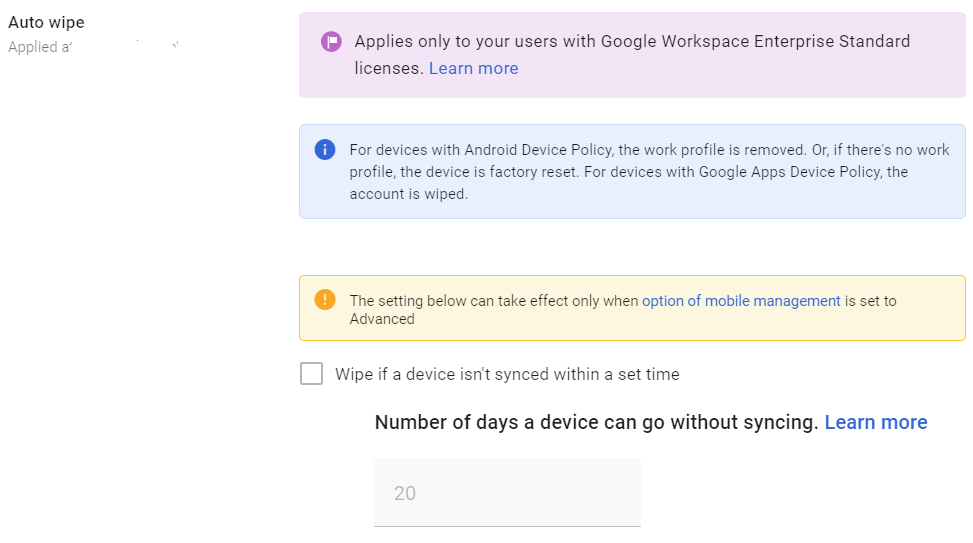
This setting automatically removes the work account and all associated data from a managed device after a specified period of inactivity. If a device hasn’t synced with Google in (for example) 30 days, the work account is wiped. The personal data on the device isn’t touched.
Why It Matters
Devices fall off the radar. An employee upgrades to a new phone and throws the old one in a drawer. Someone leaves the company, and their personal phone still has a synced work account. A tablet gets lost in a conference room, and nobody reports it.
Without auto-wipe, these abandoned devices keep a live copy of your company’s email and files indefinitely. Auto-wipe is a safety net for devices that nobody remembers to decommission.
Adelia Risk sees forgotten devices in almost every Workspace review. The Admin Console shows devices that haven’t synced in 60, 90, even 180+ days, and they still have an active work account.
What We Recommend
- Set auto-wipe to 30 days of inactivity (this is a reasonable default for most organizations)
- For higher-security environments, use 14 days
- Pair this with regular device inventory reviews, so you catch inactive devices before the auto-wipe timer
Where to Find It
Admin Console path: Devices > Mobile & endpoints > Settings > Universal Settings > General
📄 Google documentation: Approve, block, unblock, or delete a managed device
What Your Team Will Notice
Nothing, unless they leave a device unused for the full inactivity period. If someone goes on an extended vacation and doesn’t sync their work phone, they’ll need to re-add their work account when they come back. This is a minor inconvenience compared to the risk of abandoned devices holding company data.
Common Mistakes
- Setting the timer too short (7 days or less). People take vacations. A too-short timer means returning employees have to re-enroll their devices. 30 days is the sweet spot.
- Setting the timer too long (90+ days). At 90 days, a lost phone has three months of access before being wiped. That’s too long.
- Not telling users this exists. If someone comes back from a long leave and finds their work account wiped, they’ll be confused. Mention it in your device policy documentation.
Related Settings
- DEVICE-005: Mobile Device Management. Auto-wipe is part of the mobile management settings.
- ADMIN-040: Inactive Accounts Blocked or Deleted. The account-level equivalent for users who leave the organization.
DEVICE-055: Basic Chrome Browser Policies Enabled
What This Does
Beyond Google Workspace mobile device management for phones and tablets, Chrome browser cloud management lets admins push security policies to Chrome on any device where users are signed into their managed Chrome profile. This includes Safe Browsing protection levels, download restrictions, credential leak detection, and update prompts. These policies apply whether the user is on a company laptop or a personal computer.
Why It Matters
Chrome is where your employees spend most of their day. Email, Drive, web apps, SaaS tools, and internal systems all run in the browser. Without Chrome policies, each user’s browser is configured with whatever defaults it shipped with (or whatever the user changed it to).
That means Safe Browsing might be off. Password Manager might be conflicting with your company’s password manager. Users can dismiss update prompts for months. They can click through Safe Browsing warnings on phishing pages.
Basic Chrome policies give you a security floor for the browser that handles all of your company’s most sensitive data. This is an area we flag in almost every audit.
What We Recommend
- Safe Browsing: Set to Standard mode (at minimum)
- Download restrictions: Start with “Block malicious downloads and dangerous file types.” If this causes issues, reduce to “Block malicious downloads.”
- Safe Browsing warning bypass: Disabled (don’t let users click through warnings)
- Credential leak detection: Enabled
- Relaunch notification: Show notification recommending relaunch for updates
- Password Manager: If using a third-party password manager (1Password, Bitwarden, etc.), disable Chrome’s built-in Password Manager to avoid conflicts
- Gemini integrations: Currently, Gemini in Chrome does not support ISO, SOC, or FedRAMP standards and is not included in the Google Business Associate Agreement (BAA) for HIPAA compliance. You should disable its integration by selecting “Do not allow Gemini Integrations.”
- If your organization uses Google Credential Provider for Windows, Chrome policies will apply to those managed Windows sessions automatically
Where to Find It
Admin Console path: Devices > Chrome > Settings > User & browser settings
📄 Google documentation: Set Chrome browser policies
What Your Team Will Notice
Most of these changes run quietly. Users might see stronger warnings when visiting suspicious websites. They’ll get nudges to restart Chrome for updates. If you block dangerous file types, users who regularly download certain file types (like .zip from vendors) may occasionally get blocked and need to adjust.
The credential leak detection feature will alert users if a saved password appears in a known data breach, which is actually helpful.
Sample message to your team:
Hi team,
Starting \[date\], we’re turning on some security settings for Chrome when you’re signed into your work account. These protect against malicious downloads, warn you about dangerous websites, and alert you if any of your passwords have been found in a data breach.
What you might notice:
- Stronger warnings if you visit a suspicious website
- Some risky file types may be blocked from downloading
- You’ll get a notification when Chrome needs to restart for an update
- If a saved password shows up in a known breach, you’ll see an alert to change it
These settings help protect your accounts and our organization’s data. If a download gets blocked that you actually need, contact \[IT contact/helpdesk\] and we’ll work it out.
Common Mistakes
- Not using Chrome browser cloud management at all. Many admins don’t realize they can manage Chrome policies through the Google Admin Console. If your team uses Chrome (and they almost certainly do), you should be managing it.
- Setting download restrictions too aggressively and then getting buried in exception requests. Start with blocking malicious downloads and dangerous file types. Loosen if needed.
- Forgetting that Chrome policies only apply to signed-in users. If a user opens an incognito window or signs out of their Chrome profile, your policies don’t apply. Endpoint Verification and context-aware access can close that gap.
Related Settings
- DEVICE-045: Endpoint Verification. Can be deployed through Chrome browser cloud management.
- ADMIN-022: Context-Aware Access. Chrome policies protect the browser; context-aware access protects what the browser can reach.
What These Settings Don’t Cover
Device and mobile controls are one piece of a full Google Workspace security setup. Adelia Risk’s complete benchmark covers 97 settings across eight areas:
- Authentication (MFA, passwords, passkeys, session controls)
- Gmail Security (email authentication, phishing protections, forwarding controls, encryption)
- Google Drive & Data Sharing (external sharing, shared drive policies, local sync, data loss prevention)
- Calendar, Chat & Meet (meeting security, chat retention, external sharing)
- Administrative Controls (admin account protection, inactive users, branding)
- Third-Party Apps & API (OAuth controls, Marketplace restrictions, API access)
- Monitoring & Compliance (audit logs, alerting, data retention, Advanced Protection)
Each area has its own guide page with the same level of detail.
Need Help Configuring These Settings?
Some of these changes take a few minutes. Requiring device encryption or blocking compromised devices are quick wins you can do right now. Others, like rolling out Advanced mobile management, Endpoint Verification, and context-aware access policies, need planning, testing, and communication.
If you’re in a regulated industry (financial services, healthcare, defense contracting), device management settings have direct compliance implications. HIPAA requires controls over devices that access protected health information. SEC cybersecurity rules reference endpoint security. CMMC mandates mobile device management for organizations handling controlled unclassified information.
Adelia Risk provides Google Workspace security audits that review all 97 settings and give you a specific plan for rolling out changes without disrupting your team.
Last verified: March 2026
Part of the Adelia Risk Google Workspace Security Benchmark, 97 controls across 8 security areas.