
Adelia Risk reviews authentication settings in every Google Workspace security audit we perform. Authentication is the front door to your business. If someone can log in as one of your employees, they get access to everything that employee has: email, files, shared drives, and sometimes admin controls.
The good news? Authentication is where most businesses actually pass their audits. Google pushes two-step verification hard, and IT providers tend to set it up early. The bad news: the Verizon Data Breach Investigations Report still ranks stolen credentials as one of the top ways attackers get into organizations, and passing authentication doesn’t mean much if Drive sharing, third-party apps, and admin accounts are wide open.
This page covers the six authentication settings Adelia Risk reviews as part of our Google Workspace security audit services, from Google Workspace MFA setup and 2FA enforcement to password policy, session timeouts, and passkey support. Each setting includes what it does, why it matters, and what we recommend, sorted from highest risk to lowest.
Quick Reference
| Policy ID | Setting | Risk | Heads Up? | Admin Path |
|---|---|---|---|---|
| AUTH-005 | Two-Step Verification enforcement | 🔴 Critical | Yes | Security > 2-Step Verification |
| AUTH-010 | Phishing-resistant auth methods | 🟠 High | Yes | Security > 2-Step Verification |
| AUTH-015 | Password management | 🟠 High | Yes | Security > Password Management |
| AUTH-030 | Security rules ON | 🟠 High | No | Rules |
| AUTH-025 | Session timeout & re-auth | 🟡 Medium | Yes | Security > Access and data controls > Google session control |
| AUTH-020 | Passkeys allowed | 🟢 Low | No | Security > Passwordless |
Heads Up? Does your team need advance notice before you make this change? “Yes” means users will see something different. We’ve included sample language you can send to your team for every “Yes” setting.
AUTH-005: Two-Step Verification Enforcement
What This Does
Two-step verification (also called 2FA, MFA, or multi-factor authentication) requires users to prove their identity with something besides a password when they sign in. That second step could be a tap on their phone, a code from an app, or a physical security key. This setting controls whether MFA is optional or required for everyone.
Why It Matters
Passwords alone aren’t enough. They get reused across websites, stolen in data breaches, guessed in automated attacks, and captured by fake login pages. Microsoft research in 2019 found that accounts with MFA turned on are 99.9% less likely to be compromised. That’s not a small improvement. It nearly eliminates the most common type of account attack.
This is also the single most impactful security setting in your entire Workspace. Without it, a stolen password is all an attacker needs to read your team’s email, download your files, and impersonate your employees.
MFA is required or strongly expected under HIPAA, SEC cybersecurity rules, and CMMC. If your business is regulated, this is effectively non-negotiable.
What We Recommend
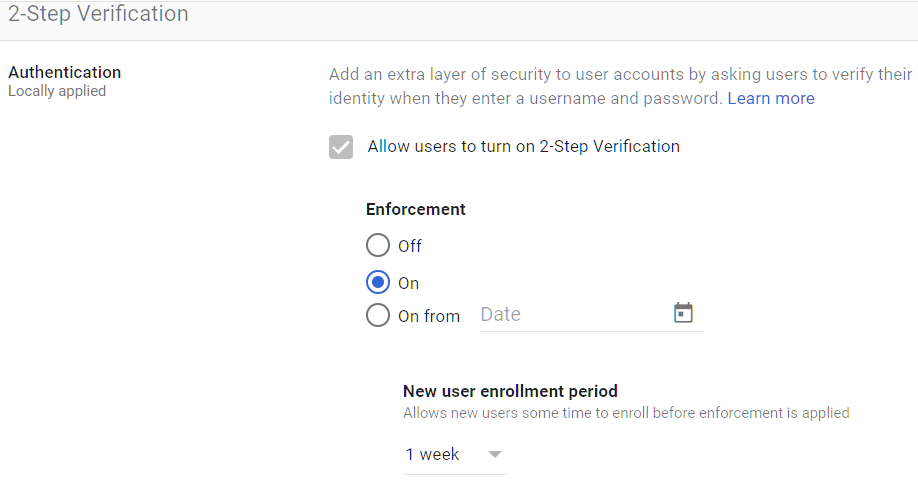
- Enforcement: ON for all users (enforced, not just allowed)
- Admin accounts: Prioritize Google Workspace admin 2FA. Admin accounts should be the first enrolled and should use phishing-resistant methods (see AUTH-010).
- Enrollment period: Give users 1-2 weeks to set up after you announce it
- New users: Require Google Workspace MFA setup during first login. Set a grace period as short as you possibly can (we recommend 1 day).
Where to Find It
Admin Console path: Security > 2-Step Verification
📄 Google documentation: Deploy 2-Step Verification
What Your Team Will Notice
After a one-time setup (about 5 minutes), the daily experience depends on the method they choose. Google prompts add a single tap on their phone. Authenticator apps require typing a 6-digit code. Security keys require a touch or tap.
Users on SMS codes may need to switch methods if you later enforce phishing-resistant methods (see AUTH-010). Give them a heads-up and setup instructions before making changes.
Sample message to your team:
Hi team,
Starting \[date\], everyone will need to verify their identity with a second step when signing into Google Workspace. This is called two-step verification (or MFA), and it’s one of the most effective ways to protect our accounts from unauthorized access.
What you need to do before \[date\]:
- Sign in to your Google account and go to Security > 2-Step Verification
- Follow the prompts to set up your second step (we recommend the Google Authenticator app or a security key)
- The setup takes about 5 minutes
After setup, you’ll confirm your identity once when you sign in, usually a quick tap on your phone or a code from an app. If you run into any trouble during setup, contact \[IT contact/helpdesk\].
Common Mistakes
- Enabling but not enforcing. This is the most common mistake Adelia Risk finds in audits. Two-step verification is turned on (meaning users can set it up) but not enforced (meaning they don’t have to). Users who haven’t enrolled are completely unprotected. Check the enforcement status. “Allowed” is not the same as “Enforced.”
- No enrollment deadline. Without a deadline, enforcement never actually happens. Set a date, communicate it, and stick to it.
- Skipping new hires. New employees get added to Workspace and start working before setting up MFA. Make enrollment part of onboarding, not an afterthought. (If you’re migrating from an older setup, note that G Suite 2FA enforcement works the same way as Google Workspace 2FA enforcement. The setting carried over when Google rebranded to Workspace.)
Related Settings
- AUTH-010: Phishing-Resistant Auth Methods. Controls which MFA methods are allowed.
- AUTH-015: Password Management. Sets password strength requirements.
AUTH-010: Phishing-Resistant Authentication Methods
What This Does
Not all MFA methods offer the same protection. This setting controls which second-factor methods your users can use. “Phishing-resistant” means the method itself checks that it’s talking to the real Google servers, so a fake login page can’t trick it.
Here’s how the options compare:
| Method | Phishing-Resistant? | Notes |
|---|---|---|
| Security keys | Yes | Physical hardware token. Strongest option. |
| Passkeys | Yes | Built into your device. Uses fingerprint, face, or PIN. |
| Authenticator app codes | No | Codes can be stolen by real-time phishing kits |
| Google Prompt (phone tap) | No | Not phishing-resistant; also vulnerable to prompt fatigue attacks where attackers spam prompts until the user taps “yes” |
| SMS codes | No | Can be stolen through phone number theft |
| Phone call verification | No | Weakest method, easily tricked |
Authenticator apps and Google Prompts are much better than passwords alone, but they aren’t fully phishing-resistant. Modern attack kits can grab app codes the moment a user types them on a fake page.
Why It Matters
The FBI’s Internet Crime Complaint Center reported $2.77 billion in losses from business email compromise in its 2024 annual report. Many of these attacks start with stolen credentials through phishing. If your MFA can be phished, it’s not protecting you against today’s threats.
Phishing attacks have gotten more advanced. Attackers don’t just steal passwords anymore. They capture MFA codes in real time. A user enters their password and code on a fake page, and the attacker uses both instantly to get into the real account. Only security keys and passkeys are immune to this because they verify the server’s identity before releasing any credentials.
Relevant to: SEC, CMMC, and CISA guidance all recommend phishing-resistant MFA.
What We Recommend
For most organizations:
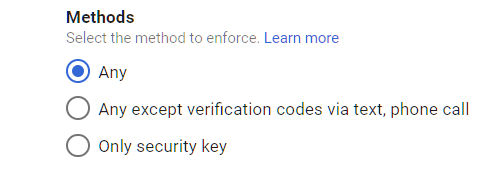
- Allow: Security keys, passkeys, and authenticator apps
- Block: SMS codes and phone call verification
- For high-security environments: Security keys and passkeys only
The practical middle ground is allowing authenticator apps alongside keys and passkeys. Going keys-and-passkeys-only gives the strongest protection but means every user needs a security key or compatible device, which can be a tough rollout.
Where to Find It
Admin Console path: Security > 2-Step Verification
📄 Google documentation: About authentication methods
What Your Team Will Notice
Users on SMS will need to switch to an authenticator app (like Google Authenticator or Microsoft Authenticator) or register a security key. This takes about 10 minutes.
Plan a transition period. Announce the change, share setup guides for the approved methods, and set a deadline for switching.
Sample message to your team:
Hi team,
We’re upgrading how we verify sign-ins to better protect against phishing attacks. Starting \[date\], SMS text message codes or Voice codes will no longer be accepted as a verification method.
If you currently use SMS or Voice codes, here’s what to do before \[date\]:
- Download Google Authenticator (free) on your phone: App Store / Google Play
- Sign in to your Google account, go to Security > 2-Step Verification
- Select “Authenticator app” and follow the setup prompts
- Once the app is set up, you can remove SMS/Voice as a method
The switch takes about 10 minutes. Instead of waiting for a text, you’ll open the app and type a 6-digit code. It’s actually faster. If you need help, reach out to \[IT contact/helpdesk\].
Common Mistakes
- Allowing all methods “to avoid disruption.” Adelia Risk sees this constantly in client environments. If you allow SMS, most users will default to SMS because it’s easiest. Then you still have phishable MFA across your organization.
- Blocking everything except security keys before users are ready. Roll this out in stages. Start by requiring authenticator apps at a minimum, then move to keys and passkeys once your team has them.
- Forgetting service accounts. Automated processes and integrations may use weaker authentication. Audit these separately.
Related Settings
- AUTH-005: Two-Step Verification Enforcement. Must be enforced before method restrictions matter.
- AUTH-020: Passkeys Allowed. Allow passkeys as a phishing-resistant option.
AUTH-015: Password Management
What This Does
Google Workspace lets admins set password rules for everyone in the organization (this replaces the old G Suite password policy settings): minimum length, strength requirements, and whether users can reuse old passwords.
Why It Matters
Weak passwords are still one of the easiest ways into an organization. Years of security training haven’t changed this. People still pick predictable passwords, reuse them across websites, and share them with coworkers. Password rules set a floor that prevents the worst habits.
Google Workspace password policy best practices have changed. The old approach (complex passwords changed every 90 days) actually makes things worse. People create patterns like “Password1\!”, “Password2\!”, “Password3\!” or write passwords on sticky notes. NIST SP 800-63B, the federal standard for digital identity, now recommends:
- Minimum 15 characters for passwords alone, 8 with MFA (longer is always better)
- No complexity requirements (no forced special characters)
- No mandatory password expiration or forced rotation unless there’s a known compromise
- Check passwords against lists of known breached passwords
The takeaway: longer passwords that don’t change are harder to crack than short, complex passwords that change every quarter.
Relevant to: HIPAA, SEC Reg S-P, and CMMC all require password controls.
What We Recommend
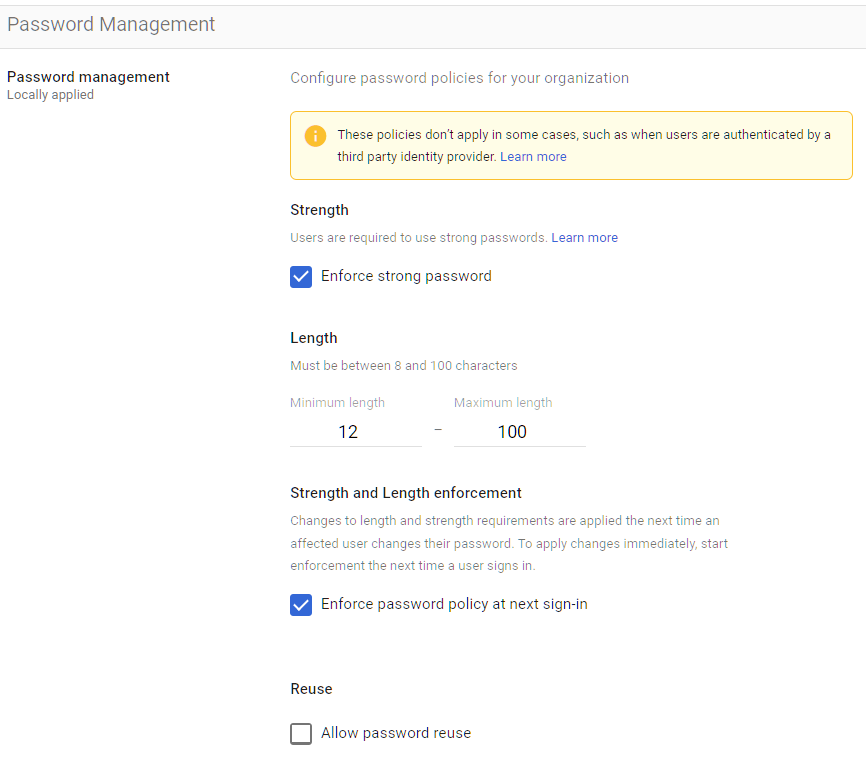
- Minimum length: 12 characters
- Enforce strong passwords: ON
- Password reuse: Don’t allow reuse of recent passwords
- Enforce at next sign-in: Plan this carefully (see below)
- Google Workspace Password Expiration: Change this so they never expire
Where to Find It
Admin Console path: Security > Password Management
📄 Google documentation: Enforce and monitor password requirements
What Your Team Will Notice
This is the biggest change your team will feel. When you update the password policy and select “Enforce at next sign-in,” every user has to create a new password at their next login. This can cause temporary disruption, especially for people with multiple devices.
How to roll it out smoothly:
- Update the password settings (minimum length, strength)
- Tell everyone at least one week before the enforcement date
- Share tips: length matters more than symbols. A phrase is easier to remember and harder to crack
- Set the enforcement date
- Have support ready for the first few days
If your organization uses a password manager (1Password, Bitwarden, etc.), the switch is easier. If you don’t use one, this is a good time to start.
Sample message to your team:
Hi team,
We’re updating our password requirements to follow current security best practices. Starting \[date\], you’ll be asked to create a new password the next time you sign in.
New requirements:
- At least 12 characters long
- No more mandatory special characters, a longer passphrase is actually more secure
Tips for a good password:
- Use a phrase you’ll remember, like “blue-coffee-monday-river” (long and easy to type)
- Even better: use a password manager (like 1Password or Bitwarden) to generate and store it for you
- Don’t reuse a password from another website
You’ll be prompted to set your new password at your next login after \[date\]. It takes about 2 minutes. If you have multiple devices (phone, laptop, tablet), you’ll need to sign in with your new password on each one.
Questions? Contact \[IT contact/helpdesk\].
Common Mistakes
- Setting Google Workspace password expiration to every 90 days. NIST, Microsoft, and Google all discourage this now. It leads to weaker passwords, not stronger ones. Only force a change when there’s evidence of a breach.
- Prioritizing complexity over length. A 6-character password with symbols (“Pa$$1\!”) is far weaker than a 16-character passphrase (“correct-horse-battery-staple”). Length wins.
- Enforcing without warning. Users who can’t log in during a client meeting or a filing deadline will rightfully blame IT. Give advance notice. Admins can reset user passwords in Google Workspace through the Admin Console if someone gets locked out during the transition.
Related Settings
- AUTH-005: Two-Step Verification Enforcement. Even strong passwords need MFA backing them up.
- AUTH-020: Passkeys Allowed. Passkeys replace passwords entirely.
AUTH-030: Security Rules ON
What This Does
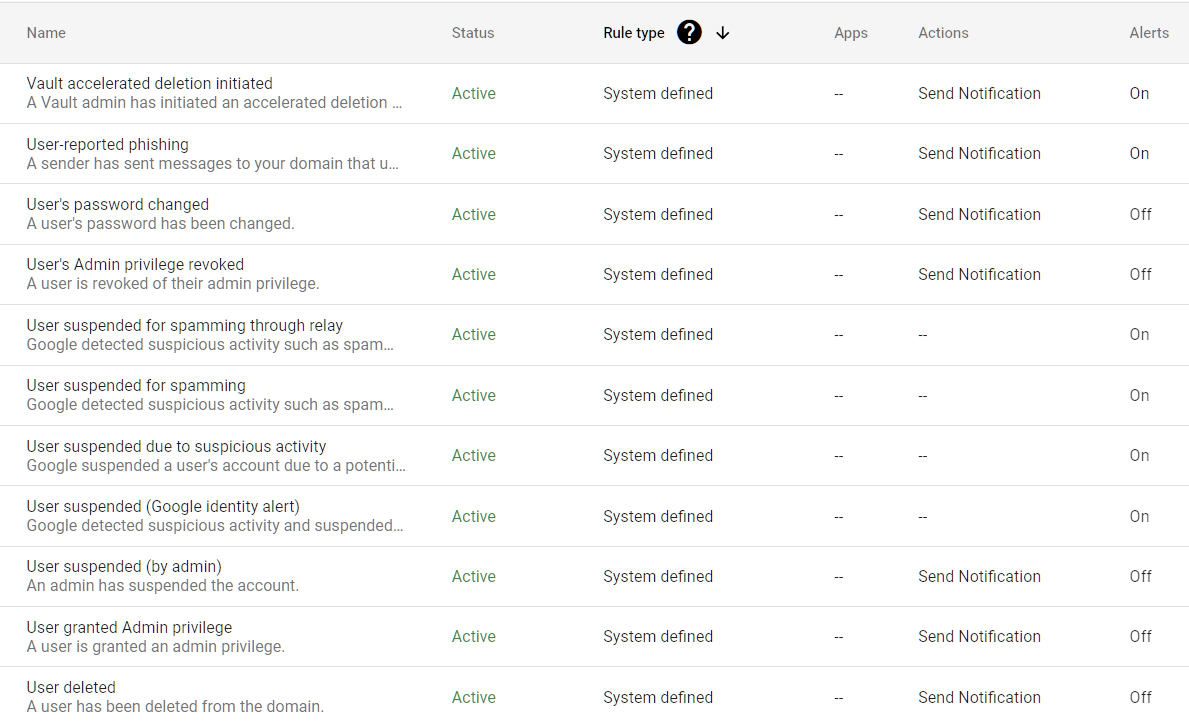
Google Workspace has a rules engine that can trigger alerts and actions based on security events: failed logins, suspicious activity, changes to admin settings, and more. When security rules are turned on, your organization gets automatic notifications for events that might otherwise go unnoticed.
Why It Matters
Without active security rules, suspicious activity happens silently. An attacker could be testing stolen passwords, a user could be downloading unusual amounts of data, or someone could be changing admin settings. No one would know until the damage is done.
Security rules are your early warning system. They won’t stop every attack, but they shrink the gap between when something goes wrong and when you find out about it. That gap is what determines whether an incident stays small or turns into a full breach.
Relevant to: SEC, HIPAA, and CMMC all require monitoring and alerting for security events.
What We Recommend
Turn security rules ON. If you’re looking for a Google Workspace account lockout policy, Google handles that automatically. There’s no separate lockout setting to configure. But security rules let you catch patterns that automatic protection might miss. Review Google Workspace login logs regularly to spot patterns that automated rules might miss. At minimum, set up alerts for:
- Multiple failed login attempts (possible password guessing)
- Logins from unusual locations or devices
- Changes to admin roles or permissions
- Large file downloads or spikes in external sharing
Where to Find It
Admin Console path: Rules
📄 Google documentation: Create and manage rules
What Your Team Will Notice
Nothing. Security rules run in the background. Only admins who receive alert notifications are affected. End users won’t see any change.
Common Mistakes
- Turning rules on but never checking alerts. We see this in almost every audit: rules turned on, alerts going to an inbox nobody checks. Rules only help if someone reads the notifications. Assign a specific person and set a review schedule (daily or weekly).
- Setting too many alerts at once. Alert fatigue is real. Start with a few high-priority rules and add more once you’ve built a routine.
Related Settings
AUTH-025: Session Timeout & Re-Authentication
What This Does
These are the Google Workspace session timeout settings that control two things:
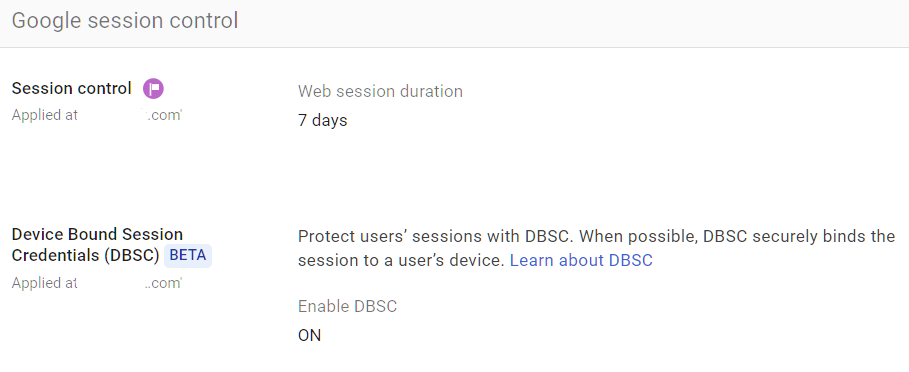
- Session duration: How long a user stays logged in before Google makes them sign in again. The default is 14 days.
- Device-locked sessions (Device-Bound Session Credentials, or DBSC): Whether login sessions are tied to the specific device they were created on, so a stolen session cookie won’t work on a different device.
Why It Matters
Session duration sets the window of opportunity for several types of attacks:
Lost or stolen devices. If someone loses a laptop that’s logged into Workspace, the session timeout decides how long the thief has access. With the 14-day default, that’s two full weeks of open access to email, files, and everything else.
Session theft. Attackers who steal browser session cookies can impersonate the user without knowing their password or MFA code. This is getting more common. Malware can pull session cookies from browsers and give attackers full access to any logged-in service. Google introduced DBSC specifically to fight this. When DBSC is on, a stolen cookie only works on the device it came from.
Shared devices. If your team uses shared computers (conference rooms, lab machines, home computers), shorter sessions reduce the chance of the next person accessing someone else’s account.
Relevant to: HIPAA and SEC both require session management and automatic logoff.
What We Recommend
- Session duration: 12 hours (users sign in once per day)
- DBSC: Enabled
In Adelia Risk audits, the 14-day default is one of the most common gaps we flag. A 12-hour session means your team re-authenticates each morning when they start work. That’s a big improvement over the 14-day default without creating real friction.
For high-security environments (financial services, healthcare with patient data), consider 8-hour sessions that match a standard workday.
Where to Find It
Admin Console path: Security > Access and data controls > Google session control
📄 Google documentation: Set session length for Google services
What Your Team Will Notice
Users will need to sign in more often than they’re used to. With passkeys or saved credentials, this takes seconds. For users who type their password each time, it adds one daily step.
The most common complaint comes from people with multiple devices (phone, laptop, tablet) who now sign in on each device daily. Passkeys help here. A fingerprint scan is faster than typing a password and MFA code.
Sample message to your team:
Hi team,
Starting \[date\], Google Workspace sessions will expire at the end of each workday instead of staying active for two weeks. This means you’ll sign in once each morning when you start work.
Why we’re doing this: If a device is ever lost or stolen, a shorter session limits how long someone else could access your account. It also protects against a growing type of attack where hackers steal browser login data.
What to expect:
- You’ll sign in once each morning, same password and verification method you use now
- If you use multiple devices, you’ll sign in on each one daily
- With a passkey or saved credentials, signing in takes a few seconds
This is a small daily habit that cuts risk. If you have questions, reach out to \[IT contact/helpdesk\].
Common Mistakes
- Leaving the 14-day default. Two weeks is a long time for a session to stay active. A lost laptop or stolen cookie has a two-week window to access everything.
- Setting sessions too short (1-2 hours). Constant sign-ins frustrate users and push them toward workarounds. Balance security with usability.
- Ignoring DBSC. Session cookie theft is a growing threat. DBSC is one of the best defenses against it, and it has zero impact on users. There’s no reason to leave it off.
Related Settings
- AUTH-005: Two-Step Verification Enforcement. MFA protects the sign-in; session controls protect what happens after.
- DEVICE-005: Mobile Device Management. Device-level controls complement session controls.
- ADMIN-022: Context-Aware Access. Google Workspace context-aware access adds location and device checks on top of session controls.
AUTH-020: Passkeys Allowed
What This Does
Passkeys are a newer way to sign in that replaces passwords entirely. Instead of typing a password (which can be stolen or phished), users sign in with their device’s built-in security: a fingerprint, face scan, or device PIN. The passkey is locked to your device so it can’t be copied or phished.
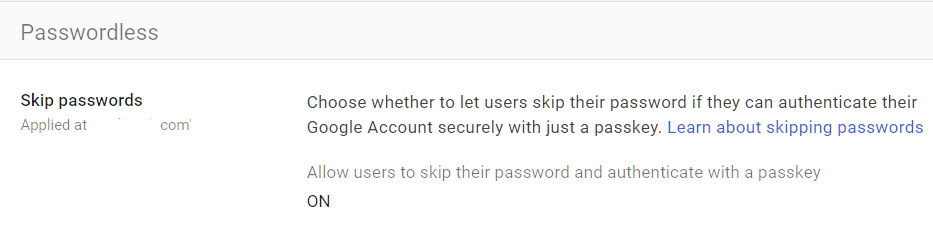
This setting controls whether users in your organization can create and use passkeys for their Google Workspace accounts.
Why It Matters
Passkeys solve the root problem behind most account breaches: passwords. Passkeys can’t be reused across websites, stolen in data breaches, captured by fake login pages, or guessed by automated attacks. They’re also easier for users. No codes to type, no apps to open, no hardware tokens to carry.
Google Workspace passkey support is built in, and Apple and Microsoft also support passkeys across their platforms. The technology is backed by the FIDO Alliance, which includes major tech companies and financial institutions.
For organizations already using two-step verification, passkeys are a natural upgrade. They provide stronger security with less friction.
What We Recommend
Allow passkeys for all users. There’s no downside to turning this on. Users who want passkeys can set them up. Everyone else keeps using their current method.
Passkeys don’t replace your MFA policy. They add to it. A user who sets up a passkey still has their other MFA methods available as backup.
Where to Find It
Admin Console path: Security > Passwordless
📄 Google documentation: Allow users to skip passwords at sign-in
What Your Team Will Notice
Nothing changes unless someone chooses to set up a passkey. It’s entirely opt-in. Users who want to try it go to their Google Account security settings and follow the prompts. On a Mac, that means Touch ID. On an iPhone, Face ID or Touch ID. On Windows, Windows Hello. On Android, the fingerprint reader or screen lock.
Common Mistakes
- Disabling passkeys because they seem “too new.” We still see organizations that have passkeys disabled because they hadn’t heard of them. Passkeys use the same underlying technology as hardware security keys, which have been used in high-security environments for over a decade. The technology is proven. Only the user experience is new.
- Confusing passkeys with passwords. Passkeys don’t replace your MFA requirement. They replace the password part of the sign-in. A passkey is multi-factor by design. It requires the physical device plus a biometric or PIN.
Related Settings
- AUTH-010: Phishing-Resistant Auth Methods. Passkeys count as a phishing-resistant method.
- AUTH-005: Two-Step Verification Enforcement. Passkeys work alongside your MFA policy.
What These Settings Don’t Cover
Authentication is the foundation, but it’s only one piece of a full Google Workspace security setup. Adelia Risk’s complete benchmark covers 97 settings across eight areas:
- Gmail Security (email authentication, phishing protections, forwarding controls, encryption)
- Google Drive & Data Sharing (external sharing, shared drive policies, local sync, data loss prevention)
- Calendar, Chat & Meet (meeting security, chat retention, external sharing)
- Administrative Controls (admin account protection, inactive users, branding)
- Third-Party Apps & API (OAuth controls, Marketplace restrictions, API access)
- Device & Mobile Management (MDM, device approval, conditional access Google Workspace, Chrome policies)
- Monitoring & Compliance (audit logs, alerting, data retention, Advanced Protection)
Each area has its own guide page with the same level of detail.
Need Help Configuring These Settings?
Some of these changes take a few minutes. Turning on two-step verification enforcement or turning on DBSC are quick wins. Others need planning, communication, and an understanding of how they’ll affect your team.
If you’re in a regulated industry (financial services, healthcare, defense contracting), the settings you choose also have compliance implications. Knowing what to configure is different from knowing what satisfies your regulatory requirements.
Adelia Risk provides Google Workspace security audits that review all 97 settings in our Google Workspace security benchmark, give specific recommendations for your situation, and help you roll out changes without disrupting operations.
Last verified: March 2026
Part of the Adelia Risk Google Workspace Security Benchmark. 97 controls across 8 security areas.