
Adelia Risk reviews third-party app and API access settings in every Google Workspace security audit we perform. Your Workspace doesn’t exist in isolation. Apps connect to it, read data from it, and sometimes write data back. Every OAuth token, every Marketplace app, every API integration is a doorway into your organization’s email, files, and calendar. Google Workspace security depends on controlling these doorways just as much as it depends on passwords and MFA.
Here’s the uncomfortable truth about third-party app security in Google Workspace: most organizations have no idea how many apps have access to their data. According to Microsoft’s 2023 State of Cloud Permissions Risk report, workload identities (apps, service accounts, API keys) outnumber human identities by 10 to 1 in typical cloud environments, and only 1% of their permissions are actively used. For small and mid-sized businesses, the ratio is smaller, but the problem is the same. Tokens granted years ago to apps nobody uses anymore still have access to read email and download files.
This page covers the 9 app, API, and service settings Adelia Risk reviews as part of our Google Workspace security audit services. These sit within our 97-setting benchmark across eight security areas. Each setting includes what it does, why it matters, and what we recommend, sorted from highest risk to lowest.
Quick Reference
| Policy ID | Setting | Risk | Heads Up? | Admin Path |
|---|---|---|---|---|
| APPS-005 | API application control access reviewed and configured | 🔴 Critical | Yes | Security > Access and data control > API controls |
| APPS-010 | OAuth scope restrictions and high-risk scope blocking configured | 🔴 Critical | No | Security > Access and data control > API controls > App Access Control |
| APPS-015 | Access to less secure apps disabled | 🟠 High | Yes | Deprecated (see section) |
| APPS-020 | Google Marketplace applications properly configured | 🟠 High | Yes | Apps > Google Workspace Marketplace apps > Settings |
| APPS-025 | App access request and approval workflow enabled | 🟠 High | No | Security > Access and data control > API controls > App Access Control > Settings |
| APPS-030 | Additional non-core Google applications turned OFF | 🟡 Medium | Yes | Apps > Additional Google Services |
| APPS-035 | Gemini access and feature controls configured per OU | 🟡 Medium | Yes | Apps > Google Workspace > Gemini |
| APPS-040 | Google Sites creation restricted | 🟡 Medium | Yes | Apps > Google Workspace > Sites |
| APPS-050 | Google Classroom controls configured (Education editions) | 🟢 Low | No | Apps > Google Workspace > Classroom |
Heads Up? Does your team need advance notice before you make this change? “Yes” means users will see something different. We’ve included sample language you can send to your team for every “Yes” setting.
APPS-005: API Application Control Access Reviewed and Configured
What This Does
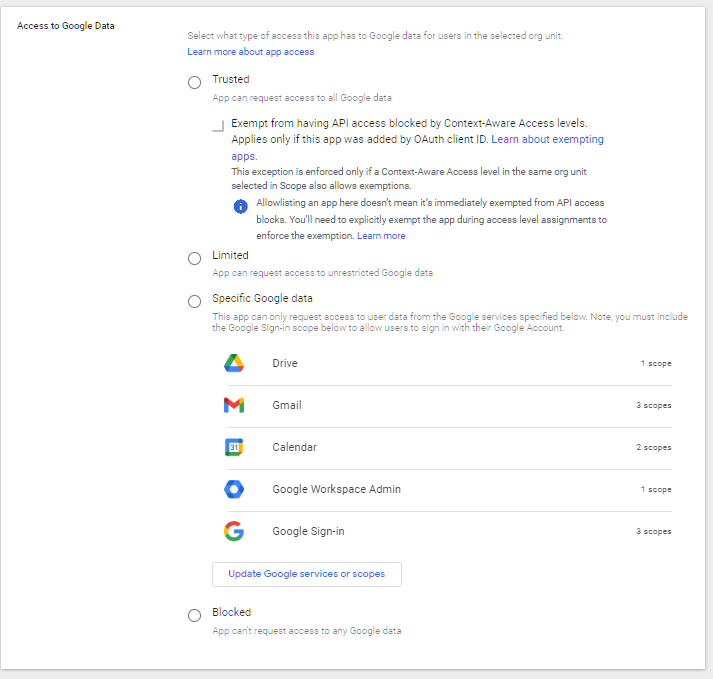
Google Workspace API controls determine which third-party applications can access your organization’s data and what type of access they get. This includes apps that connect through OAuth (the “Sign in with Google” prompt), service accounts, and any integration that reads or writes data in your Workspace. The API controls let you set the default access level (trusted, limited, or blocked) and create exceptions for specific apps.
Why It Matters
This is one of the most common failures we find in audits. Third-party apps accumulate over time. Someone installs a project management tool that needs calendar access. Someone else connects a CRM that reads contacts. A former employee set up a backup tool two years ago that still has full Drive access. Each of these apps holds an OAuth token that works silently in the background, even if nobody remembers granting the permission.
Without a configured API access control policy for Google Workspace, the default behavior is permissive. Any user can grant any app access to their data, including apps that request broad permissions like reading all email or downloading all files. An attacker who compromises a poorly secured third-party app can use those tokens to access your organization’s data without ever touching a password.
The CISA Secure Cloud Business Applications (SCuBA) baseline specifically calls out API access control as a required configuration. SEC, HIPAA, and CMMC all include requirements for third-party vendor access controls, and this setting is how you meet them in Google Workspace.
What We Recommend
- Set the default access to “Limited” or “Blocked” for apps not explicitly trusted. This prevents users from granting data access to unknown apps without admin approval.
- Review every app that currently has access. In the Admin Console, look at the list of third-party apps with access to your data. You’ll probably find apps that nobody uses anymore.
- Allowlist only business-critical apps by marking them as “Trusted.” Everything else should be limited or blocked.
- Review quarterly. New apps creep in. Set a calendar reminder to check the list every 90 days.
Where to Find It
Admin Console path: Security > Access and data control > API controls > Manage App Access
📄 Google documentation: Control which third-party & internal apps access Google Workspace data
What Your Team Will Notice
If you set the default to Restricted or Blocked, users who try to connect a new third-party app will see a message saying the app is blocked or needs admin approval. Apps they already use and that you’ve allowlisted will keep working normally. The friction hits when someone tries to install something new without going through IT.
Sample message to your team:
Hi team,
Starting \[date\], we’re tightening controls on which third-party apps can connect to our Google Workspace data. Apps you already use for work won’t be affected.
What you need to know:
- If you try to connect a new app and it asks for Google sign-in, you may see a message saying the app is blocked
- If you need an app for work, submit a request to \[IT contact/helpdesk\] and we’ll review it (usually same-day)
- Apps you already have approved will keep working normally
This change protects our company data from unauthorized app access. It’s a quick approval process for legitimate tools.
Common Mistakes
- Leaving the default as “Don’t limit” (unrestricted). This is the single most dangerous API setting. It lets any user grant any app full access to their data. Adelia Risk finds this in the majority of audits we run.
- Reviewing the list once and never checking again. Apps accumulate. A quarterly review takes 15 minutes and catches abandoned integrations that still hold live tokens.
- Blocking everything without checking what’s in use. Before switching to Restricted, look at the current app list. Blocking an app your sales team relies on without warning creates chaos.
Related Settings
- APPS-010: OAuth Scope Restrictions. Controls which specific permissions (scopes) apps can request.
- APPS-020: Google Marketplace Applications. Marketplace apps are a subset of third-party app access.
- APPS-025: App Access Request and Approval Workflow. Gives users a way to request access to blocked apps.
APPS-010: OAuth Scope Restrictions and High-Risk Scope Blocking Configured
What This Does
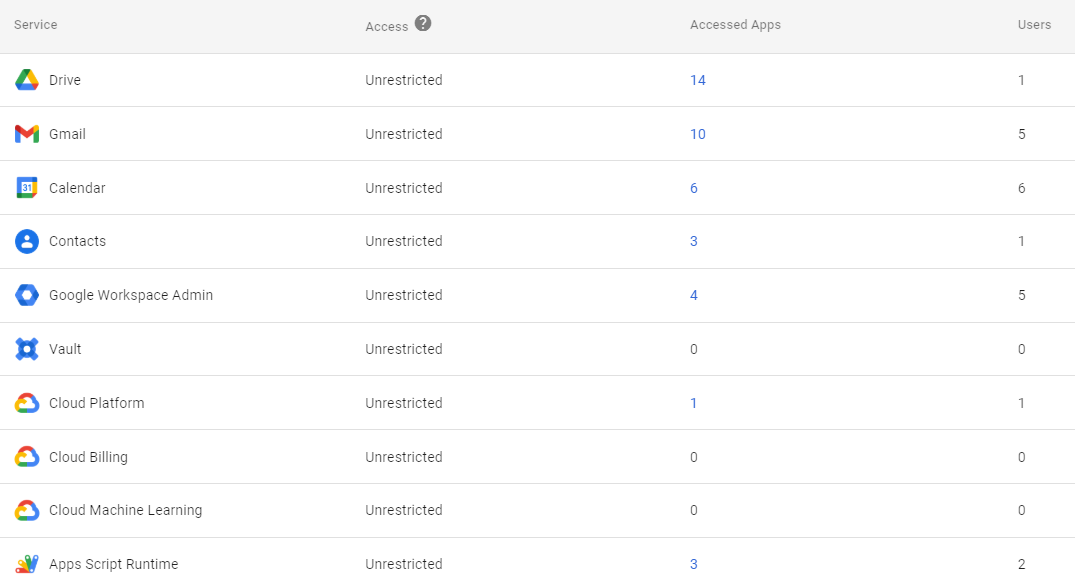
OAuth scopes define exactly what a third-party app can do with your data. When an app asks to “Sign in with Google,” it requests specific scopes (permissions). Some scopes are low-risk, like reading a user’s basic profile. Others are high-risk, like reading all email, accessing all Drive files, or managing the Admin Console. This setting lets you block specific high-risk scopes so that no app can request them, regardless of whether the app itself is trusted.
Why It Matters
Even a trusted app can be compromised. If an app you’ve allowlisted has a security breach, the attacker gains whatever permissions that app holds. By blocking high-risk OAuth scopes at the organizational level, you put a ceiling on the damage any single app can cause. We regularly find apps with full Gmail or Drive access that only need read access to a single folder. Scope creep is the norm, not the exception.
The most dangerous scopes are the ones that grant broad access: full Gmail read/write, full Drive access, and admin SDK access. In a 2025 investigation by Google Threat Intelligence, attackers exploited compromised OAuth tokens from a third-party app to systematically export data from hundreds of corporate environments. Once they had a token with broad access, they moved through the data without triggering login alerts.
CISA’s SCuBA baseline lists high-risk OAuth scope blocking as a required configuration for Google Workspace. HIPAA, SEC, and CMMC all require limiting application access to the minimum necessary, and over-permissioned OAuth scopes are exactly the kind of gap auditors look for.
What We Recommend
- Block high-risk scopes by default. Google provides a list of high-risk scopes in the Admin Console. Block any scope that grants full read/write access to Gmail, Drive, or Calendar unless a specific, approved app needs it.
- Use scope-limited trust. When you allowlist an app, grant it only the scopes it actually needs. Don’t trust an app with “all scopes” when it only needs calendar read access.
- Review scope grants for existing apps. Check what scopes your currently connected apps actually hold. You may find an app that requested full Drive access when it only needs to read a single folder.
Where to Find It
Admin Console path: Security > Access and data control > API controls > App Access Control
📄 Google documentation: Control which third-party apps access Google Workspace data
What Your Team Will Notice
Nothing, unless they try to install a new app that requests a blocked scope. In that case, the app won’t be able to complete the sign-in process, and the user will see a message that the requested permissions aren’t allowed. Existing apps that don’t use blocked scopes continue working normally. This is an admin-side control that runs in the background.
Common Mistakes
- Not knowing which scopes are high-risk. Gmail full access, Drive full access, and Admin SDK access are the big ones. Google’s Admin Console labels these. Start there.
- Blocking scopes without checking existing apps first. If your CRM legitimately needs Gmail access to log emails, blocking the Gmail scope will break that integration. Audit current usage before blocking.
- Trusting apps with “all scopes” for convenience. Every scope you grant is a permission that could be exploited if the app is breached. Grant the minimum needed.
Related Settings
- APPS-005: API Application Control Access. Controls which apps can connect. Scope restrictions control what those apps can do.
- APPS-025: App Access Request and Approval Workflow. Users can request access to apps that need blocked scopes.
- MON-005: Google Audit Logs Reviewed. OAuth token grants appear in audit logs.
APPS-015: Access to Less Secure Apps Disabled
What This Does
“Less secure apps” is Google’s term for applications that connect to your account using only a username and password (basic authentication) instead of modern OAuth authentication. These apps don’t support MFA, which means they bypass your two-step verification entirely.
Deprecation note: Google removed the “Less Secure Apps” setting from the Admin Console on September 30, 2024, with full enforcement completed by May 2025\. Less secure app access is now blocked for all Google Workspace accounts by default, and admins can no longer enable it. This policy remains in our benchmark as a verification checkpoint.
Why It Matters
If you spent time setting up MFA enforcement (see AUTH-005), less secure apps punched a hole right through it. An attacker with a stolen password could connect through a less secure app and skip the MFA prompt entirely. That defeated the purpose of your entire authentication setup.
Google phased out less secure app access over several years, starting the deprecation on September 30, 2024 and completing full enforcement by May 2025\. Before Google completed the deprecation, we found this turned on in about one out of every five audits, especially at organizations with older Workspace tenants. Now that Google enforces the block, this setting serves as a checkpoint: confirm the enforcement is active and that no legacy workarounds have crept in.
HIPAA, SEC, and CMMC all require MFA. Less secure app access was one of the most common MFA bypass paths, and confirming it’s fully disabled is still worth documenting during an audit.
What We Recommend
- Verify that less secure app access is blocked. Even though Google now enforces this, confirm during your audit that no workarounds (like App Passwords used for non-approved purposes) are in place.
- If you migrated from an older Workspace tenant, double-check that the enforcement applied cleanly. Some organizations with complex migration histories may have edge cases.
- Confirm that legacy devices and apps have been updated. Old copiers using SMTP with username/password, legacy CRM integrations, and desktop email clients like Outlook 2010 should have been migrated to OAuth by now. If any of these stopped working after the deprecation and weren’t addressed, follow up.
Where to Find It
Admin Console path: This setting has been removed from the Admin Console as of the September 2024 deprecation. Previously located under Security > Less Secure Apps. To verify enforcement, check the Security Health page in the Admin Console.
📄 Google documentation: Control access to less secure apps
 in the Admin Console.](https://adeliarisk.com/wp-content/uploads/2026/03/APPS-015-1.png)
What Your Team Will Notice
Since Google now enforces this block, most organizations have already dealt with the transition. Any apps that relied on basic authentication (old desktop email clients, scan-to-email on older copiers, legacy CRM tools) stopped working when the enforcement took effect. Modern apps (Gmail, Outlook 365, Apple Mail on recent OS versions) all use OAuth and were never affected.
Sample message to your team (if you’re still cleaning up after the deprecation):
Hi team,
Google has fully disabled support for apps that sign in using only a password (without two-step verification). This is called “less secure app access,” and it’s now blocked for all accounts.
What you need to know:
- If you use Gmail, Outlook 365, or Apple Mail, nothing changes for you
- If an older email program or scanner stopped working recently, this is likely why
- Contact \[IT contact/helpdesk\] if you have a device or app that stopped connecting, and we’ll help you switch to a supported option
This closes a gap that previously let someone bypass our login security with just a stolen password.
Common Mistakes
- Assuming enforcement means you can skip verification. Google enforces the block, but confirming it during your audit takes 30 seconds and documents compliance. Do it anyway.
- Not following up on devices that broke. When the enforcement took effect, some legacy scanners and old email clients stopped working. If nobody reported the issue, those devices may still be sitting broken. Check scan-to-email devices and any custom scripts that send email.
- Overlooking App Passwords. App Passwords are a separate mechanism that can still allow non-OAuth access in some cases. Review whether any App Passwords are active in your environment and whether they’re justified.
Related Settings
- AUTH-005: Two-Step Verification Enforcement. Less secure apps bypass MFA. Both settings must be right for authentication to be effective.
- GMAIL-090: Gmail End User Access Settings. Controls IMAP/POP access, which is related to how legacy apps connect.
APPS-020: Google Marketplace Applications Properly Configured
What This Does
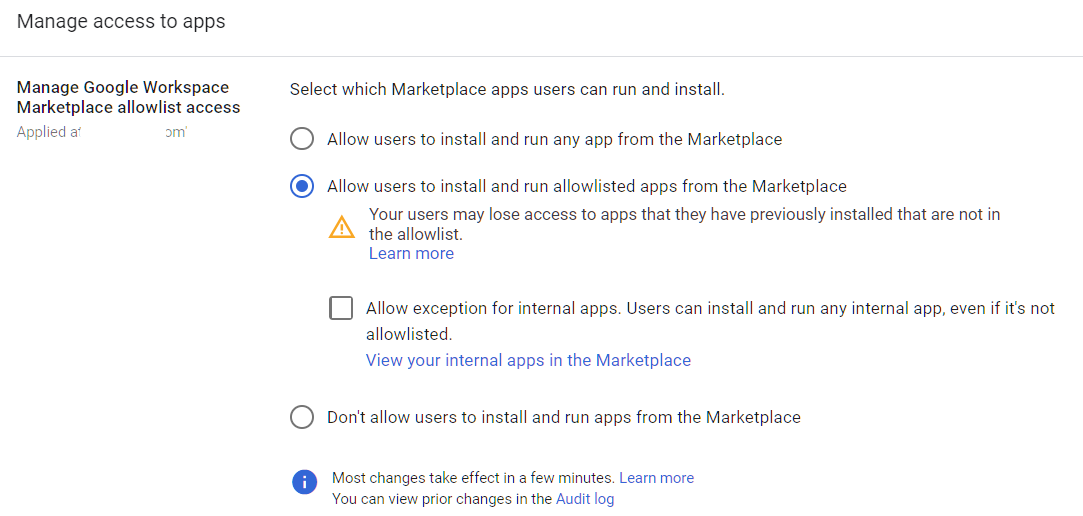
The Google Workspace Marketplace is an app store where users can install third-party applications that integrate with Workspace. These apps add features like project management, document signing, and CRM integration. You can let users install anything from the Marketplace, restrict them to an admin-approved allowlist, or block Marketplace installs entirely.
Why It Matters
Marketplace apps request OAuth permissions when installed. A project management app might need Drive access to manage files. A document signing app needs Gmail access to send signature requests. Each installation adds another third-party with access to your organization’s data.
The problem is self-service installation. When any user can install any Marketplace app, you lose visibility into what’s connected to your Workspace. In most audits Adelia Risk runs, we find 10-30 Marketplace apps installed across the organization, and the admin couldn’t name more than two or three of them. Each one represents an OAuth token with some level of data access.
Google reviews Marketplace apps for basic functionality, but that review doesn’t guarantee security. A 2024 study published by Springer analyzing Google Workspace add-on permissions found that nearly half of add-ons contained excessive permission requests, asking for more data access than their functionality required. Users routinely approve these permissions without reading them. Marketplace apps are a common vector for data exposure.
SEC and HIPAA both require controls over third-party application access to protected data, and unreviewed Marketplace apps with broad permissions are a gap that auditors flag regularly.
What We Recommend
- Switch to “Allow users to install and run allowlisted apps only.” This lets you approve specific apps your team needs while blocking everything else.
- If your organization doesn’t use Marketplace apps, set it to “Don’t allow users to install and run apps from the Marketplace.” No apps, no risk.
- Review currently installed apps before making changes. Remove any apps that aren’t actively used.
- Create a simple request process. When someone needs a new app, they ask IT, IT reviews the permissions, and IT adds it to the allowlist. This takes minutes, not days.
Where to Find It
Admin Console path: Apps > Google Workspace Marketplace apps > Settings
📄 Google documentation: Manage Marketplace apps
What Your Team Will Notice
Users who try to install a new Marketplace app will see a message that installations are restricted. Apps already on the allowlist continue working. If you remove an app from the allowlist, it will be uninstalled and stop functioning for users who had it.
Sample message to your team:
Hi team,
Starting \[date\], installing new apps from the Google Workspace Marketplace will require IT approval. Apps you already use aren’t affected.
What this means for you:
- You can keep using any Marketplace apps that are currently approved
- If you want to install a new app, send a request to \[IT contact/helpdesk\] with the app name and why you need it
- We’ll review and approve within one business day for legitimate tools
This protects our organization’s data by making sure we know which apps have access. It’s a quick process for approved tools.
Common Mistakes
- Leaving Marketplace wide open. “Allow users to install and run any app” is the riskiest setting. Every app a user installs gets OAuth access to some portion of your data.
- Switching to allowlist-only without checking what’s currently installed. If you flip the switch and an app someone depends on isn’t on the allowlist, it breaks immediately. Export the current app list first.
- Setting up the allowlist once and never updating it. Apps that were useful two years ago may now be abandoned or sold to a new company. Review the allowlist every quarter alongside your APPS-005 API review.
Related Settings
- APPS-005: API Application Control Access. Marketplace apps are governed by both Marketplace settings and API controls.
- APPS-010: OAuth Scope Restrictions. Scope blocking applies to Marketplace apps too.
- CHAT-010: Chat Apps Disabled. Chat Apps are a separate category of third-party integrations.
APPS-025: App Access Request and Approval Workflow Enabled
What This Does
When you restrict API access or Marketplace installations (see APPS-005 and APPS-020), users who try to connect a blocked app will hit a wall. This setting provides them with a request button instead. They can submit a request explaining why they need the app, and admins get a notification to review and approve or deny it. It’s the “please unlock this for me” workflow that makes restrictive policies actually workable.
Why It Matters
Restrictive app controls without a request workflow create two problems. First, users get frustrated and work around the controls (using personal accounts, installing apps on personal devices, finding alternative tools that aren’t controlled at all). Second, admins get buried in one-off requests through email and chat with no tracking.
The request workflow solves both problems. Users have a clear path to get what they need. Admins have a single queue to review and approve requests. Google’s Security Health page recommends enabling this feature as a companion to API restrictions.
We see this missed more often than you’d expect. Organizations set up API restrictions (good), then don’t enable the request workflow (bad). The result is that users feel blocked without recourse, and shadow IT grows. This setting is what makes your Google Workspace API access control policy sustainable.
What We Recommend
- Enable the app access request workflow. It should be active whenever your API controls are set to Restricted or Blocked.
- Assign at least two admins to review requests so approvals don’t bottleneck on one person’s inbox.
- Set a response time target. Same-day or next-business-day keeps users from working around the system.
- Document your criteria for approving or denying apps. Simple rules like “Does the app need more permissions than its function requires?” and “Is the vendor reputable?” prevent inconsistent decisions.
Where to Find It
Admin Console path: Security > Access and data control > API controls > Settings
📄 Google documentation: Review & manage third-party app access requests

What Your Team Will Notice
Nothing changes for day-to-day operations. When a user encounters a blocked app, they’ll see a “Request access” button instead of a dead-end error. Admins receive a notification for each request. This is entirely a backend process that users only encounter when they need a new app.
Common Mistakes
- Restricting apps without enabling the request workflow. This is the most common mistake we see with API controls. You’ve locked the door but given nobody a key to request entry. Users work around you instead of with you.
- Not responding to requests promptly. If approvals take a week, people stop asking and start finding workarounds. Treat app requests like any other IT ticket.
- Having only one approver. If that person is on vacation or busy, the queue stalls. Two or three approvers keeps things moving.
Related Settings
- APPS-005: API Application Control Access. The request workflow only matters when API controls are restrictive.
- APPS-020: Google Marketplace Applications. Marketplace app requests flow through the same system.
APPS-030: Additional Non-Core Google Applications Turned OFF
What This Does
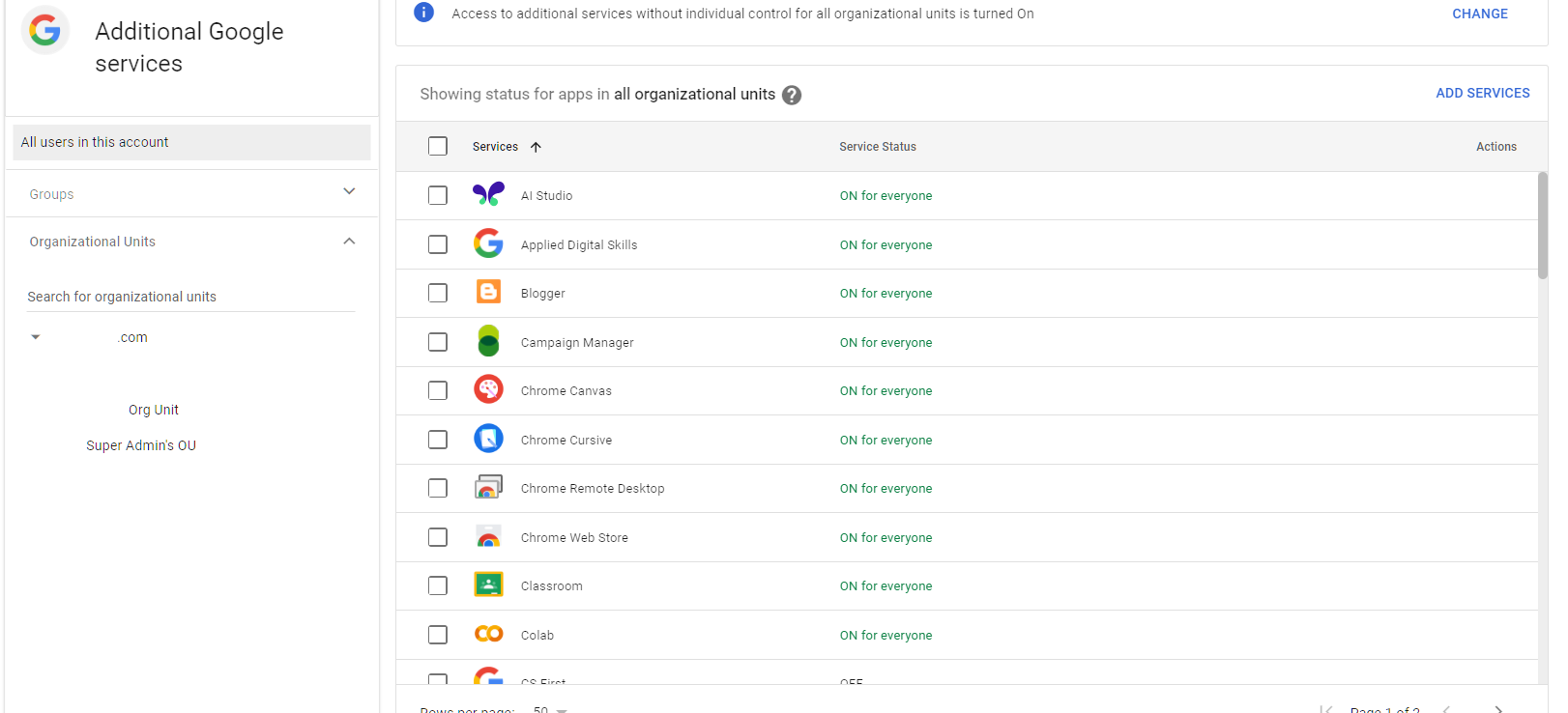
Beyond the core Workspace apps (Gmail, Drive, Calendar, Chat, Meet), Google offers dozens of additional services: YouTube, Google Maps, Blogger, Google Ads, Google Earth, and others. By default, most of these are available to anyone in your organization. You choose which of these additional services stay on and which get turned off, either org-wide or per Organizational Unit.
Why It Matters
Every additional service is another place where company data might end up. An employee uploads a training video to YouTube using their work account. Someone saves client addresses in Google Maps. A team member drafts something in Blogger that includes internal information. None of these services are covered by your Workspace data retention, DLP, or eDiscovery policies. Sensitive data that lands in these services is outside your governance controls.
We flag this in most audits. The fix is straightforward: turn off the services your organization doesn’t need for business purposes. If nobody at your company uses Blogger or Google Ads, there’s no reason to leave them on. This reduces the number of places data can leak to and makes your security picture easier to manage.
HIPAA and SEC both require that protected data only be stored in governed locations. Every additional service you leave enabled is a location you need to account for.
What We Recommend
- Review the full list of additional Google services in your Admin Console. There are typically 40+ services listed.
- Turn off everything your team doesn’t need. If there’s no business case, it should be off.
- If specific users or groups need a service, use Organizational Units (OUs) to enable it for only those users rather than the whole organization.
- Don’t overthink it. You can always turn a service back on if someone needs it later.
Where to Find It
Admin Console path: Apps > Additional Google Services
📄 Google documentation: Turn additional Google services on or off
What Your Team Will Notice
Users who try to access a disabled service with their work account will see a message that the service isn’t available. They can still use these services with personal Google accounts. The most commonly noticed change is YouTube (if disabled), since some people watch work-related tutorial videos while signed into their work account.
Sample message to your team:
Hi team,
Starting \[date\], we’re turning off access to some Google services that we don’t use for business (things like Blogger, Google Ads, and a few others). This doesn’t affect Gmail, Drive, Calendar, Chat, Meet, or any of the core tools you use daily.
What you need to know:
- Your core Workspace apps aren’t affected
- If you try to access a disabled service with your work account, you’ll see a message that it’s unavailable
- You can still access these services with a personal Google account if needed
If a disabled service turns out to be something you need for work, let \[IT contact/helpdesk\] know and we can enable it for your account.
Common Mistakes
- Leaving everything on “because it doesn’t hurt.” It does. Each active service is another data exposure point outside your governance controls.
- Turning off YouTube without thinking about training content. Some organizations use YouTube for vendor training videos and product demos. Check before disabling.
- Not using OUs for targeted access. If your marketing team needs Google Ads but nobody else does, enable it for the marketing OU only. Don’t leave it on for the whole organization.
Related Settings
- APPS-035: Gemini Access and Feature Controls. Gemini is a specific additional service that needs its own configuration.
- APPS-005: API Application Control Access. Additional services can also create API tokens.
- MON-055: Data Retention Configured (Vault). Data in additional services may not be covered by your Vault retention policies.
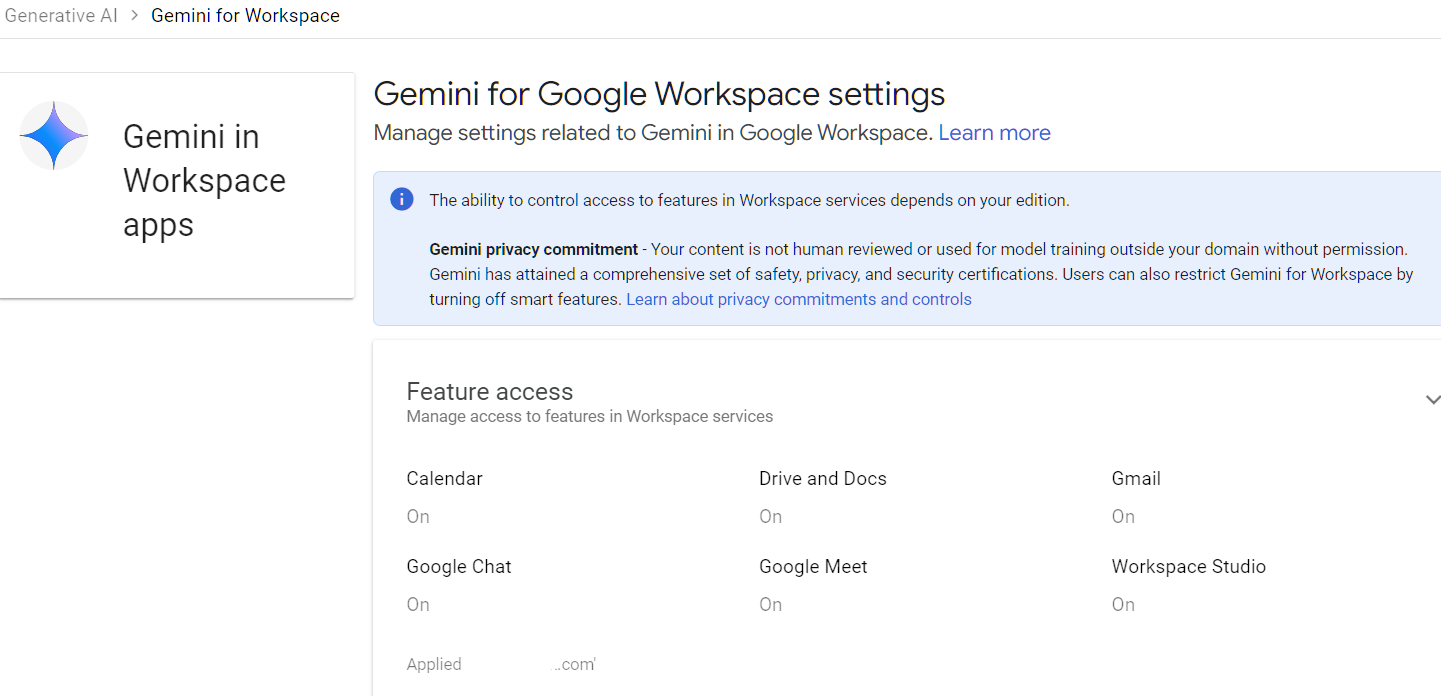
APPS-035: Gemini Access and Feature Controls Configured per OU
What This Does
Google Gemini is Google’s AI assistant, integrated into Workspace apps like Gmail, Docs, Sheets, and Drive. It can summarize documents, draft emails, analyze data, and answer questions about your organization’s content. You configure this per Organizational Unit, so different teams can have different levels of access. The controls cover Gemini availability, which features are enabled, and how Gemini interacts with your organization’s data.
You can also control overall access to the Gemini App that users access at gemini.google.com.
Why It Matters
Gemini is powerful, but it raises real questions about data handling. When Gemini is enabled with workspace data access, it can read your emails and documents to generate responses. For a regulated firm, that means an AI tool is processing client data and financial records (or protected health information, in healthcare settings).
The concern isn’t that Google is misusing the data (Google’s Workspace data processing terms apply to Gemini). The concern is that users may inadvertently expose sensitive information through Gemini prompts and responses that end up in shared spaces, screenshots, or copy-pasted outputs. A user asks Gemini to “summarize the Jones portfolio review meeting notes” and the summary appears on their screen in a conference room. Or they ask for help drafting an email and paste a Gemini response that includes client details.
Following the same principles as CISA’s SCuBA baseline for other Workspace services, configuring Gemini settings per OU provides appropriate access control based on job function and data sensitivity. This is still a new area, and policies are evolving. The right approach is to start with controlled access rather than rolling it out to everyone at once.
What We Recommend
- Decide who needs Gemini for Workspace and the Gemini App. Not every employee needs AI assistance. Start with a pilot group.
- Configure per OU. Enable Gemini for users who will benefit, and leave it disabled for users who handle the most sensitive data until you’ve established usage policies.
- Review the data access settings. Understand whether Gemini can access organizational data or only the user’s own content.
- Create a simple AI usage policy. Even two paragraphs about what’s acceptable to share with Gemini goes a long way.
- Monitor through audit logs. Gemini activity appears in your Workspace audit logs. Review it periodically.
Where to Find It
Admin Console path: Generative AI > Gemini App > Gemini for Workspace
📄 Google documentation: Manage access to Gemini features in Workspace services
What Your Team Will Notice
Users in OUs where Gemini is disabled won’t see the Gemini icon or features in their Workspace apps. Users where it’s enabled will see Gemini prompts in Gmail, Docs, and other apps. If you enable it for some users and not others, the enabled users may mention features that others don’t have, which could create questions.
Sample message to your team:
Hi team,
Starting \[date\], we’re enabling Google Gemini (AI assistant) for \[specific team/group\] as a pilot. If you’re in the pilot group, you’ll see a Gemini icon in Gmail, Docs, and other Workspace apps.
What you need to know:
- Gemini can help draft emails, summarize documents, and answer questions about your files
- Don’t paste sensitive client data (account numbers, SSNs, health information) directly into Gemini prompts
- Treat Gemini responses like a first draft, and always review before sending or sharing
If you’re not in the pilot group, you won’t see any changes. We’ll expand access based on how the pilot goes. Questions? Contact \[IT contact/helpdesk\].
Common Mistakes
- Enabling Gemini for everyone without a usage policy. Users will experiment, and some will share sensitive data with it. Set expectations before turning it on.
- Ignoring Gemini entirely. If you don’t configure it, the default may be more permissive than you intended. Check the settings even if you plan to leave it disabled.
- Only focusing on Gemini for Workspace. Gemini for Google Workspace refers to the features integrated directly within Google services, such as “Help me write” in Docs or the side panel in Google Drive. In contrast, the Gemini App refers to the standalone gemini.google.com website, where users can interact and chat with the AI.
- Not reviewing audit logs for Gemini usage. Gemini interactions are logged. If you’re in a regulated industry, these logs matter for compliance.
Related Settings
- MON-060: Gemini Conversation History Retention Reviewed. Controls how long Gemini conversation data is retained.
- APPS-030: Additional Non-Core Google Applications. Gemini is part of the broader additional services configuration.
- DRIVE-050: Data Loss Prevention Rules Configured for Drive. DLP rules can help catch sensitive data in Gemini-generated content saved to Drive.
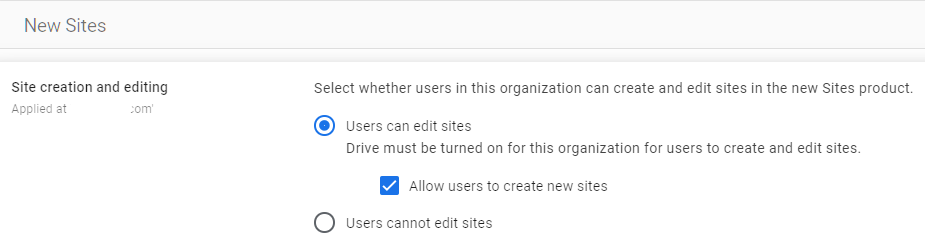
APPS-040: Google Sites Creation Restricted
What This Does
Google Sites lets anyone in your organization create and publish a website using their work account. These sites can be internal (shared within the organization) or published publicly on the internet. Admins can disable creation entirely, or limit it to specific Organizational Units.
Why It Matters
An unrestricted Google Sites setup means any employee can publish a website under your organization’s domain. That’s a data leak vector. Someone builds an internal project page and accidentally publishes it to the public web. A well-meaning employee creates a client-facing resource page that includes information that shouldn’t be public. A departing employee publishes something inappropriate, and it’s tied to your brand.
Adelia Risk sees this come up regularly in audits. Most admins don’t think about Google Sites because nobody at the company is actively using it. That’s exactly the problem. It’s on by default, available to everyone, and nobody is watching it. Even if nobody is creating Sites today, leaving the door open means someone could tomorrow.
CISA’s SCuBA baseline and Google’s Security Health page both recommend restricting Google Sites creation. If your organization uses Sites for a legitimate purpose (internal wikis, project pages), restrict creation to the team that needs it.
HIPAA covers accidental PHI publication, and SEC rules cover client data on public pages. An unrestricted Sites setup creates exposure under both.
What We Recommend
- If your organization doesn’t use Google Sites, disable creation entirely. There’s no reason to leave it available.
- If specific teams use Sites, restrict creation to those teams using OUs. Don’t leave it open for the whole organization.
- Audit existing Sites. Check if any published Sites exist. You may find forgotten pages from years ago.
Where to Find It
Admin Console path: Apps > Google Workspace > Sites
📄 Google documentation: Control who uses Sites in your organization
What Your Team Will Notice
Users who currently create Sites will lose the ability to create new ones. Existing Sites remain accessible (editing and viewing) unless separately removed. If nobody at your organization uses Google Sites, nobody will notice.
Sample message to your team:
Hi team,
Starting \[date\], creating new Google Sites with your work account will be restricted. Existing Sites aren’t affected.
What you need to know:
- If you currently maintain a Google Site, it will continue to work normally
- You won’t be able to create new Sites
- If you need to create a new Site for a work project, contact \[IT contact/helpdesk\] and we can enable it for you
This is a preventative measure to keep company information from being accidentally published online.
Common Mistakes
- Leaving Sites enabled “because nobody uses it.” That’s exactly when you should disable it. If nobody uses it, there’s zero cost to turning it off. But if someone starts using it without oversight, there’s real risk.
- Not checking for existing published Sites. Before restricting creation, search for Sites already published under your domain. You may find outdated content that should be removed.
Related Settings
- DRIVE-025: Publishing Files to the Web Disabled. Similar public publishing risk for Drive documents.
APPS-050: Google Classroom Controls Configured (Education Editions)
What This Does
Google Classroom is a learning management tool primarily used in educational institutions. It lets teachers create classes, distribute assignments, and communicate with students. In Google Workspace for Education editions, Classroom has additional admin controls for student data privacy, class creation permissions, and external access. For non-education Workspace editions, Classroom may still be available as an additional service.
Why It Matters
For organizations using Google Workspace for Education (schools, training companies, continuing education providers), Classroom controls matter for student data privacy. FERPA, COPPA, and state student privacy laws require specific protections for student information shared through educational platforms.
We don’t see Classroom misconfigurations often in standard business audits, but when we audit education-adjacent organizations, this is one of the first things we check. For non-education organizations, Classroom is typically irrelevant. If it’s available in your Workspace but nobody uses it, the risk is minimal. It’s another service that should be turned off if not needed, following the same principle as APPS-030.
CISA’s SCuBA baseline includes Classroom controls for Education editions specifically.
What We Recommend
- For Education editions:
- Restrict who can create classes (teachers and verified educators only)
- Control whether students can unenroll themselves from classes
- Limit external access to classes
- Review the data sharing and guardian notification settings
- For non-education editions: Disable Classroom entirely under Additional Google Services if it’s not being used
Where to Find It
Admin Console path: For Education editions: Apps > Google Workspace > Classroom. For other editions: Apps > Additional Google services (if available).
📄 Google documentation: Turn Classroom on or off for users
What Your Team Will Notice
For education organizations, restricting class creation means only designated staff can create new classes. Students and unauthorized staff won’t see the option. For non-education organizations that disable it, nobody will notice unless someone was using Classroom for informal training (unlikely, but worth checking).
Common Mistakes
- Ignoring Classroom because you’re not a school. If it’s available in your Workspace edition, check whether it’s enabled. If nobody uses it, turn it off.
- For education orgs, not restricting class creation. If any user can create a class, students (or anyone in the domain) could create classes and invite others, potentially sharing inappropriate content.
- Not reviewing guardian notification settings. In education environments, guardians may need visibility into their child’s work. These settings control that communication channel.
Related Settings
- APPS-030: Additional Non-Core Google Applications. For non-education orgs, Classroom falls under the broader additional services review.
- MON-005: Google Audit Logs Reviewed. Classroom activity is logged in audit logs.
What These Settings Don’t Cover
Apps, services, and API security is one piece of a full Google Workspace security configuration. Adelia Risk’s complete benchmark covers 97 settings across eight areas:
- Authentication (MFA enforcement, password policy, passkeys, session controls)
- Gmail Security (email authentication, phishing protections, forwarding controls, encryption, DLP)
- Google Drive and Data Sharing (external sharing, shared drives, local sync, data loss prevention)
- Calendar, Chat and Meet (meeting security, chat retention, external sharing)
- Administrative Controls (admin account protection, inactive users, data regions, multi-party approval)
- Device and Mobile Management (MDM, device approval, endpoint verification, Chrome policies)
- Monitoring and Compliance (audit logs, alerting, data retention, Vault, Advanced Protection)
Each area has its own guide page with the same level of detail.
Need Help Configuring These Settings?
Some of these changes are quick wins. Turning off unused additional services takes a few minutes. Others need more planning. Configuring API access controls and building an app allowlist require a thorough review of what’s currently connected to your Workspace, plus a plan for transitioning users to the new approval workflow.
If you’re in a regulated industry (financial services, healthcare, government contracting), your Google Workspace app security settings and third-party access controls also have compliance implications. An unreviewed OAuth token with broad data access is exactly the kind of finding that shows up in a regulatory exam.
Adelia Risk provides Google Workspace security audits that review all 97 settings, deliver specific recommendations for your organization, and help you roll out changes without disrupting your team’s workflow.
Last verified: March 2026
Part of the Adelia Risk Google Workspace Security Benchmark, 97 controls across 8 security areas.