
Google Drive security settings are reviewed by Adelia Risk as part of every Google Workspace security audit we perform. Google Drive is where your business stores critical files: contracts, financial models, client records, employee data, proposals, and more. If these sharing settings are misconfigured, those files can become visible to the wrong people. In our experience, this happens more often than organizations expect.
How secure is Google Drive? Is Google Drive secure for business? The platform itself is solid. Google encrypts files at rest and in transit, runs one of the largest security operations in the world, and passes SOC 2 and ISO 27001 audits regularly. But the security of your data depends on how your admin console is configured. Google gives you the tools. It’s up to you to turn them on. The 2023 IBM Cost of a Data Breach Report found that the average cost of a data breach reached $4.44 million globally. Breaches involving cloud environments, including misconfigurations, cost even more, averaging $5.05 million when data spanned multiple environments. Misconfigured Google Drive access control is one of the fastest ways to accidentally expose sensitive data. How secure Google Drive is for business depends entirely on your admin console configuration.
This page covers the 9 Drive and Docs settings Adelia Risk reviews as part of our Google Workspace security audit services. These sit within our 97-setting benchmark across eight security areas. Each setting below includes what it does, why it matters, and what we recommend, sorted from highest risk to lowest.
Quick Reference
| Local syncing for Drive is configured appropriately | Setting | Risk | Heads Up? | Admin Path |
|---|---|---|---|---|
| DRIVE-005 | External Drive sharing disabled or restricted | 🔴 Critical | Yes | Apps > Google Workspace > Drive and Docs > Sharing Settings |
| DRIVE-025 | Publishing files to the web disabled | 🔴 Critical | Yes | Apps > Google Workspace > Drive and Docs > Sharing Settings |
| DRIVE-010 | Warning for out-of-domain sharing enabled | 🟠 High | No | Apps > Google Workspace > Drive and Docs > Sharing Settings |
| DRIVE-030 | Shared Drive settings reviewed | 🟠 High | Yes | Apps > Google Workspace > Drive and Docs > Sharing Settings |
| DRIVE-050 | DLP rules configured for Drive | 🟠 High | No | Security > Access and data control > Data protection |
| DRIVE-015 | Access Checker default set to recipients only | 🟡 Medium | No | Apps > Google Workspace > Drive and Docs > Sharing Settings |
| DRIVE-035 | Local syncing for Drive configured appropriately | 🟡 Medium | Yes | Apps > Google Workspace > Drive and Docs > Features and Applications |
| DRIVE-040 | Google Drive SDK turned OFF | 🟡 Medium | Yes | Apps > Google Workspace > Drive and Docs > Features and Applications |
| DRIVE-055 | Drive labels configured for file classification | 🟡 Medium | No | Local syncing for Drive is configured appropriately |
Heads Up? Does your team need advance notice before you make this change? “Yes” means users will see something different. We’ve included sample language you can send to your team for every “Yes” setting.
DRIVE-005: External Drive Sharing Disabled or Restricted
What This Does
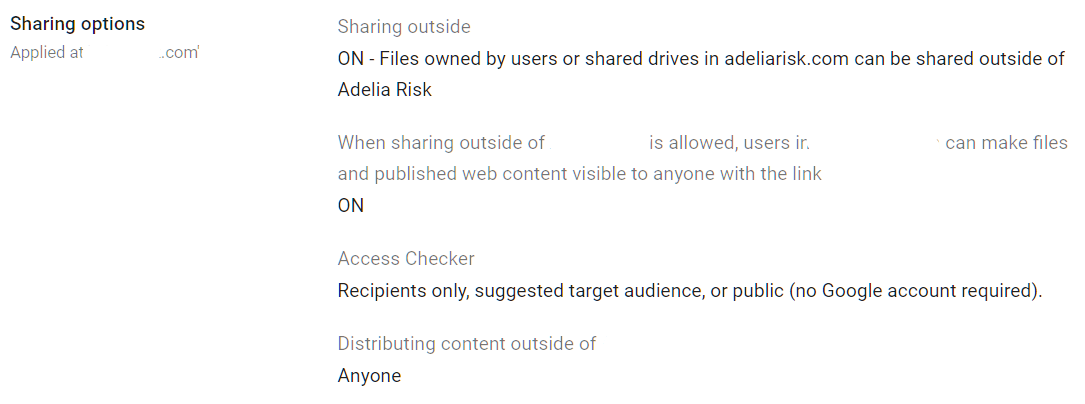
This is the master switch for external file sharing. It determines if users in your organization can share Google Drive files, Docs, Sheets, and Slides with people outside your domain. You can turn external sharing off entirely, limit it to specific allowlisted domains, or leave it wide open.
Why It Matters
This is the single most important Google Drive security setting. We flag it consistently. When external sharing is set to “Anyone with the link” or “Anyone on the internet,” a single employee can accidentally make a confidential document available to the world. No password. No sign-in. Just a URL.
We regularly find organizations where external sharing is set to the most permissive option. The admin who set up Workspace years ago left the default in place, and nobody revisited it. Meanwhile, employees are sharing Google Drive links in emails, Slack messages, and text threads. Each of those links is an access door that never closes unless someone manually revokes it.
Google Drive ransomware protection starts here, too. If an attacker compromises an account with wide-open sharing permissions, they can share or exfiltrate every file that the user can access. Locking down external sharing is the first step in limiting blast radius.
Google Drive doesn’t offer a way to password-protect Google Drive folders directly. Sharing restrictions are the closest equivalent.
Relevant to: SEC Regulation S-P, HIPAA, CMMC, and FINRA all require controls over data shared outside the organization.
What We Recommend
- Set external sharing to “Allowlisted domains” if your team regularly collaborates with specific partners, clients, or vendors. Add those domains to the allowlist. This lets work continue without opening sharing to the entire internet.
- Set to “OFF” if your business has no legitimate need for external file sharing. This is the safest option.
- Never use “Anyone with the link” as the organization-wide default. If a specific team needs broader sharing, create an OU (organizational unit) with more permissive settings and move those users into it.
- Review Google Drive trust rules (available on Enterprise and Education editions) to control which domains can share inbound files with your users.
Where to Find It
Admin Console path: Apps > Google Workspace > Drive and Docs > Sharing Settings
📄 Google documentation: Set Drive sharing permissions
What Your Team Will Notice
If you tighten sharing from “anyone” to “allowlisted domains” or “off,” users who try to share with external recipients will see an error or warning. Files already shared externally will also be blocked for external members.
This is a big change for teams used to sharing freely. Plan for a transition period and give people an alternative, like a process for requesting domain additions to the allowlist.
Sample message to your team:
Hi team,
Starting \[date\], we’re updating our Google Drive sharing settings. You’ll only be able to share files with people at approved partner organizations, not with any external email address.
What you need to know:
- External shares will only work with approved domains
- If you need to share with a new partner or client domain, contact \[IT contact/helpdesk\] to request it
This protects our client data and sensitive files from unintended exposure. The request process for new domains is quick, usually same-day.
Common Mistakes
- Leaving the default wide open. This is the most common misconfiguration we find across all Drive settings. The permissive default gets set during initial Workspace setup and never gets reviewed.
- Restricting sharing but not auditing what’s already shared. Tightening the setting only affects new shares. Run a Google Drive permissions audit using the admin console or a third-party tool to find files that are already shared externally. If you’re a heavily-regulated company, consider upgrading to an Enterprise edition for additional external sharing reports.
- Creating too many exceptions. If every department gets its own OU with looser sharing, you’ve rebuilt the problem with extra steps. Keep exceptions rare and documented.
- Not realizing that Drive sharing settings also apply to Google Sites. Any changes you make in this section will affect the Google Sites created by you or your users.
Related Settings
- DRIVE-010: Warning for Out-of-Domain Sharing. Adds a prompt when users try to share externally.
- DRIVE-050: DLP Rules for Drive. Catches sensitive content before it gets shared.
- CAL-005: Calendar Sharing with External Users Disabled. Similar external sharing controls for calendar data.
DRIVE-025: Publishing Files to the Web Disabled
What This Does
Google Docs, Sheets, and Slides have a “Publish to the web” feature that creates a public URL anyone on the internet can visit. The published version updates automatically when the source file changes. This setting lets you turn that feature off.
Why It Matters
Publishing to the web is different from sharing a link. A shared link can be revoked and requires specific access. A published file is genuinely public. Search engines can discover and index it. Anyone who finds the URL can read it. And because published files auto-update, any edits to the original immediately appear on the public version.
We’ve seen this catch organizations off guard. Someone publishes a Google Sheet as a quick way to share data with a vendor, forgets about it, and later adds sensitive information to the same sheet. That data goes live instantly with no notification.
For most businesses, there’s no legitimate reason to publish internal files to the open internet. If your team needs to share documents publicly, a company website or customer portal is a better and more controlled approach.
Relevant to: Any regulation or compliance framework that requires access controls on sensitive data (SEC, HIPAA, CMMC, SOC 2).
What We Recommend
- Turn off “Publish to the web” for all users. This is a one-click change with very few downsides.
- If a specific team (marketing, communications) needs web publishing, create a separate OU with this permission and move only those users into it.
Where to Find It
Admin Console path: Apps > Google Workspace > Drive and Docs > Sharing Settings
📄 Google documentation: Set Drive sharing permissions
What Your Team Will Notice
The “Publish to the web” option disappears from the File menus in Docs, Sheets, and Slides. Files already published will remain published until someone manually unpublishes them from the file’s sharing settings.
If anyone on your team actively uses this feature (it’s rare), they’ll notice immediately. Check with your team before making this change.
Sample message to your team:
Hi team,
Starting \[date\], the “Publish to the web” option in Google Docs, Sheets, and Slides will be turned off. This prevents files from being accidentally made public on the internet.
What you need to do:
- If you currently have any files published to the web, please unpublish them before \[date\] (File > Share > Publish to the web > Stop publishing)
- If you need to share a document externally, use the standard “Share” button instead
This affects very few people but prevents a significant data exposure risk. Questions? Contact \[IT contact/helpdesk\].
Common Mistakes
- Assuming “Publish to the web” is the same as link sharing. They’re different features. A published file can be discovered by search engines and is available to anyone, forever, unless manually unpublished. Link sharing at least requires the specific URL.
Related Settings
- DRIVE-005: External Drive Sharing Disabled or Restricted. Controls link-based external sharing.
- APPS-040: Google Sites Creation Restricted. Google Sites is another way users can publish content to the web.
DRIVE-010: Warning for Out-of-Domain Sharing Enabled
What This Does
When this setting is on, users see a warning pop-up whenever they try to share a file with someone outside your organization’s domain. The warning asks them to confirm that they really want to share externally. It doesn’t block the share, just adds a “are you sure?” step.
Why It Matters
Most accidental external shares happen because the user didn’t realize the recipient was outside the organization. They type a name, autocomplete fills in an email address, and they hit share without looking closely. The email might be a personal Gmail instead of the recipient’s work address. Or it might be a completely wrong person with a similar name.
This warning catches those mistakes in real time. It’s a simple speed bump that makes people pause. This comes up often in our audits, and it takes less than a minute to fix.
Think of it as a seat belt. It won’t prevent every accident, but it costs nothing and catches the most common one: the unintentional share.
What We Recommend
- Turn this setting ON. There’s no downside. Users who legitimately share externally click through one extra confirmation. Users who accidentally share externally get stopped before it happens.
Where to Find It
Admin Console path: Apps > Google Workspace > Drive and Docs > Sharing Settings
📄 Google documentation: Set Drive sharing permissions

What Your Team Will Notice
Nothing disruptive. Users will see a yellow warning banner when they add an external email to a file’s sharing list. The warning says something like “You are sharing outside of \[your domain\].” They click “Share anyway” to proceed. It adds about two seconds to the process.
Common Mistakes
- Thinking this replaces sharing restrictions. The warning is a prompt, not a block. If you need to actually prevent external sharing, use DRIVE-005. This setting is a complement, not a substitute.
- Turning it off because users complained about the extra click. The warning exists for a reason. Two seconds of friction prevent data exposure.
Related Settings
- DRIVE-005: External Drive Sharing Disabled or Restricted. The primary external sharing control.
- GMAIL-060: External Reply Warning Enabled. Similar warning for email replies to external recipients.
DRIVE-030: Shared Drive Settings Reviewed
What This Does
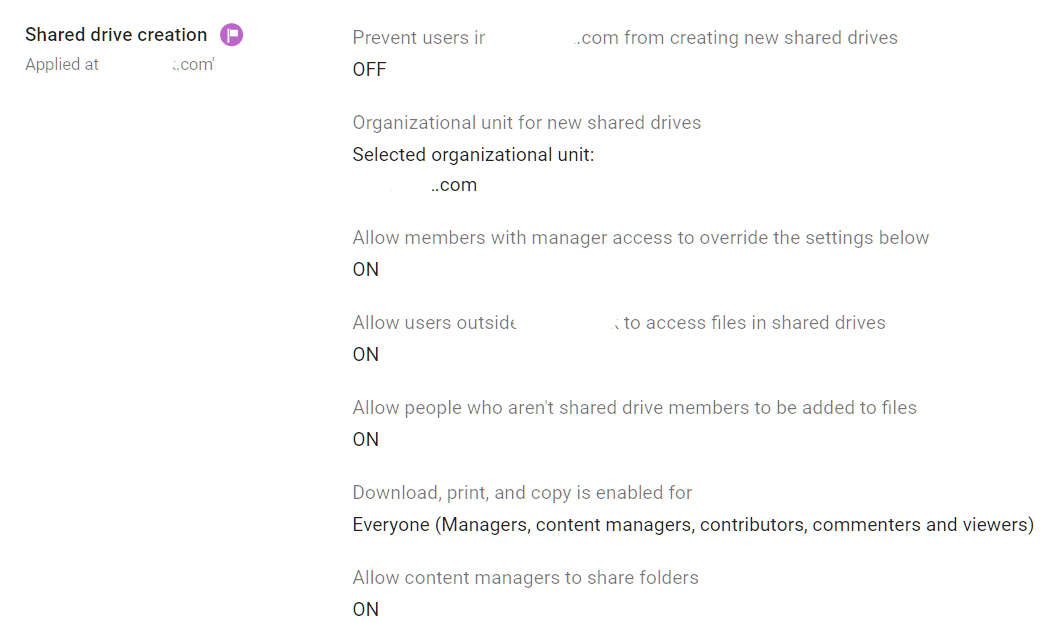
Shared Drives (formerly Team Drives) are centralized file storage spaces owned by the organization, not individual users. Several admin-controlled behaviors apply here: who can create Shared Drives, whether members can override sharing settings, whether non-members can be added to individual files, and whether files can be downloaded, printed, or copied.
Why It Matters
Shared Drives often hold the most sensitive files in an organization: client records, financial data, HR documents, and legal files. Because they’re shared among teams, the impact of a misconfiguration is amplified. One wrong setting affects every file in the drive.
We regularly find Shared Drive settings misconfigured. The typical pattern is that any user can create a Shared Drive, members can override the org-wide sharing defaults, and non-members can be added to individual files inside the drive. That combination lets employees create their own uncontrolled sharing spaces.
For Google Sheets security and Google Slides security, Shared Drives are especially relevant. If spreadsheets with financial data and presentations with client information sit in these drives, anyone can create one and set their own sharing rules. Your data classification and access control policies don’t mean much.
SEC, HIPAA, and SOC 2 auditors all look for access controls on shared data repositories. Misconfigured Shared Drives are a finding in any of those assessments.
What We Recommend
- Restrict Shared Drive creation to admins only. This prevents the sprawl of unmanaged drives.
- Don’t allow members to override sharing settings. The org-wide sharing policy should apply everywhere.
- Don’t allow non-members to access individual files. If someone needs access, add them to the Shared Drive with appropriate permissions.
- Restrict downloading, printing, and copying for Shared Drives that contain sensitive data. This is configurable per Shared Drive.
Where to Find It
Admin Console path: Apps > Google Workspace > Drive and Docs > Sharing Settings (scroll to Shared Drive settings)
📄 Google documentation: Manage Shared Drives
What Your Team Will Notice
If you restrict Shared Drive creation, users who are used to creating their own drives will need to request them from an admin. If you disallow member overrides, users who previously set their own sharing permissions on Shared Drives will lose that ability.
This can feel frustrating to power users. Frame it clearly: Shared Drives now follow the same rules as everything else.
Sample message to your team:
Hi team,
Starting \[date\], we’re updating how Shared Drives work to better protect our files.
What’s changing:
- New Shared Drives can only be created by admins. If you need a new one, submit a request to \[IT contact/helpdesk\]
- Sharing settings on Shared Drives will follow our company-wide policy (no individual overrides)
- People who aren’t members of a Shared Drive can’t be added to individual files inside it
Existing Shared Drives and their files won’t disappear. This just tightens the controls on how files get shared going forward. Questions? Contact \[IT contact/helpdesk\].
Common Mistakes
- Letting anyone create Shared Drives. This leads to sprawl. Drives get created for one-off projects, abandoned, and forgotten, but the files and permissions stay in place.
- Forgetting to review existing Shared Drives. New settings apply going forward. You still need to audit existing drives for overridden sharing settings, external members, and sensitive content.
- Treating Shared Drives the same as personal My Drive. Shared Drives are organization-owned. When someone leaves, their Shared Drive files stay. My Drive files may be lost. This ownership model matters for data retention.
Related Settings
- DRIVE-005: External Drive Sharing Disabled or Restricted. Controls the org-wide sharing defaults that apply to Shared Drives.
- DRIVE-055: Drive Labels Configured. Labels help classify sensitive files across personal and Shared Drives.
- MON-055: Data Retention Configured (Vault). Shared Drive content should be covered by your retention policy.
DRIVE-050: Data Loss Prevention Rules Configured for Drive (Enterprise SKU only)
What This Does
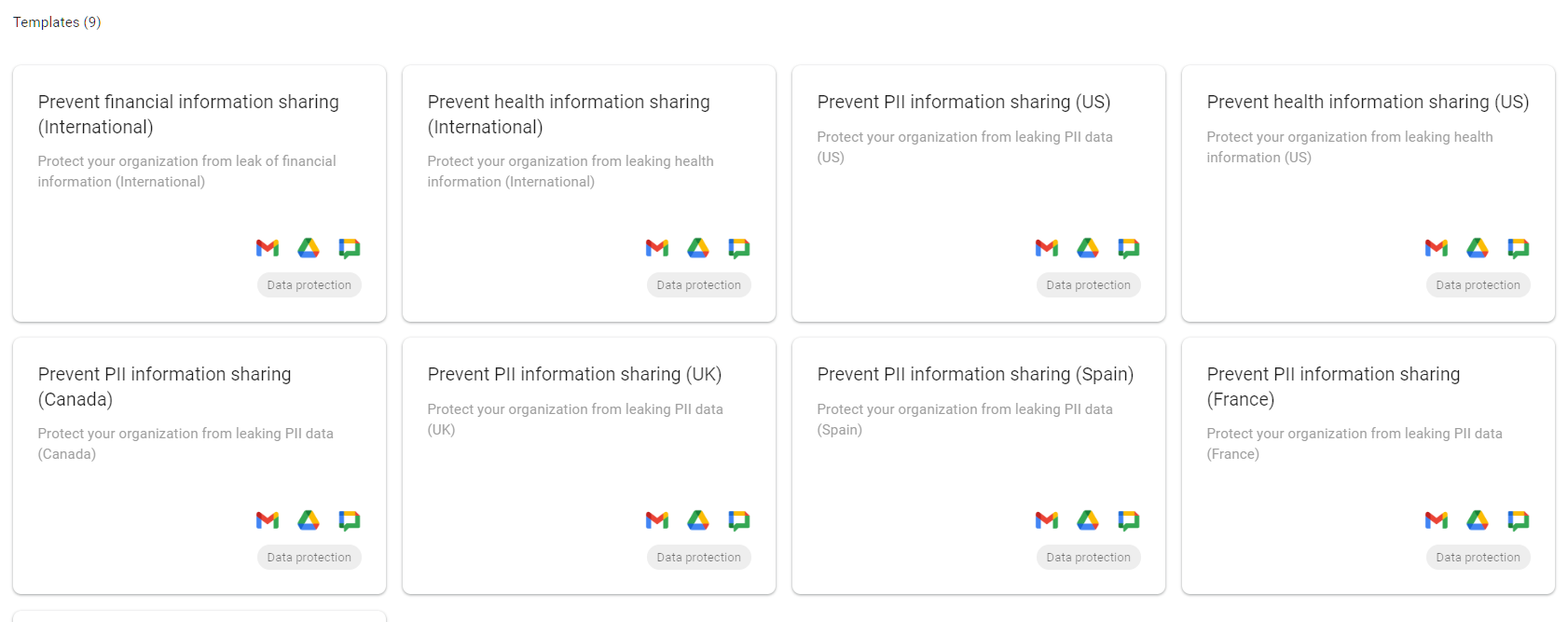
Google Drive data loss prevention (DLP) rules scan files stored in Drive for sensitive information, like Social Security numbers, credit card numbers, bank account numbers, and health records. You can also define your own patterns. When a rule matches, it can block sharing, warn the user, or log the event for admin review.
Why It Matters
People store sensitive data in Drive without thinking about it. A spreadsheet with client Social Security numbers. A document with credit card details from a payment form. A PDF of a tax return was uploaded for reference. Google Drive DLP catches these files and prevents them from being shared or exposed before anyone realizes there’s a problem.
DLP is your safety net for when other controls fail. Even if external sharing is restricted (DRIVE-005), DLP catches sensitive files that get shared with the wrong internal team or stored in an unprotected location. It’s the difference between hoping nobody makes a mistake and actually detecting it when they do.
DLP also contributes to Google Drive ransomware protection by catching suspicious file-sharing patterns before data leaves the organization.
For regulated industries, DLP is often required, not optional. If you handle financial data, health records, or personally identifiable information, you need automated scanning to catch leaks that human judgment misses. We find that most organizations haven’t set up DLP rules at all, even when they’re required by their compliance program.
Relevant to: HIPAA, SEC Regulation S-P, PCI-DSS, and state privacy laws all benefit from or require DLP controls.
What We Recommend
- Start with audit-only mode. DLP rules can create false positives. Run them in “warn only” or “audit only” mode for 2-4 weeks to see what they catch before blocking anything.
- Begin with high-confidence detectors: Social Security numbers and credit card numbers. These have distinct patterns and low false-positive rates.
- Add custom detectors for data specific to your business: client account numbers, internal project codes, or proprietary document templates.
- Set up alerts: In the notification settings, assign alerts to an admin in addition to the Alert Center. This way, every alert generates an email notification. The assigned admin can then review each alert to determine if further action is needed.
Where to Find It
Admin Console path: Security > Access and data control > Data protection
📄 Google documentation: About DLP for Drive
What Your Team Will Notice
In audit-only mode, nothing. Users won’t see any changes. Once you switch to “warn” mode, users who try to share files with detected sensitive content will see a warning message. In “block” mode, the share attempt is denied with an explanation.
Common Mistakes
- Skipping the audit period and going straight to blocking. This generates support tickets and frustrated users. Let audit mode show you what the rules catch first.
- Setting up DLP for Drive but not for Gmail. Sensitive data moves between Drive and email constantly. Configure GMAIL-125: DLP Rules for Gmail alongside Drive DLP for full coverage.
- Never reviewing DLP reports. Rules are only useful if someone reads the logs. Assign a weekly review to see what’s being flagged and tune your rules.
- Not knowing the DLP rules work retroactively. Activating a DLP rule begins scanning all files within your organization, generating multiple alerts if any conditions are detected.
Related Settings
- DRIVE-055: Drive Labels Configured. Labels complement DLP by letting users manually classify files.
- GMAIL-125: DLP Rules for Gmail. DLP for email content and attachments.
- CHAT-050: DLP Rules for Chat. DLP for chat messages.
- MON-005: Google Audit Logs Reviewed. DLP events appear in Google Drive audit logs.
DRIVE-015: Access Checker Default Set to Recipients Only
What This Does
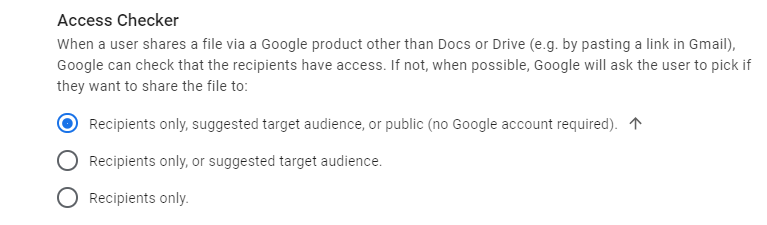
When a user tries to share a Google Drive file via a link, Google’s Access Checker determines who the suggested audience is. The default can be set to “recipients only” (only people you added can open the file) or wider options like “anyone in the organization” or “anyone with the link.” This setting controls which option is pre-selected.
Why It Matters
Defaults matter more than most people think. Adelia Risk checks this in every audit, and it’s wrong more often than you’d expect. Users almost always accept the default option. If the default audience is “anyone with the link,” most users will share files that way without considering the implications. If the default is “recipients only,” users start from the most restrictive option and have to actively choose to broaden access.
This is a behavioral nudge. It doesn’t block anyone from choosing a wider audience if they want to. But it changes the path of least resistance from “open” to “restricted.”
What We Recommend
- Set the default to “Recipients only.” This is the safest default. Users who need broader sharing can still change the setting per file.
Where to Find It
Admin Console path: Apps > Google Workspace > Drive and Docs > Sharing Settings
📄 Google documentation: Set Drive sharing permissions
What Your Team Will Notice
Nothing obvious. When users share files, the pre-selected audience will be “recipients only” instead of a broader option. Users who want to share more widely can still click through to change it. Most people won’t even notice the default changed.
Common Mistakes
- Ignoring this setting because it “just changes a default.” Defaults drive behavior. A more permissive default means more permissive sharing across the organization, one file at a time.
- Confusing this with the external sharing control. This setting controls the suggested link audience. External sharing (DRIVE-005) controls whether external sharing is even possible.
Related Settings
- DRIVE-005: External Drive Sharing Disabled or Restricted. The primary external sharing control.
- DRIVE-010: Warning for Out-of-Domain Sharing. Adds a warning when sharing outside the domain.
DRIVE-035: Local Syncing for Drive Configured Appropriately
What This Does
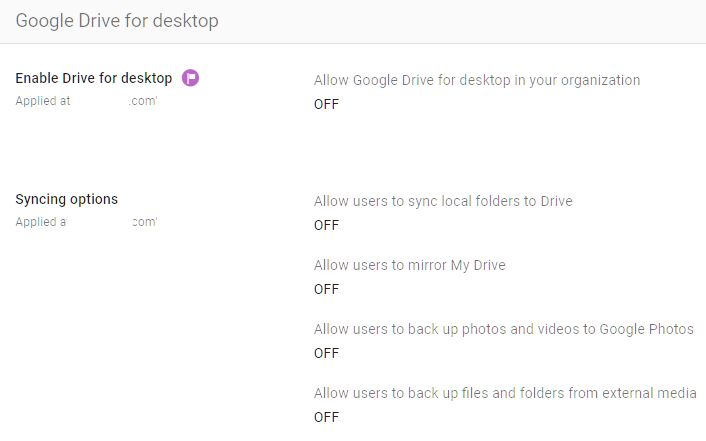
Google Drive for desktop (formerly Drive File Stream and Backup and Sync) lets users sync files between Google Drive and their local computer. You can turn the sync client off entirely, restrict it to streaming mode, or leave it wide open with mirroring allowed.
Why It Matters
When files sync to a local computer, your cloud-based security controls stop applying. DLP rules don’t scan local copies. Sharing restrictions don’t prevent someone from emailing a locally synced file. And if that laptop is lost, stolen, or compromised by malware, every synced file is exposed.
Google Drive file stream security is a real concern for regulated businesses. A laptop with hundreds of synced client files is a very different risk profile than a laptop that streams files from the cloud on demand. Streaming mode is less risky because files aren’t stored locally by default. Mirroring mode (the successor to the discontinued Backup and Sync) copies everything to disk.
Adelia Risk flags this frequently. Drive for the desktop is typically left on with no restrictions. Users sync entire drives to their personal laptops, and the organization has no visibility into what’s on those devices.
If you’re subject to HIPAA, SEC, or CMMC, local file storage on unmanaged devices is an audit finding.
What We Recommend
- If you don’t need local sync, turn it off. Users can still access all files through the web browser.
- If you need sync, restrict it to streaming mode only. This gives users a virtual drive letter on their computer that streams files on demand without storing them locally.
- Block mirroring mode (full local copy). This is the higher-risk option that copies files to the device’s hard drive.
- If you allow any sync, make sure your device management policies include encryption and remote wipe.
Where to Find It
Admin Console path: Apps > Google Workspace > Drive and Docs > Google Drive for desktop
📄 Google documentation: Deploy Drive for desktop
What Your Team Will Notice
If you turn off local sync, users who currently have Google Drive for desktop installed will lose access to their synced files through the desktop app. They’ll need to access files through their browser or Drive’s web interface.
If you switch from mirroring to streaming mode only, users may notice that some files are no longer available offline. They can manually mark specific files for offline access in streaming mode.
Sample message to your team:
Hi team,
Starting \[date\], we’re updating how Google Drive works with your computer. The Google Drive for desktop app will switch to streaming mode, which means files are accessed from the cloud instead of being copied to your hard drive.
What this means for you:
- Your Drive files are still available through the Drive app on your computer
- Files open from the cloud instead of from a local copy (you need an internet connection)
- You can mark specific files or folders for offline access if needed
This change protects our data if a laptop is ever lost or compromised. If you frequently work without internet access, let \[IT contact/helpdesk\] know, and we’ll help you set up offline access for the files you need.
Common Mistakes
- Allowing mirroring without device management. If you let users sync files locally, make sure those devices are encrypted and managed, with remote wipe capability. Otherwise, you’re spreading sensitive data to uncontrolled endpoints.
- Turning off sync without warning. Users who depend on offline access will have a bad day. Announce the change and give people time to adjust.
- Forgetting to check personal devices. If users signed into Drive for desktop on a personal computer, that device now has copies of organizational files. You can’t remotely wipe a personal device without mobile device management.
Related Settings
- DEVICE-005: Mobile Device Management Enabled. Manages devices that access organizational data.
- DEVICE-045: Endpoint Verification Deployed. Gives you visibility into which devices are accessing Drive.
- DRIVE-005: External Drive Sharing Disabled or Restricted. Controls sharing; sync controls local copies.
DRIVE-040: Google Drive SDK Turned OFF
What This Does
The Google Drive SDK (Software Development Kit) allows third-party applications to connect to and interact with Google Drive. When it’s on, apps can read, write, create, and delete files in your users’ Drives. You can turn the SDK off entirely from the admin console.
Why It Matters
The Drive SDK is a developer tool. Unless your organization builds custom applications that integrate with Drive, there’s no reason to have it turned on. Leaving it on gives third-party apps a potential pathway into your files.
Google Drive API security matters because the SDK is the doorway through which those API calls happen. Even with OAuth controls in place (APPS-005), the SDK being on is a prerequisite for many third-party integrations. Turning it off removes the doorway entirely.
We regularly find this left on by default with no business justification. It’s a common “leftover” setting that nobody thought to review.
What We Recommend
- Turn the Drive SDK OFF unless you have a specific, documented business need for it.
- If you need it for a particular integration, turn it on only for the OU that requires it, and restrict which apps can access the API through APPS-005: API Application Control.
Where to Find It
Admin Console path: Apps > Google Workspace > Drive and Docs > Features and Applications
📄 Google documentation: Turn Drive SDK on or off

What Your Team Will Notice
If any third-party apps currently integrate with Google Drive through the SDK, they’ll stop working. This could include document management systems, CRM integrations, or backup tools that pull files from Drive.
Before turning this off, check which apps use the SDK by reviewing your API application control settings for apps with Drive scopes.
Sample message to your team:
Hi team,
Starting \[date\], we’re turning off the Google Drive SDK, which controls whether third-party apps can connect directly to Drive.
What you need to know:
- If you use a third-party app that reads or writes to Google Drive, it may stop working
- Let \[IT contact/helpdesk\] know which apps you use with Drive so we can make sure approved ones keep working
This change reduces the number of external apps that can access our files. Standard Drive features (sharing, editing, uploading) aren’t affected.
Common Mistakes
- Turning it off without checking integrations first. Survey your team for Drive-connected apps before flipping this switch. Breaking a tool someone depends on daily will create pushback.
- Leaving it on “just in case.” If nobody can name a specific app that needs it, turn it off. You can always turn it back on later if a legitimate need arises.
Related Settings
- APPS-005: API Application Control Access. Controls which specific apps can access Google APIs.
- APPS-010: OAuth Scope Restrictions. Restricts what data third-party apps can request.
DRIVE-055: Drive Labels Configured for File Classification (Enterprise SKU Only)
What This Does
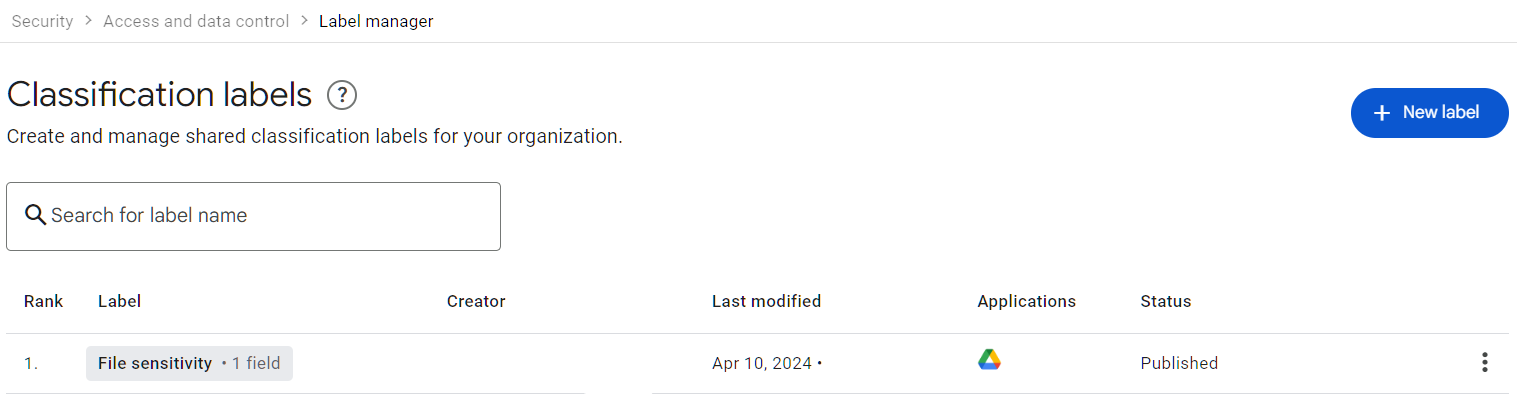
Drive labels let admins create metadata tags that users apply to files in Google Drive. Labels can be simple tags (like “Confidential” or “Internal Only”) or structured fields with categories, dates, and owners. Labels stick with files regardless of where they move within Drive. They also integrate with DLP rules, so you can build policies based on labels, like “block external sharing on any file labeled Confidential.”
Why It Matters
The data classification Google Workspace offers through Drive labels is hard to replicate any other way. You can set sharing restrictions based on OUs or domains, but those are blunt instruments. Labels let you apply controls at the file level based on what the file actually contains, not just where it lives.
For businesses that handle different types of sensitive data, labels create a system for distinguishing between a public marketing brochure and a confidential client agreement. Both might live in the same Shared Drive, but they need very different sharing rules.
HIPAA, SEC, CMMC, and SOC 2 all call for data classification practices in some form. Labels give you a way to implement that systematically within Google Workspace. Most organizations Adelia Risk works with haven’t set up labels yet, even when they already have DLP rules in place.
What We Recommend
- Create a basic label taxonomy. Start simple: Public, Internal, Confidential, Restricted. You can add more categories later.
- Integrate labels with DLP rules (DRIVE-050). For example, block external sharing on files labeled “Confidential” or “Restricted.”
- Apply Labels with DLP Rules. Whenever a file is detected with a specific condition, such as containing credit card information, DLP rules can automatically apply a ‘Confidential’ label.
- Don’t over-engineer it. A five-label taxonomy that people actually use is better than a 30-label taxonomy that nobody understands.
- Train your team on when to apply each label.
Where to Find It
Admin Console path: Security > Access and data control > Label manager
📄 Google documentation: Get started as a classification labels admin
What Your Team Will Notice
Users will see a new “Labels” option when right-clicking files or through the file details panel. Applying a label takes a few seconds. If labels are integrated with DLP, users may see warnings or blocks when they try to share labeled files externally.
Common Mistakes
- Creating labels but not integrating them with any policies. Labels without enforcement are just sticky notes. Connect them to DLP rules, sharing restrictions, or retention policies in Vault.
- Making the taxonomy too complex. If users need a training manual to figure out the right label, they’ll skip labels entirely.
- Not making labels required for Shared Drives with sensitive content. Users skip optional steps. For high-sensitivity drives, make labeling mandatory.
Related Settings
- DRIVE-050: DLP Rules for Drive. DLP rules can use labels as matching criteria.
- MON-055: Data Retention Configured (Vault). Google Vault for Drive handles retention and eDiscovery; labels can help define retention scope.
- ADMIN-075: Client-Side Encryption. Labels can identify files that need encryption. Note that Google does not support encrypted Google Docs at the individual file level; encryption is handled at the platform layer, with client-side encryption available on Enterprise SKUs.
What These Settings Don’t Cover
Getting your Google Drive security settings right is one piece of a full Google Workspace security setup. Even with every Drive setting configured perfectly, your data is still at risk if other areas are open. Adelia Risk’s complete benchmark covers 97 settings across eight areas:
- Authentication (MFA enforcement, password policy, passkeys, session controls)
- Gmail Security (email authentication, phishing protections, forwarding controls, DLP for email)
- Calendar, Chat & Meet (meeting security, chat retention, external sharing for calendar data)
- Administrative Controls (admin account protection, inactive users, multi-party approval)
- Third-Party Apps & API (OAuth controls, Marketplace restrictions, API access)
- Device & Mobile Management (MDM, device approval, endpoint verification, Chrome policies)
- Monitoring & Compliance (audit logs, alerting, data retention with Vault, Advanced Protection)
Each area has its own guide page with the same level of detail. We get asked about Google Drive vs OneDrive security a lot, and the answer is the same for both platforms: the tool is only as secure as its configuration.
Need Help Configuring These Settings?
Some of these changes are quick wins. Turning on the out-of-domain sharing warning or setting the access checker default takes a few minutes. Others, like rolling out Google Drive data loss prevention rules or restructuring Shared Drive permissions, need planning and testing, plus clear communication to your team.
If you’re in a regulated industry (financial services, healthcare, defense contracting), these settings also carry compliance implications. Knowing what to configure is different from knowing what satisfies your SEC, HIPAA, or CMMC requirements.
Adelia Risk provides Google Workspace security audits that review all 97 settings, give specific recommendations for your situation, and help you roll out changes without disrupting your team.
Last verified: March 2026
Part of the Adelia Risk Google Workspace Security Benchmark, 97 controls across 8 security areas.